編輯:關於Android編程
大家好,今天給大家分享一下Android裡的Context的一些用法,以前經常有人在群裡問我比如我在一個工具類裡的某個方法,或者View裡需要調用Context.但是工具類還有View裡沒有這個上下文怎麼辦?為了解決大家的疑問,為了解決大家的疑問,我今天寫一個簡單的Demo.讓大家如何學好自如的用Context.想什麼時候有Context,什麼時候就有Context.
這裡大致可以分為兩種:一是傳遞Context參數,二是調用全局的Context.
其實我們應用啟動的時候會啟動Application這個類,這個類是在AndroidManifest.xml文件裡其實是默認的
<application
    android:icon="@drawable/ic_launcher"
    android:label="@string/app_name"
    >
    <activity
      android:name="ApplicationDemoActivity"
      android:label="@string/app_name" >
      <intent-filter>
        <action android:name="androidintentactionMAIN" />
        <category android:name="androidintentcategoryLAUNCHER" />
      </intent-filter>
    </activity>
  </application>
這個Application類是單例的,也就是說我們可以自己寫個Application(比如名為:MainApplication)類,來代替默認的Applicaiton,這個類可以保存應用的全局變量,我們可以定義一個全局的Context.供外部調用.用法如下:
package com.tutor.application;

import androidappApplication;
import androidcontentContext;

public class MainApplication extends Application {

  /**
   * 全局的上下文
   */
  private static Context mContext;

  @Override
  public void onCreate() {
    superonCreate();

    mContext = getApplicationContext();

  }

  /**獲取Context
   * @return
   */
  public static Context getContext(){
    return mContext;
  }


  @Override
  public void onLowMemory() {
    superonLowMemory();
  }


}
我們需要在AndroidMainifest.xml把MainApplication注冊進去(第10行代碼):
<?xml version="1.0" encoding="utf-8"?>
<manifest xmlns:android="http://schemasandroidcom/apk/res/android"
  package="comtutorapplication"
  android:versionCode="1"
  android:versionName="0" >

  <application
    android:icon="@drawable/ic_launcher"
    android:label="@string/app_name"
    android:name="MainApplication" >
    <activity
      android:name="ApplicationDemoActivity"
      android:label="@string/app_name" >
      <intent-filter>
        <action android:name="androidintentactionMAIN" />
        <category android:name="androidintentcategoryLAUNCHER" />
      </intent-filter>
    </activity>
  </application>

</manifest>
為了讓大家更容易理解,寫了一個簡單的Demo.步驟如下:
第一步:新建一個Android工程ApplicationDemo,目錄結構如下: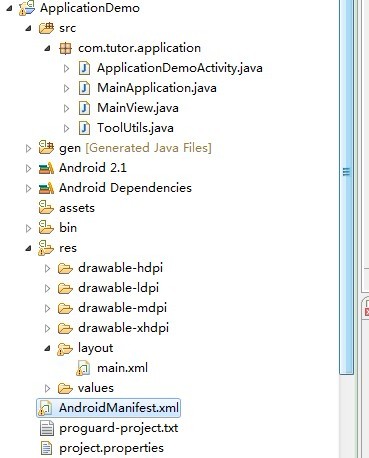
第二步:新建MainApplication.Java,代碼和上面一樣我就不貼了.
第三步:新建一個工具類ToolsUtil.java,代碼如下
package com.tutor.application;
import androidcontentContext;
import androidwidgetToast;

/**
 * @author frankiewei
 * 應用的一些工具類
 */
public class ToolUtils {

  /**
   * 參數帶Context
   * @param context
   * @param msg
   */
  public static void showToast(Context context,String msg){
    ToastmakeText(context, msg, ToastLENGTH_SHORT)show();
  }

  /**
   * 調用全局的Context
   * @param msg
   */
  public static void showToast(String msg){
    ToastmakeText(MainApplicationgetContext(), msg, ToastLENGTH_SHORT)show();
  }
}
第四步:新建一個View命名為MainView.java就是我們Activity現實的View.代碼如下:
package com.tutor.application;

import androidappActivity;
import androidcontentContext;
import androidutilAttributeSet;
import androidviewLayoutInflater;
import androidviewView;
import androidwidgetButton;
import androidwidgetFrameLayout;

/**
 * @author frankiewei
 * 自定義的MainView
 */
public class MainView extends FrameLayout implements ViewOnClickListener{

  private Context mContext;

  private Activity mActivity;

  /**
   * 參數Button
   */
  private Button mArgButton;

  /**
   * 全局Button
   */
  private Button mGlobleButton;

  /**
   * 退出Button
   */
  private Button mExitButton;

  public MainView(Context context){
    super(context);
    setupViews();
  }

  public MainView(Context context, AttributeSet attrs) {
    super(context, attrs);
    setupViews();
  }


  private void setupViews(){
    //獲取View的上下文
    mContext = getContext();
    //這裡將Context轉換為Activity
    mActivity = (Activity)mContext;
    LayoutInflater inflater = LayoutInflaterfrom(mContext);
    View v = inflaterinflate(Rlayoutmain, null);
    addView(v);

    mArgButton = (Button)vfindViewById(Ridarg_button);
    mGlobleButton = (Button)vfindViewById(Ridglo_button);
    mExitButton = (Button)vfindViewById(Ridexit_button);

    mArgButtonsetOnClickListener(this);
    mGlobleButtonsetOnClickListener(this);
    mExitButtonsetOnClickListener(this);
  }

  public void onClick(View v) {
    if(v == mArgButton){
      ToolUtilsshowToast(mContext, "我是通過傳遞Context參數顯示的!");
    }else if(v == mGlobleButton){
      ToolUtilsshowToast("我是通過全局Context顯示的!");
    }else{
      mActivityfinish();
    }
  }

}
這裡MainView.java使用的布局main.xml代碼如下:
<?xml version="1.0" encoding="utf-8"?>
<LinearLayout xmlns:android="http://schemasandroidcom/apk/res/android"
  android:layout_width="fill_parent"
  android:layout_height="fill_parent"
  android:orientation="vertical" >

  <TextView
    android:layout_width="fill_parent"
    android:layout_height="wrap_content"
    android:text="Welcome to frankie wei's blog"
    />

  <Button
    android:id="@+id/arg_button"
    android:layout_width="fill_parent"
    android:layout_height="wrap_content"
    android:text="傳遞Context參數"
    />

  <Button
    android:id="@+id/glo_button"
    android:layout_width="fill_parent"
    android:layout_height="wrap_content"
    android:text="全局的Context"
    />

  <Button
    android:id="@+id/exit_button"
    android:layout_width="fill_parent"
    android:layout_height="wrap_content"
    android:text="退出App"
    />

</LinearLayout>
第五步:修改ApplicationDemoActivity.java,代碼如下:
package com.tutor.application;
import androidappActivity;
import androidosBundle;

public class ApplicationDemoActivity extends Activity {
  @Override
  public void onCreate(Bundle savedInstanceState) {
    superonCreate(savedInstanceState);

    MainView mMainView = new MainView(this);
    setContentView(mMainView);

  }

}
第六步:運行上述工程效果如下:
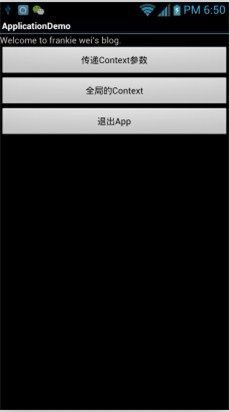
運行效果1
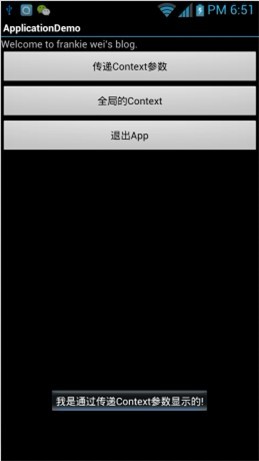
運行效果2---- 點擊第一個按鈕
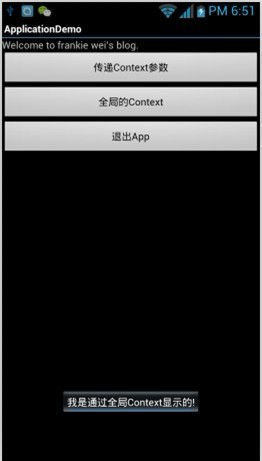
運行效果3---- 點擊第二個按鈕
以上就是本文的全部內容,希望對大家的學習有所幫助,也希望大家多多支持本站。
 android如果重寫onDraw實現一個類似TextView可以顯示表情和鏈接的控件(一)
先看效果圖: 寫一個超連接支持的對象: /**作為超連接顯示的對象*/ public class LinkInfo implements Comparable{
 學會Retrofit+OkHttp+RxAndroid的使用
概括這篇博客裡面就來實踐下。在上一篇博客裡面說到了OkHttp類似HttpUrlConnection。按這樣說的話,我們在項目中肯定還是要封裝一層。如果嫌封裝麻煩的話,也
 我對Android學習的一些看法------追求本真的味道
雖然做Android開發已經有一段時間了,但是很少寫博客一類的東西。今天算是第一次真正意義上在CSDN平台上發表自己的一些看法,心裡既有欣喜,也有一些壓力。欣喜在於,能將
 Android游戲開發之碰撞檢測(矩形碰撞、圓形碰撞、像素碰撞)
本文為大家分享了Android游戲開發之碰撞檢測,供大家參考,具體內容如下矩形碰撞 原理: 兩個矩形位置 的四種情況 不是這四中情況 則碰撞圓形碰撞 原理: 利用兩個圓心