編輯:關於Android編程
android原生的dialog太生硬了,之前看到了這個效果非常不錯但是沒有用過,今天給別人推薦使用,他遇到了問題,導入後錯誤非常多,也沒有庫工程。於是自己認真看了一下,這是個AndroidStudio的工程,並且裡面還依賴於materialish-progress工程,也是個AS的工程。於是打算弄一個eclipse的版本並且將這兩個工程融合在一起作為一個庫工程XAlertDialogLibrary。使用時將其作為庫導入項目中即可。
效果如下
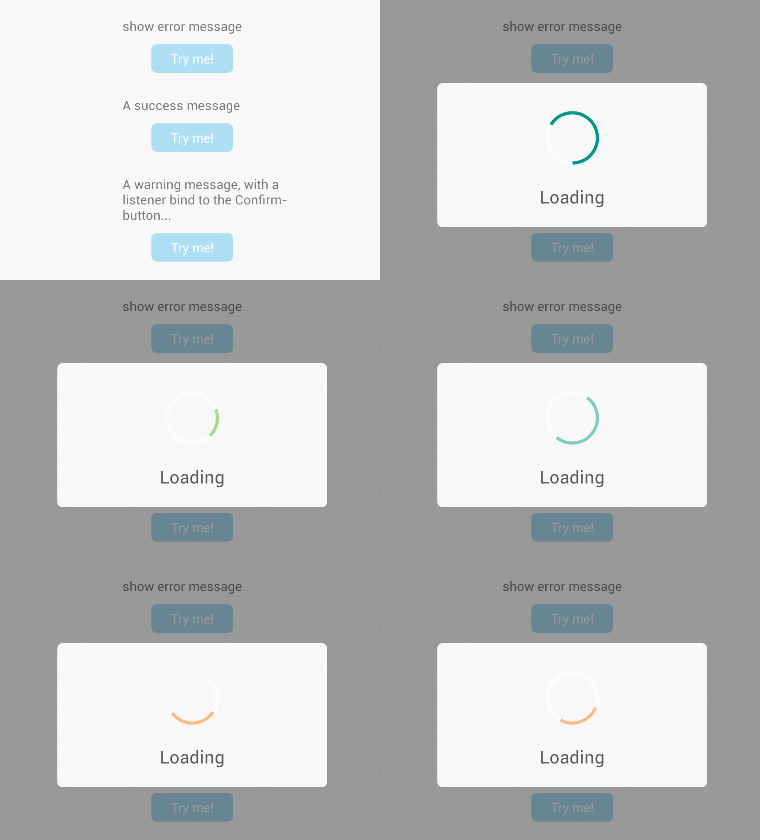
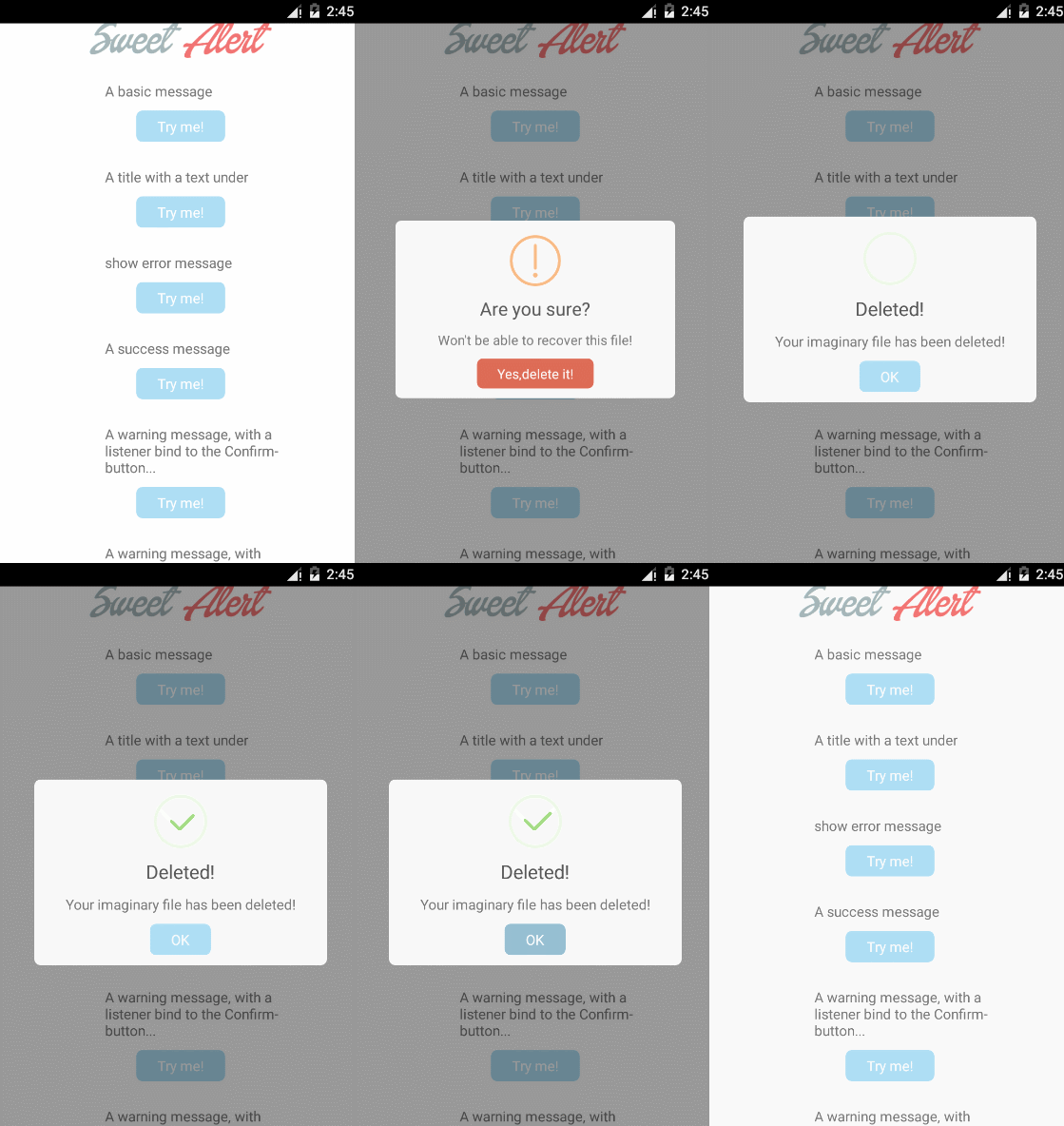
使用起來非常簡單,測試代碼如下:
MainActivity.java
public class MainActivity extends Activity implements View.OnClickListener {

  private int i = -1;

  @Override
  public void onCreate(Bundle savedInstanceState) {
    super.onCreate(savedInstanceState);
    setContentView(R.layout.activity_main);
    findViewById(R.id.basic_test).setOnClickListener(this);
    findViewById(R.id.under_text_test).setOnClickListener(this);
    findViewById(R.id.error_text_test).setOnClickListener(this);
    findViewById(R.id.success_text_test).setOnClickListener(this);
    findViewById(R.id.warning_confirm_test).setOnClickListener(this);
    findViewById(R.id.warning_cancel_test).setOnClickListener(this);
    findViewById(R.id.custom_img_test).setOnClickListener(this);
    findViewById(R.id.progress_dialog).setOnClickListener(this);
  }

  @Override
  public void onClick(View v) {
    switch (v.getId()) {
      case R.id.basic_test:
        // default title "Here's a message!"
        SweetAlertDialog sd = new SweetAlertDialog(this);
        sd.setCancelable(true);
        sd.setCanceledOnTouchOutside(true);
        sd.show();
        break;
      case R.id.under_text_test:
        new SweetAlertDialog(this)
            .setContentText("It's pretty, isn't it?")
            .show();
        break;
      case R.id.error_text_test:
        new SweetAlertDialog(this, SweetAlertDialog.ERROR_TYPE)
            .setTitleText("Oops...")
            .setContentText("Something went wrong!")
            .show();
        break;
      case R.id.success_text_test:
        new SweetAlertDialog(this, SweetAlertDialog.SUCCESS_TYPE)
            .setTitleText("Good job!")
            .setContentText("You clicked the button!")
            .show();
        break;
      case R.id.warning_confirm_test:
        new SweetAlertDialog(this, SweetAlertDialog.WARNING_TYPE)
            .setTitleText("Are you sure?")
            .setContentText("Won't be able to recover this file!")
            .setConfirmText("Yes,delete it!")
            .setConfirmClickListener(new SweetAlertDialog.OnSweetClickListener() {
            @Override
            public void onClick(SweetAlertDialog sDialog) {
              // reuse previous dialog instance
              sDialog.setTitleText("Deleted!")
                  .setContentText("Your imaginary file has been deleted!")
                  .setConfirmText("OK")
                  .setConfirmClickListener(null)
                  .changeAlertType(SweetAlertDialog.SUCCESS_TYPE);
            }
            })
            .show();
        break;
      case R.id.warning_cancel_test:
        new SweetAlertDialog(this, SweetAlertDialog.WARNING_TYPE)
            .setTitleText("Are you sure?")
            .setContentText("Won't be able to recover this file!")
            .setCancelText("No,cancel plx!")
            .setConfirmText("Yes,delete it!")
            .showCancelButton(true)
            .setCancelClickListener(new SweetAlertDialog.OnSweetClickListener() {
              @Override
              public void onClick(SweetAlertDialog sDialog) {
                // reuse previous dialog instance, keep widget user state, reset them if you need
                sDialog.setTitleText("Cancelled!")
                    .setContentText("Your imaginary file is safe :)")
                    .setConfirmText("OK")
                    .showCancelButton(false)
                    .setCancelClickListener(null)
                    .setConfirmClickListener(null)
                    .changeAlertType(SweetAlertDialog.ERROR_TYPE);

                // or you can new a SweetAlertDialog to show
                /* sDialog.dismiss();
                new SweetAlertDialog(SampleActivity.this, SweetAlertDialog.ERROR_TYPE)
                    .setTitleText("Cancelled!")
                    .setContentText("Your imaginary file is safe :)")
                    .setConfirmText("OK")
                    .show();*/
              }
            })
            .setConfirmClickListener(new SweetAlertDialog.OnSweetClickListener() {
              @Override
              public void onClick(SweetAlertDialog sDialog) {
                sDialog.setTitleText("Deleted!")
                    .setContentText("Your imaginary file has been deleted!")
                    .setConfirmText("OK")
                    .showCancelButton(false)
                    .setCancelClickListener(null)
                    .setConfirmClickListener(null)
                    .changeAlertType(SweetAlertDialog.SUCCESS_TYPE);
              }
            })
            .show();
        break;
      case R.id.custom_img_test:
        new SweetAlertDialog(this, SweetAlertDialog.CUSTOM_IMAGE_TYPE)
            .setTitleText("Sweet!")
            .setContentText("Here's a custom image.")
            .setCustomImage(R.drawable.custom_img)
            .show();
        break;
      case R.id.progress_dialog:
        final SweetAlertDialog pDialog = new SweetAlertDialog(this, SweetAlertDialog.PROGRESS_TYPE)
            .setTitleText("Loading");
        pDialog.show();
        pDialog.setCancelable(false);
        new CountDownTimer(800 * 7, 800) {
          public void onTick(long millisUntilFinished) {
            // you can change the progress bar color by ProgressHelper every 800 millis
            i++;
            switch (i){
              case 0:
                pDialog.getProgressHelper().setBarColor(getResources().getColor(R.color.blue_btn_bg_color));
                break;
              case 1:
                pDialog.getProgressHelper().setBarColor(getResources().getColor(R.color.material_deep_teal_50));
                break;
              case 2:
                pDialog.getProgressHelper().setBarColor(getResources().getColor(R.color.success_stroke_color));
                break;
              case 3:
                pDialog.getProgressHelper().setBarColor(getResources().getColor(R.color.material_deep_teal_20));
                break;
              case 4:
                pDialog.getProgressHelper().setBarColor(getResources().getColor(R.color.material_blue_grey_80));
                break;
              case 5:
                pDialog.getProgressHelper().setBarColor(getResources().getColor(R.color.warning_stroke_color));
                break;
              case 6:
                pDialog.getProgressHelper().setBarColor(getResources().getColor(R.color.success_stroke_color));
                break;
            }
          }

          public void onFinish() {
            i = -1;
            pDialog.setTitleText("Success!")
                .setConfirmText("OK")
                .changeAlertType(SweetAlertDialog.SUCCESS_TYPE);
          }
        }.start();
        break;
    }
  }
}
activity_main.xml
<?xml version="1.0" encoding="utf-8"?>
<ScrollView android:layout_width="match_parent"
   android:layout_height="match_parent"
   android:background="#FFF"
   xmlns:android="http://schemas.android.com/apk/res/android">

   <RelativeLayout android:layout_width="match_parent"
      android:paddingBottom="10dp"
      android:layout_height="wrap_content">

      <ImageView
         android:id="@+id/logo_img"
         android:layout_width="180dp"
         android:layout_height="wrap_content"
         android:src="@drawable/logo_big"
         android:layout_marginTop="10dp"
         android:layout_marginBottom="15dp"
         android:layout_centerHorizontal="true"
         android:contentDescription="@string/app_name"/>

         <TextView
            android:id="@+id/txt_0"
            android:layout_alignLeft="@id/logo_img"
            android:layout_below="@id/logo_img"
            android:layout_marginLeft="15dp"
            android:text="show material progress"
            android:layout_width="wrap_content"
            android:layout_height="wrap_content"
            android:textSize="14sp"
            android:textColor="#797979"/>

         <Button
            android:layout_centerHorizontal="true"
            android:layout_below="@id/txt_0"
            android:id="@+id/progress_dialog"

            android:layout_margin="10dp"
            android:text="Try me!"/>

        <TextView
            android:id="@+id/txt_1"
            android:layout_alignLeft="@id/logo_img"
            android:layout_below="@id/progress_dialog"
            android:layout_marginLeft="15dp"
            android:text="A basic message"
            android:layout_width="wrap_content"
            android:layout_height="wrap_content"
            android:textSize="14sp"
            android:textColor="#797979"/>

        <Button
            android:layout_centerHorizontal="true"
            android:layout_below="@id/txt_1"
            android:id="@+id/basic_test"

            android:layout_margin="10dp"
            android:text="Try me!"/>

       <TextView
           android:id="@+id/txt_2"
           android:layout_alignLeft="@id/logo_img"
           android:layout_below="@id/basic_test"
           android:layout_marginLeft="15dp"
           android:text="A title with a text under"
           android:layout_width="wrap_content"
           android:layout_height="wrap_content"
           android:textSize="14sp"
           android:layout_marginTop="15dp"
           android:textColor="#797979"/>

       <Button
           android:layout_centerHorizontal="true"
           android:layout_below="@id/txt_2"
           android:id="@+id/under_text_test"

           android:layout_margin="10dp"
           android:text="Try me!"/>

       <TextView
           android:id="@+id/txt_3"
           android:layout_alignLeft="@id/logo_img"
           android:layout_below="@id/under_text_test"
           android:layout_marginLeft="15dp"
           android:text="show error message"
           android:layout_width="wrap_content"
           android:layout_height="wrap_content"
           android:textSize="14sp"
           android:layout_marginTop="15dp"
           android:textColor="#797979"/>

       <Button
          android:layout_centerHorizontal="true"
          android:layout_below="@id/txt_3"
          android:id="@+id/error_text_test"

          android:layout_margin="10dp"
          android:text="Try me!"/>

       <TextView
          android:id="@+id/txt_4"
          android:layout_alignLeft="@id/logo_img"
          android:layout_below="@id/error_text_test"
          android:layout_marginLeft="15dp"
          android:text="A success message"
          android:layout_width="wrap_content"
          android:layout_height="wrap_content"
          android:textSize="14sp"
          android:layout_marginTop="15dp"
          android:textColor="#797979"/>

       <Button
          android:layout_centerHorizontal="true"
          android:layout_below="@id/txt_4"
          android:id="@+id/success_text_test"

          android:layout_margin="10dp"
          android:text="Try me!"/>

       <TextView
          android:id="@+id/txt_5"
          android:layout_alignLeft="@id/logo_img"
          android:layout_below="@id/success_text_test"
          android:layout_marginLeft="15dp"
          android:text="A warning message, with a listener bind to the Confirm-button..."
          android:layout_width="200dp"
          android:layout_height="wrap_content"
          android:textSize="14sp"
          android:layout_marginTop="15dp"
          android:textColor="#797979"/>

      <Button
          android:layout_centerHorizontal="true"
          android:layout_below="@id/txt_5"
          android:id="@+id/warning_confirm_test"

          android:layout_margin="10dp"
          android:text="Try me!"/>

      <TextView
          android:id="@+id/txt_6"
          android:layout_alignLeft="@id/logo_img"
          android:layout_below="@id/warning_confirm_test"
          android:layout_marginLeft="15dp"
          android:text="A warning message, with listeners bind to Cancel and Confirm button..."
          android:layout_width="200dp"
          android:layout_height="wrap_content"
          android:textSize="14sp"
          android:layout_marginTop="15dp"
          android:textColor="#797979"/>

      <Button
         android:layout_centerHorizontal="true"
         android:layout_below="@id/txt_6"
         android:id="@+id/warning_cancel_test"

         android:layout_margin="10dp"
         android:text="Try me!"/>

      <TextView
         android:id="@+id/txt_7"
         android:layout_alignLeft="@id/logo_img"
         android:layout_below="@id/warning_cancel_test"
         android:layout_marginLeft="15dp"
         android:text="A message with a custom icon"
         android:layout_width="200dp"
         android:layout_height="wrap_content"
         android:textSize="14sp"
         android:layout_marginTop="15dp"
         android:textColor="#797979"/>

     <Button
         android:layout_centerHorizontal="true"
         android:layout_below="@id/txt_7"
         android:id="@+id/custom_img_test"

         android:layout_margin="10dp"
         android:text="Try me!"/>

   </RelativeLayout>
</ScrollView>
XAlertDialogLibrary(eclipse):點此下載
以上就是Android 對話框sweet-alert-dialog 的資料整理,後續繼續補充相關資料,謝謝大家對本站的支持!
 Android項目之天氣預報 的實現分析
輸入要查詢的城市名稱,點擊查詢按鈕後,依次出現七天的天氣情況。出現時有動畫效果二、實現過程(一)獲取天氣預報數據1、首先搞定天氣預報數據來源的問題,提高天氣預報服務的有很
 Android中刪除Preference詳解
Android的設置界面實現比較簡單,有時甚至只需要使用一個簡單的xml文件即可.聲明簡單,但是如何從PreferenceScreen或者PreferenceCatego
 android實現百度地圖自定義彈出窗口功能
我們使用百度地圖的時候,點擊地圖上的Marker,會彈出一個該地點詳細信息的窗口,如下左圖所示,有時候,我們希望自己定義這個彈出窗口的內容,或者,干脆用自己的數據來構造這
 Android OpenGLES2.0(八)——紋理貼圖之顯示圖片
前面幾篇博客,我們將了Android中利用OpenGL ES 2.0繪制各種形體,並在上一篇博客中專門講了GLSL語言。但是我們看到的基於OpenGL開發的應用和游戲,可