編輯:關於Android編程
一、 實現拍照、選擇圖片並裁剪圖片效果
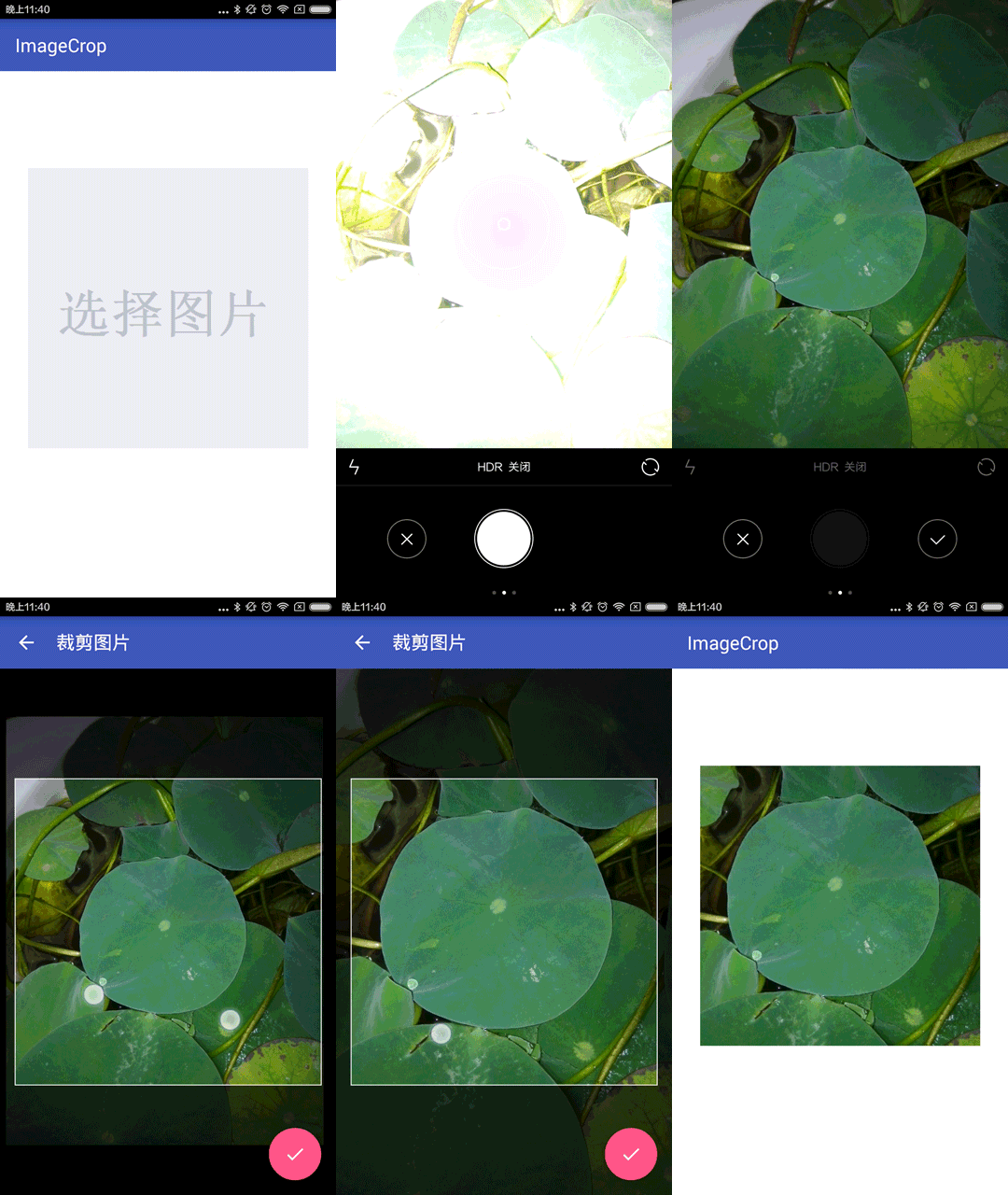
按照之前博客的風格,首先看下實現效果。
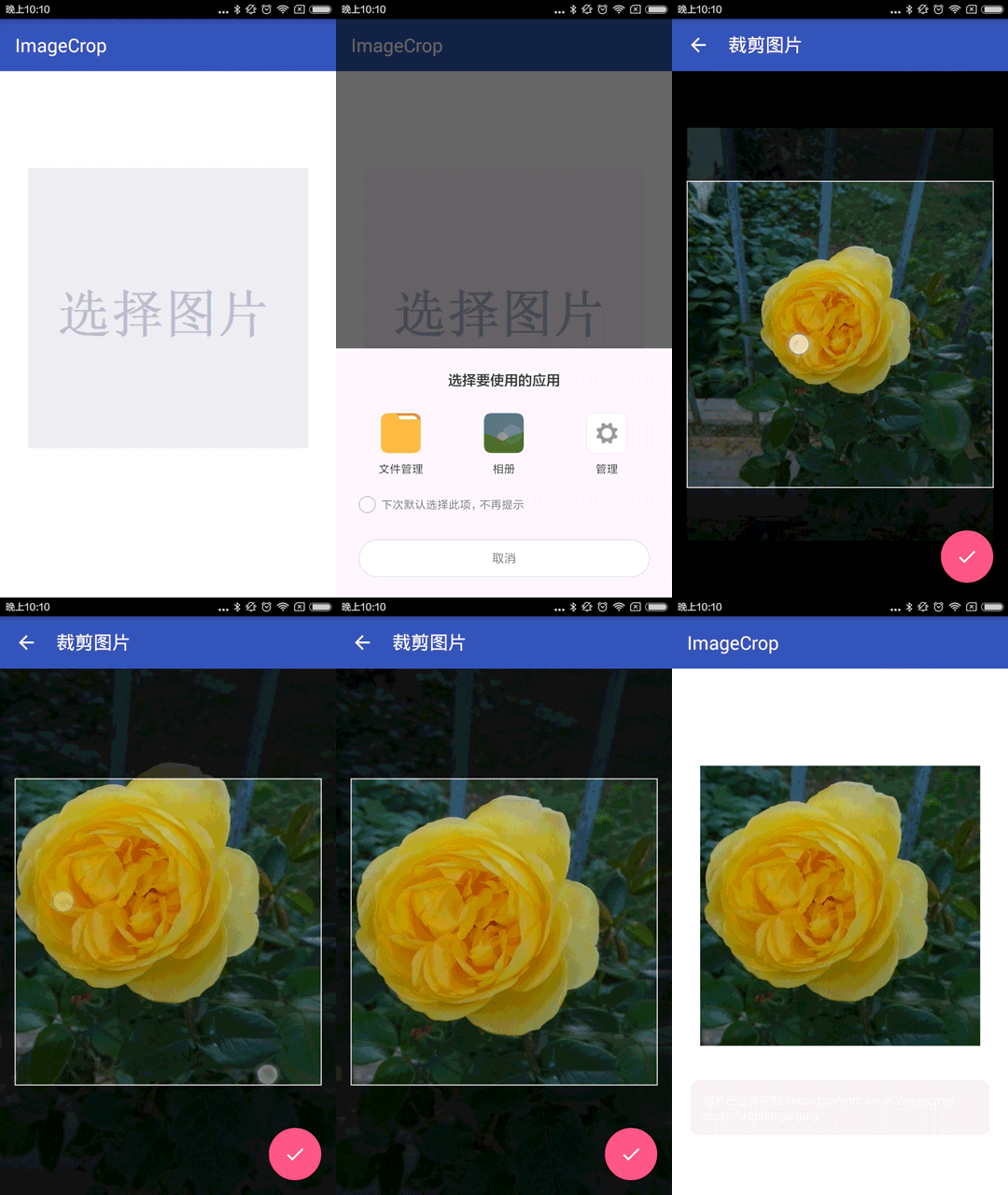
二、 uCrop項目應用
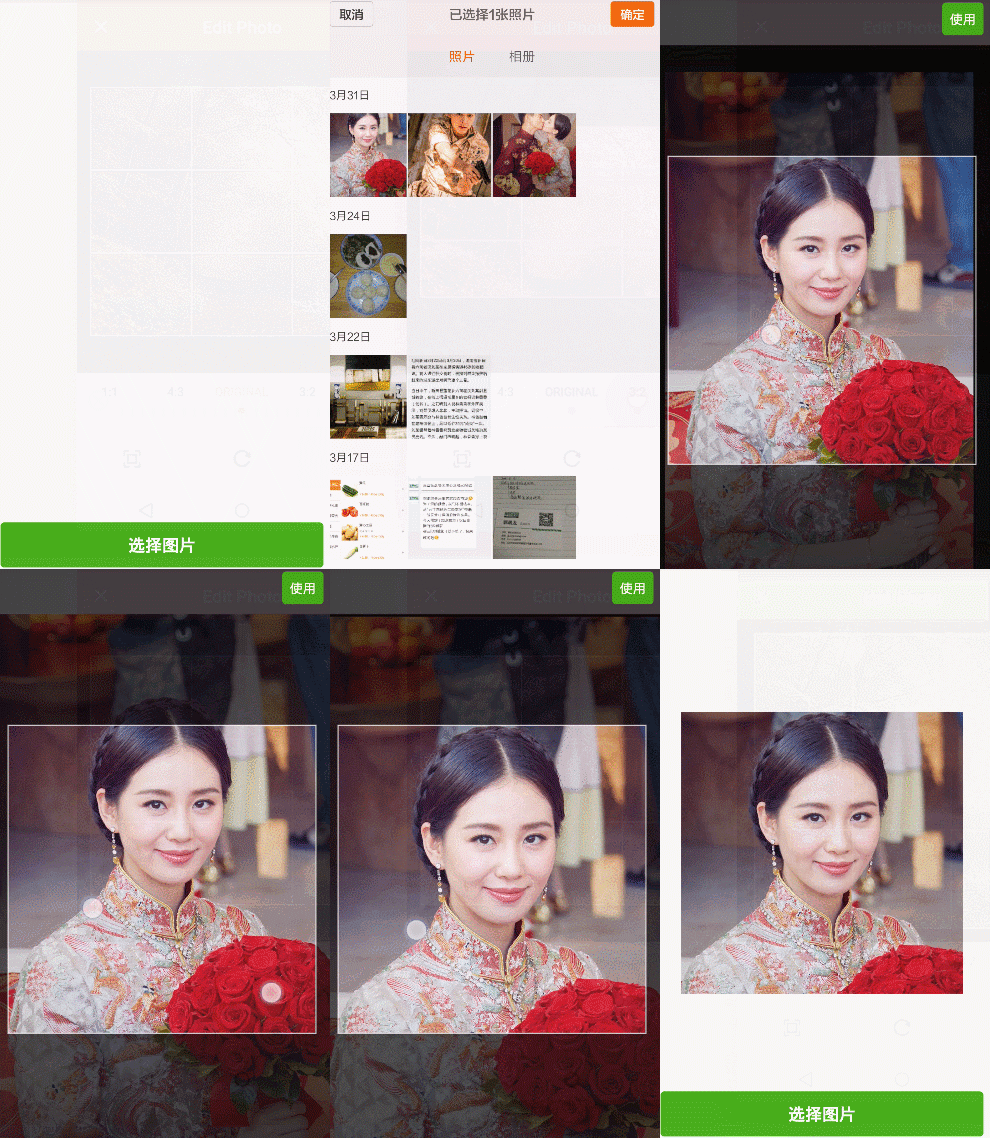
想起之前看到的Yalantis/uCrop效果比較絢,但是研究源碼之後發現在定制界面方面還是有一點的限制,於是在它的基礎上做了修改Android-Crop,把定制界面獨立出來,讓用戶去自由設置。下圖為使用Android-Crop實現的模仿微信選擇圖片並裁剪Demo。
三、 實現思路
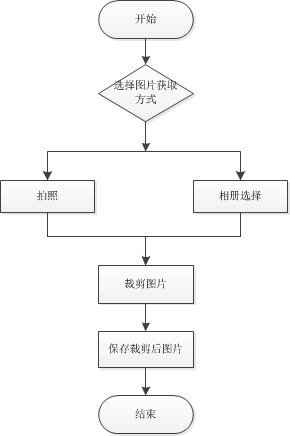
比較簡單的選擇設備圖片裁剪,並將裁剪後的圖片保存到指定路徑;
調用系統拍照,將拍照圖片保存在SD卡,然後裁剪圖片並將裁剪後的圖片保存在指定路徑。
流程圖如下所示:
四、 選擇框實現
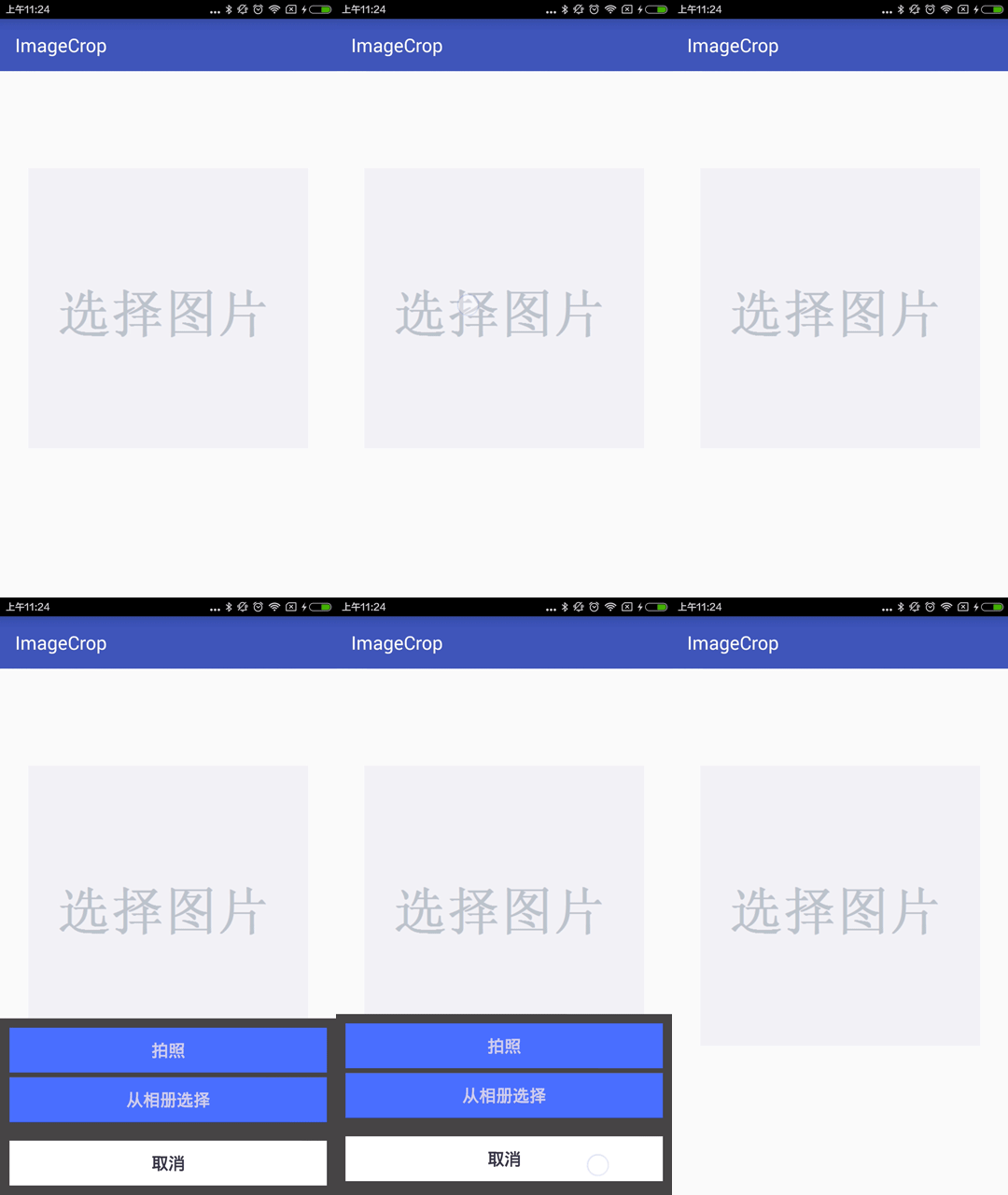
這裡通過PopupWindow來實現,當然也可以根據需求采用其他方式實現。實現效果如下圖所示:
1. XML布局
<?xml version="1.0" encoding="utf-8"?>
<RelativeLayout xmlns:android="http://schemas.android.com/apk/res/android"
 android:layout_width="fill_parent"
 android:layout_height="wrap_content"
 android:gravity="center_horizontal"
 android:orientation="vertical">

 <LinearLayout
 android:id="@+id/pop_layout"
 android:layout_width="match_parent"
 android:layout_height="wrap_content"
 android:layout_alignParentBottom="true"
 android:background="#444"
 android:gravity="center_horizontal"
 android:orientation="vertical">

 <Button
 android:id="@+id/picture_selector_take_photo_btn"
 android:layout_width="match_parent"
 android:layout_height="wrap_content"
 android:layout_marginLeft="10dip"
 android:layout_marginRight="10dip"
 android:layout_marginTop="10dp"
 android:background="#4d69ff"
 android:padding="10dp"
 android:text="拍照"
 android:textColor="#CEC9E7"
 android:textSize="18sp"
 android:text />

 <Button
 android:id="@+id/picture_selector_pick_picture_btn"
 android:layout_width="match_parent"
 android:layout_height="wrap_content"
 android:layout_marginLeft="10dip"
 android:layout_marginRight="10dip"
 android:layout_marginTop="5dp"
 android:background="#4d69ff"
 android:padding="10dp"
 android:text="從相冊選擇"
 android:textColor="#CEC9E7"
 android:textSize="18sp"
 android:text />

 <Button
 android:id="@+id/picture_selector_cancel_btn"
 android:layout_width="match_parent"
 android:layout_height="wrap_content"
 android:layout_marginBottom="15dip"
 android:layout_marginLeft="10dip"
 android:layout_marginRight="10dip"
 android:layout_marginTop="20dp"
 android:background="@android:color/white"
 android:padding="10dp"
 android:text="取消"
 android:textColor="#373447"
 android:textSize="18sp"
 android:text />
 </LinearLayout>

</RelativeLayout>
2. 代碼編寫
public SelectPicturePopupWindow(Context context) {
 super(context);
 LayoutInflater inflater = (LayoutInflater) context.getSystemService(Context.LAYOUT_INFLATER_SERVICE);
 mMenuView = inflater.inflate(R.layout.layout_picture_selector, null);
 takePhotoBtn = (Button) mMenuView.findViewById(R.id.picture_selector_take_photo_btn);
 pickPictureBtn = (Button) mMenuView.findViewById(R.id.picture_selector_pick_picture_btn);
 cancelBtn = (Button) mMenuView.findViewById(R.id.picture_selector_cancel_btn);
 // 設置按鈕監聽
 takePhotoBtn.setOnClickListener(this);
 pickPictureBtn.setOnClickListener(this);
 cancelBtn.setOnClickListener(this);
}
創建SelectPicturePopupWindow的時候設置按鈕的監聽。這裡編寫一個選擇監聽接口:
/**
 * 選擇監聽接口
 */
public interface OnSelectedListener {
 void OnSelected(View v, int position);
}
回調的參數為點擊的按鈕View以及當前按鈕的索引,那麼只要在選擇監聽裡面返回接口的回調就可以啦。
@Override
public void onClick(View v) {
 switch (v.getId()) {
 case R.id.picture_selector_take_photo_btn:
 if(null != mOnSelectedListener) {
 mOnSelectedListener.OnSelected(v, 0);
 }
 break;
 case R.id.picture_selector_pick_picture_btn:
 if(null != mOnSelectedListener) {
 mOnSelectedListener.OnSelected(v, 1);
 }
 break;
 case R.id.picture_selector_cancel_btn:
 if(null != mOnSelectedListener) {
 mOnSelectedListener.OnSelected(v, 2);
 }
 break;
 }
}
PopupWindow的初始化創建、監聽設置好之後,只要提供顯示與隱藏兩個方法就可以了。
/**
 * 把一個View控件添加到PopupWindow上並且顯示
 *
 * @param activity
 */
public void showPopupWindow(Activity activity) {
 popupWindow = new PopupWindow(mMenuView, // 添加到popupWindow
 ViewGroup.LayoutParams.MATCH_PARENT, ViewGroup.LayoutParams.WRAP_CONTENT);
 popupWindow.setBackgroundDrawable(new ColorDrawable(Color.TRANSPARENT));
 popupWindow.showAtLocation(activity.getWindow().getDecorView(), Gravity.CENTER | Gravity.BOTTOM, 0, 0);
 popupWindow.setAnimationStyle(android.R.style.Animation_InputMethod); // 設置窗口顯示的動畫效果
 popupWindow.setFocusable(false); // 點擊其他地方隱藏鍵盤 popupWindow
 popupWindow.update();
}
/**
 * 移除PopupWindow
 */
public void dismissPopupWindow() {
 if (popupWindow != null && popupWindow.isShowing()) {
 popupWindow.dismiss();
 popupWindow = null;
 }
}
OK,到這裡選擇框的實現就完成了。
五、使用選擇框
通過我們上面對選擇框的封裝,使用起來就比較簡單了,只需要初始化及設置選擇的監聽就可以啦。
1.初始化選擇框
mSelectPicturePopupWindow = new SelectPicturePopupWindow(mContext);
mSelectPicturePopupWindow.setOnSelectedListener(this);
2.設置選擇框監聽
@Override
public void OnSelected(View v, int position) {
 switch (position) {
 case 0:
 // TODO: "拍照"按鈕被點擊了
 break;
 case 1:
 // TODO: "從相冊選擇"按鈕被點擊了
 break;
 case 2:
 // TODO: "取消"按鈕被點擊了
 break;
 }
}
然後在Fragment上進行封裝,我們取名為PictureSelectFragment。
六、拍照並保存圖片
調用系統的拍照,並把拍攝的圖片保存到指定位置。
@Override
public void OnSelected(View v, int position) {
 switch (position) {
 case 0:
 // "拍照"按鈕被點擊了
 mSelectPicturePopupWindow.dismissPopupWindow();
 Intent takeIntent = new Intent(MediaStore.ACTION_IMAGE_CAPTURE);
 //下面這句指定調用相機拍照後的照片存儲的路徑
 takeIntent.putExtra(MediaStore.EXTRA_OUTPUT, Uri.fromFile(new File(mTempPhotoPath)));
 startActivityForResult(takeIntent, CAMERA_REQUEST_CODE);
 break;
 case 1:
 // TODO: "從相冊選擇"按鈕被點擊了
 break;
 case 2:
 // TODO: "取消"按鈕被點擊了
 break;
 }
}
這裡的指定位置為sd卡本目錄下
mTempPhotoPath = Environment.getExternalStorageDirectory() + File.separator + "photo.jpeg";
當拍攝照片完成時會回調到onActivityResult,我們在這裡處理圖片的裁剪就可以了。
@Override
public void onActivityResult(int requestCode, int resultCode, Intent data) {
 if (resultCode == mActivity.RESULT_OK) {
 switch (requestCode) {
 case CAMERA_REQUEST_CODE:
 // TODO: 調用相機拍照
 break;
 }
 }
 super.onActivityResult(requestCode, resultCode, data);
}
七、相冊選擇圖片
調用系統的選擇圖片
@Override
public void OnSelected(View v, int position) {
 switch (position) {
 case 0:
 // "拍照"按鈕被點擊了
 mSelectPicturePopupWindow.dismissPopupWindow();
 Intent takeIntent = new Intent(MediaStore.ACTION_IMAGE_CAPTURE);
 // 下面這句指定調用相機拍照後的照片存儲的路徑
 takeIntent.putExtra(MediaStore.EXTRA_OUTPUT, Uri.fromFile(new File(mTempPhotoPath)));
 startActivityForResult(takeIntent, CAMERA_REQUEST_CODE);
 break;
 case 1:
 // "從相冊選擇"按鈕被點擊了
 mSelectPicturePopupWindow.dismissPopupWindow();
 Intent pickIntent = new Intent(Intent.ACTION_PICK, null);
 // 如果限制上傳到服務器的圖片類型時可以直接寫如:"image/jpeg 、 image/png等的類型"
 pickIntent.setDataAndType(MediaStore.Images.Media.EXTERNAL_CONTENT_URI, "image/*");
 startActivityForResult(pickIntent, GALLERY_REQUEST_CODE);
 break;
 case 2:
 // TODO: "取消"按鈕被點擊了
 break;
 }
}
當拍選擇圖片完成時會回調到onActivityResult,在這裡處理選擇的返回結果。
@Override
public void onActivityResult(int requestCode, int resultCode, Intent data) {
 if (resultCode == mActivity.RESULT_OK) {
 switch (requestCode) {
 case CAMERA_REQUEST_CODE:
 // TODO: 調用相機拍照
 break;
 case GALLERY_REQUEST_CODE:
 // TODO: 直接從相冊獲取
 break;
 }
 }
 super.onActivityResult(requestCode, resultCode, data);
}
八、使用Crop裁剪圖片
裁剪圖片,這裡設置寬高比為1:1,最大尺寸為512*512,當然可以根據自己的需求來設置。
/**
 * 裁剪圖片方法實現
 *
 * @param uri
 */
public void startCropActivity(Uri uri) {
 UCrop.of(uri, mDestinationUri)
 .withAspectRatio(1, 1)
 .withMaxResultSize(512, 512)
 .withTargetActivity(CropActivity.class)
 .start(mActivity, this);
}
CropActiivty裁剪完成時會回調到onActivityResult,在這裡處理選擇的返回結果。
@Override
public void onActivityResult(int requestCode, int resultCode, Intent data) {
 if (resultCode == mActivity.RESULT_OK) {
 switch (requestCode) {
 case CAMERA_REQUEST_CODE: // 調用相機拍照
 File temp = new File(mTempPhotoPath);
 startCropActivity(Uri.fromFile(temp));
 break;
 case GALLERY_REQUEST_CODE: // 直接從相冊獲取
 startCropActivity(data.getData());
 break;
 case UCrop.REQUEST_CROP:
 // TODO: 裁剪圖片結果
 break;
 case UCrop.RESULT_ERROR:
 // TODO: 裁剪圖片錯誤
 break;
 }
 }
 super.onActivityResult(requestCode, resultCode, data);
}
CropActivity的界面如下所示:
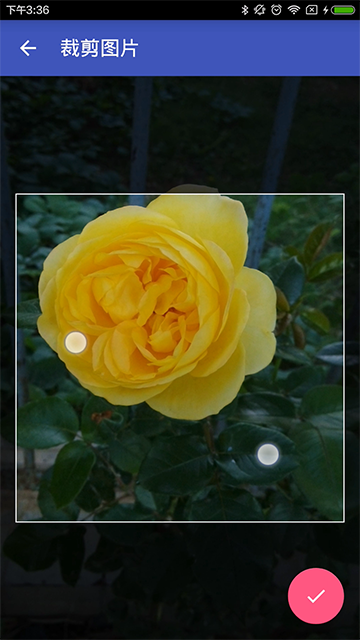
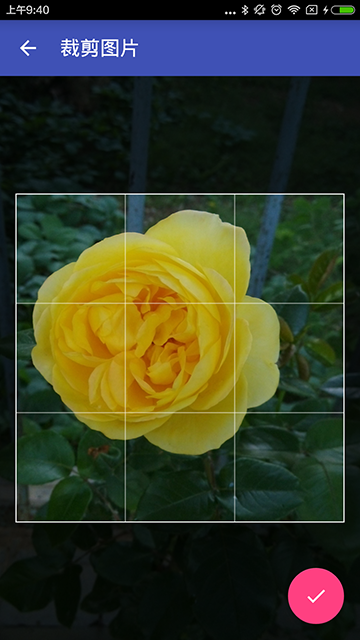
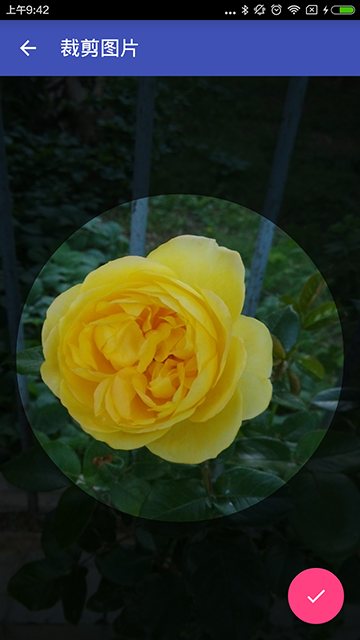
當然也可以輕松設計成如下兩圖:
1. XML布局
<RelativeLayout xmlns:android="http://schemas.android.com/apk/res/android"
 xmlns:fab="http://schemas.android.com/apk/res-auto"
 android:layout_width="match_parent"
 android:layout_height="match_parent"
 android:clipToPadding="true"
 android:fitsSystemWindows="true">

 <include layout="@layout/toolbar_layout" />

 <FrameLayout
 android:layout_width="match_parent"
 android:layout_height="match_parent"
 android:layout_below="@+id/toolbar"
 android:background="#000">

 <com.kevin.crop.view.UCropView
 android:id="@+id/weixin_act_ucrop"
 android:layout_width="match_parent"
 android:layout_height="match_parent"
 android:visibility="invisible" />

 </FrameLayout>

 <android.support.design.widget.CoordinatorLayout
 android:layout_width="match_parent"
 android:layout_height="match_parent">

 <android.support.design.widget.FloatingActionButton
 android:id="@+id/crop_act_save_fab"
 android:layout_width="wrap_content"
 android:layout_height="wrap_content"
 android:layout_gravity="bottom|right"
 android:layout_margin="@dimen/fab_margin"
 android:src="@mipmap/ic_done_white"
 fab:fabSize="normal" />
 </android.support.design.widget.CoordinatorLayout>


</RelativeLayout>
可以發現非常簡單,只有一個主要的CropView,這就是uCrop框架為我們提供的。
2. 代碼編寫
@Override
protected void initViews() {
 initToolBar();

 mGestureCropImageView = mUCropView.getCropImageView();
 mOverlayView = mUCropView.getOverlayView();

 // 設置允許縮放
 mGestureCropImageView.setScaleEnabled(true);
 // 設置禁止旋轉
 mGestureCropImageView.setRotateEnabled(false);
 // 設置外部陰影顏色
 mOverlayView.setDimmedColor(Color.parseColor("#AA000000"));
 // 設置周圍陰影是否為橢圓(如果false則為矩形)
 mOverlayView.setOvalDimmedLayer(false);
 // 設置顯示裁剪邊框
 mOverlayView.setShowCropFrame(true);
 // 設置不顯示裁剪網格
 mOverlayView.setShowCropGrid(false);

 final Intent intent = getIntent();
 setImageData(intent);
}
private void setImageData(Intent intent) {
 Uri inputUri = intent.getParcelableExtra(UCrop.EXTRA_INPUT_URI);
 mOutputUri = intent.getParcelableExtra(UCrop.EXTRA_OUTPUT_URI);

 if (inputUri != null && mOutputUri != null) {
 try {
 mGestureCropImageView.setImageUri(inputUri);
 } catch (Exception e) {
 setResultException(e);
 finish();
 }
 } else {
 setResultException(new NullPointerException("Both input and output Uri must be specified"));
 finish();
 }

 // 設置裁剪寬高比
 if (intent.getBooleanExtra(UCrop.EXTRA_ASPECT_RATIO_SET, false)) {
 float aspectRatioX = intent.getFloatExtra(UCrop.EXTRA_ASPECT_RATIO_X, 0);
 float aspectRatioY = intent.getFloatExtra(UCrop.EXTRA_ASPECT_RATIO_Y, 0);

 if (aspectRatioX > 0 && aspectRatioY > 0) {
 mGestureCropImageView.setTargetAspectRatio(aspectRatioX / aspectRatioY);
 } else {
 mGestureCropImageView.setTargetAspectRatio(CropImageView.SOURCE_IMAGE_ASPECT_RATIO);
 }
 }

 // 設置裁剪的最大寬高
 if (intent.getBooleanExtra(UCrop.EXTRA_MAX_SIZE_SET, false)) {
 int maxSizeX = intent.getIntExtra(UCrop.EXTRA_MAX_SIZE_X, 0);
 int maxSizeY = intent.getIntExtra(UCrop.EXTRA_MAX_SIZE_Y, 0);

 if (maxSizeX > 0 && maxSizeY > 0) {
 mGestureCropImageView.setMaxResultImageSizeX(maxSizeX);
 mGestureCropImageView.setMaxResultImageSizeY(maxSizeY);
 } else {
 Log.w(TAG, "EXTRA_MAX_SIZE_X and EXTRA_MAX_SIZE_Y must be greater than 0");
 }
 }
}
以上為CropView的配置,更多配置請參考項目源碼。
最重要的,裁剪保存圖片:
private void cropAndSaveImage() {
 OutputStream outputStream = null;
 try {
 final Bitmap croppedBitmap = mGestureCropImageView.cropImage();
 if (croppedBitmap != null) {
 outputStream = getContentResolver().openOutputStream(mOutputUri);
 croppedBitmap.compress(Bitmap.CompressFormat.JPEG, 85, outputStream);
 croppedBitmap.recycle();

 setResultUri(mOutputUri, mGestureCropImageView.getTargetAspectRatio());
 finish();
 } else {
 setResultException(new NullPointerException("CropImageView.cropImage() returned null."));
 }
 } catch (Exception e) {
 setResultException(e);
 finish();
 } finally {
 BitmapLoadUtils.close(outputStream);
 }
}
PictureSelectFragment處理裁剪成功的返回值
/**
 * 處理剪切成功的返回值
 *
 * @param result
 */
private void handleCropResult(Intent result) {
 deleteTempPhotoFile();
 final Uri resultUri = UCrop.getOutput(result);
 if (null != resultUri && null != mOnPictureSelectedListener) {
 Bitmap bitmap = null;
 try {
 bitmap = MediaStore.Images.Media.getBitmap(mActivity.getContentResolver(), resultUri);
 } catch (FileNotFoundException e) {
 e.printStackTrace();
 } catch (IOException e) {
 e.printStackTrace();
 }
 mOnPictureSelectedListener.onPictureSelected(resultUri, bitmap);
 } else {
 Toast.makeText(mContext, "無法剪切選擇圖片", Toast.LENGTH_SHORT).show();
 }
}
處理裁剪失敗的返回值
/**
 * 處理剪切失敗的返回值
 *
 * @param result
 */
private void handleCropError(Intent result) {
 deleteTempPhotoFile();
 final Throwable cropError = UCrop.getError(result);
 if (cropError != null) {
 Log.e(TAG, "handleCropError: ", cropError);
 Toast.makeText(mContext, cropError.getMessage(), Toast.LENGTH_LONG).show();
 } else {
 Toast.makeText(mContext, "無法剪切選擇圖片", Toast.LENGTH_SHORT).show();
 }
}
這裡設置了選擇的回調接口,便於封裝抽取。
/**
 * 圖片選擇的回調接口
 */
public interface OnPictureSelectedListener {
 /**
 * 圖片選擇的監聽回調
 *
 * @param fileUri
 * @param bitmap
 */
 void onPictureSelected(Uri fileUri, Bitmap bitmap);
}
經過五、六、七步驟,我們的PictureSelectFragment就搞定了,在使用的時候只要繼承它,幾行代碼就搞定了。
九、PictureSelectFragment使用
// 設置圖片點擊監聽
mPictureIv.setOnClickListener(new View.OnClickListener() {
 @Override
 public void onClick(View v) {
 selectPicture();
 }
});
// 設置裁剪圖片結果監聽
setOnPictureSelectedListener(new OnPictureSelectedListener() {
 @Override
 public void onPictureSelected(Uri fileUri, Bitmap bitmap) {
 mPictureIv.setImageBitmap(bitmap);

 String filePath = fileUri.getEncodedPath();
 String imagePath = Uri.decode(filePath);
 Toast.makeText(mContext, "圖片已經保存到:" + imagePath, Toast.LENGTH_LONG).show();
 }
});
OK,經過我們上面的封裝及基類抽取,在使用的時候還是非常簡單的。
十、下載
源碼及示例
用到的Android-Crop庫
更多內容大家可以參考專題《Android圖片處理》進行學習。
以上就是本文的全部內容,希望對大家學習Android軟件編程有所幫助。
 Android通訊錄開發之實現全選、反選功能
Android通訊錄開發之實現全選、反選功能 2014年1月15日 實現全選、反選不是什麼難的事情,就只是用另外一個數據結構來存儲被選中的狀態,通過刷新列表
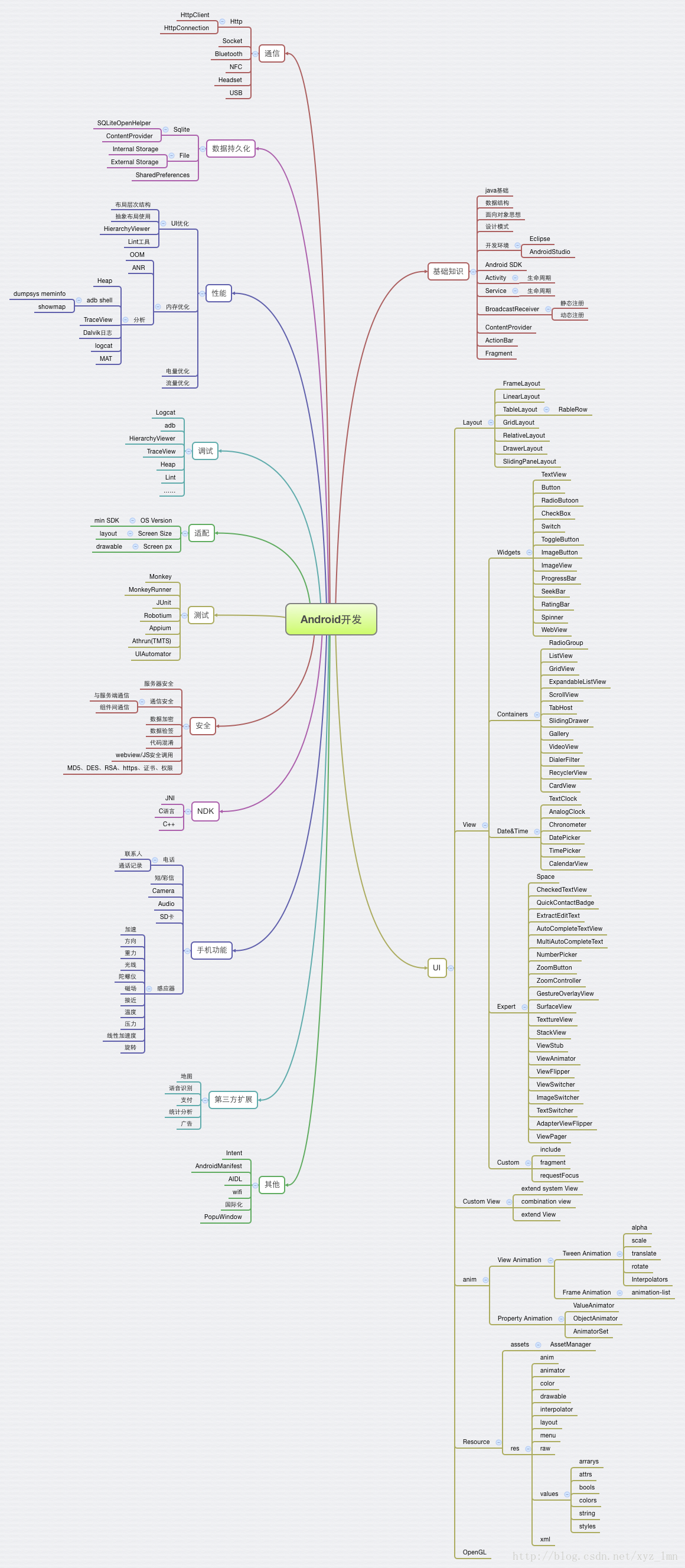 Android知識體系圖
參考網上的資料,制作出來一份Android知識體系圖,梳理自己所學過的知識點,以後復習會更加方便。
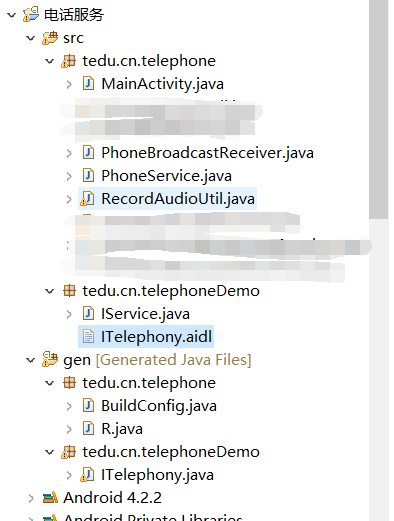 Android 電話服務(完成版)
之前的代碼是分開寫的,並沒有實現一個完成電話相關服務,這次就給大家來一記猛藥,望大家提出寶貴意見和建議與我分享,感謝! 電話監聽主Activity
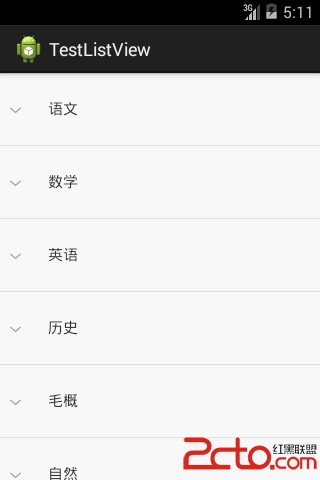 android listView二級目錄選中效果
一.listView的二級目錄且選中實現:記錄下來,以便以後可能會用到,直接上貼源碼:先上效果圖: 主界面:public class MainActivity exten