編輯:關於Android編程
一. 什麼是藍牙(Bluetooth)?
1.1 BuleTooth是目前使用最廣泛的無線通信協議
1.2 主要針對短距離設備通訊(10m)
1.3 常用於連接耳機,鼠標和移動通訊設備等.
二. 與藍牙相關的API
2.1 BluetoothAdapter:
代表了本地的藍牙適配器
2.2 BluetoothDevice
代表了一個遠程的Bluetooth設備
三. 掃描已經配對的藍牙設備(1)
注:必須部署在真實手機上,模擬器無法實現
首先需要在AndroidManifest.xml 聲明藍牙權限
<user-permission android:name="android.permission.BLUETOOTH" />
配對藍牙需要手動操作:
1. 打開設置--> 無線網絡 --> 藍牙 勾選開啟
2. 打開藍牙設置 掃描周圍已經開啟的藍牙設備(可以與自己的筆記本電腦進行配對),點擊進行配對
電腦上會彈出提示窗口: 添加設備
顯示計算與設備之間的配對碼,要求確認是否配對
手機上也會顯示類似的提示.
四. 掃描已經配對的藍牙設備(2)
4.1 獲得BluetoothAdapter對象
4.2 判斷當前移動設備中是否擁有藍牙
4.3 判斷當前移動設備中藍牙是否已經打開
4.4 得到所有已經配對的藍牙設備對象
藍牙配對實現的核心代碼如下:
MainActivity:

import java.util.Iterator;
import java.util.Set;

import android.app.Activity;
import android.bluetooth.BluetoothAdapter;
import android.bluetooth.BluetoothDevice;
import android.content.Intent;
import android.os.Bundle;
import android.view.View;
import android.view.View.OnClickListener;
import android.widget.Button;

public class MainActivity extends Activity {
  private Button button = null;
  /** Called when the activity is first created. */
  @Override
  public void onCreate(Bundle savedInstanceState) {
    super.onCreate(savedInstanceState);
    setContentView(R.layout.main);

    button = (Button)findViewById(R.id.buttonId);
    button.setOnClickListener(new OnClickListener(){

      @Override
      public void onClick(View v) {
        //獲得BluetoothAdapter對象,該API是android 2.0開始支持的
        BluetoothAdapter adapter = BluetoothAdapter.getDefaultAdapter();
        //adapter不等於null,說明本機有藍牙設備
        if(adapter != null){
          System.out.println("本機有藍牙設備!");
          //如果藍牙設備未開啟
          if(!adapter.isEnabled()){
            Intent intent = new Intent(BluetoothAdapter.ACTION_REQUEST_ENABLE);
            //請求開啟藍牙設備
            startActivity(intent);
          }
          //獲得已配對的遠程藍牙設備的集合
          Set<BluetoothDevice> devices = adapter.getBondedDevices();
          if(devices.size()>0){
            for(Iterator<BluetoothDevice> it = devices.iterator();it.hasNext();){
              BluetoothDevice device = (BluetoothDevice)it.next();
              //打印出遠程藍牙設備的物理地址
              System.out.println(device.getAddress());
            }
          }else{
            System.out.println("還沒有已配對的遠程藍牙設備!");
          }
        }else{
          System.out.println("本機沒有藍牙設備!");
        }
      }
    });
  }
}
修改本機藍牙設備的可見性,並掃描周圍可用的藍牙設備
1. 修改本機藍牙設備的可見性
2. 掃描周圍可用的藍牙設備
Eg:
一. 清單文件AdroidManifest.xml:
<?xml version="1.0" encoding="utf-8"?>
<manifest xmlns:android="http://schemas.android.com/apk/res/android"
   package="com.se7en"
   android:versionCode="1"
   android:versionName="1.0">
  <uses-sdk android:minSdkVersion="8" />

  <application android:icon="@drawable/icon" android:label="@string/app_name">
    <activity android:name=".MainActivity"
         android:label="@string/app_name">
      <intent-filter>
        <action android:name="android.intent.action.MAIN" />
        <category android:name="android.intent.category.LAUNCHER" />
      </intent-filter>
    </activity>
  </application>
  <uses-permission android:name="android.permission.BLUETOOTH"/>

  <!-若需要管理藍牙設備,如修改可見性,則需以下的權限->
  <uses-permission android:name="android.permission.BLUETOOTH_ADMIN"/>
</manifest>
二. 布局文件: main.xml:
<?xml version="1.0" encoding="utf-8"?>
<LinearLayout xmlns:android="http://schemas.android.com/apk/res/android"
  android:orientation="vertical"
  android:layout_width="fill_parent"
  android:layout_height="fill_parent"
  >
  <TextView
    android:layout_width="fill_parent"
    android:layout_height="wrap_content"
    android:text="@string/hello"
    />
  <Button
    android:id="@+id/discoverButton"
    android:layout_width="fill_parent"
    android:layout_height="wrap_content"
    android:text="設置可見性"/>
  <Button
    android:id="@+id/scanButton"
    android:layout_width="fill_parent"
    android:layout_height="wrap_content"
    android:text="開始掃描"/>
</LinearLayout>
三. MainActivity:
import android.app.Activity;
import android.bluetooth.BluetoothAdapter;
import android.bluetooth.BluetoothDevice;
import android.content.BroadcastReceiver;
import android.content.Context;
import android.content.Intent;
import android.content.IntentFilter;
import android.os.Bundle;
import android.view.View;
import android.view.View.OnClickListener;
import android.widget.Button;

public class MainActivity extends Activity {
  private Button discoverButton = null;
  private Button scanButton = null;
  private BluetoothAdapter adapter = null;
  private BluetoothReceiver bluetoothReceiver = null;
  /** Called when the activity is first created. */
  @Override
  public void onCreate(Bundle savedInstanceState) {
    super.onCreate(savedInstanceState);
    setContentView(R.layout.main);

    adapter = BluetoothAdapter.getDefaultAdapter();

    discoverButton = (Button)findViewById(R.id.discoverButton);
    scanButton = (Button)findViewById(R.id.scanButton);
    //修改藍牙設備的可見性
    discoverButton.setOnClickListener(new OnClickListener(){
      @Override
      public void onClick(View view) {
      Intent discoverIntent = new Intent(BluetoothAdapter.ACTION_REQUEST_DISCOVERABLE);

//設置藍牙可見性,500表示可見時間(單位:秒),當值大於300時默認為300
discoverIntent.putExtra(BluetoothAdapter.EXTRA_DISCOVERABLE_DURATION,500);
startActivity(discoverIntent);
      }
    });

    scanButton.setOnClickListener(new OnClickListener(){
      @Override
      public void onClick(View v) {
    //開始掃描周圍藍牙設備,該方法是異步調用並以廣播的機制返回,所以需要創建一個BroadcastReceiver來獲取信息
        adapter.startDiscovery();
      }
    });

    //設定廣播接收的filter
    IntentFilter intentFilter = new IntentFilter(BluetoothDevice.ACTION_FOUND);
    //創建藍牙廣播信息的receiver
    bluetoothReceiver = new BluetoothReceiver ();
    //注冊廣播接收器
    registerReceiver(bluetoothReceiver,intentFilter);

  }

  private class BluetoothReceiver extends BroadcastReceiver{
    @Override
    public void onReceive(Context context, Intent intent) {
      //獲得掃描到的遠程藍牙設備
      BluetoothDevice device = intent.getParcelableExtra(BluetoothDevice.EXTRA_DEVICE);
      System.out.println(device.getAddress());
    }

  }
}
 Android仿美團分類下拉菜單實例代碼
本文實例為大家分享了Android仿美團下拉菜單的實現代碼,分類進行選擇,供大家參考,具體內容如下效果圖操作平台AS2.0第三方框架:butterknifebuild.g
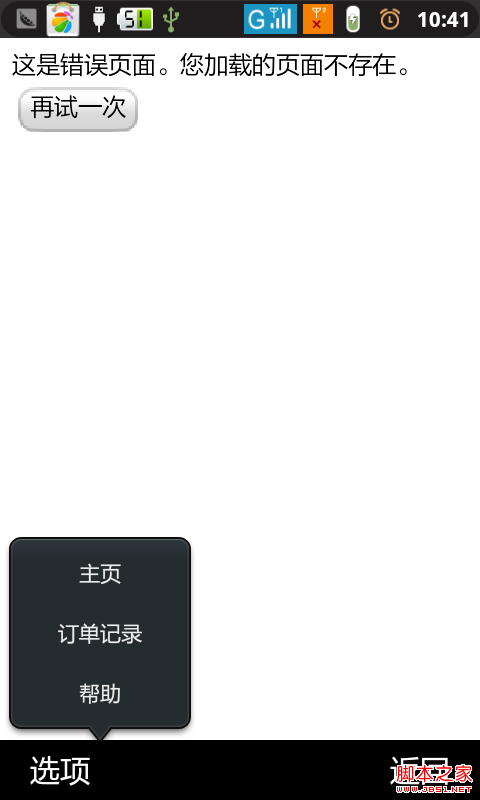 android PopupWindow 和 Activity彈出窗口實現方式
本人小菜一個。目前只見過兩種彈出框的實現方式,第一種是最常見的PopupWindow,第二種也就是Activity的方式是前幾天才見識過。感覺很霸氣哦。沒想到,activ
 Android自定義View——自由定制優惠券背景
1、功能介紹現在購物類的APP真的是數不甚數啊,經常可以在這些APP中看到優惠券的影子,今天我們就來實現一下優惠券的背景效果。實際開發中,如果我們想偷懶,直接用一張背景圖
 Android中相機和相冊使用分析
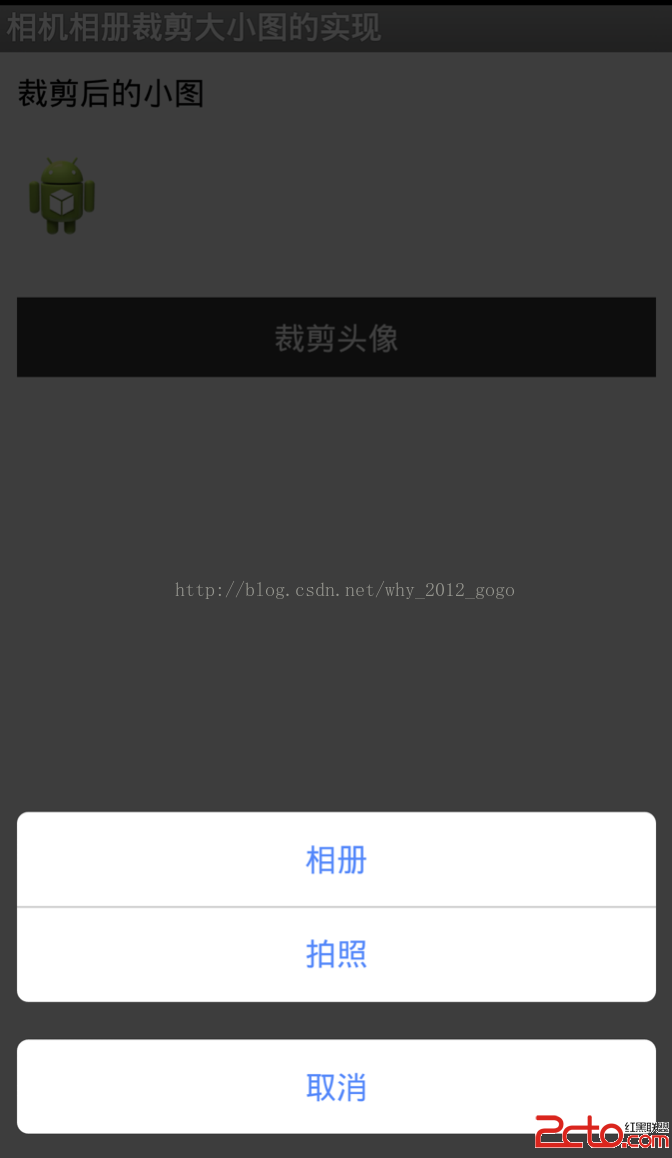
Android中相機和相冊使用分析 歡迎轉載,但請尊重原創(文章來自不易,轉載請標明轉載出處,謝謝) 在手機應用程序中,使用自帶的相機拍照以及相冊選擇喜歡的圖片是