編輯:關於Android編程
隨著微信的到來,二維碼越來越火爆,隨處能看到二維碼,比如商城裡面,肯德基,餐廳等等,對於二維碼掃描我們使用的是google的開源框架Zxing,我們可以去http://code.google.com/p/zxing/下載源碼和Jar包,之前我項目中的二維碼掃描功能只實現了掃描功能,其UI真的是其丑無比,一個好的應用軟件,其UI界面也要被大眾所接納,不然人家就不會用你的軟件啦,所以說應用軟件功能和界面一樣都很重要,例如微信,相信微信UI被很多應用軟件所模仿,我也仿照微信掃描二維碼效果進行模仿,雖然沒有微信做的那麼精致,但是效果還是可以的,所以將自己修改UI的代碼和掃描二維碼的代碼分享給大家,一是自己以後項目遇到同樣的功能直接拷貝來用,二是給還沒有加入二維碼功能的人一個參考,站在巨人的肩膀上,哈哈,我之前也是站在巨人的肩膀上加上此功能,接下來跟著我一步一步來實現此項功能,裡面去除了很多不必要的文件
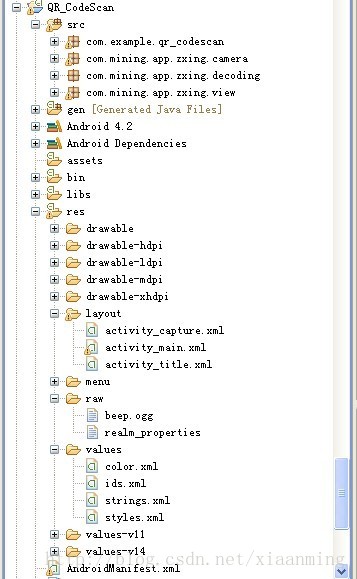
我們先看下項目的結構
/**
 * 處理掃描結果
 * @param result
 * @param barcode
 */
public void handleDecode(Result result, Bitmap barcode) {
  inactivityTimer.onActivity();
  playBeepSoundAndVibrate();
  String resultString = result.getText();
  if (resultString.equals("")) {
    Toast.makeText(MipcaActivityCapture.this, "Scan failed!", Toast.LENGTH_SHORT).show();
  }else {
    Intent resultIntent = new Intent();
    Bundle bundle = new Bundle();
    bundle.putString("result", resultString);
    bundle.putParcelable("bitmap", barcode);
    resultIntent.putExtras(bundle);
    this.setResult(RESULT_OK, resultIntent);
  }
  MipcaActivityCapture.this.finish();
}
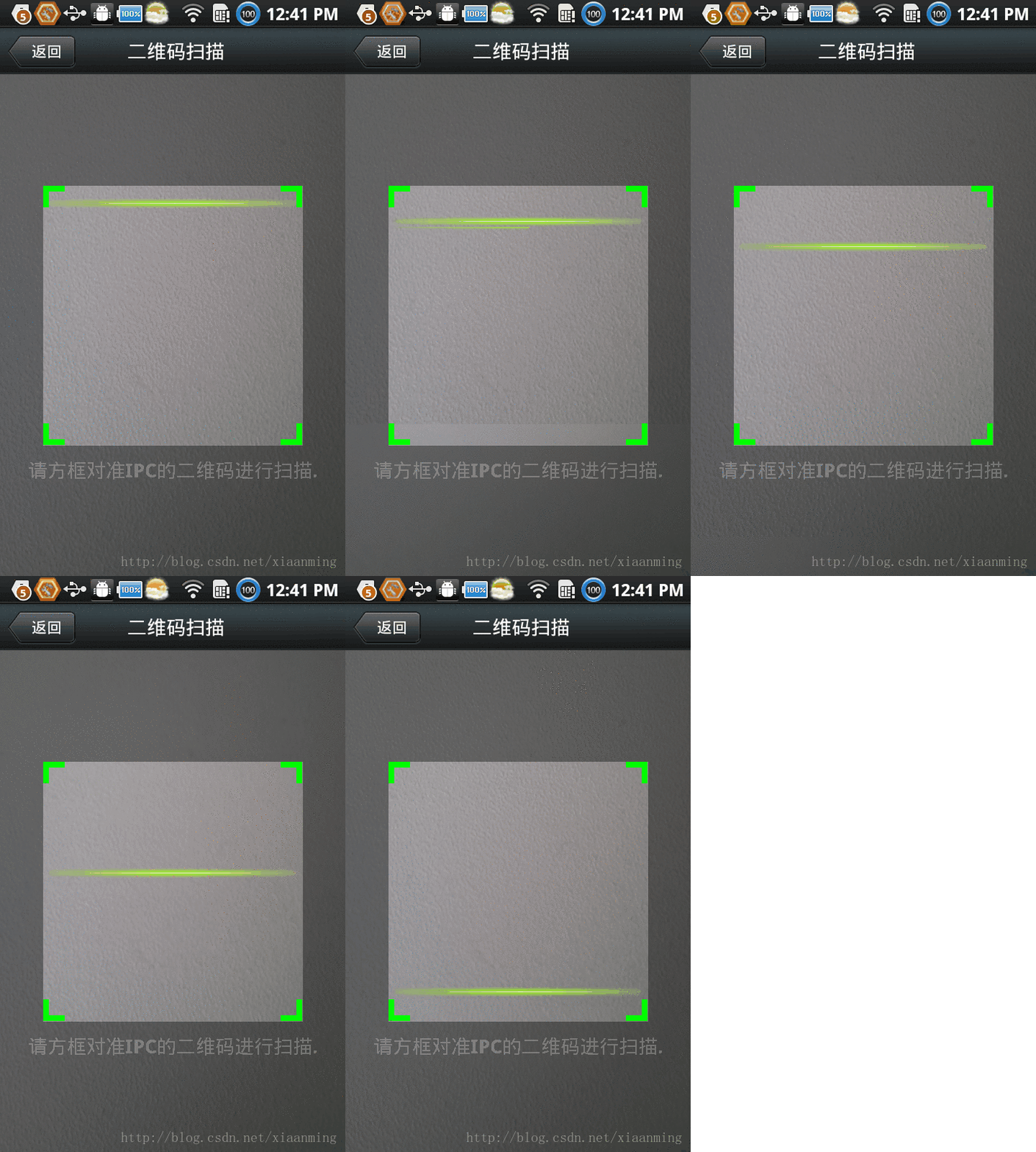
我對MipcaActivityCapture界面的布局做了自己的改動,先看下效果圖,主要是用到FrameLayout,裡面嵌套RelativeLayout。
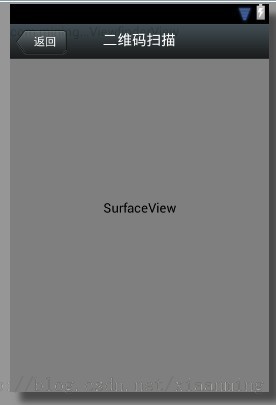
布局代碼如下
<?xml version="1.0" encoding="utf-8"?>
<FrameLayout xmlns:android="http://schemas.android.com/apk/res/android"
  android:layout_width="fill_parent"
    android:layout_height="fill_parent" >

  <RelativeLayout
    android:layout_width="fill_parent"
    android:layout_height="fill_parent" >

    <SurfaceView
      android:id="@+id/preview_view"
      android:layout_width="fill_parent"
      android:layout_height="fill_parent"
      android:layout_gravity="center" />

    <com.mining.app.zxing.view.ViewfinderView
      android:id="@+id/viewfinder_view"
      android:layout_width="wrap_content"
      android:layout_height="wrap_content" />

    <include
      android:id="@+id/include1"
      android:layout_width="fill_parent"
      android:layout_height="wrap_content"
      android:layout_alignParentTop="true"
      layout="@layout/activity_title" />
  </RelativeLayout>

</FrameLayout>
在裡面我將界面上面部分寫在另一個布局裡面,然後include進來,因為這個activity_title在我項目裡面還供其他的Activity使用,我也是直接拷貝出來的
<?xml version="1.0" encoding="utf-8"?>
<RelativeLayout xmlns:android="http://schemas.android.com/apk/res/android"
  android:layout_width="fill_parent"
  android:layout_height="wrap_content"
  android:background="@drawable/mmtitle_bg_alpha" >

  <Button
    android:id="@+id/button_back"
    android:layout_width="75.0dip"
    android:text="返回"
    android:background="@drawable/mm_title_back_btn"
    android:textColor="@android:color/white"
    android:layout_height="wrap_content"
    android:layout_centerVertical="true"
    android:layout_marginLeft="2dip" />

  <TextView
    android:id="@+id/textview_title"
    android:layout_width="wrap_content"
    android:layout_height="wrap_content"
    android:layout_alignBaseline="@+id/button_back"
    android:layout_alignBottom="@+id/button_back"
    android:layout_centerHorizontal="true"
    android:gravity="center_vertical"
    android:text="二維碼掃描"
    android:textColor="@android:color/white"
    android:textSize="18sp" />

</RelativeLayout>
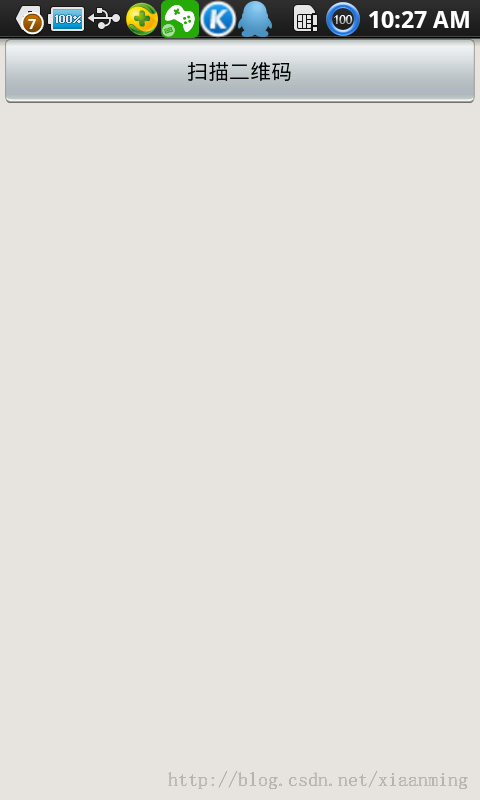
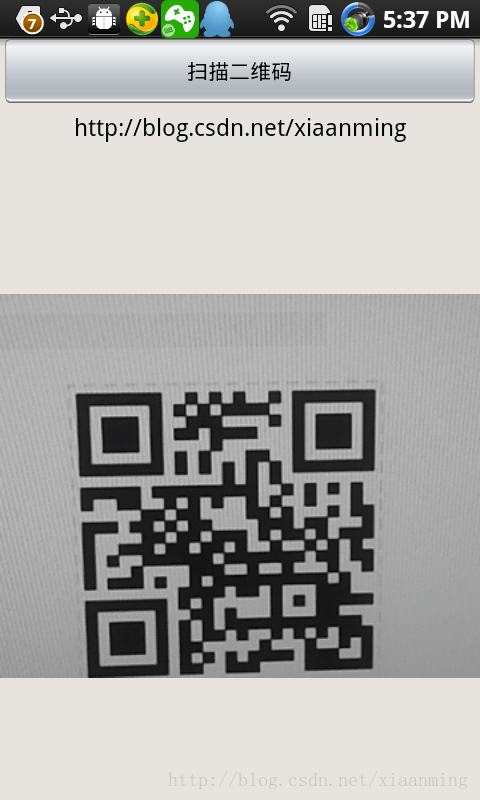
在我這個demo裡面,有一個主界面MainActivity,裡面一個Button, 一個ImageView和一個TextView,點擊Button進入到二維碼掃描界面,當掃描OK的時候,回到主界面,將掃描的結果顯示到TextView,將圖片顯示到ImageView裡面,然後你可以不處理圖片,我這裡隨帶的加上圖片,主界面的布局很簡單如下
<RelativeLayout xmlns:android="http://schemas.android.com/apk/res/android"
  xmlns:tools="http://schemas.android.com/tools"
  android:layout_width="match_parent"
  android:layout_height="match_parent"
  android:background="#ffe1e0de" >

  <Button
    android:id="@+id/button1"
    android:layout_width="fill_parent"
    android:layout_height="wrap_content"
    android:layout_alignParentTop="true"
    android:text="掃描二維碼" />

  <TextView
    android:id="@+id/result"
    android:layout_width="fill_parent"
    android:layout_height="wrap_content"
    android:layout_below="@+id/button1"
    android:lines="2"
    android:gravity="center_horizontal"
    android:textColor="@android:color/black"
    android:textSize="16sp" />

  <ImageView
    android:id="@+id/qrcode_bitmap"
    android:layout_width="fill_parent"
    android:layout_height="fill_parent"
    android:layout_alignParentLeft="true"
    android:layout_below="@+id/result"/>
</RelativeLayout>
MainActivity裡面的代碼如下,裡面的功能在上面已經說了
package com.example.qr_codescan;


import android.app.Activity;
import android.content.Intent;
import android.graphics.Bitmap;
import android.os.Bundle;
import android.view.View;
import android.view.View.OnClickListener;
import android.widget.Button;
import android.widget.ImageView;
import android.widget.TextView;

public class MainActivity extends Activity {
  private final static int SCANNIN_GREQUEST_CODE = 1;
  /**
   * 顯示掃描結果
   */
  private TextView mTextView ;
  /**
   * 顯示掃描拍的圖片
   */
  private ImageView mImageView;


  @Override
  protected void onCreate(Bundle savedInstanceState) {
    super.onCreate(savedInstanceState);
    setContentView(R.layout.activity_main);

    mTextView = (TextView) findViewById(R.id.result);
    mImageView = (ImageView) findViewById(R.id.qrcode_bitmap);

    //點擊按鈕跳轉到二維碼掃描界面,這裡用的是startActivityForResult跳轉
    //掃描完了之後調到該界面
    Button mButton = (Button) findViewById(R.id.button1);
    mButton.setOnClickListener(new OnClickListener() {

      @Override
      public void onClick(View v) {
        Intent intent = new Intent();
        intent.setClass(MainActivity.this, MipcaActivityCapture.class);
        intent.setFlags(Intent.FLAG_ACTIVITY_CLEAR_TOP);
        startActivityForResult(intent, SCANNIN_GREQUEST_CODE);
      }
    });
  }


  @Override
  protected void onActivityResult(int requestCode, int resultCode, Intent data) {
    super.onActivityResult(requestCode, resultCode, data);
    switch (requestCode) {
    case SCANNIN_GREQUEST_CODE:
      if(resultCode == RESULT_OK){
        Bundle bundle = data.getExtras();
        //顯示掃描到的內容
        mTextView.setText(bundle.getString("result"));
        //顯示
        mImageView.setImageBitmap((Bitmap) data.getParcelableExtra("bitmap"));
      }
      break;
    }
  }

}
上面的代碼還是比較簡單,但是要想做出像微信那樣只的掃描框,緊緊上面的代碼是沒有那種效果的,我們必須重寫com.mining.app.zxing.view包下面的ViewfinderView類,微信裡面的都是用的圖片,我是自己畫出來的,代碼注釋的比較清楚,大家直接看代碼吧,相信你能理解的,如果你要修改掃描框的大小,去CameraManager類裡面修改
/*
 * Copyright (C) 2008 ZXing authors
 *
 * Licensed under the Apache License, Version 2.0 (the "License");
 * you may not use this file except in compliance with the License.
 * You may obtain a copy of the License at
 *
 *   *
 * Unless required by applicable law or agreed to in writing, software
 * distributed under the License is distributed on an "AS IS" BASIS,
 * WITHOUT WARRANTIES OR CONDITIONS OF ANY KIND, either express or implied.
 * See the License for the specific language governing permissions and
 * limitations under the License.
 */

package com.mining.app.zxing.view;

import java.util.Collection;
import java.util.HashSet;

import android.content.Context;
import android.content.res.Resources;
import android.graphics.Bitmap;
import android.graphics.Canvas;
import android.graphics.Color;
import android.graphics.Paint;
import android.graphics.Rect;
import android.graphics.Typeface;
import android.util.AttributeSet;
import android.view.View;

import com.example.qr_codescan.R;
import com.google.zxing.ResultPoint;
import com.mining.app.zxing.camera.CameraManager;

/**
 * This view is overlaid on top of the camera preview. It adds the viewfinder
 * rectangle and partial transparency outside it, as well as the laser scanner
 * animation and result points.
 *
 */
public final class ViewfinderView extends View {
  private static final String TAG = "log";
  /**
   * 刷新界面的時間
   */
  private static final long ANIMATION_DELAY = 10L;
  private static final int OPAQUE = 0xFF;

  /**
   * 四個綠色邊角對應的長度
   */
  private int ScreenRate;

  /**
   * 四個綠色邊角對應的寬度
   */
  private static final int CORNER_WIDTH = 10;
  /**
   * 掃描框中的中間線的寬度
   */
  private static final int MIDDLE_LINE_WIDTH = 6;

  /**
   * 掃描框中的中間線的與掃描框左右的間隙
   */
  private static final int MIDDLE_LINE_PADDING = 5;

  /**
   * 中間那條線每次刷新移動的距離
   */
  private static final int SPEEN_DISTANCE = 5;

  /**
   * 手機的屏幕密度
   */
  private static float density;
  /**
   * 字體大小
   */
  private static final int TEXT_SIZE = 16;
  /**
   * 字體距離掃描框下面的距離
   */
  private static final int TEXT_PADDING_TOP = 30;

  /**
   * 畫筆對象的引用
   */
  private Paint paint;

  /**
   * 中間滑動線的最頂端位置
   */
  private int slideTop;

  /**
   * 中間滑動線的最底端位置
   */
  private int slideBottom;

  private Bitmap resultBitmap;
  private final int maskColor;
  private final int resultColor;

  private final int resultPointColor;
  private Collection<ResultPoint> possibleResultPoints;
  private Collection<ResultPoint> lastPossibleResultPoints;

  boolean isFirst;

  public ViewfinderView(Context context, AttributeSet attrs) {
    super(context, attrs);

    density = context.getResources().getDisplayMetrics().density;
    //將像素轉換成dp
    ScreenRate = (int)(20 * density);

    paint = new Paint();
    Resources resources = getResources();
    maskColor = resources.getColor(R.color.viewfinder_mask);
    resultColor = resources.getColor(R.color.result_view);

    resultPointColor = resources.getColor(R.color.possible_result_points);
    possibleResultPoints = new HashSet<ResultPoint>(5);
  }

  @Override
  public void onDraw(Canvas canvas) {
    //中間的掃描框,你要修改掃描框的大小,去CameraManager裡面修改
    Rect frame = CameraManager.get().getFramingRect();
    if (frame == null) {
      return;
    }

    //初始化中間線滑動的最上邊和最下邊
    if(!isFirst){
      isFirst = true;
      slideTop = frame.top;
      slideBottom = frame.bottom;
    }

    //獲取屏幕的寬和高
    int width = canvas.getWidth();
    int height = canvas.getHeight();

    paint.setColor(resultBitmap != null ? resultColor : maskColor);

    //畫出掃描框外面的陰影部分,共四個部分,掃描框的上面到屏幕上面,掃描框的下面到屏幕下面
    //掃描框的左邊面到屏幕左邊,掃描框的右邊到屏幕右邊
    canvas.drawRect(0, 0, width, frame.top, paint);
    canvas.drawRect(0, frame.top, frame.left, frame.bottom + 1, paint);
    canvas.drawRect(frame.right + 1, frame.top, width, frame.bottom + 1,
        paint);
    canvas.drawRect(0, frame.bottom + 1, width, height, paint);


    if (resultBitmap != null) {
      // Draw the opaque result bitmap over the scanning rectangle
      paint.setAlpha(OPAQUE);
      canvas.drawBitmap(resultBitmap, frame.left, frame.top, paint);
    } else {

      //畫掃描框邊上的角,總共8個部分
      paint.setColor(Color.GREEN);
      canvas.drawRect(frame.left, frame.top, frame.left + ScreenRate,
          frame.top + CORNER_WIDTH, paint);
      canvas.drawRect(frame.left, frame.top, frame.left + CORNER_WIDTH, frame.top
          + ScreenRate, paint);
      canvas.drawRect(frame.right - ScreenRate, frame.top, frame.right,
          frame.top + CORNER_WIDTH, paint);
      canvas.drawRect(frame.right - CORNER_WIDTH, frame.top, frame.right, frame.top
          + ScreenRate, paint);
      canvas.drawRect(frame.left, frame.bottom - CORNER_WIDTH, frame.left
          + ScreenRate, frame.bottom, paint);
      canvas.drawRect(frame.left, frame.bottom - ScreenRate,
          frame.left + CORNER_WIDTH, frame.bottom, paint);
      canvas.drawRect(frame.right - ScreenRate, frame.bottom - CORNER_WIDTH,
          frame.right, frame.bottom, paint);
      canvas.drawRect(frame.right - CORNER_WIDTH, frame.bottom - ScreenRate,
          frame.right, frame.bottom, paint);


      //繪制中間的線,每次刷新界面,中間的線往下移動SPEEN_DISTANCE
      slideTop += SPEEN_DISTANCE;
      if(slideTop >= frame.bottom){
        slideTop = frame.top;
      }
      canvas.drawRect(frame.left + MIDDLE_LINE_PADDING, slideTop - MIDDLE_LINE_WIDTH/2, frame.right - MIDDLE_LINE_PADDING,slideTop + MIDDLE_LINE_WIDTH/2, paint);


      //畫掃描框下面的字
      paint.setColor(Color.WHITE);
      paint.setTextSize(TEXT_SIZE * density);
      paint.setAlpha(0x40);
      paint.setTypeface(Typeface.create("System", Typeface.BOLD));
      canvas.drawText(getResources().getString(R.string.scan_text), frame.left, (float) (frame.bottom + (float)TEXT_PADDING_TOP *density), paint);


      Collection<ResultPoint> currentPossible = possibleResultPoints;
      Collection<ResultPoint> currentLast = lastPossibleResultPoints;
      if (currentPossible.isEmpty()) {
        lastPossibleResultPoints = null;
      } else {
        possibleResultPoints = new HashSet<ResultPoint>(5);
        lastPossibleResultPoints = currentPossible;
        paint.setAlpha(OPAQUE);
        paint.setColor(resultPointColor);
        for (ResultPoint point : currentPossible) {
          canvas.drawCircle(frame.left + point.getX(), frame.top
              + point.getY(), 6.0f, paint);
        }
      }
      if (currentLast != null) {
        paint.setAlpha(OPAQUE / 2);
        paint.setColor(resultPointColor);
        for (ResultPoint point : currentLast) {
          canvas.drawCircle(frame.left + point.getX(), frame.top
              + point.getY(), 3.0f, paint);
        }
      }


      //只刷新掃描框的內容,其他地方不刷新
      postInvalidateDelayed(ANIMATION_DELAY, frame.left, frame.top,
          frame.right, frame.bottom);

    }
  }

  public void drawViewfinder() {
    resultBitmap = null;
    invalidate();
  }

  /**
   * Draw a bitmap with the result points highlighted instead of the live
   * scanning display.
   *
   * @param barcode
   *      An image of the decoded barcode.
   */
  public void drawResultBitmap(Bitmap barcode) {
    resultBitmap = barcode;
    invalidate();
  }

  public void addPossibleResultPoint(ResultPoint point) {
    possibleResultPoints.add(point);
  }

}
上面的代碼中,中間那根線微信是用的圖片,我這裡是畫的,如果你想更加仿真點就將下面的代碼
canvas.drawRect(frame.left + MIDDLE_LINE_PADDING, slideTop - MIDDLE_LINE_WIDTH/2, frame.right - MIDDLE_LINE_PADDING,slideTop + MIDDLE_LINE_WIDTH/2, paint);
改成
Rect lineRect = new Rect();
      lineRect.left = frame.left;
      lineRect.right = frame.right;
      lineRect.top = slideTop;
      lineRect.bottom = slideTop + 18;
      canvas.drawBitmap(((BitmapDrawable)(getResources().getDrawable(R.drawable.qrcode_scan_line))).getBitmap(), null, lineRect, paint);
那條掃描線自己去微信裡面找一下,我貼出來的失真了,下載微信apk,將後綴名改成zip,然後解壓就行了
畫掃描框下面字體的代碼需要修改下,這樣子能根據字體自動排列在中間,如果字太長我沒有處理,那個要自動換行,你可以自行處理
paint.setColor(Color.WHITE);
paint.setTextSize(TEXT_SIZE * density);
paint.setAlpha(0x40);
paint.setTypeface(Typeface.DEFAULT_BOLD);
String text = getResources().getString(R.string.R.string.scan_text);
float textWidth = paint.measureText(text);

canvas.drawText(text, (width - textWidth)/2, (float) (frame.bottom + (float)TEXT_PADDING_TOP *density), paint)
運行界面截圖,其中中間的那根綠色的線會上下移動,跟微信的效果差不多,當然運行你還需要相對應的權限問題。
以上就是本文的全部內容,希望對大家學習Android軟件編程有所幫助。
 Android實現多媒體錄音筆
記事本涉及到的僅僅是對string 的存儲,而且在讀取上並不存在什麼難點,直接用textview顯示便可以了。需要做的主要是使用SQLite對數據進行一個整理。而錄音筆需
 Android開源工具項目集合
最流行的android組件大全http://www.open-open.com/lib/view/open1409108030307.htmlAndroid開源項目分類匯
 android-----View工作原理系列(一)
這幾天開始了View工作原理的學習,當然最初肯定是從View的繪制過程開始的,至於其中的源碼分析網上挺多的,我只會在隨後的博客中做些總結,並不從代碼層面進行分析,畢竟網上
 Android中實現監聽ScrollView滑動事件
時候我們需要監聽ScroView的滑動情況,比如滑動了多少距離,是否滑到布局的頂部或者底部。可惜的是SDK並沒有相應的方法,不過倒是提供了一個 復制代碼 代碼如下:pro