編輯:關於Android編程
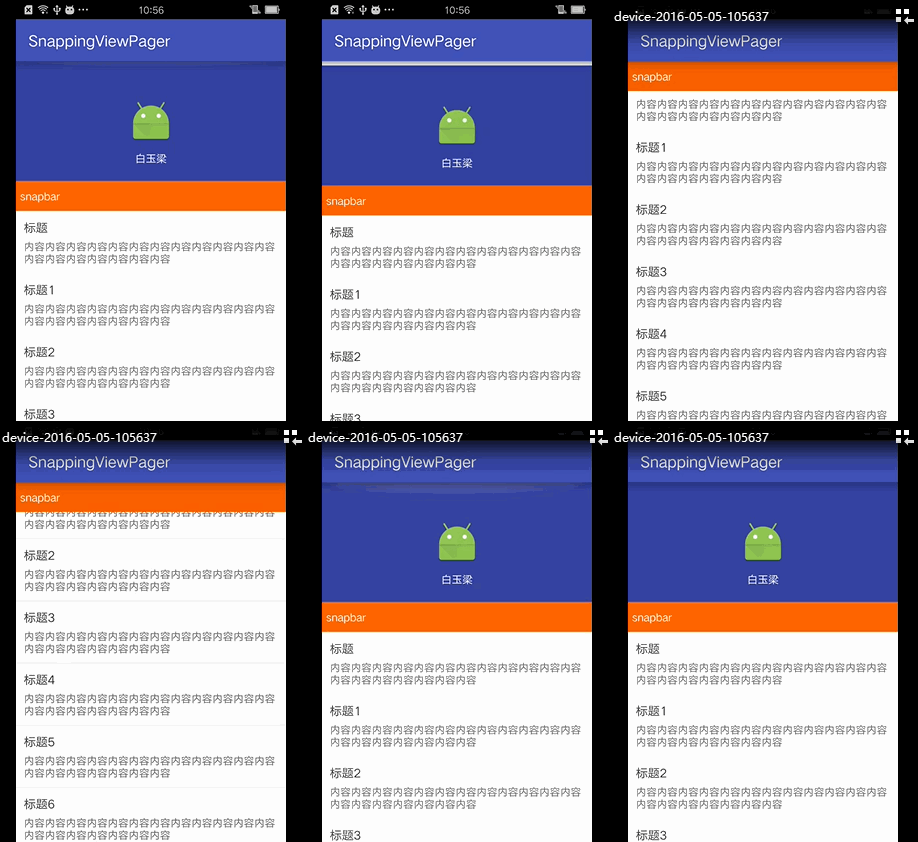
類似這種效果的app很多,網上的實現方法也是很多,但各種重寫各種監聽又令人不勝其煩,今日突發奇想,順著自己的思路實現了類似的效果,不敢獨享,特來分享給大家!
做事要一步一步來,不能一口吃胖,知道原理,接下來的事情就好辦了!所以第一篇,暫且實現一個簡單的效果,如圖:
實現思路(原理):
1.ScrollView
外層ScrollView不必說了!
2.滑動監聽
我們要實現這種效果,那麼ScrollView的滑動監聽必不可少,當scrollview上滑動至圖中的snapbar頂部位置時以及下滑出snapbar頂部位置時對該吸附控件的操作!網上大多數是通過重寫View來實現的,本人則取巧通過事先在頂部位置布局的控件以顯示隱藏來實現的,當scrollview上滑動至snapbar頂部位置顯示控件,下滑至該位置時再隱藏,是不是很簡單?但需注意一點是,我們需要計算snapbar以上部分布局的高度,才能在scrollview滑動監聽中判斷是否滑動到了這一位置:
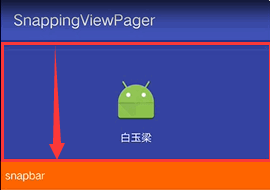
本人將這部分的高度固定為160dp,只需將160dp轉換為px就可以了,另外我們在類似這樣的布局時也盡量能固定頂部這一部分的高度,方便計算,如果使用的是wrap_parent怎需動態計算高度,相對麻煩!
3.吸附控件布局
布局時,是需要兩個相同的snapbar布局的,一個是跟隨scrollview滑動的,一個是固定在頂部且初始狀態為隱藏的。如何操作即第二步的操作方法!
因為6.0以前的SDK,ScrolView是無法直接使用onScrollChanged來監聽滑動距離的,因此我們需要稍稍重寫下ScrollView並自定義一個接口來將onScrollChanged事件暴露出來:
package com.byl.snappingviewpager;
import android.content.Context;
import android.util.AttributeSet;
import android.widget.ScrollView;
/**
* Created by baiyuliang on 2016-5-5.
*/
public class MyScrollView extends ScrollView {
private ScrollViewListener scrollViewListener = null;
public MyScrollView(Context context) {
super(context);
}
public MyScrollView(Context context, AttributeSet attrs,
int defStyle) {
super(context, attrs, defStyle);
}
public MyScrollView(Context context, AttributeSet attrs) {
super(context, attrs);
}
public void setScrollViewListener(ScrollViewListener scrollViewListener) {
this.scrollViewListener = scrollViewListener;
}
@Override
protected void onScrollChanged(int x, int y, int oldx, int oldy) {
super.onScrollChanged(x, y, oldx, oldy);
if (scrollViewListener != null) {
scrollViewListener.onScrollChanged(this, x, y, oldx, oldy);
}
}
public interface ScrollViewListener {
void onScrollChanged(MyScrollView scrollView, int x, int y, int oldx, int oldy);
}
}
snapbar上部高度計算:
snapbar_y = dip2px(this, 160);//注意你的snapbar以上部分的高度值,將其轉換為px(最好設置為固定值,如果非固定,則要動態計算高度)
/**
* 將dp轉px
*
* @param context
* @param dpValue
* @return
*/
public int dip2px(Context context, float dpValue) {
final float scale = context.getResources().getDisplayMetrics().density;
return (int) (dpValue * scale + 0.5f);
}
滑動監聽:
scrollView.setScrollViewListener(new MyScrollView.ScrollViewListener() {
@Override
public void onScrollChanged(MyScrollView scrollView, int x, int y, int oldx, int oldy) {
if (y >= snapbar_y) {
rg_snapbar_top.setVisibility(View.VISIBLE);
} else {
rg_snapbar_top.setVisibility(View.GONE);
}
}
});
就此簡單幾步就可以實現了,哈哈!
MainActivity:
package com.byl.snappingviewpager;
import android.content.Context;
import android.support.v7.app.AppCompatActivity;
import android.os.Bundle;
import android.view.View;
import android.widget.TextView;
import android.widget.Toast;
public class MainActivity extends AppCompatActivity {
MyScrollView scrollView;
TextView tv_snapbar_top,tv_snapbar;
int snapbar_y;
@Override
protected void onCreate(Bundle savedInstanceState) {
super.onCreate(savedInstanceState);
setContentView(R.layout.activity_main);
initView();
snapbar_y=dip2px(this,160);//注意你的snapbar以上部分的高度值,將其轉換為px(最好設置為固定值,如果非固定,則要動態計算高度)
}
private void initView() {
scrollView= (MyScrollView) findViewById(R.id.scrollView);
tv_snapbar_top= (TextView) findViewById(R.id.tv_snapbar_top);
tv_snapbar= (TextView) findViewById(R.id.tv_snapbar);
scrollView.setScrollViewListener(new MyScrollView.ScrollViewListener() {
@Override
public void onScrollChanged(MyScrollView scrollView, int x, int y, int oldx, int oldy) {
if(y>=snapbar_y){
tv_snapbar_top.setVisibility(View.VISIBLE);
}else{
tv_snapbar_top.setVisibility(View.GONE);
}
}
});
tv_snapbar_top.setOnClickListener(new View.OnClickListener() {
@Override
public void onClick(View v) {
Toast.makeText(MainActivity.this, "snapbar_top", Toast.LENGTH_SHORT).show();
}
});
tv_snapbar.setOnClickListener(new View.OnClickListener() {
@Override
public void onClick(View v) {
Toast.makeText(MainActivity.this, "snapbar", Toast.LENGTH_SHORT).show();
}
});
}
/**
* 將dp轉px
* @param context
* @param dpValue
* @return
*/
public int dip2px(Context context, float dpValue) {
final float scale = context.getResources().getDisplayMetrics().density;
return (int) (dpValue * scale + 0.5f);
}
}
activity_main.xml(為了方便起見,列表數據是直接放在了布局文件中的):
<?xml version="1.0" encoding="utf-8"?>
<RelativeLayout xmlns:android="http://schemas.android.com/apk/res/android"
    xmlns:tools="http://schemas.android.com/tools"
    android:layout_width="match_parent"
    android:layout_height="match_parent"
    android:background="#EEEEEE"
    tools:context="com.byl.snappingviewpager.MainActivity">

    <com.byl.snappingviewpager.MyScrollView
        android:id="@+id/scrollView"
        android:layout_width="match_parent"
        android:layout_height="match_parent"
        android:fillViewport="true"
        android:scrollbars="none">

        <LinearLayout
            android:layout_width="match_parent"
            android:layout_height="match_parent"
            android:orientation="vertical">

            <RelativeLayout
                android:layout_width="match_parent"
                android:layout_height="160dp"
                android:background="@color/colorPrimaryDark">

                <ImageView
                    android:id="@+id/iv_headView"
                    android:layout_width="60dp"
                    android:layout_height="60dp"
                    android:layout_centerInParent="true"
                    android:src="@mipmap/ic_launcher" />

                <TextView
                    android:layout_width="wrap_content"
                    android:layout_height="wrap_content"
                    android:layout_below="@+id/iv_headView"
                    android:layout_centerHorizontal="true"
                    android:layout_marginTop="10dp"
                    android:text="白玉梁"
                    android:textColor="#FFFFFF" />
            </RelativeLayout>

            <TextView
                android:id="@+id/tv_snapbar"
                android:layout_width="match_parent"
                android:layout_height="40dp"
                android:background="#FF6600"
                android:gravity="center_vertical"
                android:paddingLeft="5dp"
                android:textColor="#FFFFFF"
                android:text="snapbar" />

            <!-- 以下為列表內容,為了方便,直接寫在了布局中 -->

            <LinearLayout
                android:layout_width="match_parent"
                android:layout_height="wrap_content"
                android:layout_marginTop="1dp"
                android:background="#FFFFFF"
                android:orientation="vertical"
                android:padding="10dp">

                <TextView
                    android:layout_width="wrap_content"
                    android:layout_height="wrap_content"
                    android:text="標題"
                    android:textColor="#333333"
                    android:textSize="16sp" />

                <TextView
                    android:layout_width="wrap_content"
                    android:layout_height="wrap_content"
                    android:layout_marginTop="5dp"
                    android:text="內容內容內容內容內容內容內容內容內容內容內容內容內容內容內容內容內容內容內容"
                    android:textColor="#666666" />
            </LinearLayout>

            <LinearLayout
                android:layout_width="match_parent"
                android:layout_height="wrap_content"
                android:layout_marginTop="1dp"
                android:background="#FFFFFF"
                android:orientation="vertical"
                android:padding="10dp">

                <TextView
                    android:layout_width="wrap_content"
                    android:layout_height="wrap_content"
                    android:text="標題1"
                    android:textColor="#333333"
                    android:textSize="16sp" />

                <TextView
                    android:layout_width="wrap_content"
                    android:layout_height="wrap_content"
                    android:layout_marginTop="5dp"
                    android:text="內容內容內容內容內容內容內容內容內容內容內容內容內容內容內容內容內容內容內容"
                    android:textColor="#666666" />
            </LinearLayout>

            <LinearLayout
                android:layout_width="match_parent"
                android:layout_height="wrap_content"
                android:layout_marginTop="1dp"
                android:background="#FFFFFF"
                android:orientation="vertical"
                android:padding="10dp">

                <TextView
                    android:layout_width="wrap_content"
                    android:layout_height="wrap_content"
                    android:text="標題2"
                    android:textColor="#333333"
                    android:textSize="16sp" />

                <TextView
                    android:layout_width="wrap_content"
                    android:layout_height="wrap_content"
                    android:layout_marginTop="5dp"
                    android:text="內容內容內容內容內容內容內容內容內容內容內容內容內容內容內容內容內容內容內容"
                    android:textColor="#666666" />
            </LinearLayout>

            <LinearLayout
                android:layout_width="match_parent"
                android:layout_height="wrap_content"
                android:layout_marginTop="1dp"
                android:background="#FFFFFF"
                android:orientation="vertical"
                android:padding="10dp">

                <TextView
                    android:layout_width="wrap_content"
                    android:layout_height="wrap_content"
                    android:text="標題3"
                    android:textColor="#333333"
                    android:textSize="16sp" />

                <TextView
                    android:layout_width="wrap_content"
                    android:layout_height="wrap_content"
                    android:layout_marginTop="5dp"
                    android:text="內容內容內容內容內容內容內容內容內容內容內容內容內容內容內容內容內容內容內容"
                    android:textColor="#666666" />
            </LinearLayout>

            <LinearLayout
                android:layout_width="match_parent"
                android:layout_height="wrap_content"
                android:layout_marginTop="1dp"
                android:background="#FFFFFF"
                android:orientation="vertical"
                android:padding="10dp">

                <TextView
                    android:layout_width="wrap_content"
                    android:layout_height="wrap_content"
                    android:text="標題4"
                    android:textColor="#333333"
                    android:textSize="16sp" />

                <TextView
                    android:layout_width="wrap_content"
                    android:layout_height="wrap_content"
                    android:layout_marginTop="5dp"
                    android:text="內容內容內容內容內容內容內容內容內容內容內容內容內容內容內容內容內容內容內容"
                    android:textColor="#666666" />
            </LinearLayout>

            <LinearLayout
                android:layout_width="match_parent"
                android:layout_height="wrap_content"
                android:layout_marginTop="1dp"
                android:background="#FFFFFF"
                android:orientation="vertical"
                android:padding="10dp">

                <TextView
                    android:layout_width="wrap_content"
                    android:layout_height="wrap_content"
                    android:text="標題5"
                    android:textColor="#333333"
                    android:textSize="16sp" />

                <TextView
                    android:layout_width="wrap_content"
                    android:layout_height="wrap_content"
                    android:layout_marginTop="5dp"
                    android:text="內容內容內容內容內容內容內容內容內容內容內容內容內容內容內容內容內容內容內容"
                    android:textColor="#666666" />
            </LinearLayout>

            <LinearLayout
                android:layout_width="match_parent"
                android:layout_height="wrap_content"
                android:layout_marginTop="1dp"
                android:background="#FFFFFF"
                android:orientation="vertical"
                android:padding="10dp">

                <TextView
                    android:layout_width="wrap_content"
                    android:layout_height="wrap_content"
                    android:text="標題6"
                    android:textColor="#333333"
                    android:textSize="16sp" />

                <TextView
                    android:layout_width="wrap_content"
                    android:layout_height="wrap_content"
                    android:layout_marginTop="5dp"
                    android:text="內容內容內容內容內容內容內容內容內容內容內容內容內容內容內容內容內容內容內容"
                    android:textColor="#666666" />
            </LinearLayout>

            <LinearLayout
                android:layout_width="match_parent"
                android:layout_height="wrap_content"
                android:layout_marginTop="1dp"
                android:background="#FFFFFF"
                android:orientation="vertical"
                android:padding="10dp">

                <TextView
                    android:layout_width="wrap_content"
                    android:layout_height="wrap_content"
                    android:text="標題7"
                    android:textColor="#333333"
                    android:textSize="16sp" />

                <TextView
                    android:layout_width="wrap_content"
                    android:layout_height="wrap_content"
                    android:layout_marginTop="5dp"
                    android:text="內容內容內容內容內容內容內容內容內容內容內容內容內容內容內容內容內容內容內容"
                    android:textColor="#666666" />
            </LinearLayout>

            <LinearLayout
                android:layout_width="match_parent"
                android:layout_height="wrap_content"
                android:layout_marginTop="1dp"
                android:background="#FFFFFF"
                android:orientation="vertical"
                android:padding="10dp">

                <TextView
                    android:layout_width="wrap_content"
                    android:layout_height="wrap_content"
                    android:text="標題8"
                    android:textColor="#333333"
                    android:textSize="16sp" />

                <TextView
                    android:layout_width="wrap_content"
                    android:layout_height="wrap_content"
                    android:layout_marginTop="5dp"
                    android:text="內容內容內容內容內容內容內容內容內容內容內容內容內容內容內容內容內容內容內容"
                    android:textColor="#666666" />
            </LinearLayout>

            <LinearLayout
                android:layout_width="match_parent"
                android:layout_height="wrap_content"
                android:layout_marginTop="1dp"
                android:background="#FFFFFF"
                android:orientation="vertical"
                android:padding="10dp">

                <TextView
                    android:layout_width="wrap_content"
                    android:layout_height="wrap_content"
                    android:text="標題9"
                    android:textColor="#333333"
                    android:textSize="16sp" />

                <TextView
                    android:layout_width="wrap_content"
                    android:layout_height="wrap_content"
                    android:layout_marginTop="5dp"
                    android:text="內容內容內容內容內容內容內容內容內容內容內容內容內容內容內容內容內容內容內容"
                    android:textColor="#666666" />
            </LinearLayout>

            <LinearLayout
                android:layout_width="match_parent"
                android:layout_height="wrap_content"
                android:layout_marginTop="1dp"
                android:background="#FFFFFF"
                android:orientation="vertical"
                android:padding="10dp">

                <TextView
                    android:layout_width="wrap_content"
                    android:layout_height="wrap_content"
                    android:text="標題10"
                    android:textColor="#333333"
                    android:textSize="16sp" />

                <TextView
                    android:layout_width="wrap_content"
                    android:layout_height="wrap_content"
                    android:layout_marginTop="5dp"
                    android:text="內容內容內容內容內容內容內容內容內容內容內容內容內容內容內容內容內容內容內容"
                    android:textColor="#666666" />
            </LinearLayout>


        </LinearLayout>


    </com.byl.snappingviewpager.MyScrollView>

    <TextView
        android:id="@+id/tv_snapbar_top"
        android:layout_width="match_parent"
        android:layout_height="40dp"
        android:background="#FF6600"
        android:textColor="#FFFFFF"
        android:gravity="center_vertical"
        android:paddingLeft="5dp"
        android:text="snapbar"
        android:visibility="gone" />

</RelativeLayout>
 Android基礎知識_Context的理解及使用
一、Context 的作用1.API 類的繼承關系2.API 類的概述一個關於應用程序環境的全局信息接口。這是一個抽象類,它的實現是由Android系統提供的。它允許訪問
 Android CTS測試
一什麼是CTS CTS簡介:Compatibility Test suite系列兼容測試 google定義了一個兼容性規范(Compatible Definition),
 Android studio圖片ERROR: 9-patch image xx .9.png malformed
Android studio 圖片錯誤 9-patch image error in AndroidERROR: 9-patch image xx .9.png malf
 Android實戰教程第一篇之最簡單的計算器
從今天開始,本專欄持續更新Android簡易實戰類博客文章。和以往專欄不同,此專欄只有實例。每個實例盡量按照知識點對應相應一章節的內容去寫,循序漸進。有些實例可能會與另一