編輯:關於Android編程
下面是我的Androidstudio中的一些配置。
build.gradle(module)文件中的配置:
apply plugin: 'com.android.application'
apply plugin: 'android-apt'
def AAVersion = '3.3.2'
android {
    compileSdkVersion 22
    buildToolsVersion 22.0.1

    defaultConfig {
        applicationId lzl.edu.com.firstannitation
        minSdkVersion 22
        targetSdkVersion 22
        versionCode 1
        versionName 1.0
    }
    buildTypes {
        release {
            minifyEnabled false
            proguardFiles getDefaultProguardFile('proguard-android.txt'), 'proguard-rules.pro'
        }
    }
}

dependencies {
    compile fileTree(dir: 'libs', include: ['*.jar'])
    apt org.androidannotations:androidannotations:$AAVersion
    compile org.androidannotations:androidannotations-api:$AAVersion
}
apt {
    arguments {
        androidManifestFile variant.outputs[0].processResources.manifestFile
        // if you have multiple outputs (when using splits), you may want to have other index than 0

        // you should set your package name here if you are using different application IDs
        // resourcePackageName lzl.edu.com.firstannitation

        // You can set optional annotation processing options here, like these commented options:
       //  logLevel 'INFO'
        // logFile '/var/log/aa.log'
    }
}
build.gradle(project)文件中的配置
// Top-level build file where you can add configuration options common to all sub-projects/modules.

buildscript {
    repositories {
        jcenter()
        mavenCentral()
    }
    dependencies {
        classpath 'com.android.tools.build:gradle:1.2.3'
        classpath 'com.neenbedankt.gradle.plugins:android-apt:1.4'
        // NOTE: Do not place your application dependencies here; they belong
        // in the individual module build.gradle files
    }
    repositories {
        mavenCentral()
        mavenLocal()
    }
}

allprojects {
    repositories {
        jcenter()
    }
}
在AndroidStudio中將這個配置好之後,然後在AndroidManifest.xml文件中:這裡主要是將
android:name=lzl.edu.com.firstannitation.MainActivity 改為了 android:name=lzl.edu.com.firstannitation.MainActivity_
然後就可以在Activity中使用這個開發框架了。
package lzl.edu.com.firstannitation;

import android.app.Activity;
import android.os.Bundle;
import android.widget.TextView;

import org.androidannotations.annotations.AfterViews;
import org.androidannotations.annotations.EActivity;
import org.androidannotations.annotations.ViewById;

@EActivity(R.layout.activity_main)
public class MainActivity extends Activity {
    @ViewById(R.id.textview1)
    TextView textView1;
    @Override
    protected void onCreate(Bundle savedInstanceState) {
        super.onCreate(savedInstanceState);

    }
    @AfterViews
    void afterViews(){
        textView1.setText(你好,上海!);
    }

}
 Android技術精髓-BackupActivity
Android技術精髓-BackupActivity 首先介紹下今天主題BackupActivity功能:在Android應用UI activity 中繼承Asy
 android各種對話框總結筆記
確定取消對話框(帶圖標) //(上下文,主題) new AlertDialog.Builder(this, AlertDialog.THEME_DEVICE
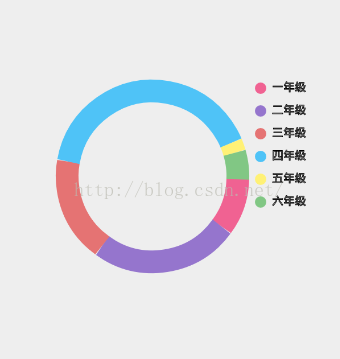 Android自定義View——彩色圓環統計圖
效果圖: 步驟一:分析變量信息 //-------------必須給的數據相關------------- private String[
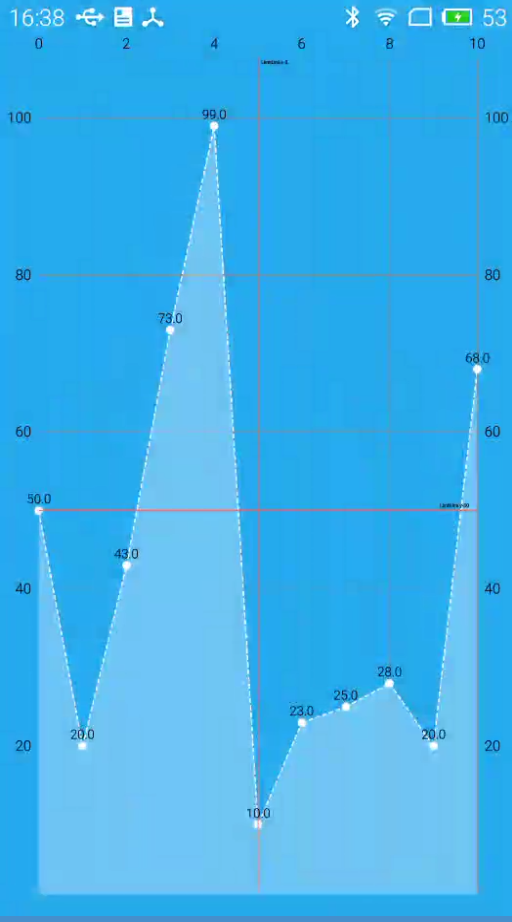 MPAndroidChart系列源碼解讀(五)
本篇主要是LineChart實戰相關知識和簡單的源碼剖析,相關源碼沒有,自己動手實踐學習才是最有效的方法。LineChart Simple運行效果圖個人感官覺得某些屬性設