

編輯:Android 技術基礎
有些資料天生就是階層結構,例如「省份 → 城市」、「分類 → 項目」。若用一般 ListView 硬塞,使用者得滑上一大段才能找到想要的內容。這時 ExpandableListView 就是更合適的選擇——點一下標題展開,再點一下收起,操作起來就像常見的即時通訊好友清單那樣直覺。
開啟 activity_main.xml,放入一個 ExpandableListView 即可:
<?xml version="1.0" encoding="utf-8"?>
<LinearLayout xmlns:android="https://schemas.android.com/apk/res/android"
    android:layout_width="match_parent"
    android:layout_height="match_parent"
    android:orientation="vertical">

    <ExpandableListView
        android:id="@+id/province"
        android:layout_width="match_parent"
        android:layout_height="match_parent"
        android:background="#EFEFEF" />
</LinearLayout>
ExpandableListView 的資料是「兩層」的:group(組/父層)與 child(子層)。因此我們改用 BaseExpandableListAdapter,並準備一維陣列放省份、二維陣列放各省份底下的城市。
public class MainActivity extends Activity {

    protected void onCreate(Bundle savedInstanceState) {
        super.onCreate(savedInstanceState);
        setContentView(R.layout.activity_main);

        final ExpandableListAdapter adapter = new BaseExpandableListAdapter() {

            private String[] province = {"河南省", "河北省", "山東省", "山西省"};

            private String[][] city = {
                {"鄭州市", "開封市", "新鄉市", "安陽市", "南陽市"},
                {"石家莊市", "邯鄲市", "保定市", "廊坊市"},
                {"濟南市", "青島市", "日照市", "煙台市", "威海市"},
                {"太原市", "大同市", "晉城市", "呂梁市", "長治市"}
            };

            // 以程式動態產生 TextView,省去額外寫一頁 item 版面
            TextView getTextView() {
                AbsListView.LayoutParams lp = new AbsListView.LayoutParams(
                        ViewGroup.LayoutParams.MATCH_PARENT, 64);
                TextView textView = new TextView(MainActivity.this);
                textView.setLayoutParams(lp);
                textView.setGravity(Gravity.CENTER_VERTICAL);
                textView.setPadding(36, 0, 0, 0);
                textView.setTextSize(20);
                textView.setTextColor(Color.BLACK);
                return textView;
            }

            @Override public int getGroupCount() { return province.length; }
            @Override public Object getGroup(int groupPosition) { return province[groupPosition]; }
            @Override public long getGroupId(int groupPosition) { return groupPosition; }
            @Override public int getChildrenCount(int groupPosition) { return city[groupPosition].length; }
            @Override public Object getChild(int groupPosition, int childPosition) {
                return city[groupPosition][childPosition];
            }
            @Override public long getChildId(int groupPosition, int childPosition) { return childPosition; }
            @Override public boolean hasStableIds() { return true; }
            @Override public boolean isChildSelectable(int groupPosition, int childPosition) { return true; }

            @Override
            public View getGroupView(int groupPosition, boolean isExpanded,
                                     View convertView, ViewGroup parent) {
                LinearLayout ll = new LinearLayout(MainActivity.this);
                ll.setOrientation(0);
                TextView textView = getTextView();
                textView.setTextColor(Color.BLACK);
                textView.setText(getGroup(groupPosition).toString());
                ll.addView(textView);
                return ll;
            }

            @Override
            public View getChildView(int groupPosition, int childPosition,
                                     boolean isLastChild, View convertView, ViewGroup parent) {
                LinearLayout ll = new LinearLayout(MainActivity.this);
                ll.setOrientation(0);
                TextView textView = getTextView();
                textView.setText(getChild(groupPosition, childPosition).toString());
                ll.addView(textView);
                return ll;
            }
        };

        ExpandableListView expandableListView =
                (ExpandableListView) findViewById(R.id.province);
        expandableListView.setAdapter(adapter);

        // 子項目的點擊事件
        expandableListView.setOnChildClickListener(new OnChildClickListener() {
            @Override
            public boolean onChildClick(ExpandableListView parent, View v,
                                        int groupPosition, int childPosition, long id) {
                Toast.makeText(MainActivity.this,
                        adapter.getChild(groupPosition, childPosition).toString(),
                        Toast.LENGTH_SHORT).show();
                return false;
            }
        });
    }
}
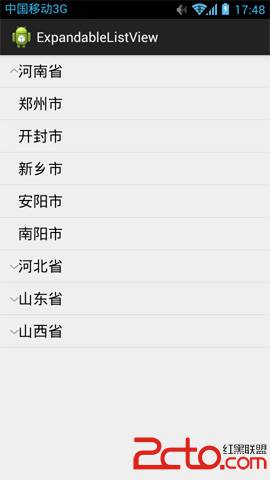
setOnChildClickListener;想監聽標題的展開與收合,則該用 setOnGroupClickListener 或 setOnGroupExpandListener。點選省份即可展開或收合底下的城市列表,點擊任一城市會跳出提示訊息。

 RatingBar 星級評分條:使用與自定義樣式
本節引言: 上一節的 SeekBar 是不是挺輕鬆?這一節的 RatingBar(星級評分條)同樣簡單。相信在某寶買過東西的人對它不陌生——收到包裹裡常塞著「五星好評返現
 2.5.9 AlertDialog 對話框完整指南
前言 本節要介紹的是顯示提示資訊的第三個元件 AlertDialog(對話框),同時它也是其他 Dialog 的父類,例如 ProgressDialog、TimePic
 Android 教學:把專案打包成 APK 並完成簽章
你的 Android 手機裡大概裝了不少 App。那麼,要怎麼把自己寫的程式變成別人也能安裝的應用程式?答案就是打包成 APK,而打包的關鍵在於「簽章」。 打包流程 s
 WebView 雙向橋樑:讓網頁裡的 JavaScript 呼叫 Android 原生方法(從零開始學 Android)
混合式 App 裡有一個很常見的需求:畫面用 HTML 寫,但某些運算或系統能力必須交給原生層處理。這時候就需要一座「橋」——讓 WebView 中的 JavaScrip