

編輯:關於 Android 程式設計
所謂閃屏
開啟 App 時先呈現一張圖片,停留數秒後自動關閉並進入下一個頁面,也就是由 SplashActivity 跳轉到 MainActivity。Android 中有三種常見做法。
版面配置:
<?xml version="1.0" encoding="utf-8"?>
<RelativeLayout xmlns:android="https://schemas.android.com/apk/res/android"
    xmlns:tools="https://schemas.android.com/tools"
    android:layout_width="match_parent"
    android:layout_height="match_parent"
    tools:context="com.example.administrator.test.SplashActivity">

    <ImageView
        android:layout_width="match_parent"
        android:layout_height="match_parent"
        android:id="@+id/splash_iv"
        android:scaleType="fitXY"
        android:src="@mipmap/splash" />
</RelativeLayout>
做法一:Handler 的 postDelayed
傳入一個 Runnable 物件與延遲時間即可,寫法最為直覺:
new Handler().postDelayed(new Runnable() {
    @Override
    public void run() {
        Intent intent = new Intent(SplashActivity.this, MainActivity.class);
        startActivity(intent);
        SplashActivity.this.finish();
    }
}, 3000);
做法二:以動畫時長控制跳轉
@Override
protected void onCreate(Bundle savedInstanceState) {
    super.onCreate(savedInstanceState);
    setContentView(R.layout.activity_splash);

    iv = (ImageView) findViewById(R.id.splash_iv);
    iv.setImageResource(R.mipmap.splash);

    // 設定透明度動畫,從無到有
    AlphaAnimation alphaAnimation = new AlphaAnimation(0.0f, 1.0f);
    // 設定動畫持續時間
    alphaAnimation.setDuration(3000);
    // 啟動動畫
    iv.startAnimation(alphaAnimation);

    // 為動畫加上監聽,於結束時跳轉
    alphaAnimation.setAnimationListener(new Animation.AnimationListener() {
        @Override
        public void onAnimationStart(Animation animation) {
            // 動畫開始時執行
            Log.e("TAG", "onAnimationStart: ");
        }

        @Override
        public void onAnimationEnd(Animation animation) {
            // 動畫結束時執行
            Log.e("TAG", "onAnimationEnd: ");
            Intent intent = new Intent(SplashActivity.this, MainActivity.class);
            startActivity(intent);
            finish();
        }

        @Override
        public void onAnimationRepeat(Animation animation) {
            // 動畫重複播放時執行
            Log.e("TAG", "onAnimationRepeat: ");
        }
    });
}
做法三:使用 Timer 定時器
@Override
protected void onCreate(Bundle savedInstanceState) {
    super.onCreate(savedInstanceState);
    setContentView(R.layout.activity_splash);

    iv = (ImageView) findViewById(R.id.splash_iv);
    iv.setImageResource(R.mipmap.splash);

    Timer timer = new Timer();
    timer.schedule(new TimerTask() {
        @Override
        public void run() {
            Intent intent = new Intent(SplashActivity.this, MainActivity.class);
            startActivity(intent);
            finish();
        }
    }, 3000);
}
該選哪一種
三種方式都能達成目的。若只是單純計時,Handler 的 postDelayed 最為簡潔;若希望閃屏本身帶有淡入等視覺效果,做法二可以讓動畫與跳轉時機自然結合;Timer 則適合後續還有其他週期性工作的場合。另外提醒一點,Timer 的任務執行在工作執行緒,若其中有更新 UI 的動作,記得切回主執行緒處理。
以上就是本文的全部內容,希望對大家的學習有所幫助。
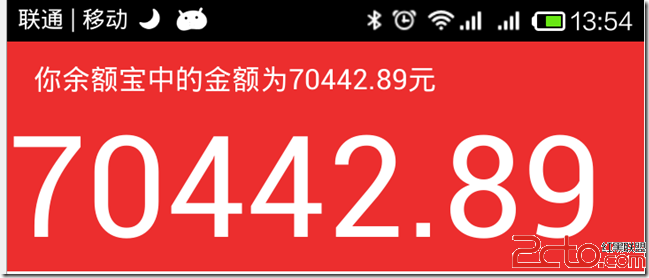 Android 實現類似支付寶餘額快速跳動的數字動畫效果
此圖為靜態截圖,實際執行時數字會快速跳動。 之前看到支付寶的這個效果覺得非常帥:進入頁面時餘額會呼嚕嚕地從小數字一路竄升到最終金額,很有質感。但一直不知道怎麼實作,最近
 使用 RecyclerView 添加 Header 和 Footer 的方法
RecyclerView 雖然效能優秀,但沒有像 ListView 那樣直接提供 addHeaderView() 與 addFooterView()。若要加入頭部與底部,
 自定義控件三部曲之繪圖篇(十六)——為控件添加陰影與發光效果
本節我們將學到: · 傳統地給按鈕添加陰影的方法; · 如何給已有控件添加陰影; · 如何給圖片添加陰影。 一、layer-list 給按鈕添加陰影效果 給控件添加陰影的
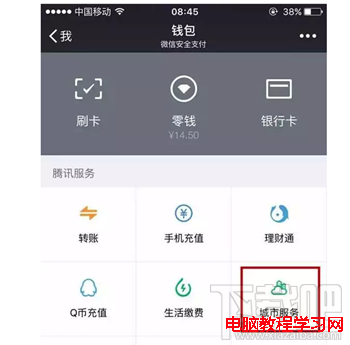 微信也能辦護照!線上申請全流程手把手教學
微信不只能辦護照,還能續簽港澳通行證,可惜知道的人不多。對於經常出行、出差的朋友來說,這項功能極具便利。那麼微信究竟該如何辦理護照?微信官方也公布了「微信辦護照教學」,以