

編輯:關於 Android 程式設計
Android 的動畫體系有兩條路:補間動畫(Tween Animation)與逐幀動畫(Frame Animation)。前者是對同一個物件反覆做變換——平移、縮放、旋轉、改變透明度——靠關鍵幀之間的插補產生流暢效果;後者則像放電影,把預先準備好的圖片依序播放。
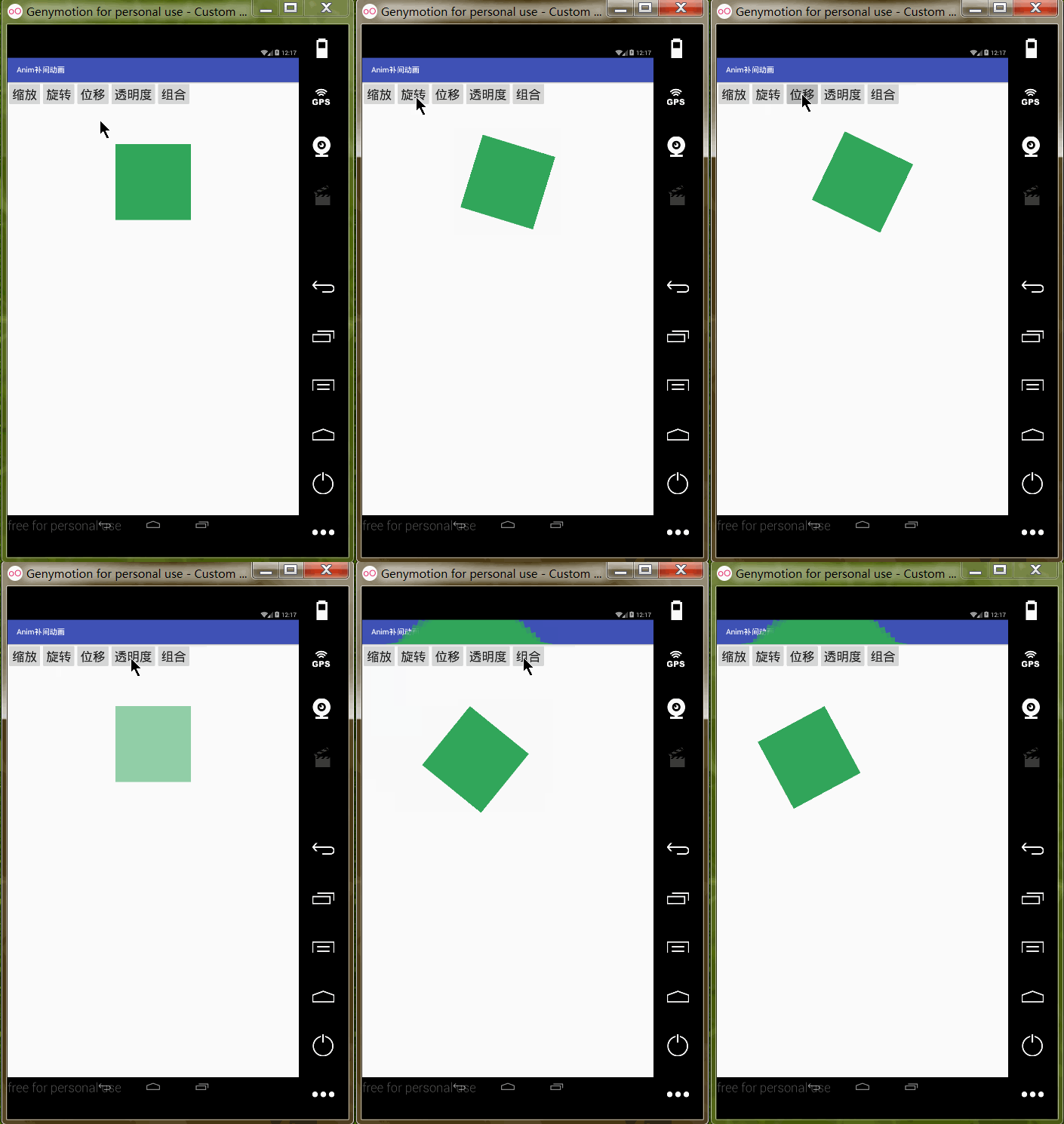
原理:只需給出開始與結束兩個關鍵幀,中間的插補幀由系統自動計算。
四種基本動畫:
AlphaAnimation(透明度)、ScaleAnimation(縮放)、TranslateAnimation(位移)、RotateAnimation(旋轉),以及把它們綁在一起的 AnimationSet(組合)。
兩種定義方式:在程式碼中 new 出物件,或在 anim 目錄下寫 XML 資源。後者更適合把動畫參數交給設計或後勤調整,也讓程式碼保持乾淨。
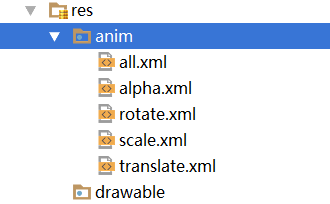
res/anim/alpha.xml
<?xml version="1.0" encoding="utf-8"?> <alpha xmlns:android="https://schemas.android.com/apk/res/android" android:duration="2000" android:fromAlpha="1.0" android:interpolator="@android:anim/linear_interpolator" android:toAlpha="0.3"> </alpha>
res/anim/rotate.xml
<?xml version="1.0" encoding="utf-8"?> <rotate xmlns:android="https://schemas.android.com/apk/res/android" android:interpolator="@android:interpolator/linear" android:repeatCount="infinite" android:repeatMode="reverse" android:duration="2000" android:fromDegrees="0" android:toDegrees="1080"> android:pivotX="50%" android:pivotY="50%" </rotate>
res/anim/scale.xml
<?xml version="1.0" encoding="utf-8"?> <scale xmlns:android="https://schemas.android.com/apk/res/android" android:interpolator="@android:anim/linear_interpolator" android:duration="2000" android:fillAfter="true" android:fromXScale="1.0" android:fromYScale="1.0" android:pivotX="50%" android:pivotY="50%" android:toXScale="0.3" android:toYScale="0.3"> </scale>
res/anim/translate.xml
<?xml version="1.0" encoding="utf-8"?> <translate xmlns:android="https://schemas.android.com/apk/res/android" android:interpolator="@android:anim/linear_interpolator" android:duration="2000" android:fromXDelta="10" android:fromYDelta="10" android:toXDelta="300" android:toYDelta="300"> </translate>
res/anim/all.xml
<?xml version="1.0" encoding="utf-8"?> <set xmlns:android="https://schemas.android.com/apk/res/android" android:interpolator="@android:anim/linear_interpolator" android:duration="2000"> <alpha android:fromAlpha="0.3" android:toAlpha="1.0"/> <rotate android:fromDegrees="0" android:toDegrees="360" android:pivotX="0" android:pivotY="0" android:repeatMode="restart" android:repeatCount="infinite"/> </set>
package com.lyp.anim; import android.support.v7.app.AppCompatActivity; import android.os.Bundle; import android.view.View; import android.view.animation.Animation; import android.view.animation.AnimationUtils; import android.widget.Button; import android.widget.ImageView; public class MainActivity extends AppCompatActivity implements View.OnClickListener{ private Button btnScale; private Button btnRotate; private Button btnTranslate; private Button btnAlpha; private Button btnAll; private ImageView mImage; @Override protected void onCreate(Bundle savedInstanceState) { super.onCreate(savedInstanceState); setContentView(R.layout.activity_main); initView(); } private void initView() { btnScale= (Button) findViewById(R.id.btn_scale); btnRotate= (Button) findViewById(R.id.btn_rotate); btnTranslate= (Button) findViewById(R.id.btn_translate); btnAlpha= (Button) findViewById(R.id.btn_alpha); btnAll= (Button) findViewById(R.id.btn_all); mImage= (ImageView) findViewById(R.id.image); btnScale.setOnClickListener(this); btnRotate.setOnClickListener(this); btnTranslate.setOnClickListener(this); btnAlpha.setOnClickListener(this); btnAll.setOnClickListener(this); } @Override public void onClick(View v) { switch (v.getId()){ case R.id.btn_scale: //加載縮放動畫 Animation scale = AnimationUtils.loadAnimation(this, R.anim.scale); scale.setFillAfter(true); //保留動畫結束狀態,在xml文件中設置無效!! mImage.startAnimation(scale); break; case R.id.btn_rotate: //加載旋轉動畫 Animation rotate = AnimationUtils.loadAnimation(this, R.anim.rotate); mImage.startAnimation(rotate); break; case R.id.btn_translate: //加載位移動畫 Animation translate = AnimationUtils.loadAnimation(this, R.anim.translate); mImage.startAnimation(translate); break; case R.id.btn_alpha: //加載透明度漸變動畫 Animation alpha = AnimationUtils.loadAnimation(this, R.anim.alpha); mImage.startAnimation(alpha); break; case R.id.btn_all: //加載組合動畫 Animation all = AnimationUtils.loadAnimation(this, R.anim.all); mImage.startAnimation(all); break; } } }
duration:時長,單位毫秒,決定節奏快慢。
interpolator:插值器,決定速度曲線。linear 是等速,accelerate 先慢後快,decelerate 先快後慢,overshoot 會衝過頭再回彈。動畫「順不順眼」多半取決於這裡選得對不對。
repeatCount 與 repeatMode:重複次數與模式,reverse 是來回播放,restart 是每次重來。
pivotX / pivotY:縮放與旋轉的基準點,可用百分比相對於自身,也可用絕對像素。設錯會出現「物件繞著奇怪的點轉」的狀況。
fillAfter:動畫結束後是否保留終態。程式碼裡用 setFillAfter(true) 是有效的,但在 XML 中對某些版本並不生效——這也是範例註解特別提醒的地方。
最後要理解一個本質:補間動畫只是「視覺上的變換」,並不改變 View 的真實位置與大小。所以一個被平移出去的 View,實際的可點擊區域仍留在原處。若需要真正改變佈局,得動用 LayoutAnimation 或屬性動畫(Property Animation)。
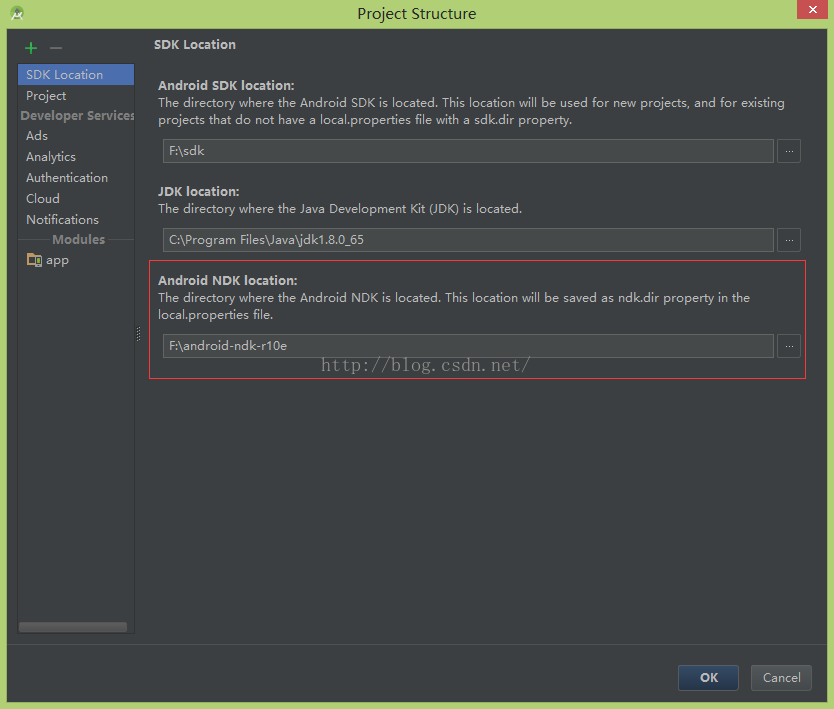 Android Studio 中使用 JNI 與 NDK 的完整步驟
這是我第一次寫部落格,請多指教。初次接觸 Android NDK 時我完全一頭霧水,因為專案需要與 Bluetooth 下位機溝通,必須在應用裡嵌入 C++ 演算法。折騰
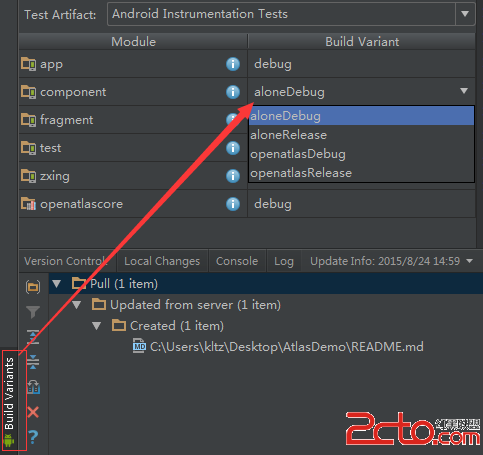 Android 插件化開發:OpenAtlas 四大組件與 Application 驗證
使用 OpenAtlas 進行插件化開發時,插件的撰寫方式接近一般 App,但需要驗證四大組件與 Application 是否能正確運作。本文以日誌輸出方式檢查各元件的生
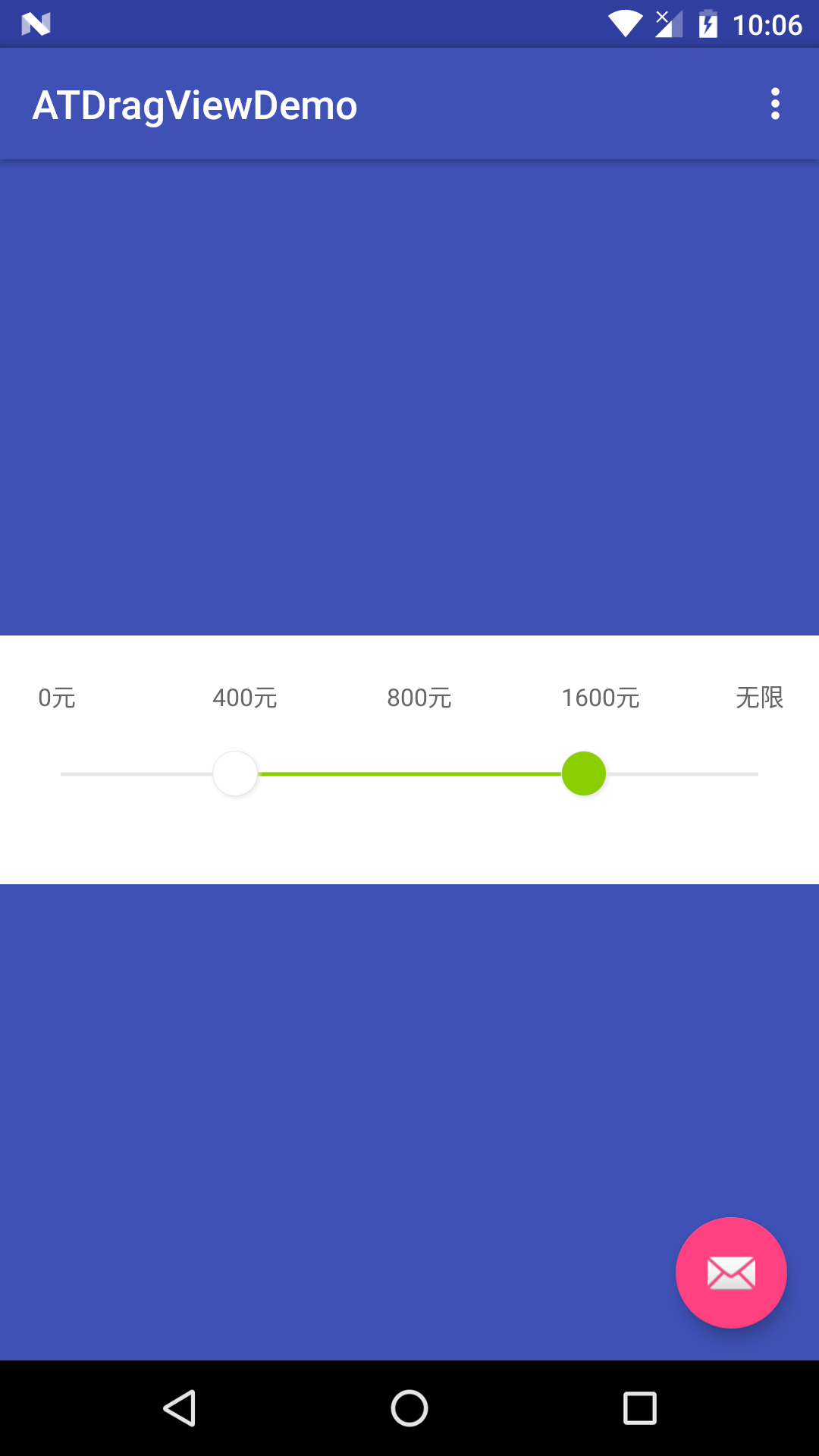 自定義雙向可拖動 SeekBar:從屬性抽取到滑動回彈的完整的實現
目標很明確:做一個可以左右兩端各自拖動的自定義 View。 實現步驟拆解 自定義屬性的抽取 View 尺寸的計算 相關內容的繪製(文字、原點、背景進度條、當前進度條
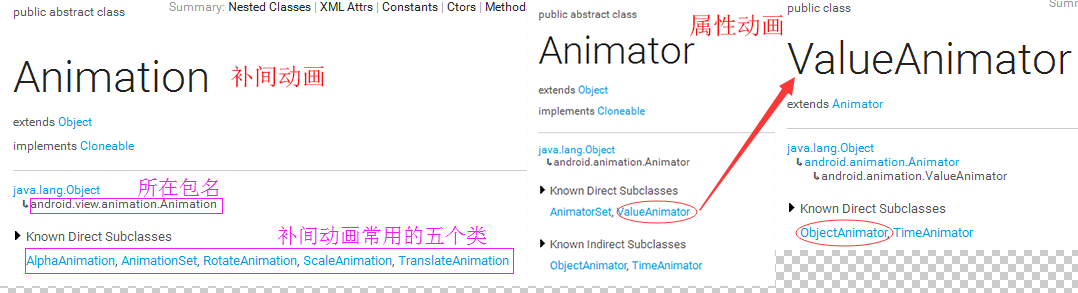 Android 屬性動畫入門:ValueAnimator、ObjectAnimator 與組合動畫
在 Android 開發中,適當使用動畫可以提升應用整體質感。早期的動畫方案主要包含幀動畫與補間動畫,而 Android 3.0 之後推出的屬性動畫,則讓開發者能更靈活地