

編輯:關於 Android 程式設計
前言
Android 的 TextView 只能對「整個 TextView」套用動畫,沒辦法讓每個字各自表演。即使用 TextSwitcher,也很難做出我想要的逐字效果,所以乾脆自己寫一個。
大方向是:繼承 ViewGroup,設定文字時把每一個字變成一個獨立的 TextView,再用固定間隔依序啟動各自的動畫。
setText(String text, final Animation animation, int duration):text 是要顯示的字串,animation 是每個字的動畫,duration 是字與字之間的播放間隔。
public void setText(String text, final Animation animation, int duration) {
    int time = 0;
    if (text != null && !text.isEmpty()) {
        char[] characters = text.toCharArray();
        for (char c : characters) {
            final TextView t = new TextView(context);
            // 逐一走訪每個字元,各產生一個 TextView 並設定動畫
            t.setText(String.valueOf(c));
            t.setTextSize(28);

            Handler h = new Handler();
            // 每隔 duration 時間播放下一個字的動畫
            h.postDelayed(new Runnable() {
                @Override
                public void run() {
                    addView(t);
                    t.setAnimation(animation);
                }
            }, time);
            time += duration;
        }
    }
}
import android.content.Context;
import android.os.Handler;
import android.util.AttributeSet;
import android.view.View;
import android.view.ViewGroup;
import android.view.animation.Animation;
import android.widget.TextView;

public class CTextView extends ViewGroup {

    private Context context;

    public CTextView(Context context) {
        super(context);
        this.context = context;
    }

    public CTextView(Context context, AttributeSet attrs) {
        super(context, attrs);
        this.context = context;
    }

    public CTextView(Context context, AttributeSet attrs, int defStyle) {
        super(context, attrs, defStyle);
        this.context = context;
    }

    public void setText(String text, final Animation animation, int duration) {
        int time = 0;
        if (text != null && !text.isEmpty()) {
            char[] characters = text.toCharArray();
            for (char c : characters) {
                final TextView t = new TextView(context);
                // 逐一走訪每個字元,各產生一個 TextView 並設定動畫
                t.setText(String.valueOf(c));
                t.setTextSize(28);

                Handler h = new Handler();
                // 每隔 duration 時間播放下一個字的動畫
                h.postDelayed(new Runnable() {
                    @Override
                    public void run() {
                        addView(t);
                        t.setAnimation(animation);
                    }
                }, time);
                time += duration;
            }
        }
    }

    @Override
    protected void onMeasure(int widthMeasureSpec, int heightMeasureSpec) {
        int measureWidth = measureWidth(widthMeasureSpec);
        int measureHeight = measureHeight(heightMeasureSpec);
        // 計算 ViewGroup 中所有子控件的大小
        measureChildren(widthMeasureSpec, heightMeasureSpec);
        // 設定這個 ViewGroup 的大小
        setMeasuredDimension(measureWidth, measureHeight);
    }

    @Override
    protected void onLayout(boolean changed, int l, int t, int r, int b) {
        int childLeft = 0;
        // 走訪所有子檢視
        int childCount = getChildCount();
        for (int i = 0; i < childCount; i++) {
            View childView = getChildAt(i);
            // 取得在 onMeasure 中計算出的尺寸
            int measureHeight = childView.getMeasuredHeight();
            int measuredWidth = childView.getMeasuredWidth();
            // 將它們横向排列
            childView.layout(childLeft, 0, childLeft + measuredWidth, measureHeight);
            childLeft += measuredWidth;
        }
    }

    private int measureWidth(int pWidthMeasureSpec) {
        int result = 0;
        int widthMode = MeasureSpec.getMode(pWidthMeasureSpec); // 模式
        int widthSize = MeasureSpec.getSize(pWidthMeasureSpec); // 尺寸
        switch (widthMode) {
            /**
             * mode 有三種:MeasureSpec.UNSPECIFIED、MeasureSpec.EXACTLY、MeasureSpec.AT_MOST。
             *
             * EXACTLY 是精確尺寸:當 layout_width 指定為具體數值(如 50dip)或 FILL_PARENT 時,
             * 控件大小已經確定,屬於精確尺寸。
             *
             * AT_MOST 是最大尺寸:當 layout_width 指定為 WRAP_CONTENT 時,控件大小會隨子 View
             * 或內容變化,只要不超過父控件允許的最大尺寸即可。
             *
             * UNSPECIFIED 是未指定尺寸,這種情況不多,通常是父控件為 AdapterView 時傳入的模式。
             */
            case MeasureSpec.AT_MOST:
            case MeasureSpec.EXACTLY:
                result = widthSize;
                break;
        }
        return result;
    }

    private int measureHeight(int pHeightMeasureSpec) {
        int result = 0;
        int heightMode = MeasureSpec.getMode(pHeightMeasureSpec);
        int heightSize = MeasureSpec.getSize(pHeightMeasureSpec);
        switch (heightMode) {
            case MeasureSpec.AT_MOST:
            case MeasureSpec.EXACTLY:
                result = heightSize;
                break;
        }
        return result;
    }
}
<LinearLayout xmlns:android="https://schemas.android.com/apk/res/android"
    xmlns:tools="https://schemas.android.com/tools"
    android:layout_width="match_parent"
    android:layout_height="match_parent"
    android:orientation="vertical"
    tools:context=".NetworkTestActivity">

    <com.network.cchen.network.CTextView
        android:id="@+id/cTextView"
        android:layout_width="match_parent"
        android:layout_height="match_parent">
    </com.network.cchen.network.CTextView>
</LinearLayout>
import android.app.Activity;
import android.os.Bundle;
import android.view.animation.AnimationUtils;

public class TestActivity extends Activity {

    @Override
    public void onCreate(Bundle savedInstanceState) {
        super.onCreate(savedInstanceState);
        setContentView(R.layout.activity_network_test);

        CTextView cTextView = (CTextView) findViewById(R.id.cTextView);
        cTextView.setText("Hello world", AnimationUtils.loadAnimation(this, R.anim.myanim), 300);
    }
}
想要的效果是從透明漸漸浮現:
<?xml version="1.0" encoding="utf-8"?>
<set xmlns:android="https://schemas.android.com/apk/res/android">
    <alpha
        android:duration="1000"
        android:fromAlpha="0.0"
        android:toAlpha="1.0" />
</set>
如果想改成每個字從右側飛入:
<?xml version="1.0" encoding="utf-8"?>
<set xmlns:android="https://schemas.android.com/apk/res/android">
    <translate
        android:duration="1000"
        android:fillAfter="true"
        android:fromXDelta="50%p"
        android:interpolator="@android:anim/anticipate_interpolator"
        android:toXDelta="0" />
</set>
總結
核心概念其實很單純:把「一段文字」拆成「多個 TextView」,再用 Handler 的延遲投遞錯開每個動畫的起始時間。後製出來的效果相當不錯,有興趣的朋友動手試試看吧。
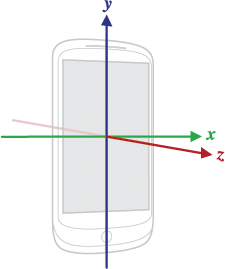 Android 官方文件導讀:Location and Sensors APIs(中)
本文接續介紹 Android 裝置中的各類感測器(Sensor),包含感測器概述、分類、框架,以及如何在程式中監聽感測器事件。感測器概述(Sensors Overview
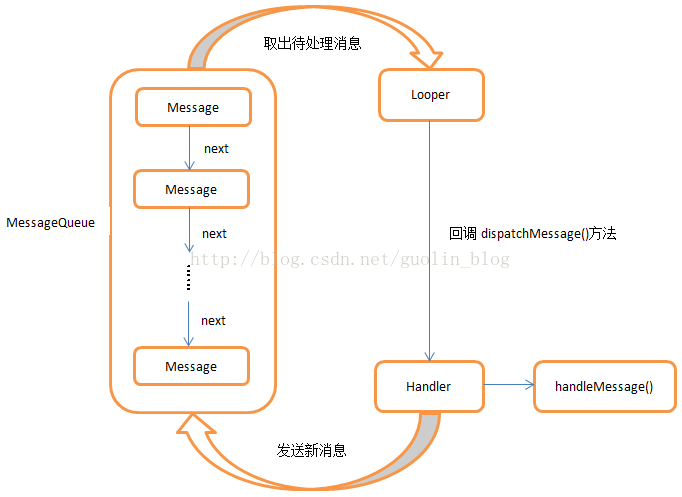 Android 消息機制源碼簡析:Handler、Looper、MessageQueue
為何需要消息機制 Android 以消息驅動的方式進行互動。當子執行緒完成檔案讀寫或網路請求後,常需要回到主執行緒更新 UI。由於 Android 的 UI 元件不是執行
 Activity 之間動畫切換學習筆記(一):Transition 框架入門
首先,什麼是 Transition? Android 5.0 中 Activity 與 Fragment 的變換是建立在名為 Transitions 的新特性之上。這個
 Android 自訂圓角矩形進度對話框的兩種做法
本篇整理兩種實作「圓角背景的等待對話框」的方式:自訂 Dialog 類別,以及用 Activity 模擬。 方式一:自訂 Dialog public class Pr