

編輯:關於 Android 程式設計
看了許多高手寫的文章,受益良多,也非常欣賞大家的分享精神,於是決定開始寫 Blog,把自己的心得記錄下來與各位交流。
先來看看效果圖:
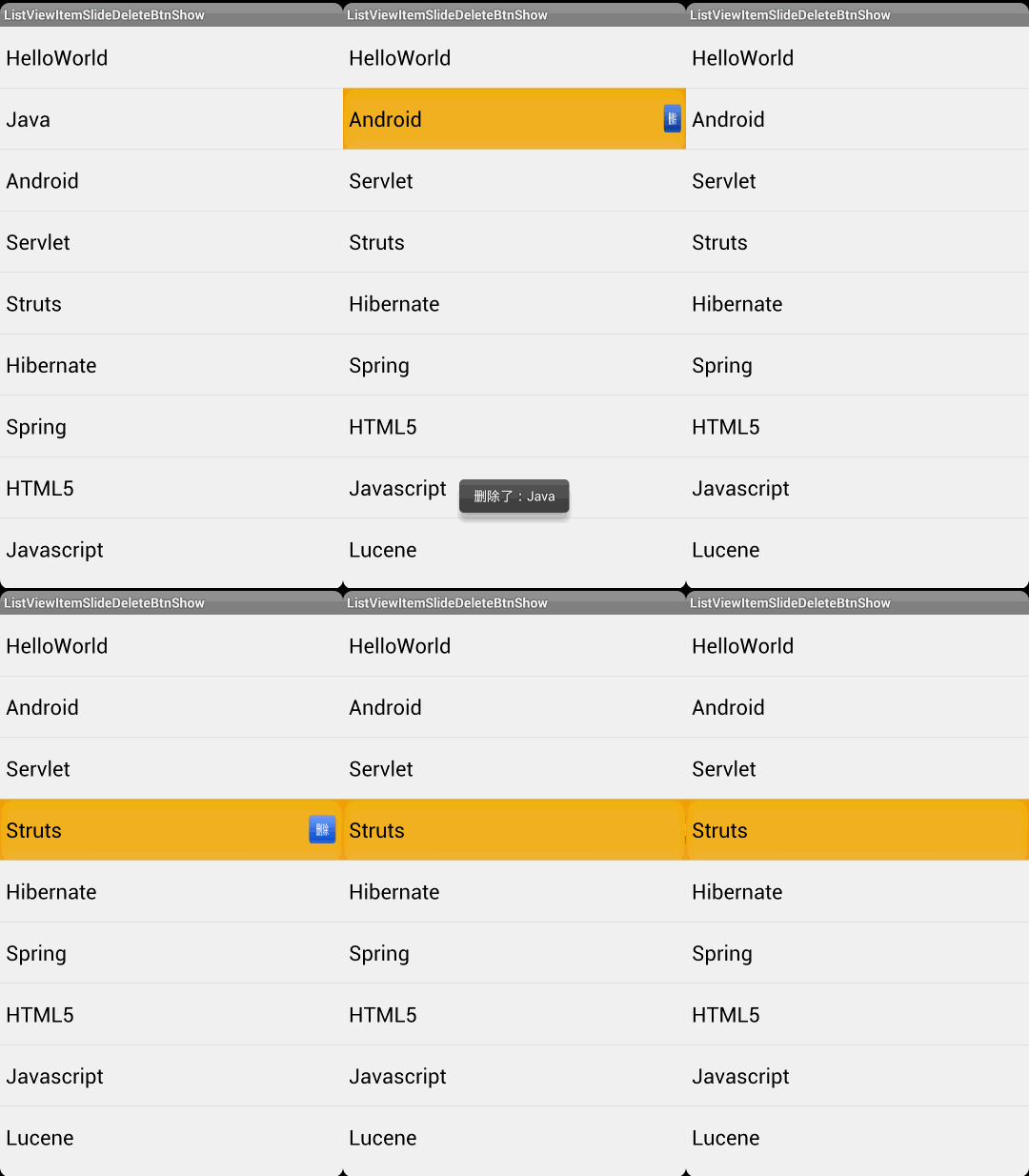
原本我打算在 ListView 每個 Item 的布局上放一個隱藏的 Button,滑動時再顯示。但實作後發現,只要 Item 上存在 Button,各 Item 之間的 Button 就很難統一控制。因此決定改為繼承 ListView 並搭配 PopupWindow。
首先是布局檔。delete_btn.xml 裡只需要一個 Button:
<?xml version="1.0" encoding="utf-8"?> <LinearLayout xmlns:android="https://schemas.android.com/apk/res/android" android:layout_width="wrap_content" android:layout_height="wrap_content" android:orientation="vertical" > <Button android:id="@+id/id_item_btn" android:layout_width="60dp" android:singleLine="true" android:layout_height="wrap_content" android:text="刪除" android:background="@drawable/d_delete_btn" android:textColor="#ffffff" android:paddingLeft="15dp" android:paddingRight="15dp" android:layout_alignParentRight="true" android:layout_centerVertical="true" android:layout_marginRight="15dp" /> </LinearLayout>
主布局檔 activity_main.xml 中,ListView 每個 Item 直接沿用系統的 android.R.layout.simple_list_item_1:
<RelativeLayout xmlns:android="https://schemas.android.com/apk/res/android" xmlns:tools="https://schemas.android.com/tools" android:layout_width="match_parent" android:layout_height="match_parent" > <com.example.listviewitemslidedeletebtnshow.QQListView android:id="@+id/id_listview" android:layout_width="fill_parent" android:layout_height="wrap_content" > </com.example.listviewitemslidedeletebtnshow.QQListView> </RelativeLayout>
接下來看看 QQListView 的實作:
package com.example.listviewitemslidedeletebtnshow; import android.content.Context; import android.util.AttributeSet; import android.view.Gravity; import android.view.LayoutInflater; import android.view.MotionEvent; import android.view.View; import android.view.ViewConfiguration; import android.widget.Button; import android.widget.LinearLayout; import android.widget.ListView; import android.widget.PopupWindow; public class QQListView extends ListView { private static final String TAG = "QQlistView"; private int touchSlop; private boolean isSliding; private int xDown; private int yDown; private int xMove; private int yMove; private LayoutInflater mInflater; private PopupWindow mPopupWindow; private int mPopupWindowHeight; private int mPopupWindowWidth; private Button mDelBtn; private DelButtonClickListener mListener; private View mCurrentView; private int mCurrentViewPos; public QQListView(Context context, AttributeSet attrs) { super(context, attrs); mInflater = LayoutInflater.from(context); touchSlop = ViewConfiguration.get(context).getScaledTouchSlop(); View view = mInflater.inflate(R.layout.delete_btn, null); mDelBtn = (Button) view.findViewById(R.id.id_item_btn); mPopupWindow = new PopupWindow(view, LinearLayout.LayoutParams.WRAP_CONTENT, LinearLayout.LayoutParams.WRAP_CONTENT); mPopupWindow.getContentView().measure(0, 0); mPopupWindowHeight = mPopupWindow.getContentView().getMeasuredHeight(); mPopupWindowWidth = mPopupWindow.getContentView().getMeasuredWidth(); } @Override public boolean dispatchTouchEvent(MotionEvent ev) { int action = ev.getAction(); int x = (int) ev.getX(); int y = (int) ev.getY(); switch (action) { case MotionEvent.ACTION_DOWN: xDown = x; yDown = y; if (mPopupWindow.isShowing()) { dismissPopWindow(); return false; } mCurrentViewPos = pointToPosition(xDown, yDown); View view = getChildAt(mCurrentViewPos - getFirstVisiblePosition()); mCurrentView = view; break; case MotionEvent.ACTION_MOVE: xMove = x; yMove = y; int dx = xMove - xDown; int dy = yMove - yDown; if (xMove < xDown && Math.abs(dx) > touchSlop && Math.abs(dy) < touchSlop) { isSliding = true; } break; } return super.dispatchTouchEvent(ev); } @Override public boolean onTouchEvent(MotionEvent ev) { int action = ev.getAction(); if (isSliding) { switch (action) { case MotionEvent.ACTION_MOVE: int[] location = new int[2]; mCurrentView.getLocationOnScreen(location); mPopupWindow.setAnimationStyle(R.style.popwindow_delete_btn_anim_style); mPopupWindow.update(); mPopupWindow.showAtLocation(mCurrentView, Gravity.LEFT | Gravity.TOP, location[0] + mCurrentView.getWidth(), location[1] + mCurrentView.getHeight() / 2 - mPopupWindowHeight / 2); mDelBtn.setOnClickListener(new OnClickListener() { @Override public void onClick(View v) { if (mListener != null) { mListener.clickHappend(mCurrentViewPos); mPopupWindow.dismiss(); } } }); break; case MotionEvent.ACTION_UP: isSliding = false; } return true; } return super.onTouchEvent(ev); } private void dismissPopWindow() { if (mPopupWindow != null && mPopupWindow.isShowing()) { mPopupWindow.dismiss(); } } public void setDelButtonClickListener(DelButtonClickListener listener) { mListener = listener; } interface DelButtonClickListener { public void clickHappend(int position); } }
程式碼註解寫得很詳細,簡單來說:在 dispatchTouchEvent 中設定是否響應用戶滑動,接著在 onTouchEvent 中判斷是否響應,若響應則以動畫形式展示 popupWindow。此外,當螢幕上存在 PopupWindow 時,會屏蔽 ListView 的滾動、Item 點擊以及從右到左滑動時 Item 的 click 事件。
接著是 MainActivity.java,程式碼很簡單,不再贅述。
package com.example.listviewitemslidedeletebtnshow; import java.util.ArrayList; import java.util.Arrays; import java.util.List; import android.app.Activity; import android.os.Bundle; import android.view.View; import android.widget.AdapterView; import android.widget.AdapterView.OnItemClickListener; import android.widget.ArrayAdapter; import android.widget.Toast; import com.example.listviewitemslidedeletebtnshow.QQListView.DelButtonClickListener; public class MainActivity extends Activity { private QQListView mListView; private ArrayAdapter<String> mAdapter; private List<String> mDatas; @Override protected void onCreate(Bundle savedInstanceState) { super.onCreate(savedInstanceState); setContentView(R.layout.activity_main); mListView = (QQListView) findViewById(R.id.id_listview); mDatas = new ArrayList<String>(Arrays.asList("HelloWorld", "Welcome", "Java", "Android", "Servlet", "Struts", "Hibernate", "Spring", "HTML5", "Javascript", "Lucene")); mAdapter = new ArrayAdapter<String>(this, android.R.layout.simple_list_item_1, mDatas); mListView.setAdapter(mAdapter); mListView.setDelButtonClickListener(new DelButtonClickListener() { @Override public void clickHappend(final int position) { Toast.makeText(MainActivity.this, position + " : " + mAdapter.getItem(position), 1).show(); mAdapter.remove(mAdapter.getItem(position)); } }); mListView.setOnItemClickListener(new OnItemClickListener() { @Override public void onItemClick(AdapterView<?> parent, View view, int position, long id) { Toast.makeText(MainActivity.this, position + " : " + mAdapter.getItem(position), 1).show(); } }); } }
由於刪除按鈕的動畫時間很短,用截圖工具錄製出來的 GIF 看起來會有些卡頓、不夠流暢,若有更好的錄製工具也歡迎推薦。有興趣的朋友不妨下載源碼實際跑跑看效果。
 Android 如何用 AIDL Service 傳遞自訂的複雜物件
在 Android 中透過 AIDL 可以跨進程呼叫 Service 的資料,網路上的範例不少,但絕大多數只示範基本型別的遠端呼叫,很少觸及複雜物件。本文就用一個完整例子
 Android 自定義手勢密碼改進版實作
手勢密碼的進化在基礎九宮格手勢密碼上,可以加入更完整的狀態回饋,例如正常、選中與錯誤三種圓點樣式,並在連線時顯示不同線條。這樣的設計能讓使用者更清楚知道目前操作是否正確。
 Android 自訂元件 ListPopWindow 實作解析
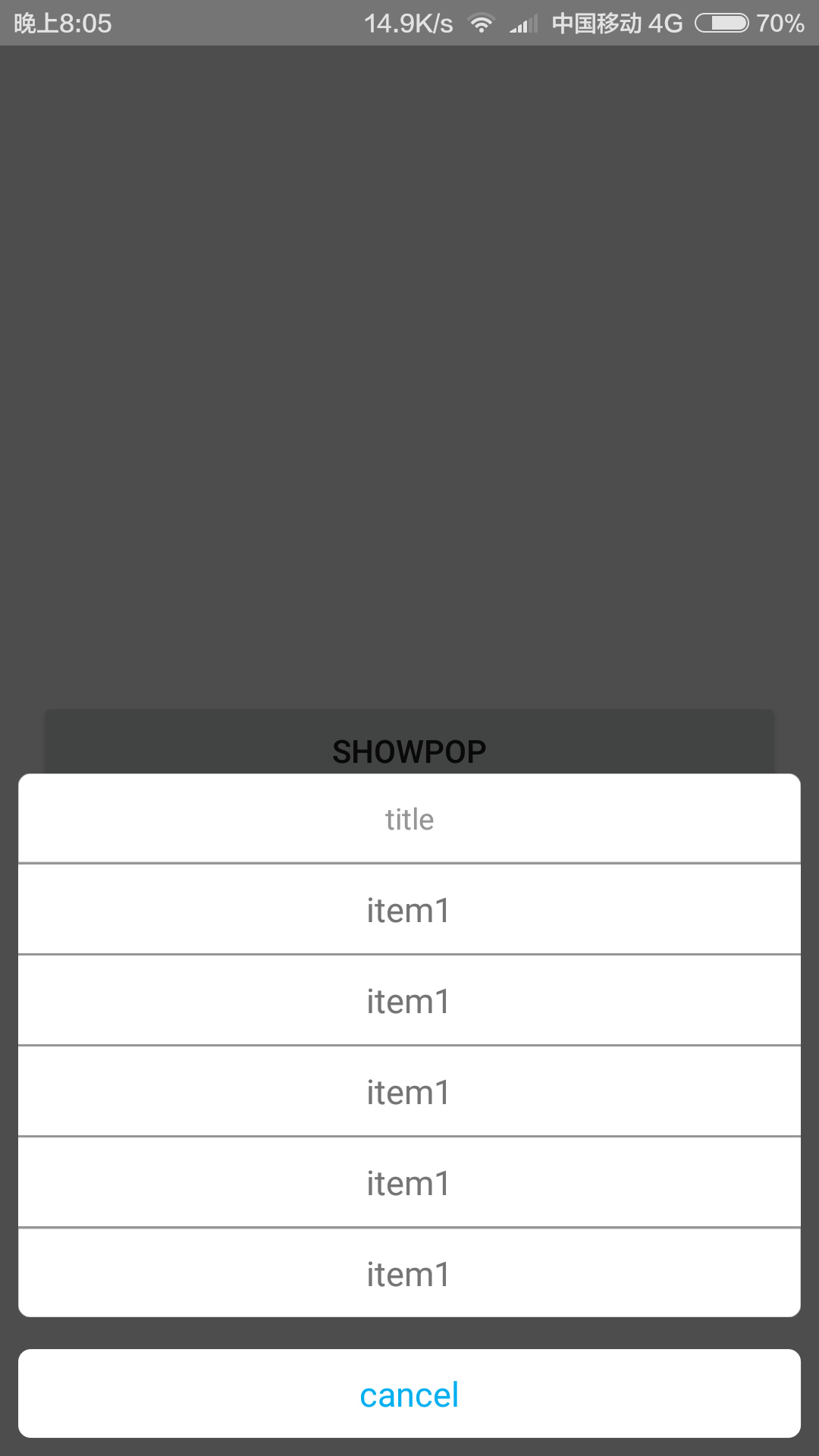
先看一下效果: 效果大致如此。實作起來其實並不難,主要是想把這個元件開源出來給大家使用,若有考慮不周之處,也歡迎多多指正。 一、自訂 PopWindow 先分析一下:這
 Android JSON 解析與使用:原生、Gson 與 Fastjson 全面對比
在 Android 開發中,JSON 是最常見的數據交換格式之一。無論是網絡請求還是本地配置,JSON 都扮演著重要角色。本文將系統梳理 Android 中常見的 JSO