

編輯:關於 Android 程式設計
ViewStub 的用途是在執行階段才把版面 lazily inflate 進來。官方文件的定義是:
"A ViewStub is an invisible, zero-sized View that can be used to lazily inflate layout resources at runtime. When a ViewStub is made visible, or when inflate() is invoked, the layout resource is inflated. The ViewStub then replaces itself in its parent with the inflated View or Views. Therefore, the ViewStub exists in the view hierarchy until setVisibility(int) or inflate() is invoked. The inflated View is added to the ViewStub's parent with the ViewStub's layout parameters. Similarly, you can define/override the inflate View's id by using the ViewStub's inflatedId property."
歸納起來就是:ViewStub 先替其他 View 卡好位置,等到真正需要時,才呼叫 inflate() 或 setVisibility() 把這些元件載入並顯示出來。
layout.xml:
<LinearLayout xmlns:android="https://schemas.android.com/apk/res/android"
    xmlns:tools="https://schemas.android.com/tools"
    android:layout_width="match_parent"
    android:layout_height="match_parent"
    android:orientation="vertical"
    tools:context=".MainActivity">
    <LinearLayout android:layout_width="match_parent"
        android:layout_height="wrap_content"
        android:orientation="horizontal">
        <Button android:id="@+id/showBtn"
            android:layout_width="match_parent"
            android:layout_height="50dip"
            android:layout_weight="1"
            android:text="show" />
        <Button android:id="@+id/deleteBtn"
            android:layout_width="match_parent"
            android:layout_height="50dip"
            android:layout_weight="1"
            android:text="delete" />
    </LinearLayout>
    <LinearLayout android:layout_width="wrap_content"
        android:layout_height="wrap_content">
        <ViewStub android:id="@+id/viewstub"
            android:layout_width="wrap_content"
            android:layout_height="wrap_content"
            android:layout="@layout/next" />
    </LinearLayout>
</LinearLayout>
next.xml 就是被延後載入的那份版面:
<?xml version="1.0" encoding="utf-8"?>
<LinearLayout xmlns:android="https://schemas.android.com/apk/res/android"
    android:layout_width="match_parent"
    android:layout_height="match_parent"
    android:orientation="vertical">
    <ProgressBar android:id="@+id/progressBar1"
        android:layout_width="wrap_content"
        android:layout_height="wrap_content" />
</LinearLayout>
package com.example.android_viewstub1;
import android.os.Bundle;
import android.annotation.SuppressLint;
import android.app.Activity;
import android.view.View;
import android.view.View.OnClickListener;
import android.view.ViewStub;
import android.widget.Button;

public class MainActivity extends Activity {
    Button btn1, btn2;
    ViewStub viewStub;

    @Override
    protected void onCreate(Bundle savedInstanceState) {
        super.onCreate(savedInstanceState);
        setContentView(R.layout.activity_main);
        btn1 = (Button) this.findViewById(R.id.showBtn);
        btn2 = (Button) this.findViewById(R.id.deleteBtn);
        viewStub = (ViewStub) this.findViewById(R.id.viewstub);

        btn1.setOnClickListener(new OnClickListener() {
            @SuppressLint("NewApi")
            @Override
            public void onClick(View arg0) {
                // 設為 VISIBLE 即觸發 inflate,版面被真正載入
                viewStub.setVisibility(View.VISIBLE);
            }
        });

        btn2.setOnClickListener(new OnClickListener() {
            @SuppressLint("NewApi")
            @Override
            public void onClick(View arg0) {
                viewStub.setVisibility(View.INVISIBLE);
            }
        });
    }
}
執行結果如下:
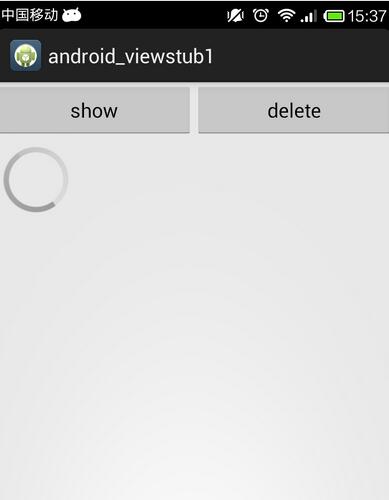
ViewStub 的價值在於「省下不必要的 inflate 成本」。若某個區塊在大多數使用情境下都不會出現——例如錯誤提示區、空狀態畫面、少見的進階設定——把它包成 ViewStub,就能讓首次載入版面更快、記憶體佔用更低。
有兩個特性值得記住:ViewStub 本身不可見且尺寸為零,而且 inflate 之後它就會把自己從 hierarchy 中移除,因此同一個 ViewStub 只能載入一次;若需要重複顯示,請用一般 View 搭配 visibility 切換,而不是重複 inflate。另外,被載入的 View 會沿用 ViewStub 的 LayoutParams,並可透過 android:inflatedId 覆寫其 id,方便之後用 findViewById 取得。
 Android 類加載機制淺析
Android 的類加載機制與傳統 Java 虛擬機有相似之處,也有其獨特之處。開發者在進行外掛化、動態載入或熱修復相關技術時,往往需要理解 DexClassLoader
 Android Notification 通知提醒實作詳解:從常駐通知到自訂樣式
需要跟使用者溝通「一件重要但不急著看的事」時,Toast 並不合適——它兩秒就消失,無法回看。這正是 Notification 的價值所在:它會常駐在狀態欄,使用者下拉即
 Android 天氣預報應用實作解析
這是一個以 Android 原生方式實作的天氣預報範例,涵蓋城市切換、側滑選單、下拉更新、天氣列表與本機儲存等功能。整體結構適合作為中小型資訊應用的練習題。 主要功能 首
 Android ViewPager 入門:幾行程式碼完成三頁滑動切換
先建立整體概念:短短幾行程式碼,就能做出左右滑動切換頁面的效果,後面再回頭解釋為什麼要這樣寫。 三個 View 互相滑動,第一頁往第二頁: 第二頁往第三頁: 一、建立