

編輯:關於 Android 程式設計
需求很常見:一個畫面上,左邊放文字標籤、右邊放按鈕,而且要多列堆疊。如果你也試過只用 android:gravity 與 android:layout_gravity 硬湊,大概會發現怎麼調都不對——這時就該請出 RelativeLayout 了。
能否讓左右兩側各自貼齊,關鍵在這兩個屬性:
完整範例:
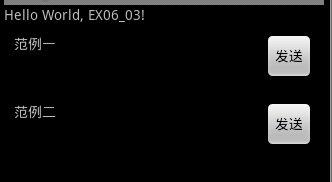
<?xml version="1.0" encoding="utf-8"?> <LinearLayout xmlns:android="https://schemas.android.com/apk/res/android" android:orientation="vertical" android:layout_width="fill_parent" android:layout_height="wrap_content" android:gravity="center_vertical"> <TextView android:id="@+id/mTextView" android:layout_width="fill_parent" android:layout_height="wrap_content" android:text="@string/hello" /> <RelativeLayout android:layout_width="wrap_content" android:layout_height="wrap_content" android:gravity="right" android:padding="10dp"> <TextView android:id="@+id/mTextView01" android:layout_alignParentLeft="true" android:layout_width="wrap_content" android:layout_height="wrap_content" android:text="范例一" /> <Button android:id="@+id/mButton01" android:layout_alignParentRight="true" android:layout_width="wrap_content" android:layout_height="wrap_content" android:text="發送" /> </RelativeLayout> <RelativeLayout android:layout_width="wrap_content" android:layout_height="wrap_content" android:gravity="right" android:padding="10dp"> <TextView android:id="@+id/mTextView02" android:layout_alignParentLeft="true" android:layout_width="wrap_content" android:layout_height="wrap_content" android:text="范例二" /> <Button android:id="@+id/mButton01" android:layout_alignParentRight="true" android:layout_width="wrap_content" android:layout_height="wrap_content" android:text="發送" /> </RelativeLayout> </LinearLayout>
效果如下:
以下是我在專案裡處理「性別」單選列時的寫法,重點在於用 layout_weight 把文字與 RadioGroup 的寬度比例切開:
<?xml version="1.0" encoding="utf-8"?> <LinearLayout xmlns:android="https://schemas.android.com/apk/res/android" android:layout_width="fill_parent" android:layout_height="fill_parent" android:orientation="vertical"> <LinearLayout android:layout_width="fill_parent" android:layout_height="wrap_content" android:orientation="horizontal" android:layout_marginLeft="50px" android:layout_marginRight="50px" android:layout_marginBottom="15px" android:layout_gravity="center" android:gravity="center"> <TextView android:layout_width="fill_parent" android:layout_height="wrap_content" android:text="性別" android:textSize="18sp" android:layout_weight="3"/> <RadioGroup android:id="@+id/radioGroup" android:contentDescription="性別" android:layout_width="fill_parent" android:layout_height="wrap_content" android:orientation="horizontal" android:layout_weight="1"> <RadioButton android:layout_width="wrap_content" android:layout_height="wrap_content" android:id="@+id/radioMale" android:text="男" android:checked="true" android:layout_marginRight="15px" android:textSize="18sp"> </RadioButton> <RadioButton android:layout_width="wrap_content" android:layout_height="wrap_content" android:id="@+id/radioFemale" android:text="女" android:textSize="18sp"> </RadioButton> </RadioGroup> </LinearLayout> </LinearLayout>
一開始我把 RadioGroup 的 layout_width 設成 wrap_content,怎麼調權重都達不到想要的配置;改成 fill_parent 搭配 layout_weight 之後才正常。另外,RadioButton 的高度天生比 TextView 大,會導致文字視覺上偏上,在 LinearLayout 上加一句 android:gravity="center" 就能對齊。
這正是 LinearLayout 與 RelativeLayout 的分界:LinearLayout 只擅長單軸排列與比例分配,一旦需要「同一列裡左右兩端各自對齊」,就該換成 RelativeLayout,用 alignParentLeft / alignParentRight 這類相對規則來描述關係。硬用 LinearLayout 湊,只會越調越亂。
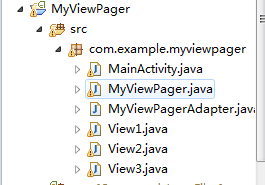 Android ViewPager 實現 Tab 切換的完整總結
在同一個窗口內用 Tab 切換頁面,比開多個 Activity 更流暢:頁面共享同一窗口的資源,切換時不必經歷 Activity 的創建與銷毀。ViewPager 正是為
 Android 第三方開源庫精選整理(相容、擴充、工具、資源一次收齊)
我是程式猿,我為自己代言。 一直以來我都喜歡 Android 開發,摸索的過程中在 GitHub 上收集了大量優秀的第三方庫。這篇文章把開發流程中最常用到的一批整理出來,
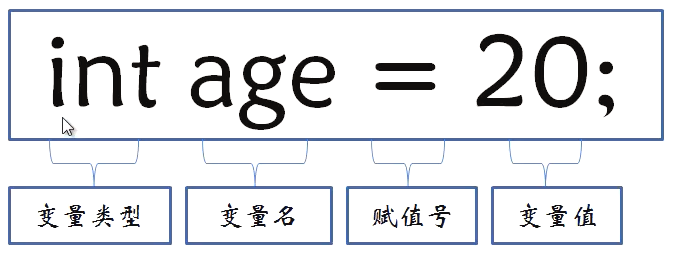 Java 4 Android 開發教程(四):變數
變數是程式語言裡最基本的儲存單位。本文說明變數的定義、宣告語法、型別與命名規範。 什麼是變數 變數用來在程式中儲存資訊。宣告變數時,等於告訴編譯器「我要用這個名字、這個
 仿淘寶詳情頁:雙 ScrollView 容器打造「繼續拖動看詳情」彈性效果
前陣子忙得沒時間寫文章,說到底是自己犯懶——人一停下來就什麼都不想碰,久了就真的荒廢了。這段時間累積了不少東西,接下來會慢慢整理出來分享。廢話到此,進入正題。 這次要仿的