

編輯:關於 Android 程式設計
當畫面需要高頻率重繪,普通 View 就會顯得力不從心。SurfaceView 的存在正是為了這種場景。本文從它與 View 的差異談起,再用一個圓圈呼吸動畫把 API 串起來。
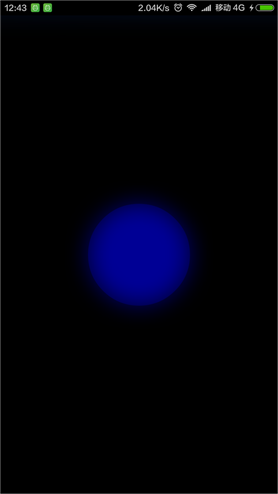
1. View 只能在 UI 執行緒刷新,SurfaceView 則可以在子執行緒繪製。
2. SurfaceView 能自行控制刷新頻率,不必跟著訊息迴圈跑。
1. 繼承 SurfaceView 後呼叫 getHolder() 取得 SurfaceHolder,它就是繪製的鑰匙。
2. 實作 SurfaceHolder.Callback 並透過 addCallback(this) 註冊,即可感知 Surface 的生命週期。
3. 每張畫布開始前先呼叫 mCanvas.drawColor(Color.BLACK) 清掉上一帧,這行不能省,否則畫面會嚴重殘影。
package com.rong.activity;

import android.content.Context;
import android.graphics.Canvas;
import android.graphics.Color;
import android.graphics.Paint;
import android.util.AttributeSet;
import android.view.SurfaceHolder;
import android.view.SurfaceView;

/**
 * 自定義 SurfaceView
 */
public class XRSurfaceView extends SurfaceView implements SurfaceHolder.Callback, Runnable {

    // SurfaceView 的寬
    int surfaceWidth;
    // SurfaceView 的高
    int surfaceHeight;
    // SurfaceHolder 對象
    SurfaceHolder mSurfaceHolder;
    // 開關線程的標志位
    boolean isRunning = true;
    // 畫筆
    Paint mPaint;
    // 圓的半徑
    float radius = 0;
    // 圓是變大還是縮小的狀態
    boolean status = true;
    // 圓變化的速度
    int mSpeed = 3;

    public XRSurfaceView(Context context, AttributeSet attrs) {
        super(context, attrs);
        initView();
    }

    private void initView() {
        // 獲取 mSurfaceHolder
        mSurfaceHolder = getHolder();
        // 添加回調
        mSurfaceHolder.addCallback(this);
    }

    @Override
    public void surfaceCreated(SurfaceHolder holder) {
        isRunning = true;
        // 初始化畫筆
        mPaint = new Paint();
        mPaint.setAntiAlias(true);
        mPaint.setColor(Color.BLUE);
        // 開啟繪制線程
        new Thread(this).start();
    }

    @Override
    public void surfaceChanged(SurfaceHolder holder, int format, int width, int height) {
        // 獲取 surface 的寬與高
        surfaceWidth = width;
        surfaceHeight = height;
    }

    @Override
    public void surfaceDestroyed(SurfaceHolder holder) {
        // 關閉繪制線程
        isRunning = false;
    }

    @Override
    public void run() {
        Canvas mCanvas = null;
        while (isRunning) {
            try {
                // 鎖定 canvas 進行繪制
                mCanvas = mSurfaceHolder.lockCanvas(null);
                // 這行很重要,相當於重繪(不呼叫就看不到效果)
                mCanvas.drawColor(Color.BLACK);
                // 畫圓
                mCanvas.drawCircle((surfaceWidth / 2), (surfaceHeight / 2), radius, mPaint);
                // 更改半徑變量
                if (status) {
                    radius = radius + mSpeed;
                    if (radius > 200) {
                        status = false;
                    }
                } else {
                    radius = radius - mSpeed;
                    if (radius < 0) {
                        status = true;
                    }
                }
            } catch (Exception e) {
                e.printStackTrace();
            } finally {
                // 解除畫布鎖
                mSurfaceHolder.unlockCanvasAndPost(mCanvas);
            }
        }
    }
}
<?xml version="1.0" encoding="utf-8"?>
<RelativeLayout xmlns:android="https://schemas.android.com/apk/res/android"
    android:layout_width="match_parent"
    android:layout_height="match_parent"
    android:background="#ffffff"
    android:orientation="vertical" >

    <com.rong.activity.XRSurfaceView
        android:layout_width="match_parent"
        android:layout_height="match_parent"
        android:layout_centerInParent="true"
        android:orientation="vertical" />
</RelativeLayout>
執行後會看到藍色圓圈一漲一縮地呼吸。仔想想三件事:繪製線程在 surfaceCreated 啟動、在 surfaceDestroyed 終止;lockCanvas 與 unlockCanvasAndPost 必須成對;把 while 裡加上 Thread.sleep 就能控制幀率,避免空轉吃 CPU。
延伸閱讀:《Android 開發入門與進階教程》《Android 基本組件用法總結》《Android 視圖 View 技巧總結》《Android 布局 layout 技巧總結》《Android 控件用法總結》。
 Android 記憶體分析工具全面總結
Android 的一些記憶體知識 垃圾回收(GC) 垃圾回收包含兩個過程:判定階段(判斷哪些物件可以被回收)與收集階段(具體的回收策略)。 判定階段主要有兩種方式: 引用
 小米手機音量鍵喚醒怎麼開?夜間操作更方便
小米手機可啟用音量鍵喚醒。進入系統設定、進階設定,找到按鍵音量鍵喚醒螢幕並開啟。 之後按音量鍵即可亮屏,夜間查看時間或通知時更方便。
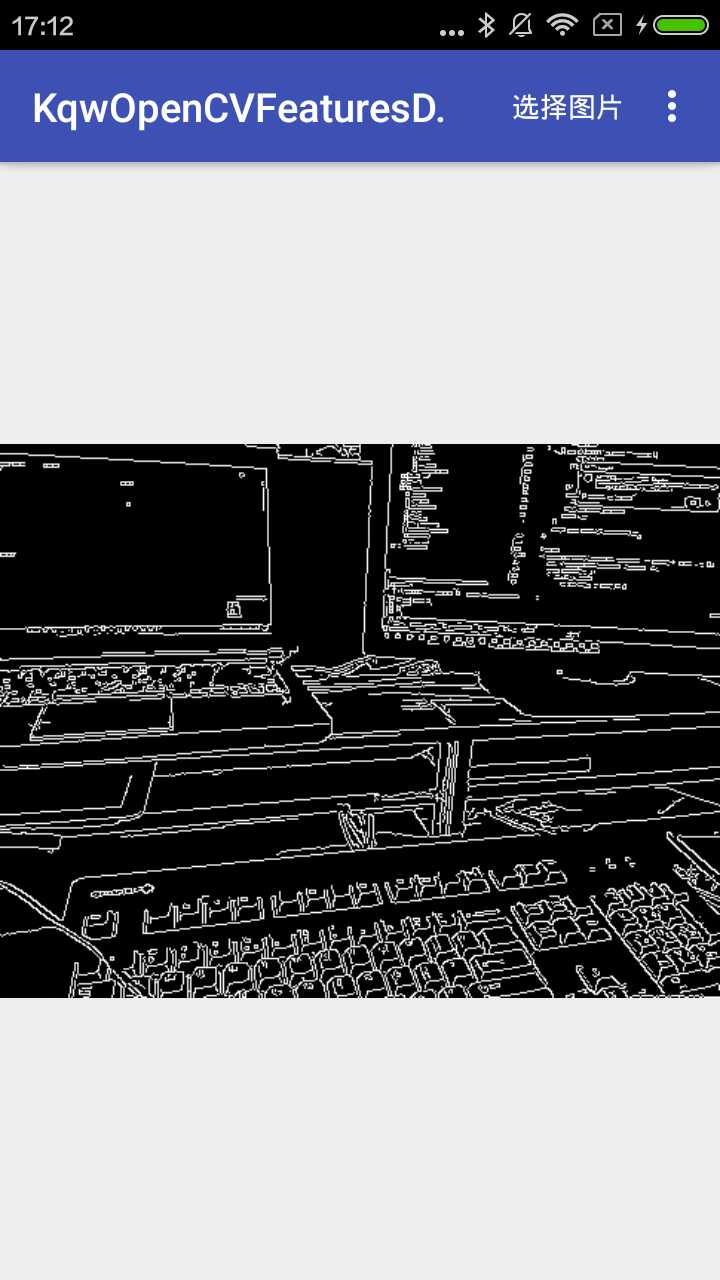 OpenCV 實踐:用 Canny 邊緣檢測器提取圖像邊緣
效果預覽 關於 Canny 邊緣檢測器 Canny 是被引用最廣的邊緣檢測算法之一,普遍被視為這一領域效果最好的方法。相比更早的高斯差分思路,它引入了多方向的灰度梯
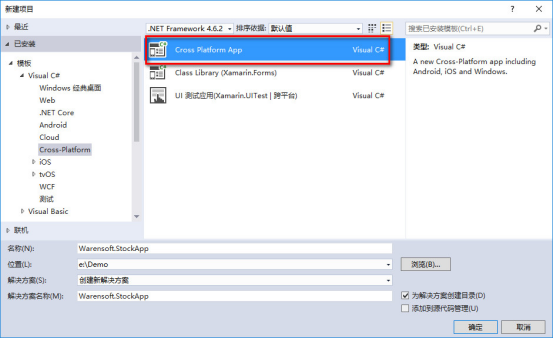 基於 Warensoft Stock Service 快速開發高頻交易軟件(以 SAR 為例)
對程序員來說,做任何交易軟件最頭疼的就是實現各種指標算法。本文以 SAR 算法的實現過程為例,說明如何借助 Warensoft Stock Service 快速搭建高頻交