

編輯:關於 Android 程式設計
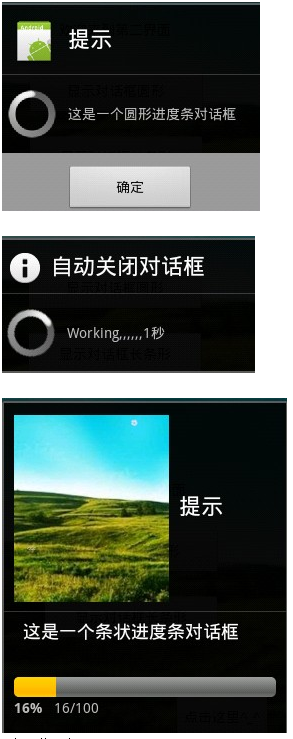
系統內建的對話框樣式單一,很多時候需要呈現自訂的圖示、文字與進度型態。ProgressDialog 就是為此而生:它讓你決定對話框裡到底要顯示什麼。
package cn.android;

import android.app.Activity;
import android.app.ProgressDialog;
import android.content.DialogInterface;
import android.os.Bundle;
import android.os.Handler;
import android.os.Message;
import android.view.View;
import android.view.View.OnClickListener;
import android.widget.Button;
import android.widget.Toast;

public class SecondActivity extends Activity implements Runnable {

    private Button b_dialog, b_dialog1;
    private ProgressDialog pd, pd1;
    private int count;

    public void onCreate(Bundle savedInstanceState) {
        super.onCreate(savedInstanceState);
        setContentView(R.layout.second);

        b_dialog  = (Button) this.findViewById(R.id.button_dialog);
        b_dialog1 = (Button) this.findViewById(R.id.Button_dialog1);

        b_dialog.setOnClickListener(listener);
        b_dialog1.setOnClickListener(listener);
    }

    private OnClickListener listener = new OnClickListener() {
        public void onClick(View v) {
            int id = v.getId();

            if (id == R.id.button_dialog) {
                // 一行建立並顯示,1 秒後由背景執行緒自行關閉
                pd = ProgressDialog.show(SecondActivity.this,
                        "自動關閉對話框", "Working,,,,,,1秒", true, false);
                Thread thread = new Thread(SecondActivity.this);
                thread.start();
            } else if (id == R.id.Button_dialog1) {
                pd1 = new ProgressDialog(SecondActivity.this);
                pd1.setProgressStyle(ProgressDialog.STYLE_HORIZONTAL);
                pd1.setTitle("提示");
                pd1.setMessage("這是一個條狀進度條對話框");
                pd1.setIcon(R.drawable.secondback);
                pd1.setIndeterminate(false);
                pd1.setCancelable(true);
                pd1.setProgress(100);
                pd1.show();

                count = 0;
                new Thread() {
                    public void run() {
                        try {
                            while (count <= 100) {
                                pd1.setProgress(count++);
                                Thread.sleep(100);
                            }
                            pd1.cancel();
                        } catch (Exception e) {
                            pd1.cancel();
                        }
                    }
                }.start();
            }
        }
    };

    // Runnable:模擬耗時作業
    public void run() {
        try {
            Thread.sleep(1000);
        } catch (InterruptedException e) {
            e.printStackTrace();
        }
        handler.sendEmptyMessage(0);
    }

    // 收到訊息後關閉對話框並提示
    private Handler handler = new Handler() {
        public void handleMessage(Message msg) {
            pd.dismiss();
            Toast.makeText(SecondActivity.this, "對話框就消失了", 3).show();
        }
    };

    // 按鈕監聽器
    class Bt1DialogListener implements DialogInterface.OnClickListener {
        @Override
        public void onClick(DialogInterface dialog, int which) {
            dialog.cancel();
        }
    }
}
以上寫法在單純的教學範例中很夠用,但在真實專案裡請注意兩點:一是 Android 新版不建議在背景執行緒直接操作 UI,更新進度應透過 Handler、runOnUiThread 或 LiveData 回主執行緒;二是 ProgressDialog 早已被官方標示為不建議使用,若只是要提示「忙碌中」,改用 ProgressBar 搭配自訂 DialogFragment 會更穩定,也能避免螢幕旋轉時的記憶體與視窗洩漏問題。
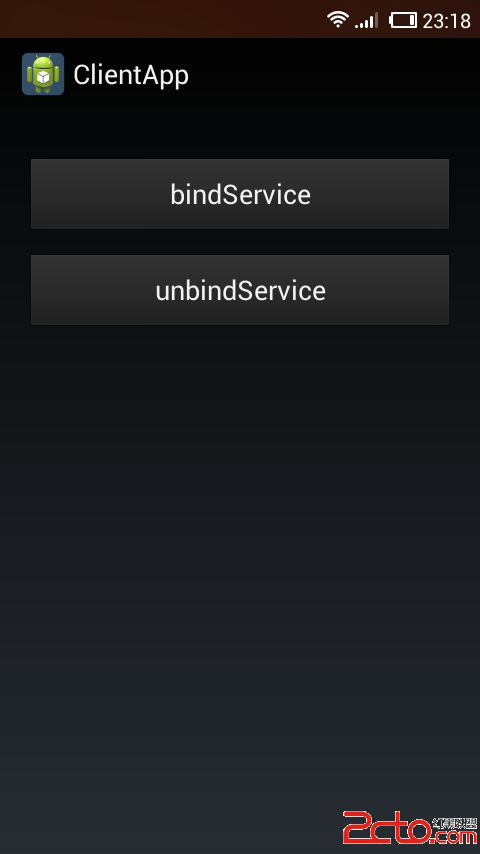 用 Messenger 打通 Android 跨進程雙向通信
Android 裡的 Service 和它的調用方,可以同屬一個 App,也可以分屬兩個 App。當 Service 住在 App1、客戶端住在 App2 時,進程邊界就
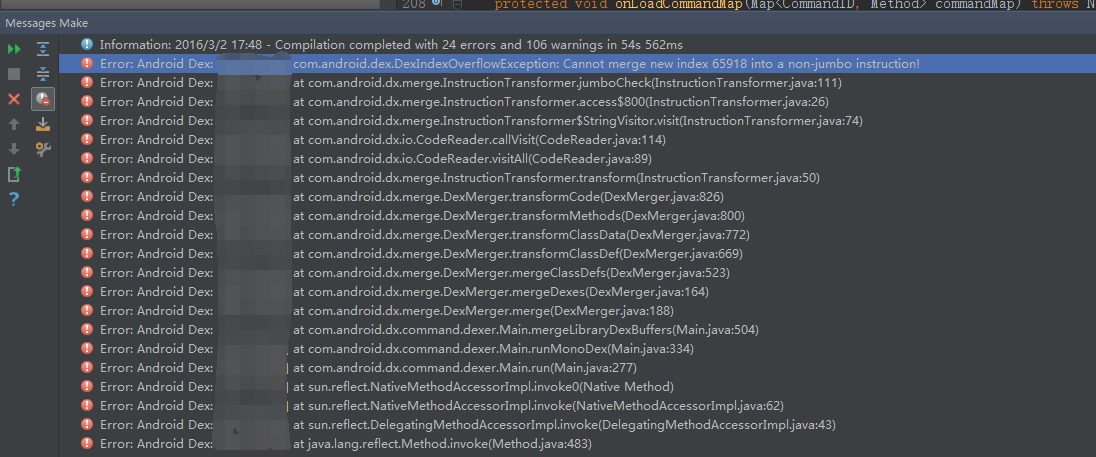 解決 Android Dex 方法數溢位錯誤 DexIndexOverflowException
在 Android 專案規模不斷增大時,常會遇到類似下面的錯誤: Error:AndroidDex: com.Android.dex.DexIndexOverflowEx
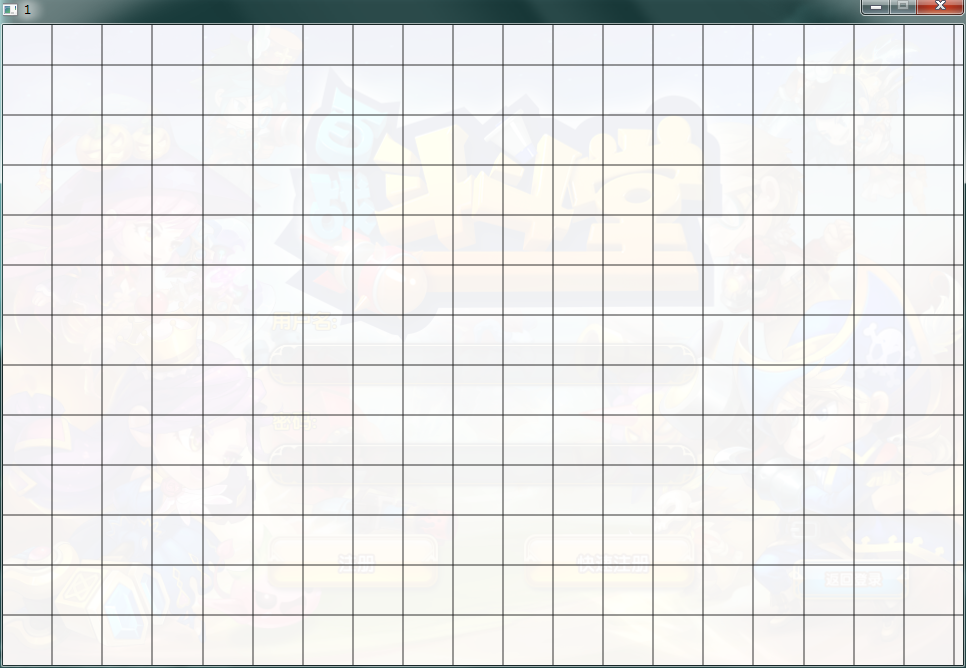 自己動手寫貪吃蛇(一):用 cocos2d-x Lua 鋪出方格戰場
前陣子身邊一堆人在玩《貪吃蛇大作戰》,讓我想起小時候在文曲星上戳那個經典小遊戲。既然手癢,不如自己重寫一個傳統版本來玩玩。這一篇先把地基打好——畫出方格地圖、準備好座標資
 QQ厘米秀膠囊怎麼用?孵化時間、產出與加速的可能
厘米秀裡的「膠囊」是整套收集玩法的核心:它會隨機孵化出裝扮貼紙,集滿一定數量就能兌換成套造型。問題是膠囊需要時間成熟,很多人第一次打開時只看到一個倒數中的圖示,於便开始上