

編輯:關於 Android 程式設計
想讓使用者在桌面一鍵進入 App 的某個功能頁,就需要建立捷徑(Shortcut)。這件事靠的是三個登陸器(Launcher)廣播 action,本文把新增、移除、查詢三件事都走一遍,並附上實機測試會遇到的相容性問題。
在 AndroidManifest.xml 中宣告:
<!-- 添加快捷方式 --> <uses-permission android:name="com.android.launcher.permission.INSTALL_SHORTCUT" /> <!-- 移除快捷方式 --> <uses-permission android:name="com.android.launcher.permission.UNINSTALL_SHORTCUT" /> <!-- 查詢快捷方式 --> <uses-permission android:name="com.android.launcher.permission.READ_SETTINGS" />
原理是送出一個帶有特定 action 的廣播,該 action 為 com.android.launcher.action.INSTALL_SHORTCUT。廣播中要帶三個資訊:名稱、圖示、以及點擊後要啟動的 Intent。
private void addShortcut(String name) { Intent addShortcutIntent = new Intent(ACTION_ADD_SHORTCUT); // 不允許重復創建 addShortcutIntent.putExtra("duplicate", false);// 經測試不是根據快捷方式的名字判斷重復的 // 應該是根據快鏈的Intent來判斷是否重復的,即Intent.EXTRA_SHORTCUT_INTENT字段的value // 但是名稱不同時,雖然有的手機系統會顯示Toast提示重復,仍然會建立快鏈 // 屏幕上沒有空間時會提示 // 注意:重復創建的行為MIUI和三星手機上不太一樣,小米上似乎不能重復創建快捷方式 // 名字 addShortcutIntent.putExtra(Intent.EXTRA_SHORTCUT_NAME, name); // 圖標 addShortcutIntent.putExtra(Intent.EXTRA_SHORTCUT_ICON_RESOURCE, Intent.ShortcutIconResource.fromContext(MainActivity.this, R.drawable.ic_launcher)); // 設置關聯程序 Intent launcherIntent = new Intent(Intent.ACTION_MAIN); launcherIntent.setClass(MainActivity.this, MainActivity.class); launcherIntent.addCategory(Intent.CATEGORY_LAUNCHER); addShortcutIntent .putExtra(Intent.EXTRA_SHORTCUT_INTENT, launcherIntent); // 發送廣播 sendBroadcast(addShortcutIntent); }
實測要注意幾點。第一,系統判斷「重複」的依據是 EXTRA_SHORTCUT_INTENT 而非名稱,所以同名但 Intent 不同仍會各建一個。第二,各廠牌的行為不一致:小米似乎不允許重複建立,三星則可能先跳 Toast 提示卻仍照建。第三,桌面沒有空間時會失敗但不會有明確錯誤回報,呼叫端無法直接得知結果。
action 換成 com.android.launcher.action.UNINSTALL_SHORTCUT,一樣帶名稱與關聯 Intent:
private void removeShortcut(String name) { // remove shortcut的方法在小米系統上不管用,在三星上可以移除 Intent intent = new Intent(ACTION_REMOVE_SHORTCUT); // 名字 intent.putExtra(Intent.EXTRA_SHORTCUT_NAME, name); // 設置關聯程序 Intent launcherIntent = new Intent(MainActivity.this, MainActivity.class).setAction(Intent.ACTION_MAIN); intent.putExtra(Intent.EXTRA_SHORTCUT_INTENT, launcherIntent); // 發送廣播 sendBroadcast(intent); }
實測結果:小米上加了之後移除不掉,三星可以。這是登陸器實作差異造成的,App 端無解,只能接受。
這個做法要直接查登陸器的資料庫,相容性最差:
private boolean hasInstallShortcut(String name) { boolean hasInstall = false; final String AUTHORITY = "com.android.launcher2.settings"; Uri CONTENT_URI = Uri.parse("content://" + AUTHORITY + "/favorites?notify=true"); // 這裡總是failed to find provider info // com.android.launcher2.settings和com.android.launcher.settings都不行 Cursor cursor = this.getContentResolver().query(CONTENT_URI, new String[] { "title", "iconResource" }, "title=?", new String[] { name }, null); if (cursor != null && cursor.getCount() > 0) { hasInstall = true; } return hasInstall; }
實測在小米與三星上都抓不到,主要因為 authority 名稱各家不同、且多數登陸器並未對外開放這個 provider,于是就出現 failed to find provider info。程式碼先留著,但正式專案不建議依賴它。
如果你只需要「App 內幾個常用功能的快速入口」,用自建的 Shortcuts(ShortcutManager,API 25 起)會可靠得多:它由系統統一管理,不需要猜登陸器的實作,也能設定固定捷徑與動態捷徑。只有在需要針對舊版本相容時,才需要回頭用上面這套廣播方案。
總結來說,捷徑的「新增」大致可靠,「刪除」與「查詢」則高度依賴登陸器實作,設計功能時要預留失敗的處理路徑。
 Android Studio 1.4 的七個實用新特性盤點
前段時間把 Android Studio 更新到了 1.4,當時沒太在意。今天翻了一遍官方更新日誌,發現這個版本其實加了不少真能提升效率的功能,值得分享一下。 清單如下:
 Android 斷點續傳原理與實作重點
斷點續傳看似只是暫停與繼續,但實作時需要處理下載位置、資料庫記錄、HTTP 範圍請求與本機寫入。核心概念是持續保存已下載的位元組位置,重新開始時再向伺服器要求從該位置續傳
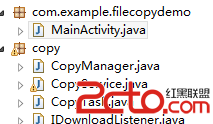 Android 非同步任務優化:利用執行緒池提升背景處理效率
為什麼要使用執行緒池在 Android 或 Java 開發中,非同步任務經常出現。若每次都手動建立 Thread,不僅管理成本高,容易造成資源浪費,也可能引發記憶體洩漏。
 Android ViewPager 相冊橫向滑動的完整實作
首次開啟 QQ 時出現的新手引導——幾張圖片搭配文字說明、可左右滑動切換——正是 ViewPager 的典型應用。本文將以 ViewPager 搭配自訂 PagerAda