

編輯:關於 Android 程式設計
本文彙整幾段在 Android 開發中反覆用到的程式碼片段,涵蓋剪貼簿操作、呼叫瀏覽器、跳轉應用市集、Toast 持續顯示與自訂 Dialog,方便日後查閱。
ClipboardManager clip =
        (ClipboardManager) getSystemService(Context.CLIPBOARD_SERVICE);
clip.setText("copy");   // 複製
clip.getText();         // 貼上
Intent intent = new Intent();
intent.setAction("android.intent.action.VIEW");
Uri content_url = Uri.parse("https://www.jb51.net");
intent.setData(content_url);
startActivity(intent);

// 若要指定特定瀏覽器,例如 UC:
// intent.setClassName("com.uc.browser", "com.uc.browser.ActivityUpdate");
Intent intent = new Intent(Intent.ACTION_VIEW,
        Uri.parse("market://search?q=pname:com.acp.main"));
startActivity(intent);
Toast 本身是短暫提示,若真的需要延長顯示時間,可以搭配 Timer 反覆呼叫 show:
final Toast toast = Toast.makeText(context, "toast", Toast.LENGTH_LONG);
Timer timer = new Timer();
timer.schedule(new TimerTask() {
    @Override
    public void run() {
        while (flag) {
            toast.show();
        }
    }
}, 10);
不過這裡要誠實提醒:同一個 Toast 物件被反覆呼叫,系統只會依 queue 機制顯示,效果未必如預期;而無條件迴圈也會帶來資源消耗。實務上若需要長時間提示,Snackbar 或自訂的浮動元件是更合適的選擇。
final Dialog mInfoDlg = new Dialog(context, R.style.dialog);
// R.style.dialog 用來移除 Dialog 上方的標題列

LayoutInflater factory = LayoutInflater.from(context);
View nCurrView = factory.inflate(R.layout.mydialog, null);
nCurrView.setBackgroundResource(R.drawable.bgline);

LinearLayout nParentLayout =
        (LinearLayout) nCurrView.findViewById(R.id.iparents);
nParentLayout.setBackgroundResource(R.drawable.titlebgline);

mInfoDlg.setContentView(nCurrView);

Button nBt1 = (Button) nCurrView.findViewById(R.id.button1);
nBt1.setText("返回");
nBt1.setTypeface(Typeface.create(Typeface.SERIF, Typeface.BOLD));
nBt1.setOnClickListener(new Button.OnClickListener() {
    @Override
    public void onClick(View v) {
        mInfoDlg.dismiss();
    }
});

mInfoDlg.show();
styles.xml 中的 dialog 樣式:
<?xml version="1.0" encoding="utf-8"?>
<resources>
    <style name="dialog" parent="@android:style/Theme.Dialog">
        <item name="android:windowNoTitle">true</item>
    </style>
</resources>
titlebgline.xml 的圓角漸層背景:
<?xml version="1.0" encoding="utf-8"?>
<shape xmlns:android="https://schemas.android.com/apk/res/android">
    <gradient
        android:startColor="#ff9911"
        android:endColor="#FF9911" />
    <stroke
        android:width="1dp"
        android:color="@color/inputTxt" />
    <corners android:radius="5dp" />
</shape>
以上片段多為日常開發的基礎工具,累積成自己的片段庫後,能省下不少翻文件的時間。
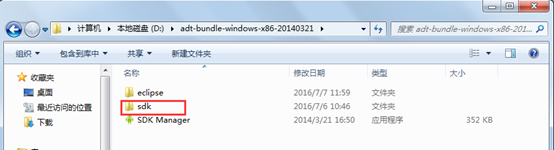 MonkeyRunner 之安卓開發環境搭建教程(一)
在學習 MonkeyRunner 之前,先來搭建好 Eclipse 的 Android 開發環境。對於開發人員而言 Eclipse 並不陌生,但要在其中開發 Androi
 用 ViewFlipper 實現 Activity 內的螢幕切換動畫
這裡說的螢幕切換,指的是同一個 Activity 內部幾個畫面之間的轉場。ViewFlipper 繼承自 FrameLayout,搭配 ViewAnimator 就能為子
 Android 透過 JSON 將資料寫入 MySQL 的完整實作(寫入篇)
上一篇講了讀取,這篇來談寫入。Android 把本地資料(例如定位、感測器讀數)上傳到資料庫,流程是:把參數封裝成 POST 表單 → 送到 PHP → PHP 寫入 M
 如何讓QQ與微信消息同步?綁定與離線助手設定教學
QQ 與微信同為騰訊旗下產品,若能讓兩者訊息同步,那麼平時只要登入其中一個,就不會漏掉任何重要訊息。其實微信與 QQ 是可以做到同步的,以下就看看具體操作步驟。1、先在手