

編輯:關於 Android 程式設計
在 WebView 裡使用 HTML5 的 localStorage,卻發現資料怎麼寫都寫不進去、也讀不出來?這幾乎都是設定沒開對,而不是程式碼有錯。
許多人會這樣設定,但 localStorage 依然無效:
 mainWebView = (WebView)this.findViewById(R.id.mainWebView);
WebSettings settings = mainWebView.getSettings();
settings.setJavaScriptEnabled(true);
settings.setAllowFileAccess(true);
settings.setDatabaseEnabled(true);
String dir = this.getApplicationContext().getDir("database", Context.MODE_PRIVATE).getPath();
settings.setDatabasePath(dir);
settings.setDomStorageEnabled(true);
settings.setGeolocationEnabled(true);
關鍵是 setDomStorageEnabled(true),再加上 AppCache 相關的設定,localStorage 就會正常運作:
 mWebView.getSettings().setDomStorageEnabled(true);
mWebView.getSettings().setAppCacheMaxSize(1024*1024*8);
String appCachePath = getApplicationContext().getCacheDir().getAbsolutePath();
mWebView.getSettings().setAppCachePath(appCachePath);
mWebView.getSettings().setAllowFileAccess(true);
mWebView.getSettings().setAppCacheEnabled(true);
HTML5 的離線儲存包含三個不同機制:localStorage/sessionStorage 屬於 DOM Storage,需要 setDomStorageEnabled() 才會生效;Web SQL Database 才需要 setDatabaseEnabled() 與 setDatabasePath();Application Cache 則由 AppCache 那組 API 控制。搞混這三者,設定再多也不會成功。
另外,WebView 的儲存空間預設可能不足,若在裝置設定中關閉了 WebView 的 DOM Storage,一樣會導致寫入失敗,這也是值得檢查的一環。
 Material Design 實作(四):用 RecyclerView 與 CardView 打造列表與卡片
要在 App 裡做出符合 Material Design 風格的複雜列表與卡片,官方提供的兩個元件是 RecyclerView 與 CardView。這篇說明各自的用法與
 Android Studio 常用快捷鍵與除錯技巧整理
熟練使用 Android Studio 的快捷鍵,可以明顯提升開發效率。以下整理日常開發中較常使用的快捷操作,涵蓋程式碼編輯、搜尋、重構、導航與除錯等情境。 程式碼編輯
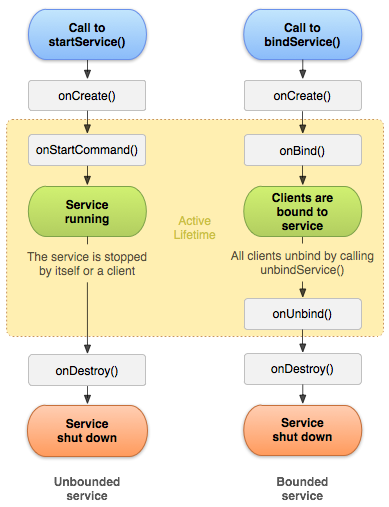 Android 官方文件導讀:Service 完整篇
Service 是 Android 四大元件之一。它沒有使用者介面,卻能在背景默默把事情做完——下載檔案、播放音樂、寫入資料庫、與 ContentProvider 打交道
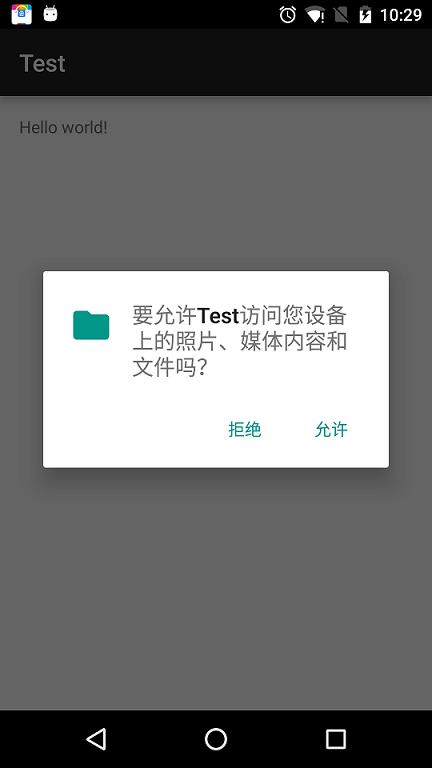 Android 6.0 執行期權限機制完整指南
Android 6.0(API 23)對權限模型做了一次結構性的調整:除了繼續在 AndroidManifest.xml 中宣告權限之外,還引入了「執行期權限」的動態檢測