

編輯:關於 Android 程式設計
GPS定位是許多手機必備且實用的功能。本文將以實例形式,講解如何在Android中透過GPS取得當前位置,並即時更新經緯度資訊,分享給大家參考。
一般在Android中透過GPS取得位置,首先要獲得一個 LocationManager 物件,再透過它的 requestLocationUpdates() 方法註冊位置更新監聽。該方法簽名如下:
void android.location.LocationManager.requestLocationUpdates(String provider, long minTime, float minDistance, LocationListener listener)
其中 provider 為定位方式,可採用GPS定位(LocationManager.GPS_PROVIDER)或網路定位(LocationManager.NETWORK_PROVIDER),本文採用GPS定位。minTime 是位置更新的時間間隔,listener 則是自訂的位置變更監聽器,需重寫 onLocationChanged() 並在其中加入位置改變時的動作。
佈局檔如下:
<LinearLayout xmlns:android="https://schemas.android.com/apk/res/android" xmlns:tools="https://schemas.android.com/tools" android:layout_width="match_parent" android:layout_height="match_parent" android:orientation="vertical" android:paddingBottom="@dimen/activity_vertical_margin" android:paddingLeft="@dimen/activity_horizontal_margin" android:paddingRight="@dimen/activity_horizontal_margin" android:paddingTop="@dimen/activity_vertical_margin" tools:context=".MainActivity" > <TextView android:id="@+id/txt_time" android:layout_width="fill_parent" android:layout_height="wrap_content" android:text="時間:" /> <TextView android:id="@+id/txt_lat" android:layout_width="fill_parent" android:layout_height="wrap_content" android:text="經度:" /> <TextView android:id="@+id/txt_lng" android:layout_width="fill_parent" android:layout_height="wrap_content" android:text="緯度:" /> </LinearLayout>
MainActivity.java 如下:
package com.hzhi.my_gps; import java.text.SimpleDateFormat; import java.util.Date; import java.util.Timer; import java.util.TimerTask; import android.location.Criteria; import android.location.Location; import android.location.LocationListener; import android.location.LocationManager; import android.os.Bundle; import android.os.Handler; import android.os.Message; import android.app.Activity; import android.content.Context; import android.view.Menu; import android.widget.TextView; public class MainActivity extends Activity { TextView txt_time; TextView txt_lat; TextView txt_lng; LocationManager lom; Location loc; Double lat; Double lng; SimpleDateFormat formatter = new SimpleDateFormat("yyyy-MM-dd HH:mm:ss"); Date now; String str_date; Timer timer; @Override protected void onCreate(Bundle savedInstanceState) { super.onCreate(savedInstanceState); setContentView(R.layout.activity_main); get_con(); get_gps(); timer = new Timer(true); timer.schedule(task, 0, 1000); } @Override public boolean onCreateOptionsMenu(Menu menu) { // Inflate the menu; this adds items to the action bar if it is present. getMenuInflater().inflate(R.menu.main, menu); return true; } public void get_gps(){ lom = (LocationManager) getSystemService(Context.LOCATION_SERVICE); loc = lom.getLastKnownLocation(LocationManager.GPS_PROVIDER); if (loc != null) { lat = loc.getLatitude(); lng = loc.getLongitude(); txt_lat.setText("緯度:" + String.valueOf(lat)); txt_lng.setText("經度:" + String.valueOf(lng)); } else{ txt_lat.setText("緯度:未知" ); txt_lng.setText("經度:未知" ); } Criteria criteria = new Criteria(); criteria.setAccuracy(Criteria.ACCURACY_FINE); criteria.setAltitudeRequired(false); criteria.setBearingRequired(false); criteria.setCostAllowed(true); criteria.setPowerRequirement(Criteria.POWER_LOW); String provider = lom.getBestProvider(criteria, true); lom.requestLocationUpdates(provider, 1000, 10, los); } LocationListener los = new LocationListener(){ public void onLocationChanged(Location location){ if (location != null) { lat = location.getLatitude(); lng = location.getLongitude(); txt_lat.setText("緯度:" + String.valueOf(lat)); txt_lng.setText("經度:" + String.valueOf(lng)); } else{ txt_lat.setText("緯度:未知" ); txt_lng.setText("經度:未知" ); } }; public void onProviderDisabled(String provider){ }; public void onProviderEnabled(String provider){ }; public void onStatusChanged(String provider, int status, Bundle extras){ }; }; // 獲取控件 public void get_con(){ txt_time = (TextView) findViewById(R.id.txt_time); txt_lat = (TextView) findViewById(R.id.txt_lat); txt_lng = (TextView) findViewById(R.id.txt_lng); } Handler handler = new Handler(){ public void handleMessage(Message msg){ switch (msg.what){ case 1: get_time(); break; } } }; TimerTask task = new TimerTask(){ public void run() { Message message = new Message(); message.what = 1; handler.sendMessage(message); } }; // 獲取時間 public void get_time(){ now = new Date(System.currentTimeMillis()); str_date = formatter.format(now); txt_time.setText("時間:" + str_date); } }
別忘了在 AndroidManifest.xml 中加入定位權限:
<uses-permission android:name="android.permission.ACCESS_FINE_LOCATION"/>
運行前請先開啟GPS衛星,運行結果如下圖:
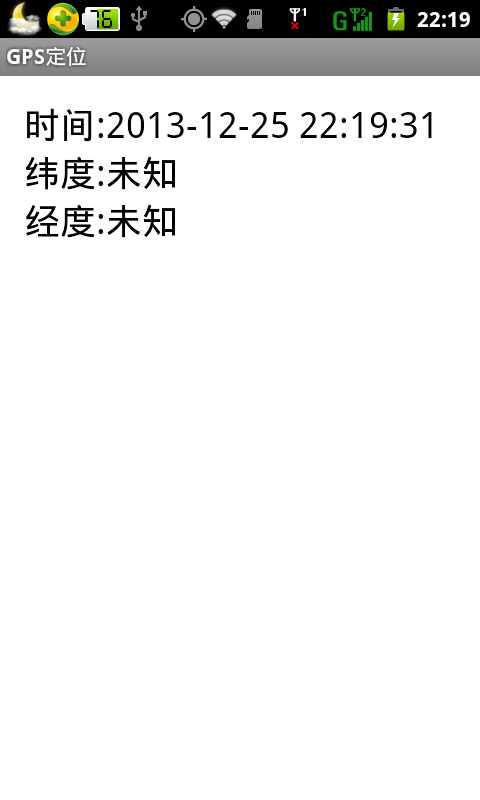
這份程式碼的亮點在於:先用 getLastKnownLocation() 快速取得最後已知位置立即顯示,再透過 Criteria 設定定位精度與耗電條件、以 getBestProvider 取得最佳提供者,最後用 requestLocationUpdates 即時更新。讀者可在室外訊號充足的地方實際測試,即可成功取得GPS位置。
 仿微信朋友圈九宮格:Android 圖片瀏覽器完整實作
閱讀本文前,不妨先打開微信點進朋友圈仔細觀察:那塊「九宮格」的圖片區,點一下會跳到單張大圖的檢視頁,還能滑動與縮放。這個功能其實非常常見,而我剛好做了個 Demo,就趁這
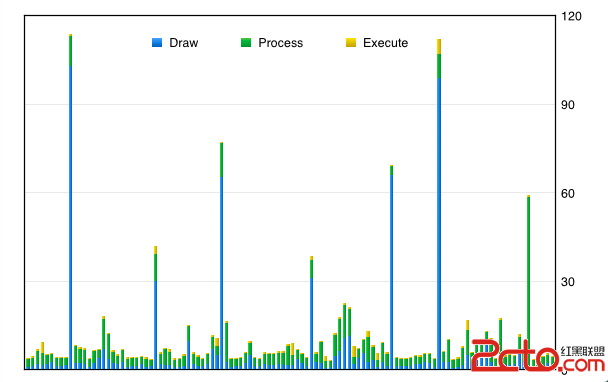 Android 幀率測試:SurfaceFlinger 與 gfxinfo 分析
要評估 Android 畫面流暢度,可以從系統服務與開發者工具兩個方向著手。SurfaceFlinger 負責管理視窗與幀緩衝,而 dumpsys gfxinfo 則能輸
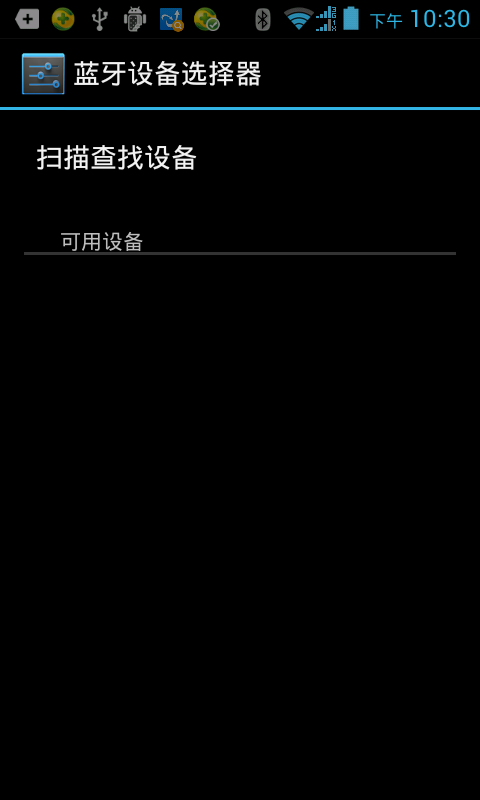 Android 實現藍牙文件發送實例(兼容多機型)
近期項目需要實現藍牙傳輸 apk 的功能:搜索周邊藍牙設備並分享文件。從需求上看,Android 自帶的藍牙傳輸模塊本可滿足,實現也不難。真正令人頭疼的是安卓機型碎片化嚴
 Android 自訂 ListView 實作 QQ 風格側滑刪除
側滑顯示刪除按鈕是清單類 App 的標準互動,做法是自訂一組元件:一個負責攔截手勢的 ListView,加上一個可滑動的項目容器。整體效果如下。 一、自訂 ListVi