

編輯:關於 Android 程式設計
Android 系統聯絡人裡的 ListView 做得相當有巧思,但那邊的程式碼耦合度高、可讀性也一般,想直接抽來用往往得先花一番功夫拆解,稍不留意就會出錯。
這幾天我把它整理成一個乾淨、可直接跑的小範例,一方面給自己留份備忘,另一方面也順手分享出來。先看效果:
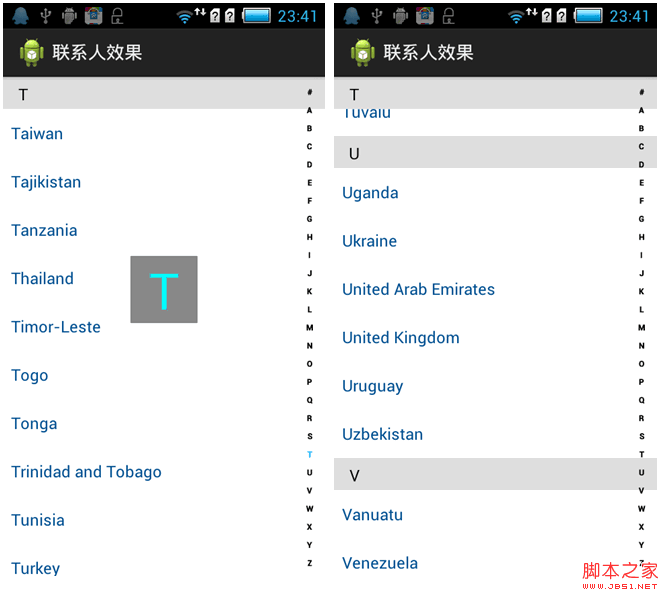
元件本身繼承 ListView,透過一個名為 PinnedHeaderAdapter 的介面與外部溝通。介面只有兩個方法:getPinnedHeaderState 決定標題此刻該隱藏、顯示還是被頂出;configurePinnedHeader 負責把資料寫進標題檢視,並接受一個 alpha 參數,讓淡出效果得以呈現。
跟一般 ListView 不同的是,這個標題並不是加入清單裡的項目,而是在 dispatchDraw 中直接呼叫 drawChild 畫到畫布上的,所以它不會參與列表的滾動計算,位置完全由我們自己安排。
public class PinnedHeaderListView extends ListView {

    public interface PinnedHeaderAdapter {
        public static final int PINNED_HEADER_GONE = 0;
        public static final int PINNED_HEADER_VISIBLE = 1;
        public static final int PINNED_HEADER_PUSHED_UP = 2;

        int getPinnedHeaderState(int position);

        void configurePinnedHeader(View header, int position, int alpha);
    }

    private static final int MAX_ALPHA = 255;
    private PinnedHeaderAdapter mAdapter;
    private View mHeaderView;
    private boolean mHeaderViewVisible;
    private int mHeaderViewWidth;
    private int mHeaderViewHeight;

    public PinnedHeaderListView(Context context) {
        super(context);
    }

    public PinnedHeaderListView(Context context, AttributeSet attrs) {
        super(context, attrs);
    }

    public PinnedHeaderListView(Context context, AttributeSet attrs, int defStyle) {
        super(context, attrs, defStyle);
    }

    protected void onLayout(boolean changed, int left, int top, int right, int bottom) {
        super.onLayout(changed, left, top, right, bottom);
        if (mHeaderView != null) {
            mHeaderView.layout(0, 0, mHeaderViewWidth, mHeaderViewHeight);
            configureHeaderView(getFirstVisiblePosition());
        }
    }

    protected void onMeasure(int widthMeasureSpec, int heightMeasureSpec) {
        super.onMeasure(widthMeasureSpec, heightMeasureSpec);
        if (mHeaderView != null) {
            measureChild(mHeaderView, widthMeasureSpec, heightMeasureSpec);
            mHeaderViewWidth = mHeaderView.getMeasuredWidth();
            mHeaderViewHeight = mHeaderView.getMeasuredHeight();
        }
    }

    public void setPinnedHeaderView(View view) {
        mHeaderView = view;
        if (mHeaderView != null) {
            setFadingEdgeLength(0);
        }
        requestLayout();
    }

    public void setAdapter(ListAdapter adapter) {
        super.setAdapter(adapter);
        mAdapter = (PinnedHeaderAdapter) adapter;
    }

    public void configureHeaderView(int position) {
        if (mHeaderView == null) {
            return;
        }
        int state = mAdapter.getPinnedHeaderState(position);
        switch (state) {
        case PinnedHeaderAdapter.PINNED_HEADER_GONE: {
            mHeaderViewVisible = false;
            break;
        }
        case PinnedHeaderAdapter.PINNED_HEADER_VISIBLE: {
            mAdapter.configurePinnedHeader(mHeaderView, position, MAX_ALPHA);
            if (mHeaderView.getTop() != 0) {
                mHeaderView.layout(0, 0, mHeaderViewWidth, mHeaderViewHeight);
            }
            mHeaderViewVisible = true;
            break;
        }
        case PinnedHeaderAdapter.PINNED_HEADER_PUSHED_UP: {
            View firstView = getChildAt(0);
            int bottom = firstView.getBottom();
            int headerHeight = mHeaderView.getHeight();
            int y;
            int alpha;
            if (bottom < headerHeight) {
                y = (bottom - headerHeight);
                alpha = MAX_ALPHA * (headerHeight + y) / headerHeight;
            } else {
                y = 0;
                alpha = MAX_ALPHA;
            }
            mAdapter.configurePinnedHeader(mHeaderView, position, alpha);
            if (mHeaderView.getTop() != y) {
                mHeaderView.layout(0, y, mHeaderViewWidth, mHeaderViewHeight + y);
            }
            mHeaderViewVisible = true;
            break;
        }
        }
    }

    protected void dispatchDraw(Canvas canvas) {
        super.dispatchDraw(canvas);
        if (mHeaderViewVisible) {
            drawChild(canvas, mHeaderView, getDrawingTime());
        }
    }
}
接著是通訊錄右側那條可以用手指滑過的字母索引。它是一個自繪的 View,在 onDraw 裡把「#」與 A 到 Z 共 27 個字元平均分配在可用高度上;觸控時換算手指的 y 座標落在哪一段,就回呼 OnItemClickListener,同時彈出一個短暫的 PopupWindow 提示目前按到的字母,抬手後延遲關閉。
public class BladeView extends View {

    private OnItemClickListener mOnItemClickListener;

    String[] b = { "#", "A", "B", "C", "D", "E", "F", "G", "H", "I", "J", "K",
        "L", "M", "N", "O", "P", "Q", "R", "S", "T", "U", "V", "W", "X",
        "Y", "Z" };

    int choose = -1;
    Paint paint = new Paint();
    boolean showBkg = false;
    private PopupWindow mPopupWindow;
    private TextView mPopupText;
    private Handler handler = new Handler();

    public BladeView(Context context, AttributeSet attrs, int defStyle) {
        super(context, attrs, defStyle);
    }

    public BladeView(Context context, AttributeSet attrs) {
        super(context, attrs);
    }

    public BladeView(Context context) {
        super(context);
    }

    @Override
    protected void onDraw(Canvas canvas) {
        super.onDraw(canvas);
        if (showBkg) {
            canvas.drawColor(Color.parseColor("#00000000"));
        }
        int height = getHeight();
        int width = getWidth();
        int singleHeight = height / b.length;
        for (int i = 0; i < b.length; i++) {
            paint.setColor(Color.BLACK);
            paint.setTypeface(Typeface.DEFAULT_BOLD);
            paint.setFakeBoldText(true);
            paint.setAntiAlias(true);
            if (i == choose) {
                paint.setColor(Color.parseColor("#3399ff"));
            }
            float xPos = width / 2 - paint.measureText(b[i]) / 2;
            float yPos = singleHeight * i + singleHeight;
            canvas.drawText(b[i], xPos, yPos, paint);
            paint.reset();
        }
    }

    @Override
    public boolean dispatchTouchEvent(MotionEvent event) {
        final int action = event.getAction();
        final float y = event.getY();
        final int oldChoose = choose;
        final int c = (int) (y / getHeight() * b.length);
        switch (action) {
        case MotionEvent.ACTION_DOWN:
            showBkg = true;
            if (oldChoose != c) {
                if (c > 0 && c < b.length) {
                    performItemClicked(c);
                    choose = c;
                    invalidate();
                }
            }
            break;
        case MotionEvent.ACTION_MOVE:
            if (oldChoose != c) {
                if (c > 0 && c < b.length) {
                    performItemClicked(c);
                    choose = c;
                    invalidate();
                }
            }
            break;
        case MotionEvent.ACTION_UP:
            showBkg = false;
            choose = -1;
            dismissPopup();
            invalidate();
            break;
        }
        return true;
    }

    private void showPopup(int item) {
        if (mPopupWindow == null) {
            handler.removeCallbacks(dismissRunnable);
            mPopupText = new TextView(getContext());
            mPopupText.setBackgroundColor(Color.GRAY);
            mPopupText.setTextColor(Color.CYAN);
            mPopupText.setTextSize(50);
            mPopupText.setGravity(Gravity.CENTER_HORIZONTAL | Gravity.CENTER_VERTICAL);
            mPopupWindow = new PopupWindow(mPopupText, 100, 100);
        }
        String text = "";
        if (item == 0) {
            text = "#";
        } else {
            text = Character.toString((char) ('A' + item - 1));
        }
        mPopupText.setText(text);
        if (mPopupWindow.isShowing()) {
            mPopupWindow.update();
        } else {
            mPopupWindow.showAtLocation(getRootView(),
                    Gravity.CENTER_HORIZONTAL | Gravity.CENTER_VERTICAL, 0, 0);
        }
    }

    private void dismissPopup() {
        handler.postDelayed(dismissRunnable, 800);
    }

    Runnable dismissRunnable = new Runnable() {
        @Override
        public void run() {
            if (mPopupWindow != null) {
                mPopupWindow.dismiss();
            }
        }
    };

    public boolean onTouchEvent(MotionEvent event) {
        return super.onTouchEvent(event);
    }

    public void setOnItemClickListener(OnItemClickListener listener) {
        mOnItemClickListener = listener;
    }

    private void performItemClicked(int item) {
        if (mOnItemClickListener != null) {
            mOnItemClickListener.onItemClick(b[item]);
            showPopup(item);
        }
    }

    public interface OnItemClickListener {
        void onItemClick(String s);
    }
}
這次用 RelativeLayout 把兩者疊在一起:清單佔滿整個畫面,刀鋒靠右對齊、寬度約 30dip,背景保持透明以免遮住內容。
<RelativeLayout xmlns:android="https://schemas.android.com/apk/res/android"
    xmlns:tools="https://schemas.android.com/tools"
    android:layout_width="match_parent"
    android:layout_height="match_parent"
    tools:context=".MainActivity" >

    <com.way.view.PinnedHeaderListView
        android:id="@+id/friends_display"
        android:layout_width="fill_parent"
        android:layout_height="fill_parent"
        android:cacheColorHint="#00000000"
        android:divider="@null"
        android:footerDividersEnabled="false"
        android:headerDividersEnabled="false" />

    <com.way.view.BladeView
        android:id="@+id/friends_myletterlistview"
        android:layout_width="30dip"
        android:layout_height="fill_parent"
        android:layout_alignParentRight="true"
        android:background="#00000000" />

</RelativeLayout>
這回我把 Adapter 獨立成一個檔案。它同時實作 SectionIndexer(提供字母索引能力)、PinnedHeaderAdapter(提供懸浮標題能力)與 OnScrollListener(在滾動時驅動標題更新),可以說是整個範例的樞紐。
這裡有幾個值得留意的設計:getSectionForPosition 用二分搜尋在首字母位置表中反查所屬分組;getPinnedHeaderState 在判斷「被頂出去」時,靠的是檢查下一個 section 的起始位置是否正好是下一列;而只有當該列正好是某分組的第一列時,item 版面裡的標題列才會顯示出來,其餘列一律隱藏。
public class FriendsAdapter extends BaseAdapter implements SectionIndexer,
        PinnedHeaderAdapter, OnScrollListener {

    private int mLocationPosition = -1;
    private String[] mDatas;
    // 首字母集
    private List<String> mFriendsSections;
    private List<Integer> mFriendsPositions;
    private LayoutInflater inflater;

    public FriendsAdapter(Context context, String[] datas, List<String> friendsSections,
            List<Integer> friendsPositions) {
        inflater = LayoutInflater.from(context);
        mDatas = datas;
        mFriendsSections = friendsSections;
        mFriendsPositions = friendsPositions;
    }

    @Override
    public int getCount() {
        return mDatas.length;
    }

    @Override
    public Object getItem(int position) {
        return mDatas[position];
    }

    @Override
    public long getItemId(int position) {
        return position;
    }

    @Override
    public View getView(int position, View convertView, ViewGroup parent) {
        int section = getSectionForPosition(position);
        if (convertView == null) {
            convertView = inflater.inflate(R.layout.listview_item, null);
        }
        LinearLayout mHeaderParent = (LinearLayout) convertView
                .findViewById(R.id.friends_item_header_parent);
        TextView mHeaderText = (TextView) convertView
                .findViewById(R.id.friends_item_header_text);
        if (getPositionForSection(section) == position) {
            mHeaderParent.setVisibility(View.VISIBLE);
            mHeaderText.setText(mFriendsSections.get(section));
        } else {
            mHeaderParent.setVisibility(View.GONE);
        }
        TextView textView = (TextView) convertView.findViewById(R.id.friends_item);
        textView.setText(mDatas[position]);
        return convertView;
    }

    @Override
    public void onScrollStateChanged(AbsListView view, int scrollState) {
    }

    @Override
    public void onScroll(AbsListView view, int firstVisibleItem,
            int visibleItemCount, int totalItemCount) {
        if (view instanceof PinnedHeaderListView) {
            ((PinnedHeaderListView) view).configureHeaderView(firstVisibleItem);
        }
    }

    @Override
    public int getPinnedHeaderState(int position) {
        int realPosition = position;
        if (realPosition < 0
                || (mLocationPosition != -1 && mLocationPosition == realPosition)) {
            return PINNED_HEADER_GONE;
        }
        mLocationPosition = -1;
        int section = getSectionForPosition(realPosition);
        int nextSectionPosition = getPositionForSection(section + 1);
        if (nextSectionPosition != -1 && realPosition == nextSectionPosition - 1) {
            return PINNED_HEADER_PUSHED_UP;
        }
        return PINNED_HEADER_VISIBLE;
    }

    @Override
    public void configurePinnedHeader(View header, int position, int alpha) {
        int realPosition = position;
        int section = getSectionForPosition(realPosition);
        String title = (String) getSections()[section];
        ((TextView) header.findViewById(R.id.friends_list_header_text)).setText(title);
    }

    @Override
    public Object[] getSections() {
        return mFriendsSections.toArray();
    }

    @Override
    public int getPositionForSection(int section) {
        if (section < 0 || section >= mFriendsSections.size()) {
            return -1;
        }
        return mFriendsPositions.get(section);
    }

    @Override
    public int getSectionForPosition(int position) {
        if (position < 0 || position >= getCount()) {
            return -1;
        }
        int index = Arrays.binarySearch(mFriendsPositions.toArray(), position);
        return index >= 0 ? index : -index - 2;
    }
}
MainActivity 主要負責兩件事。initData 把原始字串陣列按首字母分桶:符合英文字母開頭的歸入對應字母,其餘一律塞進「#」組,排序後再算出每個分組在 ListView 中的起始位置,同時建立「字母 → 位置」的對照表。
initView 則把刀鋒的點擊回呼接到 setSelection 上,讓使用者一按字母清單就跳')).replace(/^/, '')
public class MainActivity extends Activity {

    private static final String FORMAT = "^[a-z,A-Z].*$";

    private PinnedHeaderListView mListView;
    private BladeView mLetter;
    private FriendsAdapter mAdapter;
    private String[] datas;
    // 首字母集
    private List<String> mSections;
    // 根據首字母存放資料
    private Map<String, List<String>> mMap;
    // 首字母位置集
    private List<Integer> mPositions;
    // 首字母對應的位置
    private Map<String, Integer> mIndexer;

    @Override
    protected void onCreate(Bundle savedInstanceState) {
        super.onCreate(savedInstanceState);
        setContentView(R.layout.activity_main);
        initData();
        initView();
    }

    private void initData() {
        datas = getResources().getStringArray(R.array.countries);
        mSections = new ArrayList<String>();
        mMap = new HashMap<String, List<String>>();
        mPositions = new ArrayList<Integer>();
        mIndexer = new HashMap<String, Integer>();
        for (int i = 0; i < datas.length; i++) {
            String firstName = datas[i].substring(0, 1);
            if (firstName.matches(FORMAT)) {
                if (mSections.contains(firstName)) {
                    mMap.get(firstName).add(datas[i]);
                } else {
                    mSections.add(firstName);
                    List<String> list = new ArrayList<String>();
                    list.add(datas[i]);
                    mMap.put(firstName, list);
                }
            } else {
                if (mSections.contains("#")) {
                    mMap.get("#").add(datas[i]);
                } else {
                    mSections.add("#");
                    List<String> list = new ArrayList<String>();
                    list.add(datas[i]);
                    mMap.put("#", list);
                }
            }
        }
        Collections.sort(mSections);
        int position = 0;
        for (int i = 0; i < mSections.size(); i++) {
            mIndexer.put(mSections.get(i), position);// key 為首字母,value 為該首字母在 listview 中的位置
            mPositions.add(position);
            position += mMap.get(mSections.get(i)).size();// 推算下一個首字母的位置
        }
    }

    private void initView() {
        mListView = (PinnedHeaderListView) findViewById(R.id.friends_display);
        mLetter = (BladeView) findViewById(R.id.friends_myletterlistview);
        mLetter.setOnItemClickListener(new OnItemClickListener() {
            @Override
            public void onItemClick(String s) {
                if (mIndexer.get(s) != null) {
                    mListView.setSelection(mIndexer.get(s));
                }
            }
        });
        mAdapter = new FriendsAdapter(this, datas, mSections, mPositions);
        mListView.setAdapter(mAdapter);
        mListView.setOnScrollListener(mAdapter);
        mListView.setPinnedHeaderView(LayoutInflater.from(this).inflate(
                R.layout.listview_head, mListView, false));
    }
}
示範用的資料放在 arrays.xml 裡,篇幅關係就不貼出來了,有興趣的朋友可以抓源碼參考。
整體看起來步驟不少,但其實拆開來就是三個獨立能力的組合:懸浮標題、字母索引、以及把兩者串起來的資料預處理。理解之後要移植到自己的專案,或直接改造成 ExpandableListView 版本,都不算太難。
 用 HttpClient 的 GET 與 POST 實作登入:完整流程與程式碼
一、HttpClient 是什麼 HttpClient 是 Apache Jakarta Commons 底下的子專案,提供了一套高效、功能完整的 HTTP 協議用戶端編
 Android 實現藍牙文件發送實例(兼容多機型)
近期項目需要實現藍牙傳輸 apk 的功能:搜索周邊藍牙設備並分享文件。從需求上看,Android 自帶的藍牙傳輸模塊本可滿足,實現也不難。真正令人頭疼的是安卓機型碎片化嚴
 Android 實戰教學第七篇之在內部儲存中保存使用者名稱與密碼
本文為大家分享 Android 在內部儲存中保存使用者名稱與密碼的方法,供各位參考,具體內容如下。首先是佈局檔案: <LinearLayout xmlns:andr
 Android init 源碼分析:init.rc 解析
init.rc 的角色 init.rc 是 Android 啟動階段的腳本,用來描述環境設定、分割區掛載、屬性、服務與動作。它可視為系統啟動流程的入口設定之一。 Acti