

編輯:關於 Android 程式設計
CheckBox(勾選框)是多選場景中的常見元件,例如選擇興趣、多選設定等。本文透過一個「興趣選擇」的實際案例,示範如何監聽多個 CheckBox 的勾選狀態並即時回應。
我們為兩個 CheckBox 分別註冊 setOnCheckedChangeListener 監聽器,並在回呼中依據各自的勾選狀態,組合出對應的顯示文字:
public class MainActivity extends Activity {
    TextView tv;
    CheckBox cb1;
    CheckBox cb2;

    @Override
    protected void onCreate(Bundle savedInstanceState) {
        super.onCreate(savedInstanceState);
        setContentView(R.layout.activity_main);
        cb1 = (CheckBox) findViewById(R.id.checkbox1);
        cb2 = (CheckBox) findViewById(R.id.checkbox2);
        tv = (TextView) findViewById(R.id.textview1);
        cb1.setOnCheckedChangeListener(cb);
        cb2.setOnCheckedChangeListener(cb);
    }
    private CheckBox.OnCheckedChangeListener cb = new CheckBox.OnCheckedChangeListener() {
        @Override
        public void onCheckedChanged(CompoundButton buttonView, boolean isChecked) {
            String stv = getString(R.string.hoby);
            String scb1 = getString(R.string.basketball);
            String scb2 = getString(R.string.football);
            if (cb1.isChecked() && cb2.isChecked()) {
                tv.setText(stv + ":" + scb1 + "&&" + scb2);
            } else if (cb1.isChecked() && !cb2.isChecked()) {
                tv.setText(stv + ":" + scb1);
            } else if (!cb1.isChecked() && cb2.isChecked()) {
                tv.setText(stv + ":" + scb2);
            } else {
                tv.setText(stv);
            }
        }
    };
}
關鍵在於兩個 CheckBox 共用同一個監聽器物件 cb,如此一來無論哪個勾選框的狀態改變,都能在 onCheckedChanged 中統一判斷並更新畫面。
<LinearLayout xmlns:android="https://schemas.android.com/apk/res/android"
    android:layout_width="match_parent"
    android:layout_height="match_parent"
    android:orientation="vertical" >
    <TextView
        android:id="@+id/textview1"
        android:layout_width="fill_parent"
        android:layout_height="wrap_content"
        android:text="@string/hoby" />
    <CheckBox
        android:id="@+id/checkbox1"
        android:layout_width="wrap_content"
        android:layout_height="wrap_content"
        android:text="@string/basketball" />
    <CheckBox
        android:id="@+id/checkbox2"
        android:layout_width="wrap_content"
        android:layout_height="wrap_content"
        android:text="@string/football" />
</LinearLayout>
透過這個案例,你已掌握 CheckBox 多選互動的核心玩法:註冊監聽、讀取狀態、依邏輯組合結果。
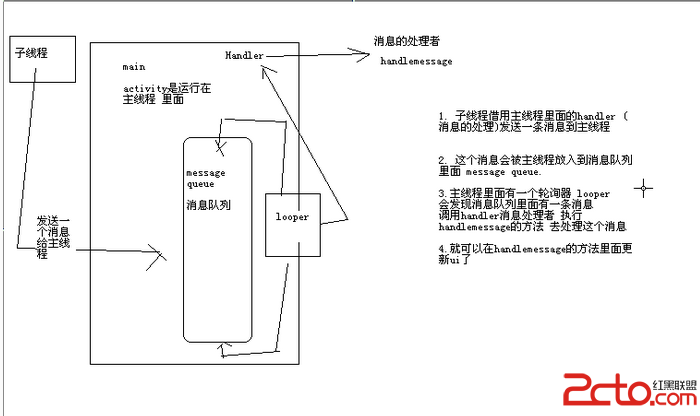 Android 子線程更新 UI 全解析:四種正確做法與那個「好像沒報錯」的錯覺
一、緣起:書上說會報錯,但我沒報 很多書都會強調:不能在子線程操作 UI,否則會出錯。但實際寫起來卻發現有時候根本沒事: @Override protected void
 Android 常用基礎控件入門
本文整理 Android 常見基礎控件的使用方式,包含 TextView、Button、EditText、ImageView、ProgressBar、AlertDialo
 Android BroadcastReceiver 詳解:動態與靜態廣播
BroadcastReceiver 是 Android 中常見的元件,用來接收系統或應用程式發出的廣播。它適合用來監聽網路變化、電量變動、開機完成等事件。 動態註冊 動
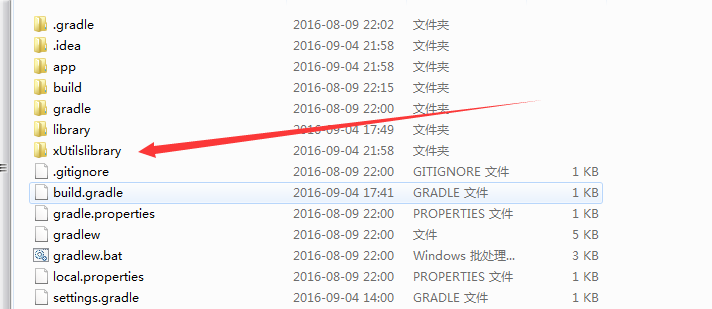 Android Studio 導入第三方庫的完整流程與常見踩坑
前言多數人踏入 Android 開發時,都會選擇 Google 官方的 Android Studio。由於它與早期的 Eclipse 差異不小,入門時遇到的問題也格外多,