

編輯:關於 Android 程式設計
在開發遊戲或沉浸式應用時,我們經常需要把應用設定為全螢幕、隱藏標題列。Android 提供了兩種做法:一種在程式碼中動態設定,另一種則在設定檔中靜態宣告。
透過 requestWindowFeature 隱藏標題列,再用 setFlags 設定全螢幕旗標。要特別注意的是,這兩段程式碼必須放在 setContentView() 之前,否則不會生效:
public class OpenGl_Lesson1 extends Activity {
    public void onCreate(Bundle savedInstanceState) {
        super.onCreate(savedInstanceState);
        requestWindowFeature(Window.FEATURE_NO_TITLE); // 無標題列
        getWindow().setFlags(WindowManager.LayoutParams.FLAG_FULLSCREEN,
                             WindowManager.LayoutParams.FLAG_FULLSCREEN); // 全螢幕
        // 以上兩段程式碼必須設定在 setContentView() 之前
        setContentView(R.layout.main);
    }
}透過為 Activity 指定 android:theme="@android:style/Theme.NoTitleBar.Fullscreen" 主題,就能一次搞定無標題列與全螢幕,程式碼更為乾淨:
<?xml version="1.0" encoding="utf-8"?>
<manifest xmlns:android="https://schemas.android.com/apk/res/android"
    package="com.android.tutor"
    android:versionCode="1"
    android:versionName="1.0">
    <application android:icon="@drawable/icon" android:label="@string/app_name">
        <activity android:name=".OpenGl_Lesson1"
            android:theme="@android:style/Theme.NoTitleBar.Fullscreen"
            android:label="@string/app_name">
            <intent-filter>
                <action android:name="android.intent.action.MAIN" />
                <category android:name="android.intent.category.LAUNCHER" />
            </intent-filter>
        </activity>
    </application>
    <uses-sdk android:minSdkVersion="7" />
</manifest>相較之下,第二種方法無需在程式碼中寫入額外邏輯,結構更清晰,因此推薦使用設定檔的方式。
 陌陌忘記密碼登不進去?重置密碼的完整步驟
密碼設得越複雜越容易忘,陌陌也不例外。忘記密碼時別急著放棄帳號,依你的綁定狀態走對應流程就能取回。 一、已綁定手機且號碼可正常使用 (1)在登入介面點擊「登錄遇到困難」。
 支付寶 ETC 繳費功能在哪裡?綁定與繳費教學
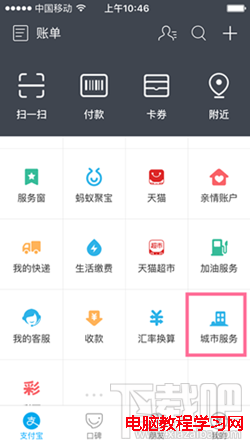
支付寶上線了一項全新的繳費服務——ETC 繳費功能,用戶可透過支付寶對武漢地區的 ETC 進行繳費,這是暫時面向武漢廣大司機朋友的福利。有了這項新功能,武漢司機就不必再親
 Android 源碼下載與編譯實戰筆記
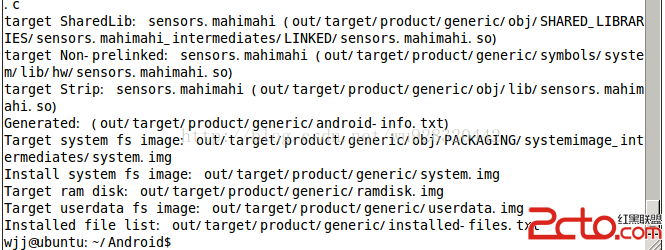
前言 現在的 Android 開源生態有點像戰國時代,演算法、圖形、資料庫、網路協議各種實作百家爭鳴,GitHub 則成了貢獻者與使用者共同的樂園。而論規模,Androi
 Android 百度地圖環境搭建:從密鑰申請到地圖顯示
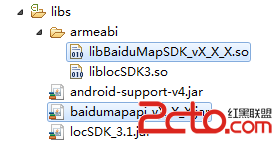
要在 Android 專案中使用百度地圖,第一步不是寫程式,而是把環境準備好。從申請密鑰、下載 SDK 到配置權限,每一個環節都會影響地圖是否能正常顯示。 申請密鑰 開發