

編輯:關於 Android 程式設計
許多應用都有取得使用者當前位置的需求,例如「附近的人」功能。Android 透過 LocationManager 與 Location 來提供定位服務。本文示範如何取得當前座標並介紹 Location 的常用方法。
定位服務需要透過 LocationManager 取得。實務上通常先嘗試 GPS 定位,若無結果再退回網路定位,以提高成功率:
public Location getLocation() {
    LocationManager locManger = (LocationManager) getSystemService(Context.LOCATION_SERVICE);
    Location loc = locManger.getLastKnownLocation(LocationManager.GPS_PROVIDER);
    if (loc == null) {
        loc = locManger.getLastKnownLocation(LocationManager.NETWORK_PROVIDER);
    }
    return loc;
}public void LocationMethod() {
Location loc = getLocation();
// loc.distanceTo(Location dest); // float,計算與目標位置的距離
// loc.getAltitude(); // double,海拔高度
// loc.getLatitude(); // double,緯度
// loc.getLongitude(); // double,經度
// loc.getSpeed(); // float,速度
}要使用 Location 服務,必須在清單檔中宣告定位權限:
<uses-permission android:name="android.permission.ACCESS_FINE_LOCATION"/>透過 GPS_PROVIDER 與 NETWORK_PROVIDER 的雙重保障,再搭配適當的權限設定,就能在你的應用中穩定地取得使用者當前位置。
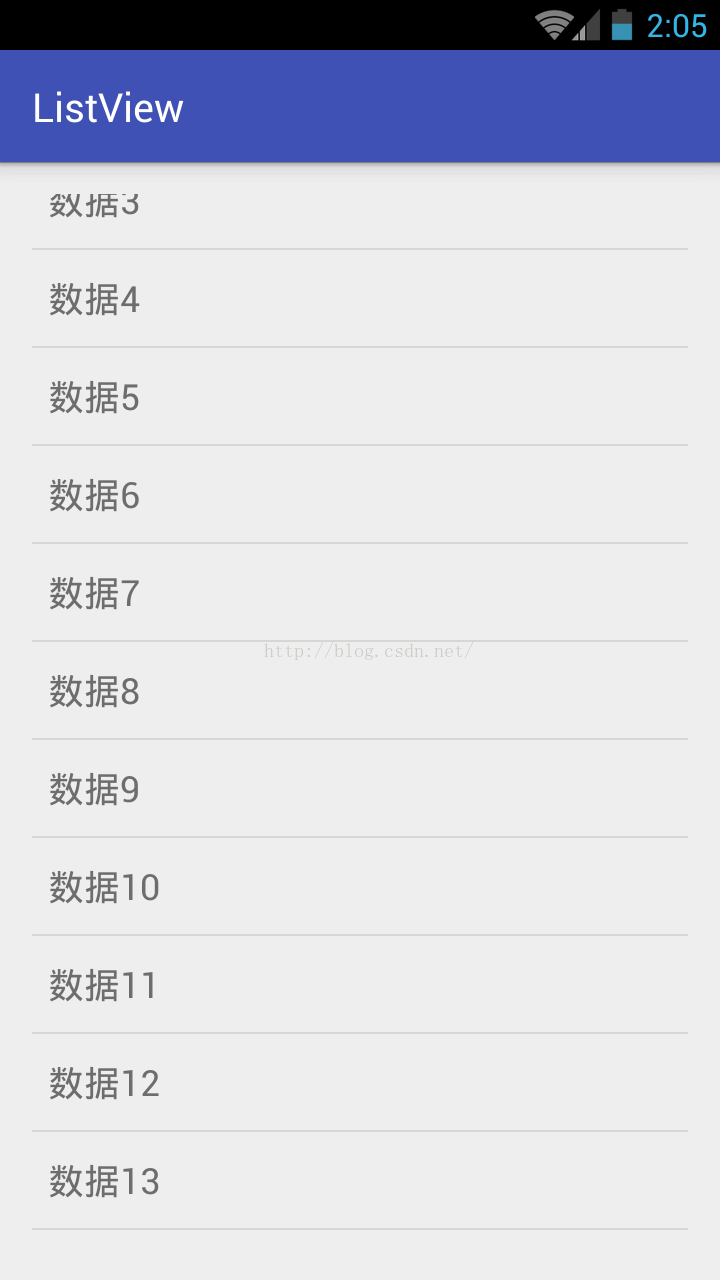 Android ListView 完全詳解:四種 Adapter、常用屬性與下拉刷新上拉加載
本文目錄: 1. ListView 概述 2. ListView 的四個關鍵角色(Adapter、ViewHolder、數據集、布局) 3. ListView 常用屬性
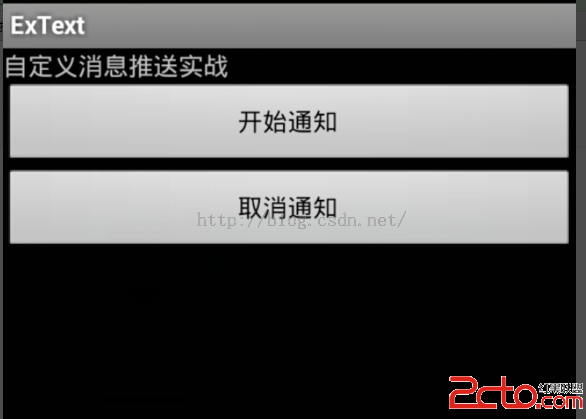 Android 自訂訊息推送:Service 結合 Notification 的實作示範
先來看效果。 點擊通知之後的樣子: 主介面:控制服務的啟動與停止 public class TextActivity extends Activity {
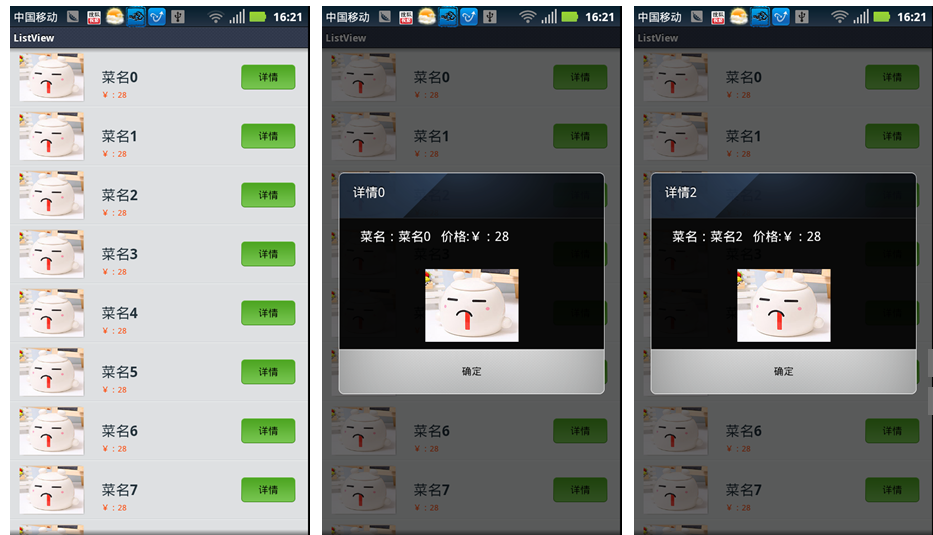 為 ListView 每個 Item 上的按鈕添加點擊事件的兩種方法
本篇介紹如何為 ListView 每個 Item 上的按鈕添加點擊事件,並給出兩種常見的實現思路。示例中的數據為了方便測試直接寫死,實際使用時可按需替換。 先看效果圖:
 Android 實習札記(6):ViewPager 從入門到自定義 Tab
上一節我們用 Fragment 拼了一個簡單的底部導航欄,結尾提到要結合 ViewPager 做引導界面。說到 ViewPager,很多人應該都用過,但如果只會複製粘貼、