

編輯:關於 Android 程式設計
在日常開發中,Toast是最常用的輕量提示手段。為了避免到處重複編寫Toast.makeText的樣板代碼,我把常見的各種形式封裝成了一個工具類,在此分享給大家,希望能帶來一些啟發。
這個工具類集合了短提示、長提示、自定義位置、帶圖片以及完全自定義布局等多種形式,並通過一個開關控制是否顯示:
public class TinyjoyToastUtil extends Toast {
    private static boolean isShowFlag = true; // 全局顯示開關
    private static Toast toast;

    public TinyjoyToastUtil(Context context) { super(context); }

    // 短顯示,消息為字符串
    public static void showShort(Context context, CharSequence message) {
        if (isShowFlag) Toast.makeText(context, message, Toast.LENGTH_SHORT).show();
    }
    // 短顯示,消息為資源ID
    public static void showShort(Context context, int message) {
        if (isShowFlag) Toast.makeText(context, message, Toast.LENGTH_SHORT).show();
    }
    // 長顯示,消息為字符串
    public static void showLong(Context context, CharSequence message) {
        if (isShowFlag) Toast.makeText(context, message, Toast.LENGTH_LONG).show();
    }
    // 長顯示,消息為資源ID
    public static void showLong(Context context, int message) {
        if (isShowFlag) Toast.makeText(context, message, Toast.LENGTH_LONG).show();
    }

    // 自定義顯示位置(短):gravity指定位置,xOffset/yOffset為相對偏移量
    public static void showCustomLocationShort(Context context, int messageId, int gravity, int xOffset, int yOffset) {
        if (isShowFlag) {
            Toast toast = Toast.makeText(context, messageId, Toast.LENGTH_SHORT);
            toast.setGravity(gravity, xOffset, yOffset);
            toast.show();
        }
    }
    // 自定義顯示位置(長)及其他重載方法省略,思路相同

    // 帶圖片的短提示,顯示在屏幕正中
    public static void showCustomToastWithImageShort(Context context, CharSequence message, int resId) {
        if (isShowFlag) {
            toast = Toast.makeText(context, message, Toast.LENGTH_SHORT);
            toast.setGravity(Gravity.CENTER, 0, 0);
            LinearLayout toastContentView = (LinearLayout) toast.getView();
            ImageView img = new ImageView(context);
            img.setImageResource(resId);
            toastContentView.addView(img);
            toast.show();
        }
    }

    // 完全自定義的短提示:使用自定義XML布局
    public static void showCompletedCustomToastShort(Context context, int layoutResource, CharSequence message, Bitmap bitmap) {
        if (isShowFlag) {
            toast = new Toast(context);
            LayoutInflater inflate = (LayoutInflater) context.getSystemService(Context.LAYOUT_INFLATER_SERVICE);
            View view = inflate.inflate(layoutResource, null);
            TextView mTextView = (TextView) view.findViewById(R.id.toast_text_content);
            ImageView mImageView = (ImageView) view.findViewById(R.id.toast_image_content);
            mTextView.setText(message);
            mImageView.setImageBitmap(bitmap);
            toast.setGravity(Gravity.CENTER, 0, 0);
            toast.setView(view);
            toast.setDuration(TinyjoyToastUtil.LENGTH_SHORT);
            toast.show();
        }
    }
    // 其餘帶圖片ID、長顯示等重載方法思路一致,此處從略
}
這個工具類的設計要點有三:一是用static方法統一封裝,調用時一行搞定;二是通過isShowFlag開關便於全局控制提示的開關,比如在測試環境關閉所有提示;三是支持從簡單文本到完全自定義布局的多層次擴展,滿足從基礎到複雜的各種需求。實際項目中,你還可以進一步擴充單例模式來避免內存洩露、加入隊列來防止提示被頻繁刷新覆蓋,讓它變得更健壯。
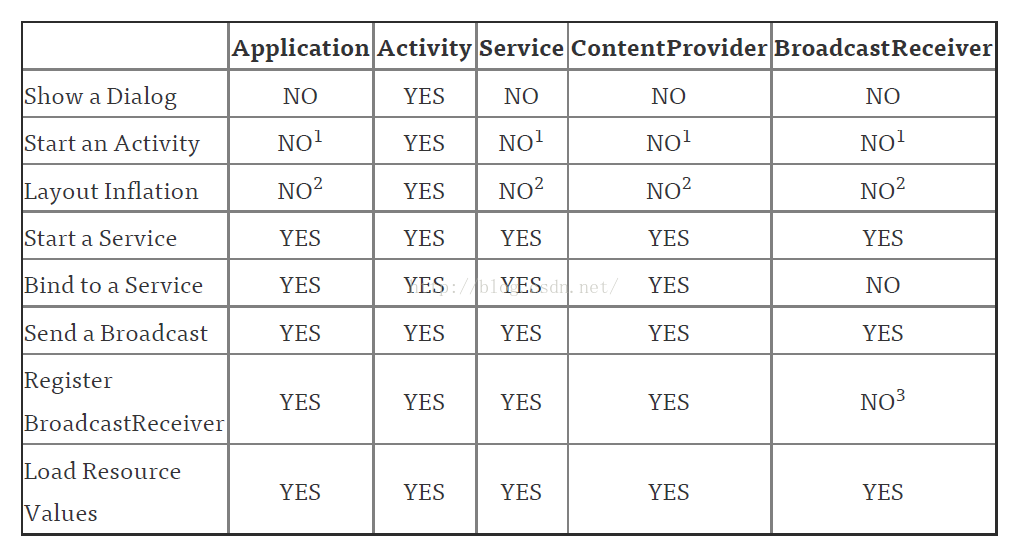 Android 中 Context 的應用總結與內存洩漏防範
概述 作為一名 Android 開發人員,每天使用最多的類中,恐怕 Context 可以排得上號了。因為 Context 對象在我們的項目裏實在是太常見了:加載資源、啟動
 Android 設計模式筆記:六大關係、七大原則與二十三種模式
簡介 在專案開發中,我們不斷遇到問題、解決問題。這個過程中反覆浮現的,是那些「一再出現」與「從前一個問題遺留下來」的難題。這些問題的本質,其實就是設計模式試圖回答的東西。
 Android Shape 標籤用法總整理:填充、漸層、描邊與圓角
在 Android 開發中,想要做出圓角按鈕、漸層背景、虛線邊框這類效果,完全不需要切圖,只要在 drawable 目錄下寫一個 <shape> 就能搞定。下
 Android Activity 四大啟動模式實驗詳解
Activity 是 Android 四大元件之一,也是使用者最直接接觸的介面。不同啟動模式會影響 Activity 的實例建立、堆疊管理與返回行為。本文透過實驗方式說明