

編輯:關於 Android 程式設計
1. 幾乎支援所有 Android 版本,從 2.x 到 7.0
Android 4.4、4.4.1 與 4.4.2 無法支援,因為當時 Google 認為 WebView 上傳檔案不安全而移除了這個功能,所以這三個版本沒有解法。不過現在基本上也很少遇到這三個系統版本的裝置了。4.4.3 與 4.4.4 則是支援的。
2. 支援 accept="" 屬性,可限制可選擇的檔案類型
如果指定 accept="image/*",就只會允許選擇圖片;若不指定,則可以選擇任何檔案。
3. 支援拍照上傳
指定 accept="image/*" 之後,除了選擇圖片,還可以直接拍照。
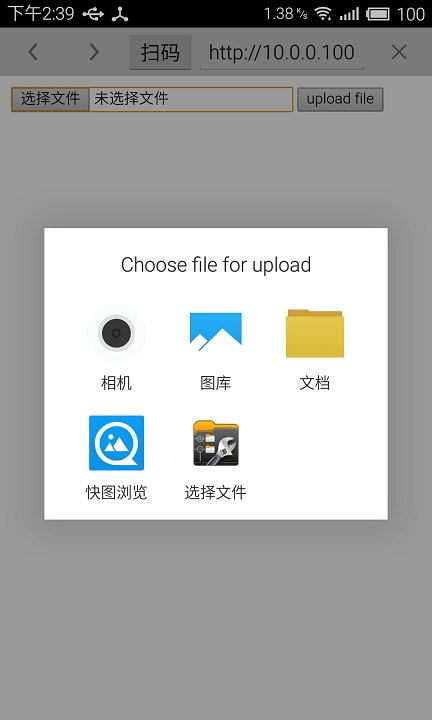
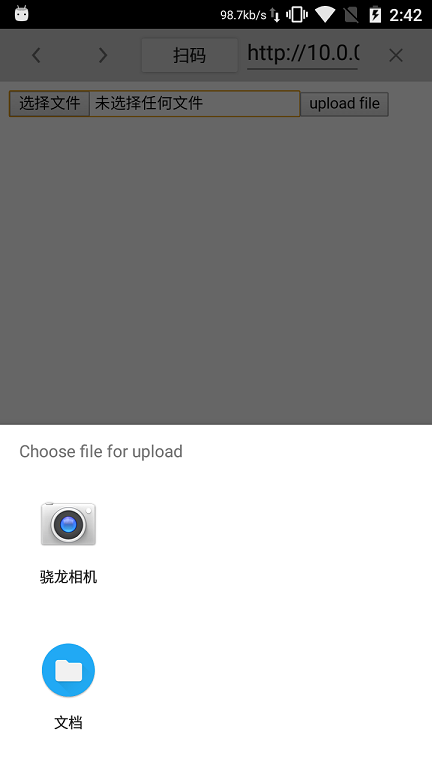
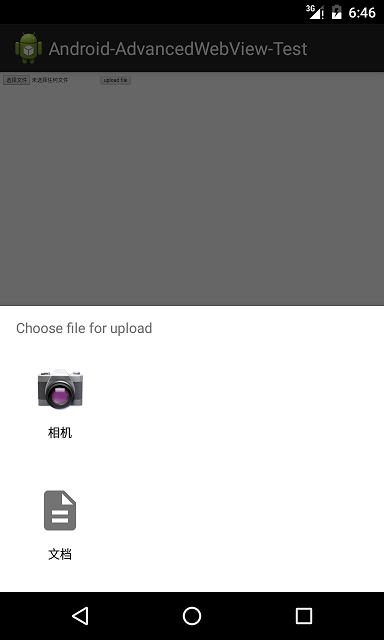
以下效果圖中的檔案選擇控制項都指定了 accept="image/*"。
Android 4.4.4:
Android 6.0:
Android 7.0:
路徑:cordova-plugin-inappbrowser\src\android\InAppChromeClient.java
增加成員變數
// added
private CordovaPlugin plugin;
public UploadHandler mUploadHandler;
增加建構函式
// added
public InAppChromeClient(CordovaWebView webView, CordovaPlugin plugin) {
    super();
    this.webView = webView;
    this.plugin = plugin;
}
增加成員函式與內部類別
// added all below

// Android 2.x
public void openFileChooser(ValueCallback<Uri> uploadMsg) {
    openFileChooser(uploadMsg, "");
}

// Android 3.0
public void openFileChooser(ValueCallback<Uri> uploadMsg, String acceptType) {
    openFileChooser(uploadMsg, "", "filesystem");
}

// Android 4.1
public void openFileChooser(ValueCallback<Uri> uploadMsg, String acceptType, String capture) {
    mUploadHandler = new UploadHandler(new Controller());
    mUploadHandler.openFileChooser(uploadMsg, acceptType, capture);
}

// Android 4.4, 4.4.1, 4.4.2
// 這三個版本的 openFileChooser 不會被呼叫,
// 需要自行使用 JavaScript 介面或其他混合框架來處理。

// Android 5.0.1
@SuppressLint("NewApi")
public boolean onShowFileChooser(WebView webView,
                                 ValueCallback<Uri[]> filePathCallback,
                                 FileChooserParams fileChooserParams) {
    String acceptTypes[] = fileChooserParams.getAcceptTypes();
    String acceptType = "";
    for (int i = 0; i < acceptTypes.length; ++i) {
        if (acceptTypes[i] != null && acceptTypes[i].length() != 0) {
            acceptType += acceptTypes[i] + ";";
        }
    }
    if (acceptType.length() == 0) {
        acceptType = "*/*";
    }

    final ValueCallback<Uri[]> finalFilePathCallback = filePathCallback;
    ValueCallback<Uri> vc = new ValueCallback<Uri>() {
        @Override
        public void onReceiveValue(Uri value) {
            Uri[] result;
            if (value != null) {
                result = new Uri[]{value};
            } else {
                result = null;
            }
            finalFilePathCallback.onReceiveValue(result);
        }
    };

    openFileChooser(vc, acceptType, "filesystem");
    return true;
}

public class Controller {
    final static int FILE_SELECTED = 4;

    CordovaInterface getCordova() {
        return plugin.cordova;
    }
}
接著加入 UploadHandler 內部類別。這段程式碼取自 Android 4.4.3_r1 的 com/android/browser/UploadHandler.java(Apache License 2.0),核心邏輯如下:
class UploadHandler {

    private ValueCallback<Uri> mUploadMessage;
    private String mCameraFilePath;
    private boolean mHandled;
    private boolean mCaughtActivityNotFoundException;
    private Controller mController;

    public UploadHandler(Controller controller) {
        mController = controller;
    }

    String getFilePath() { return mCameraFilePath; }
    boolean handled() { return mHandled; }

    void onResult(int resultCode, Intent intent) {
        // 若找不到可處理的 Activity,會重試一次,因此跳過這次結果
        if (resultCode == Activity.RESULT_CANCELED && mCaughtActivityNotFoundException) {
            mCaughtActivityNotFoundException = false;
            return;
        }

        Uri result = intent == null || resultCode != Activity.RESULT_OK
                ? null : intent.getData();

        // 拍照時相機應用不會回傳資料,只回傳 RESULT_OK,
        // 因此需檢查預期檔案是否真的寫入磁碟
        if (result == null && intent == null && resultCode == Activity.RESULT_OK) {
            File cameraFile = new File(mCameraFilePath);
            if (cameraFile.exists()) {
                result = Uri.fromFile(cameraFile);
                // 通知媒體掃描器有新照片,讓它加入相簿
                mController.getCordova().getActivity().sendBroadcast(
                        new Intent(Intent.ACTION_MEDIA_SCANNER_SCAN_FILE, result));
            }
        }

        mUploadMessage.onReceiveValue(result);
        mHandled = true;
        mCaughtActivityNotFoundException = false;
    }

    void openFileChooser(ValueCallback<Uri> uploadMsg, String acceptType, String capture) {

        final String imageMimeType = "image/*";
        final String videoMimeType = "video/*";
        final String audioMimeType = "audio/*";

        final String mediaSourceKey = "capture";
        final String mediaSourceValueCamera = "camera";
        final String mediaSourceValueFileSystem = "filesystem";
        final String mediaSourceValueCamcorder = "camcorder";
        final String mediaSourceValueMicrophone = "microphone";

        // 依規格,media source 可為 filesystem / camera / camcorder / microphone,
        // 預設值應為 filesystem
        String mediaSource = mediaSourceValueFileSystem;

        if (mUploadMessage != null) {
            // 已經有檔案選擇作業進行中
            return;
        }
        mUploadMessage = uploadMsg;

        // 解析 accept type
        String params[] = acceptType.split(";");
        String mimeType = params[0];

        if (capture.length() > 0) {
            mediaSource = capture;
        }

        if (capture.equals(mediaSourceValueFileSystem)) {
            // 為向後相容,若 capture 值為 filesystem,
            // 需進一步檢查 accept-type 中是否指定了不同的 capture 值
            for (String p : params) {
                String[] keyValue = p.split("=");
                if (keyValue.length == 2) {
                    if (mediaSourceKey.equals(keyValue[0])) {
                        mediaSource = keyValue[1];
                    }
                }
            }
        }

        // 確保不會殘留上一次的設定
        mCameraFilePath = null;

        if (mimeType.equals(imageMimeType)) {
            if (mediaSource.equals(mediaSourceValueCamera)) {
                // 指定 image/* 且要求使用相機,直接啟動相機
                startActivity(createCameraIntent());
                return;
            } else {
                // 只指定 image/*,capture=filesystem,或傳入無效的 capture 參數
                // 這種情況顯示傳統選擇器,同時提供相機與 image/* OPENABLE
                Intent chooser = createChooserIntent(createCameraIntent());
                chooser.putExtra(Intent.EXTRA_INTENT, createOpenableIntent(imageMimeType));
                startActivity(chooser);
                return;
            }
        } else if (mimeType.equals(videoMimeType)) {
            if (mediaSource.equals(mediaSourceValueCamcorder)) {
                startActivity(createCamcorderIntent());
                return;
            } else {
                Intent chooser = createChooserIntent(createCamcorderIntent());
                chooser.putExtra(Intent.EXTRA_INTENT, createOpenableIntent(videoMimeType));
                startActivity(chooser);
                return;
            }
        } else if (mimeType.equals(audioMimeType)) {
            if (mediaSource.equals(mediaSourceValueMicrophone)) {
                startActivity(createSoundRecorderIntent());
                return;
            } else {
                Intent chooser = createChooserIntent(createSoundRecorderIntent());
                chooser.putExtra(Intent.EXTRA_INTENT, createOpenableIntent(audioMimeType));
                startActivity(chooser);
                return;
            }
        }

        // 無需依 accept type 特殊處理時,觸發預設的檔案上傳選擇器
        startActivity(createDefaultOpenableIntent());
    }

    private void startActivity(Intent intent) {
        try {
            mController.getCordova().startActivityForResult(
                    plugin, intent, Controller.FILE_SELECTED);
        } catch (ActivityNotFoundException e) {
            // 沒有任何已安裝的 App 能處理這個 Intent,退回預設的檔案選擇控制項
            try {
                mCaughtActivityNotFoundException = true;
                mController.getCordova().startActivityForResult(
                        plugin, createDefaultOpenableIntent(), Controller.FILE_SELECTED);
            } catch (ActivityNotFoundException e2) {
                // 沒有任何 App 能回傳檔案,檔案上傳等於被停用
                Toast.makeText(mController.getCordova().getActivity(),
                        "File uploads are disabled.", Toast.LENGTH_LONG).show();
            }
        }
    }

    private Intent createDefaultOpenableIntent() {
        Intent i = new Intent(Intent.ACTION_GET_CONTENT);
        i.addCategory(Intent.CATEGORY_OPENABLE);
        i.setType("*/*");

        Intent chooser = createChooserIntent(
                createCameraIntent(), createCamcorderIntent(), createSoundRecorderIntent());
        chooser.putExtra(Intent.EXTRA_INTENT, i);
        return chooser;
    }

    private Intent createChooserIntent(Intent... intents) {
        Intent chooser = new Intent(Intent.ACTION_CHOOSER);
        chooser.putExtra(Intent.EXTRA_INITIAL_INTENTS, intents);
        chooser.putExtra(Intent.EXTRA_TITLE, "Choose file for upload");
        return chooser;
    }

    private Intent createOpenableIntent(String type) {
        Intent i = new Intent(Intent.ACTION_GET_CONTENT);
        i.addCategory(Intent.CATEGORY_OPENABLE);
        i.setType(type);
        return i;
    }

    private Intent createCameraIntent() {
        Intent cameraIntent = new Intent(MediaStore.ACTION_IMAGE_CAPTURE);

        File externalDataDir = Environment.getExternalStoragePublicDirectory(
                Environment.DIRECTORY_DCIM);
        File cameraDataDir = new File(
                externalDataDir.getAbsolutePath() + File.separator + "browser-photos");
        cameraDataDir.mkdirs();

        mCameraFilePath = cameraDataDir.getAbsolutePath()
                + File.separator + System.currentTimeMillis() + ".jpg";

        cameraIntent.putExtra(MediaStore.EXTRA_OUTPUT,
                Uri.fromFile(new File(mCameraFilePath)));
        return cameraIntent;
    }

    private Intent createCamcorderIntent() {
        return new Intent(MediaStore.ACTION_VIDEO_CAPTURE);
    }

    private Intent createSoundRecorderIntent() {
        return new Intent(MediaStore.Audio.Media.RECORD_SOUND_ACTION);
    }
}
別忘了在檔案頂部加入必要的 import:
// added
import org.apache.cordova.CordovaPlugin;
import org.apache.cordova.CordovaInterface;

import android.annotation.SuppressLint;
import android.app.Activity;
import android.content.ActivityNotFoundException;
import android.content.Intent;
import android.net.Uri;
import android.os.Environment;
import android.provider.MediaStore;
import android.webkit.ValueCallback;
import android.widget.Toast;

import java.io.File;
路徑:cordova-plugin-inappbrowser\src\android\InAppBrowser.java
增加成員變數
// added
private InAppChromeClient chromeClient;
修改 showWebPage 方法
// WebView inAppWebView = new WebView(cordova.getActivity());
inAppWebView.setLayoutParams(new LinearLayout.LayoutParams(
        LayoutParams.MATCH_PARENT, LayoutParams.MATCH_PARENT));
inAppWebView.setId(Integer.valueOf(6));

// inAppWebView.setWebChromeClient(new InAppChromeClient(thatWebView)); 這一句註解掉
// 改為下面兩句
chromeClient = new InAppChromeClient(thatWebView, InAppBrowser.this);
inAppWebView.setWebChromeClient(chromeClient);

WebViewClient client = new InAppBrowserClient(thatWebView, edittext);
增加一個覆寫方法
@Override
public void onActivityResult(int requestCode, int resultCode, Intent intent) {
    if (requestCode == InAppChromeClient.Controller.FILE_SELECTED) {
        // 從檔案選擇器選了一個檔案
        if (chromeClient != null && chromeClient.mUploadHandler != null) {
            chromeClient.mUploadHandler.onResult(resultCode, intent);
        }
    }
    super.onActivityResult(requestCode, resultCode, intent);
}
至於 iOS 版本,最新的 InAppBrowser 外掛 1.5.0 以上已經支援選擇檔案(1.5.0 之前的版本不行,有 bug)。
 BlueStacks 安卓模擬器彈窗的解決辦法
用 BlueStacks 時,不管是下載東西還是開啟程式,都會跳出「One time setup」視窗,很惱人。這個視窗來自它內建的一個應用程式,把它卸掉就清靜了。 Bl
 Android Socket 通信入門:一個可跑的客戶端與服務端示例
Socket 編程不是孤立知識,它同時牽涉到網絡編程、多線程和 I/O 流三塊內容。本文用最樸素的方式做一個能跑通的最小示例,給同樣剛入門的朋友一點思路。實現方法自然不止
 讓 ES 檔案瀏覽器連電腦時必須輸入帳號密碼
用 ES 檔案瀏覽器把手機檔案開給電腦存取很方便,但方便的另一面是:同一個網路裡的人只要知道位址就能進來翻。想加上一道門檻,就得設定帳號與密碼。以下說明怎麼做。 ES 檔
 Android TextView 控制項的兩種用法:XML 靜態設定與程式碼動態綁定
本文說明 TextView 的兩種常見用法。往後大多數章節也一樣,我們會逐個拆解常用控制項——因為把這些控制項組合起來,就是一個完整的應用。 先觀察一件事 如果你留意一