

編輯:關於 Android 程式設計
先前幾篇文章裡,我曾經介紹過如何調用 Google 提供的鍵盤相關 API 來自訂鍵盤。這種做法有個明顯的限制:自訂鍵盤只能佔滿整個螢幕,無法滿足「只佔用畫面一部分」這類需求。例如下面這張平板上的鍵盤示意圖(基於公司保密要求,內容做了模糊處理):
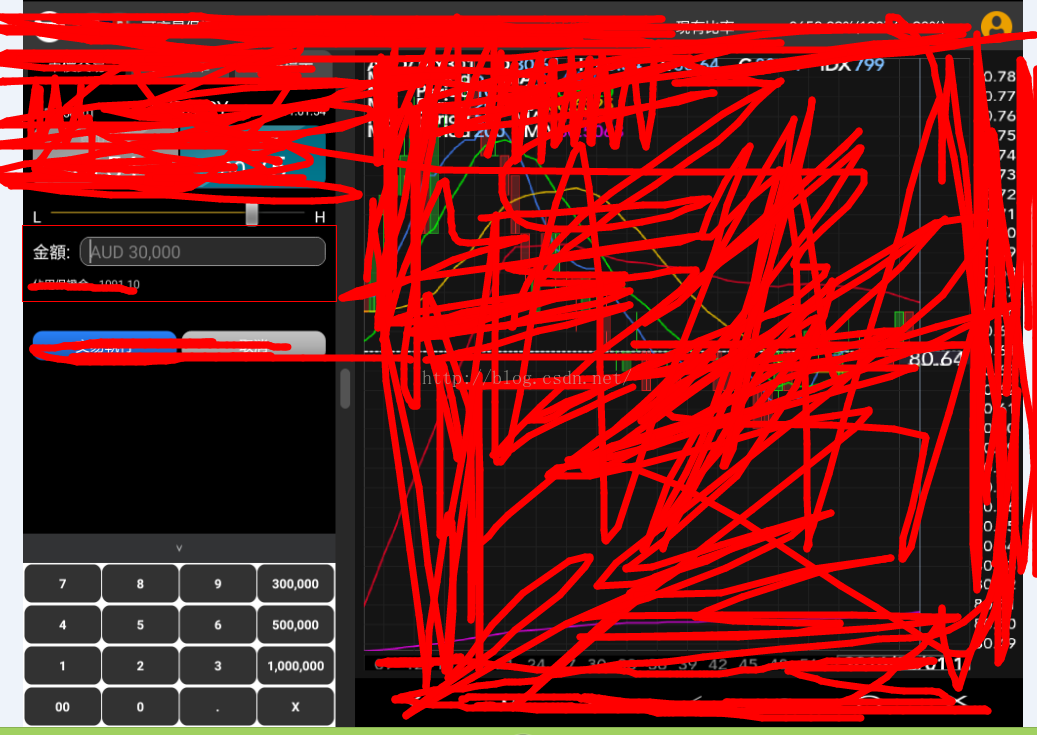
像這樣貼在左下角的迷你鍵盤,就沒辦法再沿用系統內建的鍵盤 API,必須自己動手寫布局,同時還要對輸入金額的位數、整數與小數位數做種種限制。整體實作步驟大致如下。
第一步是監聽 EditText 的焦點與點擊事件,在觸發時彈出下方鍵盤(也就是採用 PopupWindow 的方式),並且把系統自帶的軟鍵盤隱藏掉:
limitEditText = (EditText) fragmentLayout.findViewById(R.id.ordertrade_limit_price); //禁止系統鍵盤彈出 MainActionUtilHelper.hideSoftInputMethod(limitEditText, getActivity()); digit = allone.verbank.apad.client.util.InstrumentUtil.getDigitByInstrument(instName); limitEditText.setOnFocusChangeListener(new android.view.View.OnFocusChangeListener() { @Override public void onFocusChange(View v, boolean hasFocus) { if (hasFocus) { if (popupMenu != null) { popupMenu.destroyPopupMenu(); } popupMenu = PopupMenuFactory.createPopupWindowKeyBoard(getActivity(), limitEditText, order_amount_layout, IPopupMenu.MENU_TYPE_JPY, digit == 2, digit); popupMenu.showPopupMenu(); popupMenu.createPupupWindow().setOnDismissListener(new PopupWindow.OnDismissListener() { @Override public void onDismiss() { } }); } else { // 此處為失去焦點時的處理內容 } } }); //監聽彈出數字鍵盤 limitEditText.setOnClickListener(new OnClickListener() { @Override public void onClick(View vi) { if (popupMenu != null) { popupMenu.destroyPopupMenu(); } // 浮出菜單 popupMenu = PopupMenuFactory.createPopupWindowKeyBoard(getActivity(), limitEditText, order_amount_layout, IPopupMenu.MENU_TYPE_JPY, digit == 2, digit); popupMenu.showPopupMenu(); popupMenu.createPupupWindow().setOnDismissListener(new PopupWindow.OnDismissListener() { @Override public void onDismiss() { } }); } }); //======================================================================================
隱藏系統軟鍵盤的方法如下,需要傳入 Activity 與 EditText 兩個參數:
/** * 隱藏系統鍵盤 * * @param ed * @author qiulinhe * @createTime 2016年5月31日 下午1:50:33 */ public static void hideSoftInputMethod(EditText ed, Activity activity) { activity.getWindow().setSoftInputMode(WindowManager.LayoutParams.SOFT_INPUT_STATE_ALWAYS_HIDDEN); int currentVersion = android.os.Build.VERSION.SDK_INT; String methodName = null; if (currentVersion >= 16) { // 4.2 methodName = "setShowSoftInputOnFocus"; } else if (currentVersion >= 14) { // 4.0 methodName = "setSoftInputShownOnFocus"; } if (methodName == null) { ed.setInputType(InputType.TYPE_NULL); } else { Class cls = EditText.class; Method setShowSoftInputOnFocus; try { setShowSoftInputOnFocus = cls.getMethod(methodName, boolean.class); setShowSoftInputOnFocus.setAccessible(true); setShowSoftInputOnFocus.invoke(ed, false); } catch (NoSuchMethodException e) { ed.setInputType(InputType.TYPE_NULL); e.printStackTrace(); } catch (IllegalAccessException e) { e.printStackTrace(); } catch (IllegalArgumentException e) { e.printStackTrace(); } catch (InvocationTargetException e) { e.printStackTrace(); } } }
接著準備鍵盤的布局檔,也就是自訂鍵盤的外觀:
最後是點擊 EditText 時負責彈出 PopupWindow 的管理類,它承載了各個按鈕的監聽,以及金額位數、整數與小數位的限制邏輯:
package allone.verbank.apad.client.component.menu.impl; import allone.verbank.apad.client.R; import allone.verbank.apad.client.component.menu.IPopupMenu; import allone.verbank.apad.client.util.SharepreferencesUtilSystemSettings; import android.app.Activity; import android.graphics.drawable.ColorDrawable; import android.view.Gravity; import android.view.MotionEvent; import android.view.View; import android.view.View.OnClickListener; import android.view.ViewGroup.LayoutParams; import android.widget.Button; import android.widget.EditText; import android.widget.PopupWindow; import android.widget.TextView; import android.widget.Toast; /** * 數字鍵盤,點擊edittext控件,下方彈出鍵盤 * * @author qiulinhe * @createTime 2016年5月31日 上午10:33:20 */ public class DigitKeyboardPopupMenu implements IPopupMenu { private boolean isJPY; private int digit; //=============鍵盤數字初始化============ private TextView hide_keyboard;//隱藏鍵盤 private Button seven, eight, nine, first_selfdefine;//鍵盤的第一行 private Button four, five, six, second_selfdefine;//鍵盤的第一行 private Button one, two, three, three_selfdefine;//鍵盤的第一行 private Button double_zero, zero, donte, delete_btn;//鍵盤的第一行 private StringBuffer inputStringAdd = new StringBuffer();//用來存放輸入數字的sb //========================================== private PopupWindow popupMenu; private Activity activity; private EditText sourceEditView;//輸入的edittext,彈出鍵盤 private View keylinearlayout;//為了計算鍵盤的尺寸,傳入布局 private int keyboardType;//鍵盤類型 public DigitKeyboardPopupMenu(Activity activity, View sourceEditView, View sourLayout, int keyboardType, boolean ifJPY, int instrumentdigit) { this.activity = activity; this.sourceEditView = (EditText) sourceEditView; this.keylinearlayout = sourLayout; this.keyboardType = keyboardType; this.isJPY = ifJPY; this.digit = instrumentdigit; initComponent(); } private void initComponent() { //當從鍵盤切換到另一個鍵盤,重新回來,需要獲得原來的已經輸入的字符串 inputStringAdd.append(sourceEditView.getText().toString()); View view = activity.getLayoutInflater().inflate(R.layout.small_keyboard, null); // 創建彈出窗口 // 窗口內容為layoutLeft,裡面包含一個ListView // 窗口寬度跟tvLeft一樣 popupMenu = new PopupWindow(view, keylinearlayout.getWidth(), LayoutParams.WRAP_CONTENT); ColorDrawable cd = new ColorDrawable(R.color.white); popupMenu.setBackgroundDrawable(cd); popupMenu.setAnimationStyle(R.style.AnimBottom); popupMenu.update(); popupMenu.setInputMethodMode(PopupWindow.INPUT_METHOD_NEEDED); popupMenu.setTouchable(true); // 設置popupwindow可點擊 popupMenu.setOutsideTouchable(true); // 設置popupwindow外部可點擊 popupMenu.setFocusable(true); // 獲取焦點 popupMenu.setTouchInterceptor(new View.OnTouchListener() { @Override public boolean onTouch(View v, MotionEvent event) { // 如果點擊了popupwindow的外部,popupwindow也會消失 if (event.getAction() == MotionEvent.ACTION_OUTSIDE) { popupMenu.dismiss(); return true; } return false; } }); //初始化鍵盤上的數字 initALLDig(view); } @Override public PopupWindow createPupupWindow() { return popupMenu; } @Override public void showPopupMenu() { if (popupMenu != null && popupMenu.isShowing()) { popupMenu.dismiss(); } else { //popupMenu.showAsDropDown(sourceEditView); popupMenu.showAtLocation(keylinearlayout, Gravity.BOTTOM | Gravity.LEFT, 0, 0); //設置layout在PopupWindow中顯示的位置 // popupMenu.showAsDropDown(sourceView, // Math.round(sourceView.getX()), // (int) (sourceView.getY())); } } @Override public void destroyPopupMenu() { } /** * 初始化鍵盤上的所有數字,進行監聽處理 * * @param view * @author qiulinhe * @createTime 2016年5月31日 下午2:24:34 */ private void initALLDig(View view) { // 自定義輸入金額key,2015年12月21日14:28:06:當用戶點擊自定義金額,清除掉之前的內容,輸入自定義金額 final String selfdig20 = SharepreferencesUtilSystemSettings.getValue(activity, "amount2", "200,000"); final String selfdig50 = SharepreferencesUtilSystemSettings.getValue(activity, "amount5", "500,000"); final String selfdig100 = SharepreferencesUtilSystemSettings.getValue(activity, "amount10", "1,000,000"); //=====================第一行,隱藏鍵盤的按鈕=============================== hide_keyboard = (TextView) view.findViewById(R.id.hide_keyboard); hide_keyboard.setOnClickListener(new OnClickListener() { @Override public void onClick(View arg0) { popupMenu.dismiss(); } }); //=================第二行,7,8,9,第一個自定義金額======================= seven = (Button) view.findViewById(R.id.seven); seven.setOnClickListener(new OnClickListener() { @Override public void onClick(View arg0) { //追加數字 inputAppendData(seven); } }); eight = (Button) view.findViewById(R.id.eight); eight.setOnClickListener(new OnClickListener() { @Override public void onClick(View arg0) { //追加數字 inputAppendData(eight); } }); nine = (Button) view.findViewById(R.id.nine); nine.setOnClickListener(new OnClickListener() { @Override public void onClick(View arg0) { //追加數字 inputAppendData(nine); } }); first_selfdefine = (Button) view.findViewById(R.id.first_selfdefine); first_selfdefine.setText(selfdig20); first_selfdefine.setOnClickListener(new OnClickListener() { @Override public void onClick(View arg0) { //如果是輸入為小數位,禁止自定義金額點擊 if (keyboardType == IPopupMenu.MENU_TYPE_JPY) { } else { String dValue = selfdig20; dValue = dValue.replace(",", ""); selfDefAppendData(dValue); } } }); //=================第二行4,5,6,第二個自定義金額======================= four = (Button) view.findViewById(R.id.four); four.setOnClickListener(new OnClickListener() { @Override public void onClick(View arg0) { //追加數字 inputAppendData(four); } }); five = (Button) view.findViewById(R.id.five); five.setOnClickListener(new OnClickListener() { @Override public void onClick(View arg0) { //追加數字 inputAppendData(five); } }); six = (Button) view.findViewById(R.id.six); six.setOnClickListener(new OnClickListener() { @Override public void onClick(View arg0) { //追加數字 inputAppendData(six); } }); second_selfdefine = (Button) view.findViewById(R.id.second_selfdefine); second_selfdefine.setText(selfdig50); second_selfdefine.setOnClickListener(new OnClickListener() { @Override public void onClick(View arg0) { //如果是輸入為小數位,禁止自定義金額點擊 if (keyboardType == IPopupMenu.MENU_TYPE_JPY) { } else { String dValue = selfdig50; dValue = dValue.replace(",", ""); selfDefAppendData(dValue); } } }); //=================第二行1,2,3,第三個自定義金額======================= one = (Button) view.findViewById(R.id.one); one.setOnClickListener(new OnClickListener() { @Override public void onClick(View arg0) { //追加數字 inputAppendData(one); } }); two = (Button) view.findViewById(R.id.two); two.setOnClickListener(new OnClickListener() { @Override public void onClick(View arg0) { //追加數字 inputAppendData(two); } }); three = (Button) view.findViewById(R.id.three); three.setOnClickListener(new OnClickListener() { @Override public void onClick(View arg0) { //追加數字 inputAppendData(three); } }); three_selfdefine = (Button) view.findViewById(R.id.three_selfdefine); three_selfdefine.setText(selfdig100); three_selfdefine.setOnClickListener(new OnClickListener() { @Override public void onClick(View arg0) { //如果是輸入為小數位,禁止自定義金額點擊 if (keyboardType == IPopupMenu.MENU_TYPE_JPY) { } else { String dValue = selfdig100; dValue = dValue.replace(",", ""); selfDefAppendData(dValue); } } }); //=================第二行00,0,.,第四個自定義金額======================= double_zero = (Button) view.findViewById(R.id.double_zero); double_zero.setOnClickListener(new OnClickListener() { @Override public void onClick(View arg0) { //追加數字 inputAppendData(double_zero); } }); zero = (Button) view.findViewById(R.id.zero); zero.setOnClickListener(new OnClickListener() { @Override public void onClick(View arg0) { //追加數字 inputAppendData(zero); } }); donte = (Button) view.findViewById(R.id.donte); donte.setOnClickListener(new OnClickListener() { @Override public void onClick(View arg0) { //當鍵盤為輸入金額的時候,小數點不能點擊 if (keyboardType == IPopupMenu.MENU_TYPE_AMOUNT) { donte.setEnabled(false); } else { //如果已經有有一個小數點,則不能再點擊 if (sourceEditView.getText().toString().contains(".")) { donte.setEnabled(false); } else { //追加數字,只能有一個小數點 inputAppendData(donte); } } } }); delete_btn = (Button) view.findViewById(R.id.delete_btn); delete_btn.setOnClickListener(new OnClickListener() { @Override public void onClick(View arg0) { //刪除功能 deleteAppendData(); } }); } /** * 點擊數字,進行追加 * * @author qiulinhe * @createTime 2016年5月31日 下午2:59:29 */ private void inputAppendData(Button digBtn) { //當鍵盤為輸入金額的時候,小數點不能點擊,且只能輸入7位數,不能輸入小數 if (keyboardType == IPopupMenu.MENU_TYPE_AMOUNT) { String oldValue = inputStringAdd.toString().trim(); String newValue = digBtn.getText().toString().trim();//千分位格式化 String dValue = oldValue + newValue; if (!dValue.equals("") && dValue.length() > 7) { Toast.makeText(activity, activity.getString(R.string.customdialogpricemodify_onlyseven), Toast.LENGTH_SHORT) .show(); } else { inputStringAdd.append(digBtn.getText().toString().trim()); sourceEditView.setText(inputStringAdd.toString().trim()); //設置光標位於最後一位 sourceEditView.setSelection(sourceEditView.getText().length()); } } else if (keyboardType == IPopupMenu.MENU_TYPE_JPY) {//當商品含有JPY的,輸入的數值:整數位最多為3位,小數位最多為2位 sourceEditView.setText(inputStringAdd.append(ifJPYReturnData(digBtn))); //設置光標位於最後一位 sourceEditView.setSelection(sourceEditView.getText().length()); } } /** * 如果是JPY的,進行判斷,返回數據 * * @param digBtn * @author qiulinhe * @createTime 2016年6月1日 上午10:45:19 */ private String ifJPYReturnData(Button digBtn) { String oriValue = inputStringAdd.toString().trim(); StringBuffer sb = new StringBuffer(oriValue); sb.append(digBtn.getText().toString().trim()); String newValue = sb.toString(); String[] newValueVec = newValue.split("\\."); if (newValueVec.length == 2) { double number = Double.parseDouble(newValueVec[0]); boolean numberflag = true; if (isJPY) { numberflag = ((number - 999 > 0.000001) ? false : true); } else { numberflag = ((number - 99 > 0.000001) ? false : true); } boolean digitflag = true; try { String digitNumber = newValueVec[1]; digitflag = digitNumber.toCharArray().length > digit ? false : true; } catch (Exception ex) { digitflag = false; } if (numberflag && digitflag) { return digBtn.getText().toString().trim(); } else { return ""; } } else { double value = Double.parseDouble(newValue); if (isJPY) { return value > 999 ? "" : digBtn.getText().toString().trim(); } else { return value > 99 ? "" : digBtn.getText().toString().trim(); } } } /** * 刪除功能 * * @author qiulinhe * @createTime 2016年5月31日 下午3:03:03 */ private void deleteAppendData() { //當鍵盤為輸入金額的時候,小數點不能點擊,且只能輸入7位數,不能輸入小數 if (keyboardType == IPopupMenu.MENU_TYPE_AMOUNT) { String dValue = sourceEditView.getText().toString(); //格式化之後重新賦值 inputStringAdd.setLength(0); inputStringAdd.append(dValue); if (inputStringAdd.length() - 1 >= 0) { inputStringAdd.delete(inputStringAdd.length() - 1, inputStringAdd.length()); sourceEditView.setText(inputStringAdd.toString().trim()); sourceEditView.setSelection(sourceEditView.getText().length()); } } else { if (inputStringAdd.length() - 1 >= 0) { inputStringAdd.delete(inputStringAdd.length() - 1, inputStringAdd.length()); sourceEditView.setText(inputStringAdd.toString().trim()); sourceEditView.setSelection(sourceEditView.getText().length()); } } } /** * 自定義金額,輸入自定義金額時,將原來的界面清空,填入自定義金額 * * @author qiulinhe * @createTime 2016年5月31日 下午3:04:02 */ private void selfDefAppendData(String selfData) { inputStringAdd.replace(0, inputStringAdd.length(), selfData); sourceEditView.setText(inputStringAdd.toString().trim()); sourceEditView.setSelection(sourceEditView.getText().length()); } }
從上面的控制類可以看到,其中已經包含了「金額最多 7 位數」「整數 3 位、小數 2 位」等各類輸入限制邏輯,程式碼中也補充了不少註釋。由於部分程式碼並不完整,若有疑問歡迎一起交流討論。
 Android 元件工具箱(widget toolbox)速覽
Android SDK 本身就附了一套標準的元件工具箱,足以應付大多數初學與一般性的介面需求,不必急著引入第三方庫。以下依用途整理常用控制項。 文字類 TextVie
 VLC for Android 結合 OpenCV 對 RTSP 視頻實時人臉檢測
最近專案需要在 Android 客戶端對 RTSP 視頻流進行實時人臉檢測。整體要實現的功能包括: 1、透過 VLC 獲取 RTSP 視頻流; 2、對 VLC 中播放的視
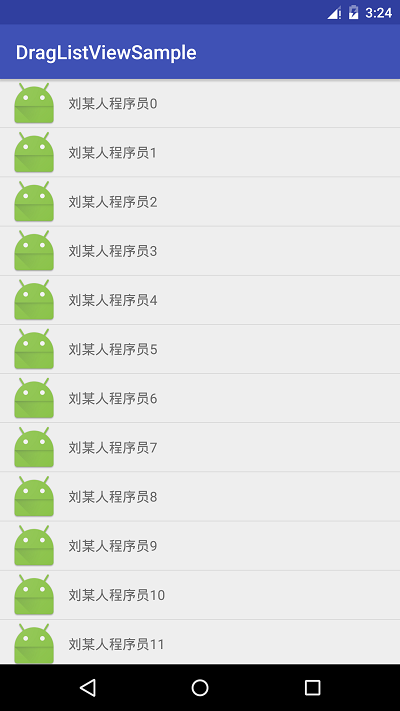 自定義 ListView 實作仿 QQ 可拖拽排序列表
先講整體思路。我的設想是這樣:先把一個最普通的 ListView 跑起來,Adapter 用系統封裝好的 ArrayAdapter,內部傳入自訂的實體類;等資料流動正常之
 Android MediaRecorder 錄製音訊的實作流程
MediaRecorder 是 Android 錄製音訊的常用類別。透過設定音源、輸出格式、編碼器與檔案路徑,即可將麥克風輸入保存為音訊檔。 錄音流程 首先建立 Med