

編輯:關於 Android 程式設計
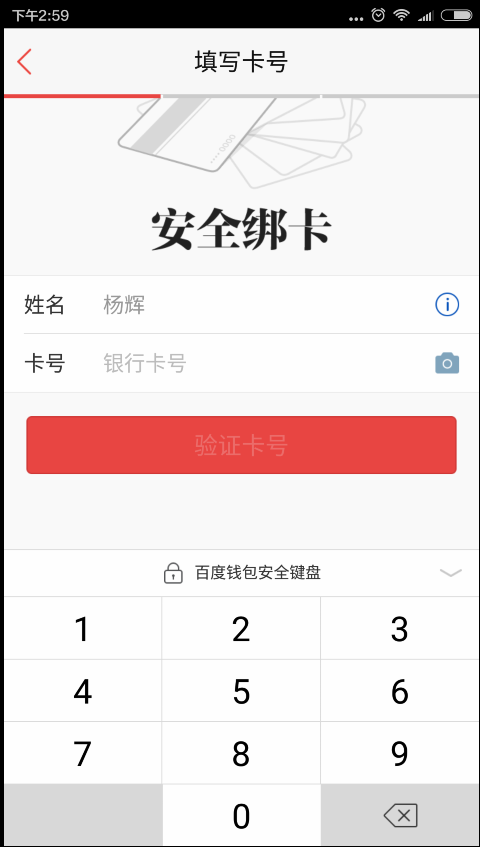
前不久項目需要一個自定義軟鍵盤,我上網翻了翻,覺得大多數方案都偏繁瑣,於是決定自己動手實現一個以備不時之需。這裡參考的是百度錢包的軟鍵盤,看著還不錯:
public class SoftInputBoard extends RelativeLayout implements View.OnClickListener {
    private Scroller mScroller;
    private int mScreenHeigh = 0;
    private int mScreenWidth = 0;
    private Boolean isMoving = false;
    private int viewHeight = 0;
    public boolean isShow = false;
    public boolean mEnabled = true;
    public boolean mOutsideTouchable = true;
    private int mDuration = 800;
    private boolean userIsLongPress = false;

    @Override
    public void onClick(View v) {
        String value = "";
        int id = v.getId();
        if (id == R.id.tv0) {
            value = "0";
        } else if (id == R.id.tv1) {
            value = "1";
        } else if (id == R.id.tv2) {
            value = "2";
        } else if (id == R.id.tv3) {
            value = "3";
        } else if (id == R.id.tv4) {
            value = "4";
        } else if (id == R.id.tv5) {
            value = "5";
        } else if (id == R.id.tv6) {
            value = "6";
        } else if (id == R.id.tv7) {
            value = "7";
        } else if (id == R.id.tv8) {
            value = "8";
        } else if (id == R.id.tv9) {
            value = "9";
        } else if (id == R.id.iv_delete) {
            value = "delete";
        } else if (id == R.id.tvx) {
            value = "X";
        }
        if (payListener != null) {
            payListener.chooseWay(value);
        }
    }

    public interface ChoosePayWayListener {
        void chooseWay(String value);
    }

    public ChoosePayWayListener payListener;

    public void setOnChoosePayWayListener(ChoosePayWayListener payListener) {
        this.payListener = payListener;
    }

    private final static String TAG = "SoftInputView";

    public SoftInputBoard(Context context) {
        super(context);
        init(context);
    }

    public SoftInputBoard(Context context, AttributeSet attrs) {
        super(context, attrs);
        init(context);
    }

    public SoftInputBoard(Context context, AttributeSet attrs, int defStyle) {
        super(context, attrs, defStyle);
        init(context);
    }

    private void init(Context context) {
        setDescendantFocusability(FOCUS_AFTER_DESCENDANTS);
        setFocusable(true);
        mScroller = new Scroller(context);
        mScreenHeigh = BaseTools.getWindowHeigh(context);
        mScreenWidth = BaseTools.getWindowWidth(context);
        this.setBackgroundColor(Color.argb(0, 0, 0, 0));
        final View view = LayoutInflater.from(context).inflate(R.layout.view_soft_input, null);
        TextView tv0 = (TextView) view.findViewById(R.id.tv0);
        TextView tv1 = (TextView) view.findViewById(R.id.tv1);
        TextView tv2 = (TextView) view.findViewById(R.id.tv2);
        TextView tv3 = (TextView) view.findViewById(R.id.tv3);
        TextView tv4 = (TextView) view.findViewById(R.id.tv4);
        TextView tv5 = (TextView) view.findViewById(R.id.tv5);
        TextView tv6 = (TextView) view.findViewById(R.id.tv6);
        TextView tv7 = (TextView) view.findViewById(R.id.tv7);
        TextView tv8 = (TextView) view.findViewById(R.id.tv8);
        TextView tv9 = (TextView) view.findViewById(R.id.tv9);
        TextView tvx = (TextView) view.findViewById(R.id.tvx);
        final RelativeLayout ivDelete = (RelativeLayout) view.findViewById(R.id.iv_delete);
        ivDelete.setClickable(true);
        tv0.setOnClickListener(this);
        tv1.setOnClickListener(this);
        tv2.setOnClickListener(this);
        tv3.setOnClickListener(this);
        tv4.setOnClickListener(this);
        tv5.setOnClickListener(this);
        tv6.setOnClickListener(this);
        tv7.setOnClickListener(this);
        tv8.setOnClickListener(this);
        tv9.setOnClickListener(this);
        tvx.setOnClickListener(this);
        ivDelete.setOnClickListener(this);
        ivDelete.setOnLongClickListener(new OnLongClickListener() {
            @Override
            public boolean onLongClick(View v) {
                if (payListener != null) {
                    payListener.chooseWay("xdelete");
                }
                return false;
            }
        });
        LayoutParams params = new LayoutParams(LayoutParams.MATCH_PARENT, LayoutParams.WRAP_CONTENT);
        addView(view, params);
        this.setBackgroundColor(Color.argb(0, 0, 0, 0));
        view.post(new Runnable() {
            @Override
            public void run() {
                viewHeight = view.getHeight();
            }
        });
        SoftInputBoard.this.scrollTo(0, mScreenHeigh);
        ImageView btn_close = (ImageView) view.findViewById(R.id.btn_close);
        btn_close.setOnClickListener(new OnClickListener() {
            @Override
            public void onClick(View v) {
                dismiss();
            }
        });
    }

    @Override
    public boolean onInterceptTouchEvent(MotionEvent ev) {
        if (!mEnabled) {
            return false;
        }
        return super.onInterceptTouchEvent(ev);
    }

    public void startMoveAnim(int startY, int dy, int duration) {
        isMoving = true;
        mScroller.startScroll(0, startY, 0, dy, duration);
        invalidate();
    }

    @Override
    public void computeScroll() {
        if (mScroller.computeScrollOffset()) {
            scrollTo(mScroller.getCurrX(), mScroller.getCurrY());
            postInvalidate();
            isMoving = true;
        } else {
            isMoving = false;
        }
        super.computeScroll();
    }

    public void show() {
        if (!isShow && !isMoving) {
            SoftInputBoard.this.startMoveAnim(-viewHeight, viewHeight, mDuration);
            isShow = true;
            changed();
        }
    }

    public int getSoftInputBoardHeight() {
        return viewHeight;
    }

    public void dismiss() {
        if (isShow && !isMoving) {
            SoftInputBoard.this.startMoveAnim(0, -viewHeight, mDuration);
            isShow = false;
            changed();
            if (l != null) {
                l.dismiss();
            }
        }
    }

    public interface dismissListener {
        void dismiss();
    }

    private dismissListener l;

    public void setOnDismissListener(dismissListener l) {
        this.l = l;
    }

    public boolean isShow() {
        return isShow;
    }

    public boolean isSlidingEnabled() {
        return mEnabled;
    }

    public void setSlidingEnabled(boolean enabled) {
        mEnabled = enabled;
    }

    public void setOnStatusListener(onStatusListener listener) {
        this.statusListener = listener;
    }

    public void setOutsideTouchable(boolean touchable) {
        mOutsideTouchable = touchable;
    }

    public void changed() {
        if (statusListener != null) {
            if (isShow) {
                statusListener.onShow();
            } else {
                statusListener.onDismiss();
            }
        }
    }

    public onStatusListener statusListener;

    public interface onStatusListener {
        void onShow();

        void onDismiss();
    }

    @Override
    protected void onLayout(boolean changed, int l, int t, int r, int b) {
        super.onLayout(changed, l, t, r, b);
    }
}
開發這麼久 Android,越發覺得 Scroller 這個類很重要,它能幫我們實現很多效果,比如這個控件的出現與消失。對 Scroller 還不熟的,可以看看我之前總結的《帶你徹徹底底弄懂 Scroller》。
第二步是我開發中遇到的難題:由於我們的 SoftInputBoard 並非繼承系統的 Keyboard 類,當它調用 show() 時,可能會把用戶正在填寫的 EditText 遮擋住,這個問題得自己解決。這裡我同樣借助 Scroller,把 SoftInputBoard 的外層布局往上滑動:
/**
 * Created by Nipuream on 2016/4/15.
 */
public class AutoPopLayout extends RelativeLayout {
    private Scroller mScroller;
    private boolean isMove = false;
    private SoftInputBoard softInputBoard;
    private Context context;
    private int currentCursorIndex = 0;
    private static final int ADD = 0x45;
    private static final int DE = 0x46;
    // 默認是加
    private int addOrde = ADD;

    public AutoPopLayout(Context context, AttributeSet attrs) {
        super(context, attrs);
        this.context = context;
        DecelerateInterpolator interpolator = new DecelerateInterpolator();
        mScroller = new Scroller(context, interpolator);
        post(new Runnable() {
            @Override
            public void run() {
                softInputBoard = new SoftInputBoard(AutoPopLayout.this.context);
                RelativeLayout rl = (RelativeLayout) AutoPopLayout.this.getParent();
                rl.addView(softInputBoard);
                RelativeLayout.LayoutParams params = (RelativeLayout.LayoutParams) softInputBoard.getLayoutParams();
                params.width = LayoutParams.MATCH_PARENT;
                params.height = LayoutParams.WRAP_CONTENT;
                params.addRule(RelativeLayout.ALIGN_PARENT_BOTTOM);
                softInputBoard.setLayoutParams(params);
                softInputBoard.setOnDismissListener(new SoftInputBoard.dismissListener() {
                    @Override
                    public void dismiss() {
                        AutoPopLayout.this.startMoveAnim(AutoPopLayout.this.getScrollY(), -pixDistance, 500);
                        pixDistance = 0;
                    }
                });
                softInputBoard.setOnChoosePayWayListener(new SoftInputBoard.ChoosePayWayListener() {
                    @Override
                    public void chooseWay(String value) {
                        try {
                            String preStr = ed.getText().toString();
                            if (!TextUtils.equals(value, "delete")) {
                                // 長按刪除
                                if (TextUtils.equals(value, "xdelete")) {
                                    ed.setText("");
                                    currentCursorIndex = 0;
                                    return;
                                }
                                addOrde = ADD;
                                currentCursorIndex = getEditTextCursorIndex(ed);
                                insertText(ed, value);
                                preStr = ed.getText().toString();
                                ed.setText(preStr);
                            } else {
                                if (!TextUtils.isEmpty(preStr)) {
                                    addOrde = DE;
                                    currentCursorIndex = getEditTextCursorIndex(ed);
                                    deleteText(ed);
                                    preStr = ed.getText().toString();
                                    ed.setText(preStr);
                                }
                            }
                        } catch (Exception e) {
                        }
                    }
                });
            }
        });
    }

    /** 獲取 EditText 光標所在位置 */
    private int getEditTextCursorIndex(EditText mEditText) {
        return mEditText.getSelectionStart();
    }

    /** 向 EditText 指定光標位置插入字符串 */
    private void insertText(EditText mEditText, String mText) {
        mEditText.getText().insert(getEditTextCursorIndex(mEditText), mText);
    }

    /** 向 EditText 指定光標位置刪除字符串 */
    private void deleteText(EditText mEditText) {
        if (!TextUtils.isEmpty(mEditText.getText().toString())) {
            mEditText.getText().delete(getEditTextCursorIndex(mEditText) - 1, getEditTextCursorIndex(mEditText));
        }
    }

    private int pixDistance = 0;

    private void AutoPilled(final EditText view) {
        currentCursorIndex = 0;
        view.post(new Runnable() {
            @Override
            public void run() {
                int screenHeight = BaseTools.getWindowHeigh(context);
                int softInputHeight = softInputBoard.getSoftInputBoardHeight();
                /**
                 * --------------------------------------------------- <---- screenHeight-softInputHeight
                 * | 輸入框 |
                 * ---------------------------------------------------
                 */
                int bottom = 0;
                Rect rect = new Rect();
                boolean isGet = view.getGlobalVisibleRect(rect);
                if (isGet) {
                    bottom = rect.bottom;
                }
                if (bottom != 0) {
                    if (bottom > (screenHeight - softInputHeight)) {
                        pixDistance = bottom - (screenHeight - softInputHeight);
                        AutoPopLayout.this.startMoveAnim(AutoPopLayout.this.getScrollY(), pixDistance, 500);
                    }
                }
            }
        });
    }

    private EditText ed;
    private WeakReference ref;

    // 隱藏系統鍵盤
    public void hideSoftInputMethod(final List ets, WeakReference ref) {
        this.ref = ref;
        currentCursorIndex = 0;
        for (final EditText ed : ets) {
            ed.setOnTouchListener(new View.OnTouchListener() {
                @Override
                public boolean onTouch(View v, MotionEvent event) {
                    AutoPopLayout.this.ed = ed;
                    if (!softInputBoard.isShow) {
                        softInputBoard.show();
                    }
                    if (!AutoPopLayout.this.isMove()) {
                        if (softInputBoard.isShow) {
                            AutoPilled(ed);
                        }
                    }
                    return false;
                }
            });
            ed.addTextChangedListener(new TextWatcher() {
                @Override
                public void beforeTextChanged(CharSequence s, int start, int count, int after) {
                }

                @Override
                public void onTextChanged(CharSequence s, int start, int before, int count) {
                }

                @Override
                public void afterTextChanged(Editable s) {
                    String value = s.toString();
                    int length = value.length();
                    try {
                        if (currentCursorIndex < length) {
                            if (addOrde == ADD) {
                                ed.setSelection(currentCursorIndex + 1);
                            } else {
                                ed.setSelection(currentCursorIndex - 1);
                            }
                        } else {
                            ed.setSelection(length);
                        }
                    } catch (Exception e) {
                    }
                }
            });
            ref.get().getWindow().setSoftInputMode(WindowManager.LayoutParams.SOFT_INPUT_STATE_ALWAYS_HIDDEN);
            int currentVersion = android.os.Build.VERSION.SDK_INT;
            String methodName = null;
            if (currentVersion >= 16) {
                methodName = "setShowSoftInputOnFocus"; // 4.2
            } else if (currentVersion >= 14) {
                methodName = "setSoftInputShownOnFocus"; // 4.0
            }
            if (methodName == null) {
                ed.setInputType(InputType.TYPE_NULL);
            } else {
                Class cls = EditText.class;
                Method setShowSoftInputOnFocus;
                try {
                    setShowSoftInputOnFocus = cls.getMethod(methodName, boolean.class);
                    setShowSoftInputOnFocus.setAccessible(true);
                    setShowSoftInputOnFocus.invoke(ed, false);
                } catch (NoSuchMethodException e) {
                    ed.setInputType(InputType.TYPE_NULL);
                    e.printStackTrace();
                } catch (Exception e) {
                    e.printStackTrace();
                }
            }
        }
    }

    public void destroyAutoPopLayout() {
        if (ref != null) {
            ref = null;
            this.removeAllViews();
        }
    }

    public void startMoveAnim(int startY, int dy, int duration) {
        isMove = true;
        mScroller.startScroll(0, startY, 0, dy, duration);
        invalidate();
    }

    @Override
    public void computeScroll() {
        if (mScroller.computeScrollOffset()) {
            scrollTo(mScroller.getCurrX(), mScroller.getCurrY());
            postInvalidate();
            isMove = true;
        } else {
            isMove = false;
        }
        super.computeScroll();
    }

    public boolean isMove() {
        return isMove;
    }
}
AutoPopLayout 裡除了解決鍵盤遮擋 EditText 的問題,還處理了大量 EditText 相關細節:點擊 SoftInputBoard 後,把鍵盤 TextView 裡的內容 setText 到 EditText 上。當然,你也可以對 TextView 的內容做加密處理再傳到服務端,否則我們自定義鍵盤也就失去意義了——這一步我省略了。
可以看到,我在 AutoPopLayout 外面還嵌套了一層 RelativeLayout,因為 SoftInputBoard 不能放在 AutoPopLayout 裡面,否則它會跟着 AutoPopLayout 一起上移。
第三步,處理 EditText。界面層上的 EditText 要傳到這裡,還需要一個 Activity 的 context,用來隱藏系統軟鍵盤(代碼見上文 hideSoftInputMethod 方法)。這裡 EditText 以集合形式傳入,因為界面上可能有多個輸入框;用弱引用傳遞是為了避免內存洩漏,當然你也可以在 Activity 的 onDestroy() 裡把 AutoPopLayout 的 context 置為 null。隱藏系統鍵盤的方式我借鑑了網友的方案,不同版本處理方式各異。
隱藏系統鍵盤後,還得處理光標。雖然你可以設置 ed.setCursorVisible(true),但它總是顯示在 EditText 最前面,不管你有沒有輸入文字——不信可以試試。怎麼辦呢?看來只能監聽 EditText 的 addText 了:
ed.addTextChangedListener(new TextWatcher() {
    @Override
    public void beforeTextChanged(CharSequence s, int start, int count, int after) {
    }

    @Override
    public void onTextChanged(CharSequence s, int start, int before, int count) {
    }

    @Override
    public void afterTextChanged(Editable s) {
        String value = s.toString();
        int length = value.length();
        try {
            if (currentCursorIndex < length) {
                if (addOrde == ADD) {
                    ed.setSelection(currentCursorIndex + 1);
                } else {
                    ed.setSelection(currentCursorIndex - 1);
                }
            } else {
                ed.setSelection(length);
            }
        } catch (Exception e) {
        }
    }
});
這裡主要為了讓光標能跟着文字移動。但問題又來了:如果用戶不小心漏輸一位,或者把光標移到了某個位置該怎麼辦?我們在 SoftInputBoard 回傳值之前,先確定光標位置再處理:
softInputBoard.setOnChoosePayWayListener(new SoftInputBoard.ChoosePayWayListener() {
    @Override
    public void chooseWay(String value) {
        try {
            String preStr = ed.getText().toString();
            if (!TextUtils.equals(value, "delete")) {
                if (TextUtils.equals(value, "xdelete")) {
                    ed.setText("");
                    currentCursorIndex = 0;
                    return;
                }
                addOrde = ADD;
                currentCursorIndex = getEditTextCursorIndex(ed);
                insertText(ed, value);
                preStr = ed.getText().toString();
                ed.setText(preStr);
            } else {
                if (!TextUtils.isEmpty(preStr)) {
                    addOrde = DE;
                    currentCursorIndex = getEditTextCursorIndex(ed);
                    deleteText(ed);
                    preStr = ed.getText().toString();
                    ed.setText(preStr);
                }
            }
        } catch (Exception e) {
        }
    }
});
當然還有許多細節沒展開,雖然看著有點繁瑣,所幸我把它們都封裝好了,直接在 MainActivity 調用即可:
public class MainActivity extends AppCompatActivity {
    private AutoPopLayout autoPopLayout;
    private EditText et1;
    private EditText et2;

    @Override
    protected void onCreate(Bundle savedInstanceState) {
        super.onCreate(savedInstanceState);
        setContentView(R.layout.activity_main);
        autoPopLayout = (AutoPopLayout) findViewById(R.id.autoPopLayout);
        et1 = (EditText) findViewById(R.id.auto_et1);
        et2 = (EditText) findViewById(R.id.auto_et2);
        List ets = new ArrayList<>();
        ets.add(et1);
        ets.add(et2);
        autoPopLayout.hideSoftInputMethod(ets, new WeakReference(this));
    }

    @Override
    protected void onDestroy() {
        try {
            autoPopLayout.destroyAutoPopLayout();
        } catch (Exception e) {
        }
        super.onDestroy();
    }
}
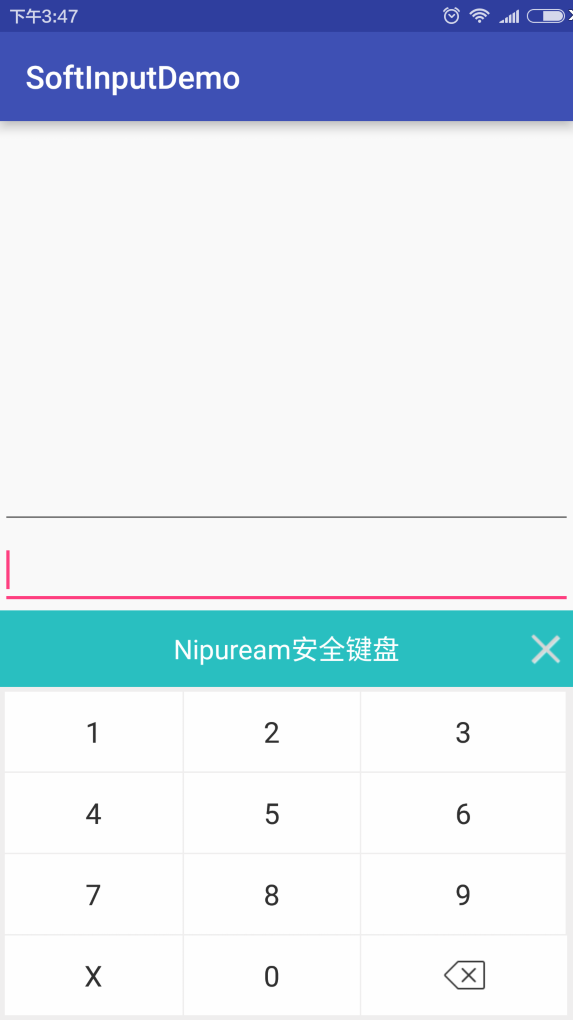
是不是挺簡單?最後看看效果圖:
 Android ContentProvider 啟動過程原始碼分析:跨進程的完整握手流程
本文參考〈Android 應用程序組件 Content Provider 的啟動過程源代碼分析〉與《Android 系統源代碼情景分析》(作者:羅升陽),把 Conten
 自製 Android 自訂 View:以 Canvas 手繪狀態提示圖表
讀了這麼多framework原始碼,總該停下來動手做點東西。正好看到一個有意思的需求,就拿來當作自訂 View 的練習題。 這個案例很適合自訂 View 的入門者。先看成
 用百度手機助手連 Chinanet 免費無線上網,不用帳密
百度手機助手已與中國電信達成深度合作,在全國範圍內推出免費 WiFi 服務。只要所在位置有中國電信的 Chinanet 熱點,百度手機助手的使用者就能直接連上,不需要 C
 Android 頂部吸附視圖(Sticky Header)實作詳解
不知從什麼時候開始,這種效果在 UI 設計中流行了起來。先來看看效果: 在支付寶、美團等許多 App 中都能看到它的身影。要實現這個效果,我們可以分析一下思路: 我們需