

編輯:關於 Android 程式設計
前陣子替專案接上了系統自帶的下拉刷新與上拉加載,功能上跑起來沒問題,但那份動畫效果實在平淡得讓人提不起勁。既然看不順眼,乾脆自己動手做一套帶幀動畫的版本,於是就有了這篇記錄。
對工程師來說,能搗鼓出一個自己真正感興趣的小東西,本身就是件挺開心的事。
整體思路並不複雜:把刷新頭部與加載尾部一併包進一個 LinearLayout,透過動態調整頭部 View 的 topMargin 來控制它露出多少,再用手勢判斷決定該由父容器攔截還是交給子 View 處理。核心類別如下:
package com.example.administrator.xlistview;

import android.content.Context;
import android.graphics.drawable.AnimationDrawable;
import android.util.AttributeSet;
import android.util.Log;
import android.view.LayoutInflater;
import android.view.MotionEvent;
import android.view.View;
import android.view.ViewGroup;
import android.widget.AdapterView;
import android.widget.ImageView;
import android.widget.LinearLayout;
import android.widget.ScrollView;
import android.widget.TextView;

import com.example.administrator.stock_sell_storage_app.R;

public class PullToRefreshView extends LinearLayout {

    private static final String TAG = "PullToRefreshView";

    // 刷新狀態
    private static final int PULL_TO_REFRESH = 2;
    private static final int RELEASE_TO_REFRESH = 3;
    private static final int REFRESHING = 4;

    // 拖動方向
    private static final int PULL_UP_STATE = 0;
    private static final int PULL_DOWN_STATE = 1;

    private int mLastMotionY;
    private boolean mLock;

    private View mHeaderView;
    private View mFooterView;

    private AdapterView<?> mAdapterView;
    private ScrollView mScrollView;

    private int mHeaderViewHeight;
    private int mFooterViewHeight;

    private ImageView mHeaderImageView;
    private ImageView mFooterImageView;
    private TextView mHeaderTextView;
    private TextView mFooterTextView;

    private LayoutInflater mInflater;

    private int mHeaderState;
    private int mFooterState;
    private int mPullState;

    private OnFooterRefreshListener mOnFooterRefreshListener;
    private OnHeaderRefreshListener mOnHeaderRefreshListener;

    private AnimationDrawable mAnimation;

    public PullToRefreshView(Context context, AttributeSet attrs) {
        super(context, attrs);
        init();
    }

    public PullToRefreshView(Context context) {
        super(context);
        init();
    }

    private void init() {
        mInflater = LayoutInflater.from(getContext());
        // 頭部必須最先加入,才能保證位於 LinearLayout 最上方
        addHeaderView();
    }

    private void addHeaderView() {
        mHeaderView = mInflater.inflate(R.layout.refresh_header, this, false);
        mHeaderImageView = (ImageView) mHeaderView.findViewById(R.id.pull_to_refresh_image);
        mHeaderTextView = (TextView) mHeaderView.findViewById(R.id.pull_to_refresh_text);

        measureView(mHeaderView);
        mHeaderViewHeight = mHeaderView.getMeasuredHeight();

        LayoutParams params = new LayoutParams(LayoutParams.MATCH_PARENT, mHeaderViewHeight);
        // 用負的 topMargin 把頭部藏在可视区域之外
        params.topMargin = -(mHeaderViewHeight);
        addView(mHeaderView, params);
    }

    private void addFooterView() {
        mFooterView = mInflater.inflate(R.layout.refresh_footer, this, false);
        mFooterImageView = (ImageView) mFooterView.findViewById(R.id.pull_to_load_image);
        mFooterTextView = (TextView) mFooterView.findViewById(R.id.pull_to_load_text);

        measureView(mFooterView);
        mFooterViewHeight = mFooterView.getMeasuredHeight();

        LayoutParams params = new LayoutParams(LayoutParams.MATCH_PARENT, mFooterViewHeight);
        addView(mFooterView, params);
    }

    @Override
    protected void onFinishInflate() {
        super.onFinishInflate();
        // 尾部在此加入,確保它是 LinearLayout 的最後一個子項
        addFooterView();
        initContentAdapterView();
    }

    /**
     * 內容區可以是 ListView、GridView 等 AdapterView,也可以是 ScrollView
     */
    private void initContentAdapterView() {
        int count = getChildCount();
        if (count < 3) {
            throw new IllegalArgumentException(
                "this layout must contain 3 child views, and AdapterView or ScrollView must in the second position!");
        }
        View view = null;
        for (int i = 0; i < count - 1; ++i) {
            view = getChildAt(i);
            if (view instanceof AdapterView<?>) {
                mAdapterView = (AdapterView<?>) view;
            }
            if (view instanceof ScrollView) {
                mScrollView = (ScrollView) view;
            }
        }
        if (mAdapterView == null && mScrollView == null) {
            throw new IllegalArgumentException("must contain a AdapterView or ScrollView in this layout!");
        }
    }

    private void measureView(View child) {
        ViewGroup.LayoutParams p = child.getLayoutParams();
        if (p == null) {
            p = new ViewGroup.LayoutParams(ViewGroup.LayoutParams.FILL_PARENT,
                                          ViewGroup.LayoutParams.WRAP_CONTENT);
        }
        int childWidthSpec = ViewGroup.getChildMeasureSpec(0, 0, p.width);
        int lpHeight = p.height;
        int childHeightSpec;
        if (lpHeight > 0) {
            childHeightSpec = MeasureSpec.makeMeasureSpec(lpHeight, MeasureSpec.EXACTLY);
        } else {
            childHeightSpec = MeasureSpec.makeMeasureSpec(0, MeasureSpec.UNSPECIFIED);
        }
        child.measure(childWidthSpec, childHeightSpec);
    }

    @Override
    public boolean onInterceptTouchEvent(MotionEvent e) {
        int y = (int) e.getRawY();
        switch (e.getAction()) {
            case MotionEvent.ACTION_DOWN:
                mLastMotionY = y;
                break;
            case MotionEvent.ACTION_MOVE:
                int deltaY = y - mLastMotionY;
                if (isRefreshViewScroll(deltaY)) {
                    return true;
                }
                break;
            case MotionEvent.ACTION_UP:
            case MotionEvent.ACTION_CANCEL:
                break;
        }
        return false;
    }

    @Override
    public boolean onTouchEvent(MotionEvent event) {
        if (mLock) {
            return true;
        }
        int y = (int) event.getRawY();
        switch (event.getAction()) {
            case MotionEvent.ACTION_DOWN:
                break;
            case MotionEvent.ACTION_MOVE:
                int deltaY = y - mLastMotionY;
                if (mPullState == PULL_DOWN_STATE) {
                    Log.i(TAG, "pull down! parent view move!");
                    headerPrepareToRefresh(deltaY);
                } else if (mPullState == PULL_UP_STATE) {
                    Log.i(TAG, "pull up! parent view move!");
                    footerPrepareToRefresh(deltaY);
                }
                mLastMotionY = y;
                break;
            case MotionEvent.ACTION_UP:
            case MotionEvent.ACTION_CANCEL:
                int topMargin = getHeaderTopMargin();
                if (mPullState == PULL_DOWN_STATE) {
                    if (topMargin >= 0) {
                        headerRefreshing();
                    } else {
                        setHeaderTopMargin(-mHeaderViewHeight);
                    }
                } else if (mPullState == PULL_UP_STATE) {
                    if (Math.abs(topMargin) >= mHeaderViewHeight + mFooterViewHeight) {
                        footerRefreshing();
                    } else {
                        setHeaderTopMargin(-mHeaderViewHeight);
                    }
                }
                break;
        }
        return super.onTouchEvent(event);
    }

    /**
     * 判斷是否該把事件交給父容器處理
     */
    private boolean isRefreshViewScroll(int deltaY) {
        if (mHeaderState == REFRESHING || mFooterState == REFRESHING) {
            return false;
        }
        if (mAdapterView != null) {
            if (deltaY > 0) {
                View child = mAdapterView.getChildAt(0);
                if (child == null) {
                    return false;
                }
                if (mAdapterView.getFirstVisiblePosition() == 0 && child.getTop() == 0) {
                    mPullState = PULL_DOWN_STATE;
                    return true;
                }
                int top = child.getTop();
                int padding = mAdapterView.getPaddingTop();
                if (mAdapterView.getFirstVisiblePosition() == 0
                        && Math.abs(top - padding) <= 8) {
                    mPullState = PULL_DOWN_STATE;
                    return true;
                }
            } else if (deltaY < 0) {
                View lastChild = mAdapterView.getChildAt(mAdapterView.getChildCount() - 1);
                if (lastChild == null) {
                    return false;
                }
                if (lastChild.getBottom() <= getHeight()
                        && mAdapterView.getLastVisiblePosition() == mAdapterView.getCount() - 1) {
                    mPullState = PULL_UP_STATE;
                    return true;
                }
            }
        }
        if (mScrollView != null) {
            View child = mScrollView.getChildAt(0);
            if (deltaY > 0 && mScrollView.getScrollY() == 0) {
                mPullState = PULL_DOWN_STATE;
                return true;
            } else if (deltaY < 0
                    && child.getMeasuredHeight() <= getHeight() + mScrollView.getScrollY()) {
                mPullState = PULL_UP_STATE;
                return true;
            }
        }
        return false;
    }

    /**
     * 手指拖動中,尚未放開:切換頭部提示文案
     */
    private void headerPrepareToRefresh(int deltaY) {
        int newTopMargin = changingHeaderViewTopMargin(deltaY);
        if (newTopMargin >= 0 && mHeaderState != RELEASE_TO_REFRESH) {
            mHeaderTextView.setText(R.string.pull_to_refresh_release_label);
            mHeaderState = RELEASE_TO_REFRESH;
        } else if (newTopMargin < 0 && newTopMargin > -mHeaderViewHeight) {
            mHeaderTextView.setText(R.string.pull_to_refresh_pull_label);
            mHeaderState = PULL_TO_REFRESH;
        }
    }

    /**
     * 尾部拖動同樣是透過改動頭部的 topMargin 來實現
     */
    private void footerPrepareToRefresh(int deltaY) {
        int newTopMargin = changingHeaderViewTopMargin(deltaY);
        if (Math.abs(newTopMargin) >= (mHeaderViewHeight + mFooterViewHeight)
                && mFooterState != RELEASE_TO_REFRESH) {
            mFooterTextView.setText(R.string.pull_to_refresh_footer_release_label);
            mFooterState = RELEASE_TO_REFRESH;
        } else if (Math.abs(newTopMargin) < (mHeaderViewHeight + mFooterViewHeight)) {
            mFooterTextView.setText(R.string.pull_to_refresh_footer_pull_label);
            mFooterState = PULL_TO_REFRESH;
        }
    }

    /**
     * 0.3 的係數讓拖動帶一點阻尼感
     */
    private int changingHeaderViewTopMargin(int deltaY) {
        LayoutParams params = (LayoutParams) mHeaderView.getLayoutParams();
        float newTopMargin = params.topMargin + deltaY * 0.3f;

        // 上拉一段距離後若不放手直接往回拖,會誤觸下拉刷新,這裡做限制
        if (deltaY > 0 && mPullState == PULL_UP_STATE
                && Math.abs(params.topMargin) <= mHeaderViewHeight) {
            return params.topMargin;
        }
        // 同理,避免下拉過程中反向操作觸發上拉
        if (deltaY < 0 && mPullState == PULL_DOWN_STATE
                && Math.abs(params.topMargin) >= mHeaderViewHeight) {
            return params.topMargin;
        }
        params.topMargin = (int) newTopMargin;
        mHeaderView.setLayoutParams(params);
        invalidate();
        return params.topMargin;
    }

    private void headerRefreshing() {
        mHeaderState = REFRESHING;
        setHeaderTopMargin(0);
        mHeaderTextView.setText(R.string.pull_to_refresh_refreshing_label);
        if (mOnHeaderRefreshListener != null) {
            mOnHeaderRefreshListener.onHeaderRefresh(this);
        }
        headerData();
    }

    /** 頭部幀動畫 */
    private void headerData() {
        mAnimation = (AnimationDrawable) mHeaderImageView.getBackground();
        // 直接 start 有可能只顯示第一幀,post 一層可以規避
        mHeaderImageView.post(new Runnable() {
            @Override
            public void run() {
                mAnimation.start();
            }
        });
    }

    /** 底部幀動畫 */
    private void footerData() {
        mAnimation = (AnimationDrawable) mFooterImageView.getBackground();
        mFooterImageView.post(new Runnable() {
            @Override
            public void run() {
                mAnimation.start();
            }
        });
    }

    private void footerRefreshing() {
        mFooterState = REFRESHING;
        int top = mHeaderViewHeight + mFooterViewHeight;
        setHeaderTopMargin(-top);
        mFooterTextView.setText(R.string.pull_to_refresh_footer_refreshing_label);
        if (mOnFooterRefreshListener != null) {
            mOnFooterRefreshListener.onFooterRefresh(this);
        }
        footerData();
    }

    private void setHeaderTopMargin(int topMargin) {
        LayoutParams params = (LayoutParams) mHeaderView.getLayoutParams();
        params.topMargin = topMargin;
        mHeaderView.setLayoutParams(params);
        invalidate();
    }

    public void onHeaderRefreshComplete() {
        mAnimation.stop();
        setHeaderTopMargin(-mHeaderViewHeight);
        mHeaderImageView.setVisibility(View.VISIBLE);
        mHeaderTextView.setText(R.string.pull_to_refresh_pull_label);
        mHeaderState = PULL_TO_REFRESH;
    }

    public void onFooterRefreshComplete() {
        mAnimation.stop();
        setHeaderTopMargin(-mHeaderViewHeight);
        mFooterImageView.setVisibility(View.VISIBLE);
        mFooterTextView.setText(R.string.pull_to_refresh_footer_pull_label);
        mFooterState = PULL_TO_REFRESH;
    }

    private int getHeaderTopMargin() {
        LayoutParams params = (LayoutParams) mHeaderView.getLayoutParams();
        return params.topMargin;
    }

    public void setOnHeaderRefreshListener(OnHeaderRefreshListener headerRefreshListener) {
        mOnHeaderRefreshListener = headerRefreshListener;
    }

    public void setOnFooterRefreshListener(OnFooterRefreshListener footerRefreshListener) {
        mOnFooterRefreshListener = footerRefreshListener;
    }

    public interface OnFooterRefreshListener {
        void onFooterRefresh(PullToRefreshView view);
    }

    public interface OnHeaderRefreshListener {
        void onHeaderRefresh(PullToRefreshView view);
    }
}寫好自訂 View 之後,只要在 XML 裡把它當成普通容器使用,中間塞入 ListView 即可。注意子檢視數量與順序是有講究的:頭部、內容、尾部,缺一不可。
<?xml version="1.0" encoding="utf-8"?>
<LinearLayout xmlns:android="https://schemas.android.com/apk/res/android"
    android:layout_width="match_parent"
    android:layout_height="match_parent"
    android:gravity="center"
    android:orientation="vertical">

    <com.example.administrator.xlistview.PullToRefreshView
        android:id="@+id/main_pull_refresh_view_two"
        android:layout_width="fill_parent"
        android:layout_height="fill_parent"
        android:orientation="vertical">

        <ListView
            android:id="@+id/listview_test"
            android:layout_width="match_parent"
            android:layout_height="wrap_content" />

    </com.example.administrator.xlistview.PullToRefreshView>

</LinearLayout>把連續幾張圖按時序排好,就得到一個最樸素的幀動畫。duration 單位是毫秒,這裡設 150ms,可以依素材張數自行微調節奏。
<?xml version="1.0" encoding="utf-8"?>
<animation-list xmlns:android="https://schemas.android.com/apk/res/android"
    android:oneshot="false">
    <item android:drawable="@mipmap/progress_loading_image_01" android:duration="150" />
    <item android:drawable="@mipmap/progress_loading_image_02" android:duration="150" />
</animation-list>
定義好之後,在頭部與尾部的佈局檔中把它設為 ImageView 的背景:
<?xml version="1.0" encoding="utf-8"?>
<LinearLayout xmlns:android="https://schemas.android.com/apk/res/android"
    android:id="@+id/pull_to_refresh_header"
    android:layout_width="fill_parent"
    android:layout_height="wrap_content"
    android:background="@android:color/white"
    android:gravity="center">

    <LinearLayout
        android:layout_width="match_parent"
        android:layout_height="wrap_content"
        android:layout_weight="1"
        android:gravity="center|right">

        <ImageView
            android:id="@+id/pull_to_refresh_image"
            android:layout_width="100dp"
            android:layout_height="100dp"
            android:background="@drawable/frame"
            android:gravity="center"
            android:visibility="visible" />
    </LinearLayout>

    <LinearLayout
        android:layout_width="match_parent"
        android:layout_height="wrap_content"
        android:layout_weight="1"
        android:gravity="center|left"
        android:orientation="vertical">

        <TextView
            android:id="@+id/pull_to_refresh_text"
            android:layout_width="wrap_content"
            android:layout_height="wrap_content"
            android:layout_marginTop="60dp"
            android:gravity="center"
            android:text="@string/pull_to_refresh_pull_label"
            android:textAppearance="?android:attr/textAppearanceMedium" />
    </LinearLayout>

</LinearLayout>
<?xml version="1.0" encoding="utf-8"?>
<LinearLayout xmlns:android="https://schemas.android.com/apk/res/android"
android:id="@+id/pull_to_refresh_header"
android:layout_width="fill_parent"
android:layout_height="wrap_content"
android:background="@android:color/white"
android:gravity="center_horizontal"
android:orientation="horizontal">
<LinearLayout
android:layout_width="match_parent"
android:layout_height="wrap_content"
android:layout_weight="1"
android:gravity="center|right">
<ImageView
android:id="@+id/pull_to_load_image"
android:layout_width="100dp"
android:layout_height="100dp"
android:layout_marginLeft="25dp"
android:background="@drawable/frame"
android:gravity="center"
android:visibility="visible" />
</LinearLayout>
<LinearLayout
android:layout_width="match_parent"
android:layout_height="wrap_content"
android:layout_weight="1"
android:gravity="center|left"
android:orientation="vertical">
<TextView
android:id="@+id/pull_to_load_text"
android:layout_width="wrap_content"
android:layout_height="wrap_content"
android:layout_marginTop="60dp"
android:gravity="center"
android:text="@string/pull_to_refresh_footer_pull_label"
android:textAppearance="?android:attr/textAppearanceMedium" />
</LinearLayout>
</LinearLayout>到這一步,自訂的刷新動畫已經完成,剩下就是在需要刷新的介面上註冊監聽,並在資料處理完畢後呼叫對應的 complete 方法把狀態復位。下面的範例用 postDelayed 模擬兩秒的網路請求。
package com.example.administrator.stock_sell_storage_app;

import android.os.Bundle;
import android.support.v4.app.Fragment;
import android.view.LayoutInflater;
import android.view.View;
import android.view.ViewGroup;
import android.widget.ListView;

import com.example.administrator.adapter.DetailAdapter;
import com.example.administrator.xlistview.PullToRefreshView;
import com.lidroid.xutils.ViewUtils;
import com.lidroid.xutils.view.annotation.ViewInject;

public class DetailFragment extends Fragment
        implements PullToRefreshView.OnHeaderRefreshListener,
                   PullToRefreshView.OnFooterRefreshListener {

    private View view;

    @ViewInject(R.id.listview_test)
    ListView listview_test;

    @ViewInject(R.id.main_pull_refresh_view_two)
    PullToRefreshView main_pull_refresh_view_two;

    DetailAdapter detailAdapter;

    @Override
    public View onCreateView(LayoutInflater inflater, ViewGroup container,
                             Bundle savedInstanceState) {
        view = inflater.inflate(R.layout.detail_fragment, container, false);
        ViewUtils.inject(this, view);
        Instantiation();
        return view;
    }

    public void Instantiation() {
        main_pull_refresh_view_two.setOnHeaderRefreshListener(this);
        main_pull_refresh_view_two.setOnFooterRefreshListener(this);
        detailAdapter = new DetailAdapter(getActivity());
        listview_test.setAdapter(detailAdapter);
    }

    // 上拉加載
    @Override
    public void onFooterRefresh(PullToRefreshView view) {
        main_pull_refresh_view_two.postDelayed(new Runnable() {
            @Override
            public void run() {
                main_pull_refresh_view_two.onFooterRefreshComplete();
            }
        }, 2000);
    }

    // 下拉刷新
    @Override
    public void onHeaderRefresh(PullToRefreshView view) {
        main_pull_refresh_view_two.postDelayed(new Runnable() {
            @Override
            public void run() {
                main_pull_refresh_view_two.onHeaderRefreshComplete();
            }
        }, 2000);
    }
}ogenicity以下幾張是換上自繪幀動畫之後的執行截圖,可以明顯看出載入中的動態感比系統預設的轉圈強上不少:
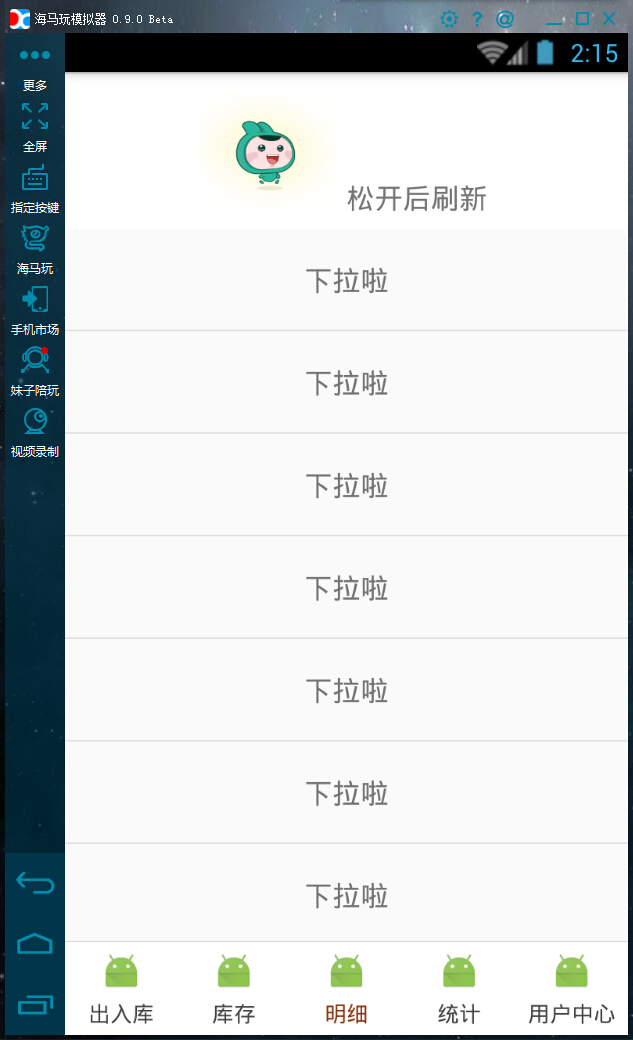
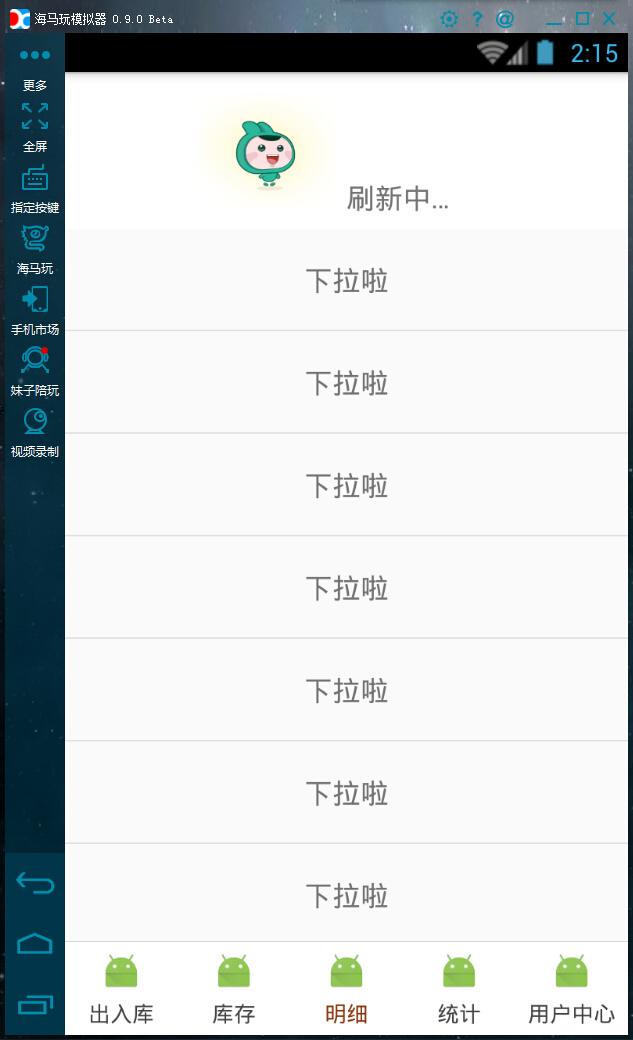
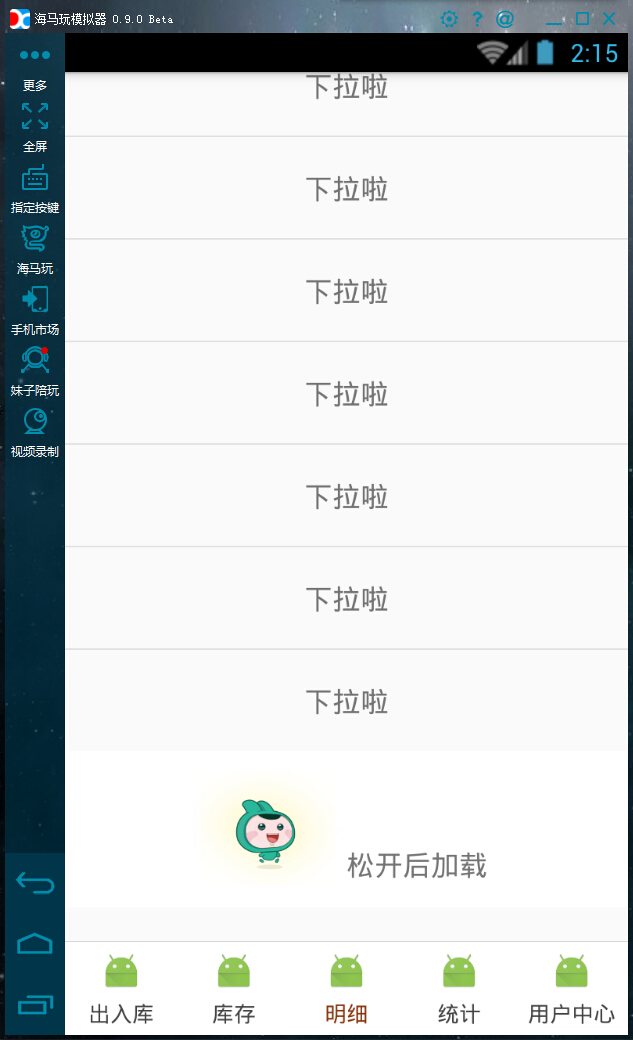
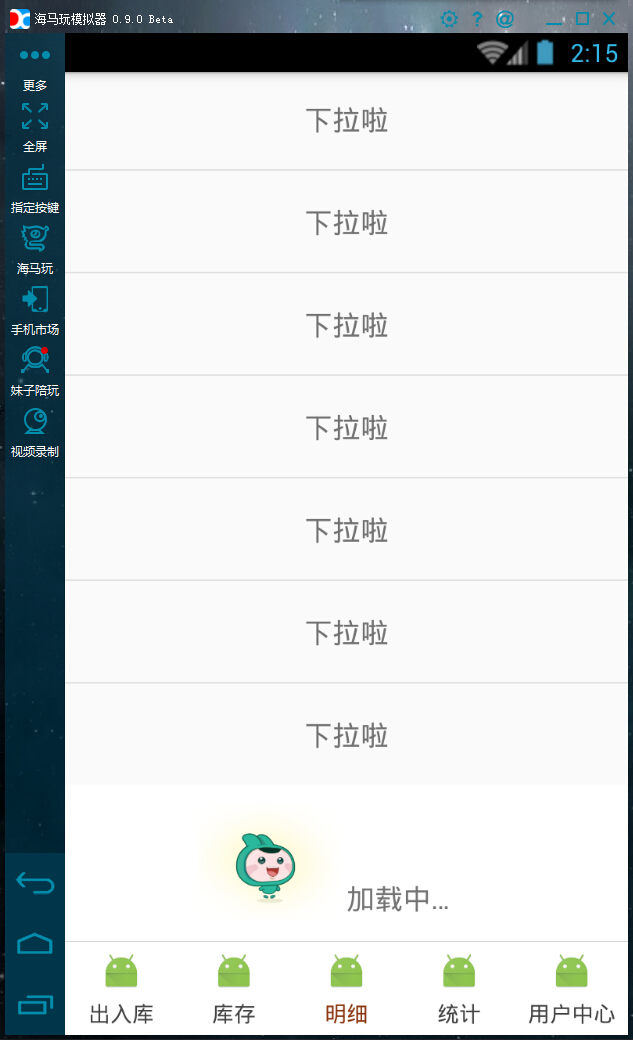
動畫素材的張數與尺寸會直接影響記憶體佔用,建議先用小尺寸圖確認節奏,再逐步替換成正式素材。另外,下拉與上拉的邊界判斷在快速滑動時容易出現誤觸,changingHeaderViewTopMargin 裡那兩段看似冗餘的方向鎖定判斷,正是用來收拾這個麻煩的。
 Android 自定義視圖:打造類似淘寶商品詳情的雙頁切換效果
在電商類應用中,商品詳情頁通常需要兼顧資訊展示與沉浸式瀏覽。本文以一個類似淘寶詳情的頁面為例,說明如何透過自定義 ViewGroup 實作上下雙頁切換效果。 整體思路
 SEAndroid 如何保護 Android 系統屬性:從存儲結構到權限校驗
Android 系統通過「屬性」對外暴露設備與運行時信息,同時也可以通過設置屬性來控制系統行為。既然屬性能左右系統行為,它就必須像文件一樣被當作需要保護的資源對待。 在啟
 解決 strings.xml 格式化佔位符錯誤:Multiple substitutions specified in non-positional format
今天有位 Android 新手在使用 strings.xml 進行格式化時,遇到了佔位符報錯:Multiple substitutions specified in no
 仿微信滑動刪除(一):讓 item 內容突破父容器邊界
這是列表滑動刪除的第三篇,這次仿的是微信。先看效果: 微信的實現與 SwipeListView 不同 前一篇講過,SwipeListView 的原理是每個 item 里