

編輯:關於 Android 程式設計
這個 Demo 的起點是個相當無奈的需求:用戶拍完照分享到微信,同時想附一段備註,而業務方希望能拿到用戶在微信彈窗裡輸入的內容,存進自己的資料庫。
問題在於,那段文字對第三方 App 而言是無法讀取的。於是只能退一步:把文字直接「燒」進圖片裡——用戶看到的圖片上帶著字,分享出去自然也帶著字,需求算是變通地滿足了。
效果圖如下:
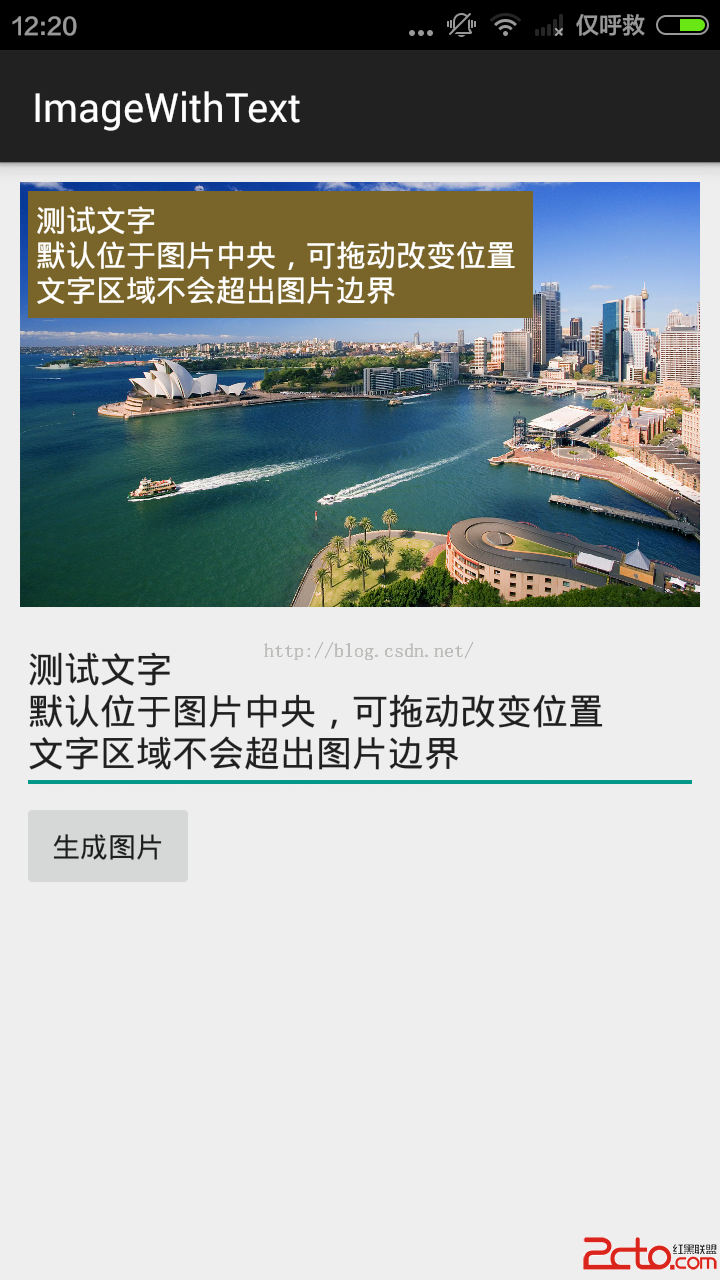
1. 用戶自由輸入文字,手動換行可行,一行寫滿也會自動折行。
2. 文字可拖動改變位置,並做邊界約束,不會跑出圖片範圍。
3. 點擊「生成圖片」後,輸出成一張帶字的圖片檔。
把文字畫到圖上,直覺上有兩條路:
一是 Canvas 直接繪製,畫質無損,但要支援拖動就得自己處理文字排版、行距、命中判定,複雜度不低。二是 截圖方式——把文字用 TextView 疊在 ImageView 上,最後對父容器整體 draw 到 Bitmap。實現簡單,代價是子視圖經過一次合成,畫質會有一定損失。
這個 Demo 選了第二條路,因為拖動只需要更新 TextView 的 x/y,成本極低。
public class MainActivity extends AppCompatActivity {

    private ImageView imageView;      // 圖片
    private TextView tvInImage;       // 疊在圖片上的文字
    private View containerView;       // 圖片與文字的父容器

    private float imageWidth, imageHeight, imagePositionX, imagePositionY;
    private float mDx, mDy;           // 每次手勢的位移量
    private int count = 0;            // 用於控制刷新頻率

    @Override
    protected void onCreate(Bundle savedInstanceState) {
        super.onCreate(savedInstanceState);
        setContentView(R.layout.image_with_text);

        imageView = (ImageView) findViewById(R.id.writeText_img);
        final EditText editText = (EditText) findViewById(R.id.writeText_et);
        tvInImage = (TextView) findViewById(R.id.writeText_image_tv);
        containerView = findViewById(R.id.writeText_img_rl);

        // 等佈局完成後再取尺寸,此時 getWidth() 才是有效值
        imageView.getViewTreeObserver().addOnGlobalLayoutListener(
                new ViewTreeObserver.OnGlobalLayoutListener() {
            @Override
            public void onGlobalLayout() {
                imageView.getViewTreeObserver().removeOnGlobalLayoutListener(this);
                imagePositionX = imageView.getX();
                imagePositionY = imageView.getY();
                imageWidth  = imageView.getWidth();
                imageHeight = imageView.getHeight();
                tvInImage.setMaxWidth((int) imageWidth);  // 讓文字不超出圖片寬度
            }
        });

        imageView.setImageBitmap(getScaledBitmap(R.mipmap.test_img));

        // 輸入框內容即時同步到圖片上;空字串時隱藏文字層
        editText.addTextChangedListener(new TextWatcher() {
            @Override
            public void beforeTextChanged(CharSequence s, int start, int count, int after) { }

            @Override
            public void onTextChanged(CharSequence s, int start, int before, int count) {
                if (s.toString().equals("")) {
                    tvInImage.setVisibility(View.INVISIBLE);
                } else {
                    tvInImage.setVisibility(View.VISIBLE);
                    tvInImage.setText(s);
                }
            }

            @Override
            public void afterTextChanged(Editable s) { }
        });

        // 拖動
        final GestureDetector gestureDetector = new GestureDetector(this, new SimpleGestureListenerImpl());
        tvInImage.setOnTouchListener(new View.OnTouchListener() {
            @Override
            public boolean onTouch(View v, MotionEvent event) {
                gestureDetector.onTouchEvent(event);
                return true;
            }
        });
    }

    /** 點擊生成圖片 */
    public void confirm(View view) {
        Bitmap bm = loadBitmapFromView(containerView);
        String filePath = Environment.getExternalStorageDirectory()
                + File.separator + "image_with_text.jpg";
        try {
            bm.compress(Bitmap.CompressFormat.JPEG, 100, new FileOutputStream(filePath));
            Toast.makeText(this, "圖片已保存至:SD卡根目錄/image_with_text.jpg",
                    Toast.LENGTH_LONG).show();
        } catch (FileNotFoundException e) {
            e.printStackTrace();
        }
    }

    /** 把 View 的顯示內容「截」成 Bitmap */
    public static Bitmap loadBitmapFromView(View view) {
        Bitmap bitmap = Bitmap.createBitmap(view.getWidth(), view.getHeight(),
                Bitmap.Config.ARGB_8888);
        Canvas canvas = new Canvas(bitmap);
        view.draw(canvas);
        return bitmap;
    }

    /** 拖動手勢:注意 distanceX/Y 的正負方向與位移方向相反 */
    private class SimpleGestureListenerImpl extends GestureDetector.SimpleOnGestureListener {
        @Override
        public boolean onScroll(MotionEvent e1, MotionEvent e2,
                                float distanceX, float distanceY) {
            count++;
            mDx -= distanceX;
            mDy -= distanceY;

            // 邊界檢查:不允許文字超出圖片區域
            mDx = calPosition(imagePositionX - tvInImage.getX(),
                    imagePositionX + imageWidth - (tvInImage.getX() + tvInImage.getWidth()), mDx);
            mDy = calPosition(imagePositionY - tvInImage.getY(),
                    imagePositionY + imageHeight - (tvInImage.getY() + tvInImage.getHeight()), mDy);

            // 降低刷新頻率,避免每帧都觸發重繪
            if (count % 5 == 0) {
                tvInImage.setX(tvInImage.getX() + mDx);
                tvInImage.setY(tvInImage.getY() + mDy);
            }
            return true;
        }
    }

    /** 把值夾在 [min, max] 區間內 */
    private float calPosition(float min, float max, float current) {
        if (current < min) return min;
        if (current > max) return max;
        return current;
    }

    /** 按目標尺寸壓縮,避免大圖 OOM */
    private Bitmap getScaledBitmap(int resId) {
        BitmapFactory.Options opt = new BitmapFactory.Options();
        opt.inJustDecodeBounds = true;
        BitmapFactory.decodeResource(getResources(), resId, opt);
        opt.inSampleSize = Utility.calculateInSampleSize(opt, 600, 800);
        opt.inJustDecodeBounds = false;
        return BitmapFactory.decodeResource(getResources(), resId, opt);
    }
}
採樣率演算法要求為 2 的冪次,這段邏輯是標準寫法:
public class Utility {
    /** 計算 inSampleSize,兼顧目標尺寸與最大像素數 */
    public static int calculateInSampleSize(BitmapFactory.Options options,
                                            int reqWidth, int reqHeight) {
        final int height = options.outHeight;
        final int width = options.outWidth;
        int inSampleSize = 1;

        if (height > reqHeight || width > reqWidth) {
            final int halfHeight = height / 2;
            final int halfWidth = width / 2;
            while ((halfHeight / inSampleSize) > reqHeight
                    && (halfWidth / inSampleSize) > reqWidth) {
                inSampleSize *= 2;
            }
        }
        return inSampleSize;
    }
}
關鍵是層級:RelativeLayout 包住 ImageView,TextView 以 layout_centerInParent 疊在其上,這樣拖動時 TextView 的定位基準才會是圖片本身。
<LinearLayout xmlns:android="https://schemas.android.com/apk/res/android"
    android:layout_width="match_parent"
    android:layout_height="match_parent"
    android:orientation="vertical"
    android:padding="10dp">

    <RelativeLayout
        android:id="@+id/writeText_img_rl"
        android:layout_width="wrap_content"
        android:layout_height="wrap_content"
        android:layout_gravity="center_horizontal">

        <ImageView
            android:id="@+id/writeText_img"
            android:layout_width="wrap_content"
            android:layout_height="wrap_content"
            android:adjustViewBounds="true"
            android:contentDescription="@null"
            android:maxHeight="360dp" />

        <TextView
            android:id="@+id/writeText_image_tv"
            android:layout_width="wrap_content"
            android:layout_height="wrap_content"
            android:layout_centerInParent="true"
            android:background="#79652a"
            android:clickable="true"
            android:padding="4dp"
            android:textColor="@android:color/white"
            android:textSize="15sp"
            android:visibility="invisible" />
    </RelativeLayout>
</LinearLayout>
第一,尺寸必須等佈局完成後再取。在 onCreate 裡直接呼叫 getWidth() 只會拿到 0,用 OnGlobalLayoutListener 或 post 才是可靠做法,用完記得移除監聽。
第二,邊界判斷用的是「位移量」而非絕對座標。每次 onScroll 給的是增量,先累加成 mDx,再用當前位置算出上下限夾住,這樣即使手指快速拖動也不會一衝到底。
第三,刷新節流。手勢回呼頻率很高,每帧都 setX/setY 會造成明顯掉幀,這裡用計數取模降頻,實際專案可改成 Choreographer 或属性動畫。
第四,寫檔權限與目錄。示例把檔案寫到外部儲存根目錄,在新版 Android 上既需要動態申請權限,也不符合目錄規範;正式實作應改用應用專屬目錄或 MediaStore,若要分享給其他 App,還需透過 FileProvider 授權。
若你對畫質有要求,可以把方案換成 Canvas:在自定義 View 的 onDraw 中先 drawBitmap 再 drawText,拖動則改由 scrollX/scrollY 或變數紀錄文字原點座標來驅動。代價是換行、行距、字型測算都得自己來,但輸出的是原始解析度,不會有二次合成的損失。
 Android 監聽 ScrollView 的滑動事件
開發時常需要監聽 ScrollView 的滑動情況,例如滑動了多少距離、是否滑到頂部或底部。可惜 SDK 並未直接提供對外的方法,雖然 ScrollView 內部有一個
 TraceView 使用全解:用圖形化視角揪出 Android 效能瓶頸
TraceView 是 Android 平台自帶的效能分析利器。它把方法級別的執行資訊以圖形方式鋪開,讓我們能直觀地看出時間究竟花在哪裡,而不是靠猜。 TraceView
 Android RocooFix 熱修復框架詳解
本文從熱修復技術的由來講起,回顧 Facebook 的 Dalvik 補丁經驗與 dex 分包方案,最後聚焦到 QQ 空間的熱補丁思路與 RocooFix 框架的實際使用
 修改 Android 預設輸入法:預先勾選多國語言並指定預設語言
客製系統時常會遇到這個需求:出廠就要預先啟用多種輸入語言,並指定其中一種為預設。做法是改 SettingsProvider 的初始資料。 1. 先在裝置上觀察正確的設定