

編輯:關於 Android 程式設計
前兩篇我們談過 ListView 的常規優化手法,以及用 DiskLruCache 做磁碟快取。本篇換個角度,從記憶體快取出發,示範如何用 LruCache 完成第三層優化。
LruCache 的核心演算法並不複雜:它把最近使用的物件以強引用存放在 LinkedHashMap 中,當快取總量達到設定上限時,就淘汰最久未被使用的那一個。要注意的是,並沒有一個「放諸四海皆準」的快取大小,必須依 App 實際的記憶體與圖片規格自行換算。
首先是 ListView 的版面:
<!-- listview.xml -->
<LinearLayout xmlns:android="https://schemas.android.com/apk/res/android"
    android:layout_width="match_parent"
    android:layout_height="match_parent"
    android:orientation="vertical">

    <ListView
        android:id="@+id/listView"
        android:layout_width="match_parent"
        android:layout_height="match_parent" />
</LinearLayout>
接著是每一列的樣式:
<!-- item.xml -->
<RelativeLayout xmlns:android="https://schemas.android.com/apk/res/android"
    android:layout_width="match_parent"
    android:layout_height="match_parent">

    <ImageView
        android:id="@+id/imageView"
        android:layout_width="50dp"
        android:layout_height="50dp" />

    <TextView
        android:id="@+id/textView"
        android:layout_width="100dp"
        android:layout_height="50dp"
        android:layout_marginTop="20dp"
        android:layout_marginRight="70dp"
        android:layout_toRightOf="@id/imageView" />
</RelativeLayout>
public class ListViewAdapter extends BaseAdapter {

    private List<String> list;
    private LruCache<String, Bitmap> lruCache;
    private LayoutInflater inflater;
    private ListView listView;
    private int reqWidth;
    private int reqHeight;
    private Set<ImageAsyncTask> tasks = new HashSet<ImageAsyncTask>();

    public ListViewAdapter(Context context, List<String> list,
                           LruCache<String, Bitmap> lruCache,
                           ListView listView, ImageView imageView) {
        this.list = list;
        this.lruCache = lruCache;
        this.inflater = LayoutInflater.from(context);
        this.listView = listView;
        LayoutParams params = imageView.getLayoutParams();
        reqWidth = params.width;
        reqHeight = params.height;
    }

    @Override public int getCount() { return list.size(); }
    @Override public String getItem(int position) { return list.get(position); }
    @Override public long getItemId(int position) { return position; }

    @Override
    public View getView(int position, View convertView, ViewGroup parent) {
        View view;
        ViewHolder holder;
        if (convertView == null) {
            view = inflater.inflate(R.layout.item, null);
            holder = new ViewHolder();
            holder.imageView = (ImageView) view.findViewById(R.id.imageView);
            holder.textView = (TextView) view.findViewById(R.id.textView);
            view.setTag(holder);
        } else {
            view = convertView;
            holder = (ViewHolder) view.getTag();
        }
        // 加上 Tag 標記,避免非同步載入造成錯位
        holder.imageView.setTag(position);
        holder.textView.setTag(position + "#");
        return view;
    }

    /** 寫入記憶體快取 */
    public void addBitmapToMemoryCache(String key, Bitmap bitmap) {
        if (getBitmapFromMemoryCache(key) == null) {
            lruCache.put(key, bitmap);
        }
    }

    /** 讀取記憶體快取 */
    public Bitmap getBitmapFromMemoryCache(String key) {
        return lruCache.get(key);
    }

    /** 載入指定位置的圖片 */
    public void loadImage(int position) {
        String url = getItem(position);
        Bitmap bitmap = getBitmapFromMemoryCache(url);
        if (bitmap != null) {
            // 命中快取,直接顯示
            ImageView imageView = (ImageView) listView.findViewWithTag(position);
            TextView textView = (TextView) listView.findViewWithTag(position + "#");
            if (imageView != null) imageView.setImageBitmap(bitmap);
            if (textView != null) textView.setText("從快取中獲取的");
        } else {
            // 未命中,開非同步任務
            ImageAsyncTask task = new ImageAsyncTask(listView, position);
            task.setOnImageLoadListener(new OnImageLoadListener() {
                @Override public void onSuccessLoad(Bitmap bitmap) { }
                @Override public void onFailureLoad() { }
            });
            tasks.add(task);
            task.execute(url);
        }
    }

    /** 滑動期間取消所有進行中的任務 */
    public void cancelTask() {
        if (tasks != null) {
            for (ImageAsyncTask task : tasks) {
                task.cancel(false);
            }
        }
    }

    /** 依目標尺寸壓縮解碼 */
    public static Bitmap decodeSampleBitmapFromStream(InputStream in, int reqWidth, int reqHeight) {
        BitmapFactory.Options options = new BitmapFactory.Options();
        options.inJustDecodeBounds = true;   // 只讀邊界,不分配記憶體
        byte[] data = inputStreamToByteArray(in);
        BitmapFactory.decodeByteArray(data, 0, data.length, options);

        options.inSampleSize = calculateInSampleSize(options, reqWidth, reqHeight);
        options.inJustDecodeBounds = false;
        return BitmapFactory.decodeByteArray(data, 0, data.length, options);
    }

    /** 計算取樣率 */
    public static int calculateInSampleSize(BitmapFactory.Options options,
                                            int reqWidth, int reqHeight) {
        int width = options.outWidth;
        int height = options.outHeight;
        int inSampleSize = 1;
        if (width > reqWidth || height > reqHeight) {
            int widthRatio = Math.round((float) width / (float) reqWidth);
            int heightRatio = Math.round((float) height / (float) reqHeight);
            inSampleSize = widthRatio < heightRatio ? widthRatio : heightRatio;
        }
        return inSampleSize;
    }

    public static byte[] inputStreamToByteArray(InputStream in) {
        ByteArrayOutputStream outputStream = new ByteArrayOutputStream();
        byte[] buffer = new byte[1024];
        int len;
        try {
            while ((len = in.read(buffer)) != -1) {
                outputStream.write(buffer, 0, len);
            }
        } catch (IOException e) {
            e.printStackTrace();
        } finally {
            try {
                in.close();
                outputStream.close();
            } catch (IOException e) {
                e.printStackTrace();
            }
        }
        return outputStream.toByteArray();
    }

    static class ViewHolder {
        ImageView imageView;
        TextView textView;
    }

    class ImageAsyncTask extends AsyncTask<String, Void, Bitmap> {
        private ListView listView;
        private OnImageLoadListener listener;
        private int position;

        public ImageAsyncTask(ListView listView, int position) {
            this.listView = listView;
            this.position = position;
        }

        public void setOnImageLoadListener(OnImageLoadListener listener) {
            this.listener = listener;
        }

        @Override
        protected Bitmap doInBackground(String... params) {
            String urlString = params[0];
            HttpURLConnection connection = null;
            InputStream in = null;
            Bitmap bitmap = null;
            try {
                URL url = new URL(urlString);
                connection = (HttpURLConnection) url.openConnection();
                in = connection.getInputStream();
                bitmap = decodeSampleBitmapFromStream(in, reqWidth, reqHeight);
                if (bitmap != null) {
                    lruCache.put(urlString, bitmap);
                }
            } catch (Exception e) {
                e.printStackTrace();
            }
            return bitmap;
        }

        @Override
        protected void onPostExecute(Bitmap result) {
            if (result != null) {
                listener.onSuccessLoad(result);
                ImageView imageView = (ImageView) listView.findViewWithTag(position);
                TextView textView = (TextView) listView.findViewWithTag(position + "#");
                if (imageView != null) imageView.setImageBitmap(result);
                if (textView != null) textView.setText("從網絡中獲取的");
            } else {
                listener.onFailureLoad();
            }
        }
    }
}
getView():就是標準的 ListView 複用寫法——複用 convertView、為每列設定 ViewHolder。為了防止非同步載入回來時圖片貼錯位置,我們替 ImageView 與 TextView 各自設定了 Tag 標記,比對 position 後才更新。
addBitmapToMemoryCache():把 Bitmap 寫進 LruCache。由於 LruCache 底層就是 LinkedHashMap,因此操作方式是 put()。
getBitmapFromMemoryCache():以 key(此處即圖片網址)取出對應的 Bitmap。
loadImage():整個流程的核心。先用 getItem() 取得該列的網址,再查快取;命中就透過 findViewWithTag() 找到對應的 ImageView 與 TextView 直接顯示;未命中則建立 ImageAsyncTask,把它放進 tasks 集合以便日後統一取消,最後呼叫 execute() 送出網址。
ImageAsyncTask:背景執行緒下載並解碼圖片,這裡同時套用了 inSampleSize 壓縮技術以控制記憶體用量;解碼完成後寫入 LruCache,再於 onPostExecute() 回到主線程更新 UI。
public class MainActivity extends Activity implements OnScrollListener {

    private LruCache<String, Bitmap> memoryCache;
    private int start_index;
    private int end_index;
    private ListViewAdapter adapter;
    private boolean isInit = true;

    private String[] images = { /* 一組圖片網址 */ };

    private List<String> list = new ArrayList<String>();
    private ListView listView;

    @Override
    protected void onCreate(Bundle savedInstanceState) {
        super.onCreate(savedInstanceState);
        setContentView(R.layout.listview);

        memoryCache = getLruCache();
        for (int i = 0; i < 50; i++) {
            list.add(images[i % images.length]);
        }

        listView = (ListView) findViewById(R.id.listView);
        LayoutInflater inflater = LayoutInflater.from(this);
        View view = inflater.inflate(R.layout.item, null);
        ImageView imageView = (ImageView) view.findViewById(R.id.imageView);

        adapter = new ListViewAdapter(this, list, memoryCache, listView, imageView);
        listView.setOnScrollListener(this);
        listView.setAdapter(adapter);
    }

    /** 建立 LruCache */
    public LruCache<String, Bitmap> getLruCache() {
        // 取得 App 可用的最大記憶體(KB)
        int maxMemory = (int) (Runtime.getRuntime().maxMemory() / 1024);
        // 取八分之一作為圖片快取
        int cacheSize = maxMemory / 8;
        return new LruCache<String, Bitmap>(cacheSize) {
            @Override
            protected int sizeOf(String key, Bitmap value) {
                // getByteCount() 回傳該位圖佔用的位元組數
                return value.getByteCount() / 1024;
            }
        };
    }

    @Override
    public void onScroll(AbsListView view, int firstVisibleItem,
                         int visibleItemCount, int totalItemCount) {
        start_index = firstVisibleItem;
        end_index = start_index + visibleItemCount;
        if (isInit && visibleItemCount > 0) {
            for (int i = start_index; i < end_index; i++) {
                adapter.loadImage(i);
            }
            isInit = false;
        }
    }

    @Override
    public void onScrollStateChanged(AbsListView view, int scrollState) {
        if (scrollState == AbsListView.OnScrollListener.SCROLL_STATE_IDLE) {
            // 停止滑動才載入
            for (int i = start_index; i < end_index; i++) {
                adapter.loadImage(i);
            }
        } else {
            adapter.cancelTask();
        }
    }
}
快取大小怎麼算?做法是先用 Runtime.getRuntime().maxMemory() 取得可用記憶體,再取其中的八分之一當作圖片快取;sizeOf() 則回報每張圖實際佔用的記憶體。這個比例不是硬性規定,圖片大、列表長就調小一點,反之可以放大。
滑動時不要載入。與上一篇 DiskLruCache 的思路一致,這裡也掛上了 OnScrollListener:滑動過程中取消所有進行中的請求,完全停下來才開始載入。這樣能大幅降低滑動卡頓。
別忘了權限。使用網路圖片務必在 AndroidManifest.xml 中加入 android.permission.INTERNET,這是最常被遺漏的一步。
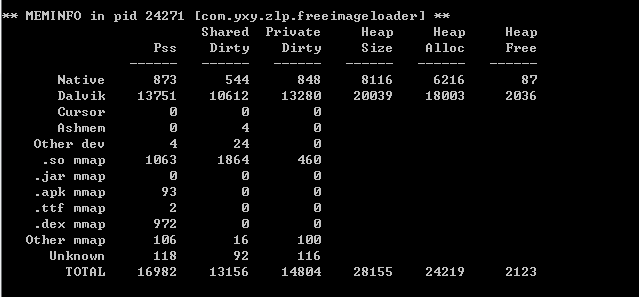 動手寫一個 Android 圖片加載框架:LruCache、DiskLruCache 與效能實測比較
本文從零打造一個簡潔實用的 Android 圖片加載與快取框架,並就「記憶體占用」與「平均加載時間」兩個指標與主流方案 Universal Image Loader 做量
 Android 常用開源框架總整理:依功能分類的完整清單
做 Android 開發,善用成熟的开源框架往往能省下大量時間。以下依「快取、圖片、網路、資料庫、依賴注入、圖表、事件、日誌、測試、效能監控」等功能維度,把常見且廣受採用
 Android 開發(五):桌面小部件 App Widgets 的完整實作(附 Demo)
前言 這次的主要目標是打造一個 Android 應用,實作靜態廣播與動態廣播兩種更新 widget 內容的方式。由於是在上一篇博文的基礎上修改,所以本次實驗的重點落在 A
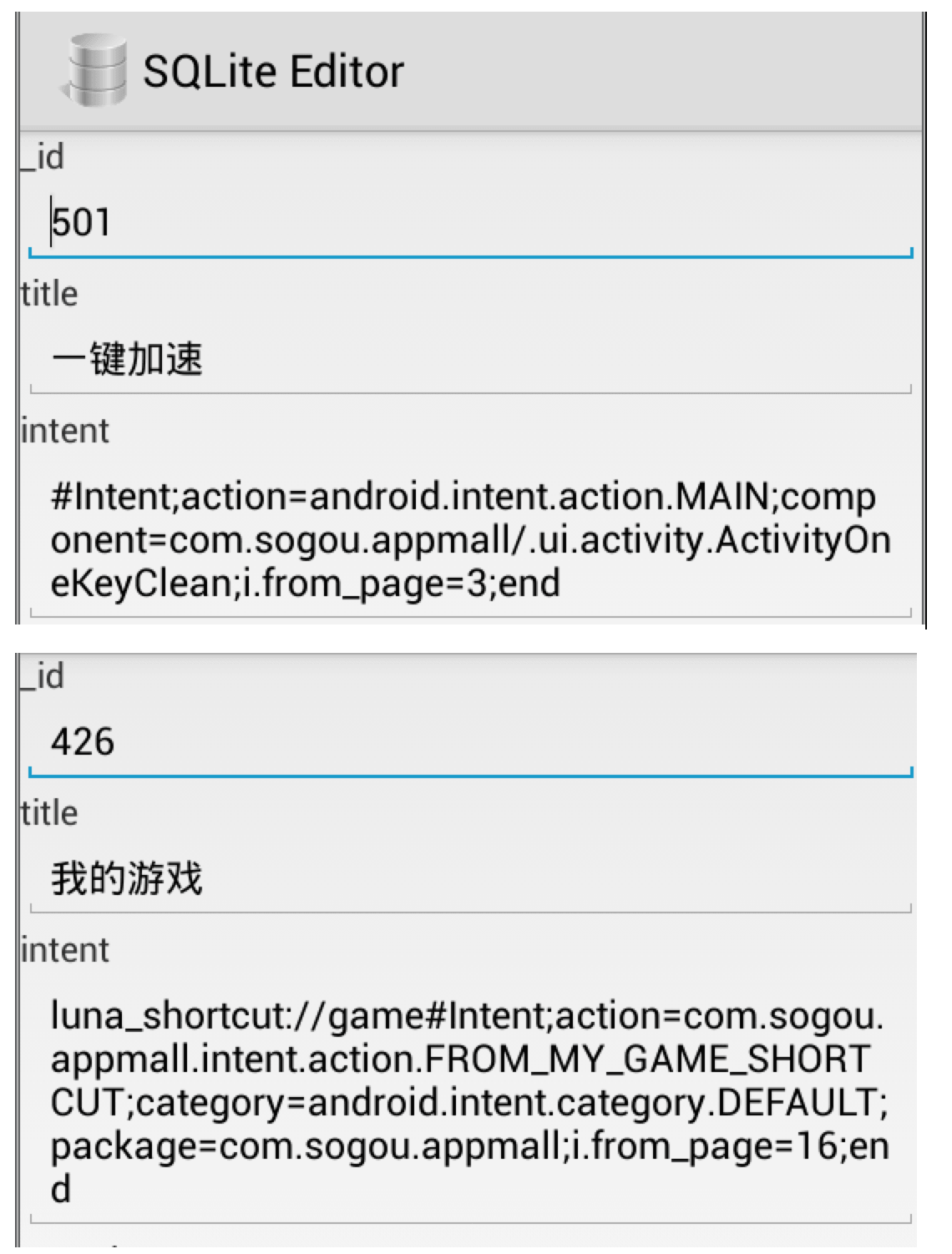 Android 桌面快捷方式全攻略:從 Launcher3 資料庫看增刪改查與相容性
為什麼快捷方式這麼麻煩 為了讓使用者更快開啟應用,App 常需要在桌面產生一顆快捷方式。如果面前只有原生桌面,這件事很簡單——呼叫系統 API 就好。但現實是各家廠商深度