

編輯:關於 Android 程式設計
本篇記錄一個常見的互動需求:當使用者在搜索框中輸入內容時,即時切換到搜索結果界面,並隱藏其他內容;一旦清空輸入,又恢復到原本的顯示狀態。
關鍵在於我們準備了兩塊可切換的內容區域——一個是搜索結果列表(ope_lay_listcontent_search,預設隱藏),另一個是原始內容列表(ope_lay_listcontent),再搭配底部的導航欄與「載入更多」按鈕。
<code class=" hljs xml"><relativelayout xmlns:android="https://schemas.android.com/apk/res/android" xmlns:tools="https://schemas.android.com/tools" android:layout_width="match_parent" android:layout_height="match_parent" android:background="@color/white" tools:context=".Operate"> <relativelayout android:id="@+id/opeate_title" android:layout_width="match_parent" android:layout_height="@dimen/title_height" android:layout_gravity="center_vertical|center_horizontal" android:background="@drawable/top" android:gravity="center_vertical|center_vertical" android:orientation="horizontal"> <relativelayout android:id="@+id/ope_back" android:layout_width="50dp" android:layout_height="fill_parent" android:clickable="true" android:gravity="center"> <imageview android:layout_width="wrap_content" android:layout_height="wrap_content" android:src="@drawable/back"> </imageview></relativelayout> <textview android:id="@+id/ope_tv_title" android:layout_width="match_parent" android:layout_height="match_parent" android:gravity="center" android:text="@string/operate_title"> </textview> </relativelayout> <relativelayout android:id="@+id/operate_lay_search" android:layout_width="match_parent" android:layout_height="@dimen/title_height" android:layout_below="@id/opeate_title" android:focusable="true" android:focusableintouchmode="true" android:orientation="horizontal"> <edittext android:id="@+id/operate_edit_search" android:layout_width="fill_parent" android:layout_height="35dp" android:layout_alignparentleft="true" android:layout_centervertical="true" android:layout_marginleft="10dp" android:layout_marginright="10dp" android:background="@drawable/bg_edit_search" android:drawableleft="@drawable/sy_search" android:hint="食堂名稱" android:paddingleft="10dp"> </edittext></relativelayout> <view android:id="@+id/line1" android:layout_width="match_parent" android:layout_height="@dimen/line_height" android:layout_below="@id/operate_lay_search" android:background="@color/line"> <linearlayout android:id="@+id/ope_lay_listcontent_search" android:layout_width="match_parent" android:layout_height="match_parent" android:layout_below="@id/line1" android:orientation="vertical" android:visibility="gone"> <listview android:id="@+id/ope_lv_content_search" android:layout_width="match_parent" android:layout_height="wrap_content"> </listview> </linearlayout> <linearlayout android:id="@+id/ope_lay_listcontent" android:layout_width="match_parent" android:layout_height="match_parent" android:layout_above="@+id/operate_btn_more2" android:layout_below="@id/line1" android:orientation="vertical"> <listview android:id="@+id/ope_lv_content" android:layout_width="match_parent" android:layout_height="wrap_content"> </listview> </linearlayout> </view></relativelayout></code>
整個切換效果的關鍵,就在於為搜索框掛上 TextWatcher。每當輸入內容變化時,就依據字串長度決定要顯示哪一塊區域:
search.addTextChangedListener(new TextWatcher() { @Override public void onTextChanged(CharSequence s, int arg1, int arg2, int arg3) { if (s.length() > 0) { //有輸入內容:顯示搜索結果,隱藏其他 searchContent.setVisibility(View.VISIBLE); schoolContent.setVisibility(View.GONE); home.setVisibility(View.GONE); operate_btn_more.setVisibility(View.GONE); //獲取搜索結果 initFuzzySearchData(s.toString()); } else { //清空輸入:恢復原始界面 searchContent.setVisibility(View.GONE); schoolContent.setVisibility(View.VISIBLE); home.setVisibility(View.VISIBLE); operate_btn_more.setVisibility(View.VISIBLE); } } @Override public void beforeTextChanged(CharSequence arg0, int arg1, int arg2, int arg3) { } @Override public void afterTextChanged(Editable arg0) { } });
這段邏輯很直白:當輸入框有內容時,把搜索結果容器設為 VISIBLE,同時把原始列表、底部導航與「載入更多」按鈕一併隱藏,並呼叫 initFuzzySearchData() 發送模糊查詢請求;反之,一旦清空輸入,就逐一恢復這些元件,回到最初的狀態。
initFuzzySearchData 方法負責把使用者輸入的關鍵字當作查詢參數發給伺服器,再將回傳結果綁定到搜索列表的 Adapter 上:
public void initFuzzySearchData(String searchContent) { schoolSearchDtoAllList.clear(); schoolSearchDtoList.clear(); KJHttp http = new KJHttp(); KJStringParams params = new KJStringParams(); params.put("limit", "0"); params.put("page", "0"); params.put("frefectoryName", searchContent);// 模糊查詢字段 http.urlGet(HttpUrl.schoolInfo, params, new StringCallBack() { @Override public void onSuccess(String str) { SchoolMsgDto schoolMsgDto = JSON.parseObject(str, SchoolMsgDto.class); schoolSearchDtoList = JSON.parseArray(schoolMsgDto.getItems().toString(), SchoolDto.class); if (schoolSearchDtoList != null) { for (int i = 0; i < schoolSearchDtoList.size(); i++) { schoolSearchDtoAllList.add(schoolSearchDtoList.get(i)); } } opeSearchListV = (ListView) findViewById(R.id.ope_lv_content_search); ListOperateSearchAdapter = new com.gexun.sunmess_hg.adapter.ListOperateSearchAdapter(Operate.this, schoolSearchDtoAllList); opeSearchListV.setAdapter(ListOperateSearchAdapter); } @Override public void onFailure(Throwable t, int errorNo, String strMsg) { super.onFailure(t, errorNo, strMsg); Toast.makeText(Operate.this, "網絡連接失敗", 3000).show(); } }); }
透過 TextWatcher 搭配 View 的顯示/隱藏切換,我們就能實現「輸入即搜索、清空即還原」的流暢互動。這個模式在需要即時反饋的搜索場景中非常實用,也能靈活擴展到其他類似的界面切換需求上。
 Android 自定義開關按鈕:SwitchView 圖片、手勢與監聽器實作
自定義開關按鈕的思路 這個 SwitchView 由兩張圖片組成:一張是開關背景,一張是可滑動的滑塊。透過自定義屬性載入圖片,再用 onMeasure 決定大小,用 on
 calabash-android 命令列使用教學:query、touch、wait
本文用實例帶大家熟悉 calabash-android 的命令列操作,重點放在 query、touch、wait 等常用指令背後對應的 Ruby API。把這些 API
 打造 QQ 風格聊天與登入介面:記住密碼、氣泡與標題欄實作
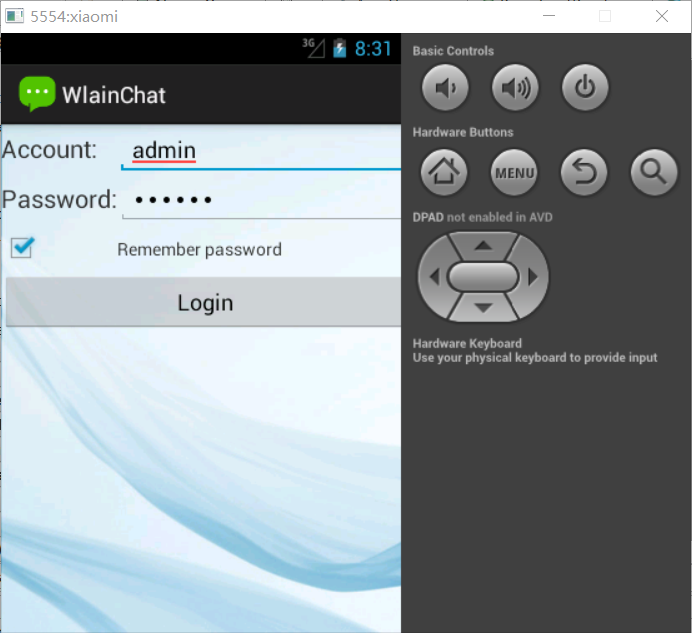
前言本文以 QQ 風格聊天介面為靈感,示範如何製作登入頁、聊天頁與自訂標題欄。重點不只是畫面,還包括記住密碼、訊息列表更新、左右氣泡切換與返回操作。登入頁與記住密碼登入頁
 使用百度語音識別技術打造 Android 語音應用
百度開發者平台為開發者提供了豐富的工具,讓應用開發變得更加快捷便利。本文將簡單介紹如何把百度語音識別技術集成到我們自己的程序中。 背景介紹 隨著大眾對 Siri 的認知不