

編輯:關於 Android 程式設計
項目開發中偶爾會用到動畫,每次都得翻出舊代碼複製,既麻煩又記不住,索性整理在這裡備查。
ObjectAnimator.ofFloat(view, "translationX", 0, 50, -50, 0).setDuration(duration).start();// 位移
ObjectAnimator.ofFloat(view, "translationY", 0, 50, -50, 0).setDuration(duration).start();
ObjectAnimator.ofFloat(view, "scaleX", 1, 2, 1).setDuration(duration).start();// 縮放
ObjectAnimator.ofFloat(view, "scaleY", 1, 2, 1).setDuration(duration).start();
ObjectAnimator.ofFloat(view, "alpha", 1, 0, 1).setDuration(duration).start();// 透明度
ObjectAnimator.ofFloat(view, "rotationX", 0, 180, 0).setDuration(duration).start();// 翻轉
ObjectAnimator.ofFloat(view, "rotationY", 0, 180, 0).setDuration(duration).start();
ObjectAnimator.ofFloat(view, "rotation", 0, 180, 0).setDuration(duration).start();// 旋轉
ViewHelper.setPivotX(view, view.getWidth() / 2f);// 設置動畫基點
ViewHelper.setPivotY(view, view.getHeight() / 2f);
偶爾會遇到需要多個動畫同時播放的場景,用 AnimatorSet 就方便多了:
AnimatorSet animator = new AnimatorSet();
animator.playTogether(
    ObjectAnimator.ofFloat(image, "rotation", 0, 1080),
    ObjectAnimator.ofFloat(image, "translationX", 0, 180),
    ObjectAnimator.ofFloat(image, "translationY", 0, -180),
    ObjectAnimator.ofFloat(image, "scaleX", 1, 0),
    ObjectAnimator.ofFloat(image, "scaleY", 1, 0),
    ObjectAnimator.ofFloat(image, "alpha", 1, 0.25f, 1)
);
animator.setDuration(5 * 1000).start();
前幾天做了一個「加入商品到購物車」的效果:商品圖片先旋轉、縮小,再位移到購物車圖標的位置。這裡用的是傳統動畫,比較繁瑣,而且動畫的執行順序一旦弄亂,位移軌跡就會出問題。順手記錄一下,免得日後遺忘:
int[] endLocation = new int[2];
topSpcart.getLocationInWindow(endLocation);// shopCart 是那個購物車
// 計算位移
int endX = endLocation[0] - startLocation[0];// 動畫位移的 X 坐標
int endY = endLocation[1] - startLocation[1];// 動畫位移的 Y 坐標

RotateAnimation rotateAnimation = new RotateAnimation(0, 1080, Animation.RELATIVE_TO_SELF, 0.5f, Animation.RELATIVE_TO_SELF, 0.5f);
ScaleAnimation scaleAnimation = new ScaleAnimation(1, 0, 1, 0, Animation.RELATIVE_TO_SELF, 0, Animation.RELATIVE_TO_SELF, 0);
TranslateAnimation translateAnimation = new TranslateAnimation(0, endX, 0, endY);
// translateAnimation.setInterpolator(new LinearInterpolator());// 動畫加速器
// translateAnimation.setInterpolator(new AccelerateInterpolator());
// translateAnimation.setRepeatCount(0);// 動畫重複執行的次數
// translateAnimation.setFillAfter(true);// 動畫結束留在原位置

AnimationSet set = new AnimationSet(false);
set.setFillAfter(true);
set.addAnimation(rotateAnimation);// 旋轉
set.addAnimation(scaleAnimation);// 縮放
set.addAnimation(translateAnimation);// 位移
set.setDuration(1000);// 動畫的執行時間
view.startAnimation(set);

// 動畫監聽事件
set.setAnimationListener(new AnimationListener() {
    // 動畫的開始
    @Override
    public void onAnimationStart(Animation animation) {
    }

    @Override
    public void onAnimationRepeat(Animation animation) {
    }

    // 動畫的結束
    @Override
    public void onAnimationEnd(Animation animation) {
    }
});
 Android 中 View 移動的三種實現方式
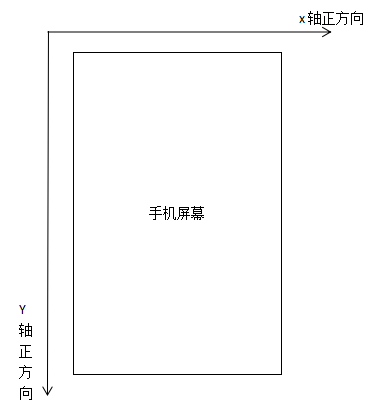
View 大概是 Android 進階路上最繞不開的一塊,觸摸事件分發、自定義控件、滑動與移動,環環相扣。本文先把坐標系講清楚,再總結三種讓 View 動起來的方式。
 Android 自定義 ViewGroup 實作要點總結
自定義 Layout 的兩種類型一是從零建立新的 ViewGroup,二是繼承既有 Layout 並擴充功能。核心流程自定義 View 通常經歷 onMeasure、on
 Android clipChildren 屬性詳解與用法示例
有些布局屬性平時不太起眼,關鍵時刻卻能出奇效,clipChildren 就是其中之一。本文通過一個直觀的例子,講解它如何讓子 View 突破父容器的邊界顯示。 一、效果預
 開源元件 BottomBar:打造 Material Design 底部導覽列
前言 BottomBar 是 Material Design 風格的底部導覽列開源元件。它支援選單、動態徽章、自訂顏色、深色主題,也能與 CoordinatorLayou