

編輯:關於 Android 程式設計
PopupWindow 可以實現彈出視窗的效果。它和 AlertDialog 都屬於對話框性質,兩者也常混用,但各有擅長的場合。以下整理完整用法。
最簡潔的寫法是直接傳入 inflate 好的 view,並指定寬高:
PopupWindow mPop = new PopupWindow(
        getLayoutInflater().inflate(R.layout.window, null),
        LayoutParams.WRAP_CONTENT, LayoutParams.WRAP_CONTENT);
也可以拆開來寫,先取得 LayoutInflater 並載入自訂配置:
LayoutInflater mLayoutInflater = (LayoutInflater)
        getSystemService(LAYOUT_INFLATER_SERVICE);

// 自訂配置
ViewGroup menuView = (ViewGroup) mLayoutInflater.inflate(R.layout.window, null, true);

PopupWindow mPop = new PopupWindow(menuView,
        LayoutParams.WRAP_CONTENT, LayoutParams.WRAP_CONTENT, true);
最後那個 boolean 是 focusable,決定彈出視窗是否取得焦點。
當然也可以事後再設定尺寸與內容:
mPop.setContentView(menuView);   // 設定包含的視圖
mPop.setWidth(300);
mPop.setHeight(200);              // 設定彈出框大小
mPop.setAnimationStyle(R.style.AnimationPreview); // 設定動畫樣式
這是使用 PopupWindow 時最容易踩的坑,務必分清:
mPop.setOutsideTouchable(true) 設定彈出之後,點擊外部區域是否有效。若為 false,點擊彈出框外面並不會讓它關閉。
mPop.setFocusable(false) 彈出視窗無法取得焦點。此時即使設了背景不為空,也不能靠點擊外部消失,只能靠 dismiss() 關閉;但外部 View 的點擊事件仍可正常觸發,back 鍵也能關閉它。
mPop.setFocusable(true) 彈出視窗取得焦點,外部 View 無法再接收觸碰事件(會被攔截)。此時加上背景設定,點擊外部與 back 鍵才會讓它消失。
要讓 dismiss 正常運作(點擊外部或按 back 鍵關閉),有個必要條件:PopUpWindow 的背景不能為空,且必須在 showAsDropDown 或其他顯示方法之前設定:
mPop.setFocusable(true);
mPop.setBackgroundDrawable(new ColorDrawable(0));   // 全透明但不可為 null
為什麼全透明的 ColorDrawable 反而可以?因為 PopupWindow 內部是依「背景是否為 null」來判斷要不要攔截外部觸碰事件的,它關心的是有沒有背景物件,而不是背景畫出來是什麼樣子。
相對於某個 Anchor 的左下角:
mPop.showAsDropDown(anchor, 0, 0);
// 第二、三個參數為 x、y 的座標偏移量
相對於整個視窗:
mPop.showAtLocation(findViewById(R.id.parent), Gravity.LEFT, 0, -90);
// 以 parent 元件為參照,靠左,並向上偏移 90
mPop.setOnDismissListener(new PopupWindow.OnDismissListener() {
    @Override
    public void onDismiss() {
        // 視窗消失時的處理
    }
});
1. 取得配置視圖 透過 LayoutInflater 載入:
LayoutInflater inflater = (LayoutInflater)
        anchor.getContext().getSystemService(Context.LAYOUT_INFLATER_SERVICE);
View textEntryView = inflater.inflate(R.layout.paopao_alert_dialog, null);
2. 設定顯示位置 兩種方式任選:
pop.showAtLocation(findViewById(R.id.ll2), Gravity.LEFT, 0, -90);
// 或
pop.showAsDropDown(anchor, xoff, yoff);
3. 進出動畫
pop.setAnimationStyle(R.style.PopupAnimation);
4. 點擊外部區域關閉 除了靠背景加 focusable 的組合,也可以自行攔截觸碰事件:
this.window = new PopupWindow(anchor.getContext());

this.window.setTouchInterceptor(new OnTouchListener() {
    @Override
    public boolean onTouch(View v, MotionEvent event) {
        if (event.getAction() == MotionEvent.ACTION_OUTSIDE) {
            BetterPopupWindow.this.window.dismiss();
            return true;
        }
        return false;
    }
});
AlertDialog 是模態的、置中於螢幕、樣式由系統主題決定,適合「需要使用者明確回應」的提示。
PopupWindow 位置自由、可以錨定在某個元件旁邊、內容完全由自訂配置決定,適合「與某個 UI 元素相關的附屬操作」,例如按鈕旁的下拉選單、列表項的右鍵選單。
實務上若只是要顯示一個短暫的提示訊息,Toast 又比兩者都更輕量。三者依「是否需要使用者互動」與「是否需要錨定位置」來判斷,就不容易選錯。
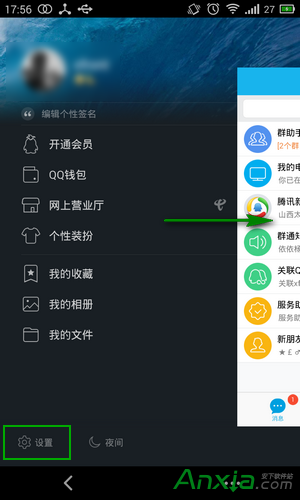 手機 QQ 怎麼截圖?安卓搖一搖與 iOS 按鍵截屏
截圖是聊天時最常用的小功能之一。安卓與 iOS 的實現方式完全不同,下面分別說明。 安卓手機 QQ 安卓版 QQ 內建搖一搖截屏,預設是關閉的,需要手動開啟。在 QQ 應
 adb 連接不上手機?兩種方法解決設備識別問題
驅動明明裝好了,adb devices 卻怎麼也列不出設備,這困擾過不少人。問題通常不在驅動,而在 adb 不知道該用哪個 USB 廠商 ID 去匹配你的機器。 Wind
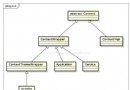 Android 中 Context 的深入理解與源碼剖析
本文以 Android 4.0 源碼為基準,探討 Context 的本質,以及 Application、Activity、Service 的例項化流程與其與 Contex
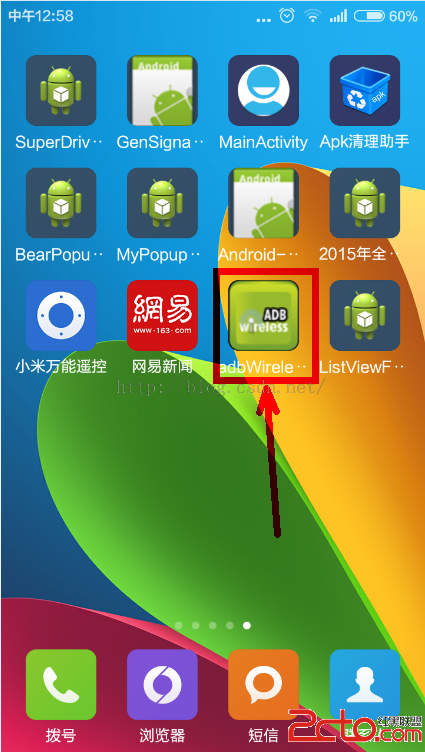 告別 USB 線:用 ADB Wireless 無線調試 Android 手機
前幾天電腦的 USB 接口突然罷工,插線死活連不上手機,眼看著 Eclipse 裡的 Devices 視圖空空如也,Logcat 也抓不到任何訊息,實在令人心浮氣躁。既然