

編輯:關於 Android 程式設計
通知欄、公告欄常會需要「文字從右向左循環滾動」的跑馬燈效果。最簡單的做法是繼承 TextView,自己在 onDraw 中控制文字的橫向位移,就能實現流暢的滾動動畫。
版面配置大致放上一個自訂的 AutoScrollTextView 即可,核心程式碼如下:
public class AutoScrollTextView extends TextView {
    public final static String TAG = AutoScrollTextView.class.getSimpleName();
    private float textLength = 0f;   // 文字長度
    private float viewWidth = 0f;
    private float step = 0f;         // 文字的橫座標
    private float y = 0f;            // 文字的縱座標
    private float temp_view_plus_text_length = 0.0f;         // 計算用的臨時變數
    private float temp_view_plus_two_text_length = 0.0f;     // 計算用的臨時變數
    public boolean isStarting = false;                       // 是否開始滾動
    private Paint paint = null;      // 繪圖樣式
    private String text = "";        // 文字內容

    public AutoScrollTextView(Context context) {
        super(context);
        initView();
    }

    public AutoScrollTextView(Context context, AttributeSet attrs) {
        super(context, attrs);
        initView();
    }

    public AutoScrollTextView(Context context, AttributeSet attrs, int defStyle) {
        super(context, attrs, defStyle);
        initView();
    }

    private void initView() {
    }

    public void init(WindowManager windowManager) {
        paint = getPaint();
        text = getText().toString();
        textLength = paint.measureText(text);
        viewWidth = getWidth();
        if (viewWidth == 0) {
            if (windowManager != null) {
                Display display = windowManager.getDefaultDisplay();
                viewWidth = display.getWidth();
            }
        }
        step = textLength;
        temp_view_plus_text_length = viewWidth + textLength;
        temp_view_plus_two_text_length = viewWidth + textLength * 2;
        y = getTextSize() + getPaddingTop();
    }

    @Override
    public Parcelable onSaveInstanceState() {
        Parcelable superState = super.onSaveInstanceState();
        SavedState ss = new SavedState(superState);
        ss.step = step;
        ss.isStarting = isStarting;
        return ss;
    }

    @Override
    public void onRestoreInstanceState(Parcelable state) {
        if (!(state instanceof SavedState)) {
            super.onRestoreInstanceState(state);
            return;
        }
        SavedState ss = (SavedState) state;
        super.onRestoreInstanceState(ss.getSuperState());
        step = ss.step;
        isStarting = ss.isStarting;
    }

    public static class SavedState extends BaseSavedState {
        public boolean isStarting = false;
        public float step = 0.0f;

        SavedState(Parcelable superState) {
            super(superState);
        }

        @Override
        public void writeToParcel(Parcel out, int flags) {
            super.writeToParcel(out, flags);
            out.writeBooleanArray(new boolean[] { isStarting });
            out.writeFloat(step);
        }

        public static final Parcelable.Creator<SavedState> CREATOR
                = new Parcelable.Creator<SavedState>() {
            public SavedState[] newArray(int size) {
                return new SavedState[size];
            }

            @Override
            public SavedState createFromParcel(Parcel in) {
                return new SavedState(in);
            }
        };

        private SavedState(Parcel in) {
            super(in);
            boolean[] b = null;
            in.readBooleanArray(b);
            if (b != null && b.length > 0) isStarting = b[0];
            step = in.readFloat();
        }
    }

    public void startScroll() {
        isStarting = true;
        invalidate();
    }

    public void stopScroll() {
        isStarting = false;
        invalidate();
    }

    @Override
    public void onDraw(Canvas canvas) {
        if (!isStarting) {
            return;
        }
        canvas.drawText(text, temp_view_plus_text_length - step, y, paint);
        step += 2; // 文字滾動速度
        if (step > temp_view_plus_two_text_length) step = textLength;
        invalidate();
    }
}
在 Activity 中啟用只需要三行:
private void getNotice() {
    tv_notice.setText("這裡放要滾動的文字");
    tv_notice.init(getWindowManager());
    tv_notice.startScroll();
}
原理並不複雜:onDraw 每次繪製時把文字的起始 X 座標往左推一點(step += 2),再透過 invalidate() 觸發下一輪重繪,於是文字便持續滾動。當滾過一整輪(超過 viewWidth + textLength * 2)時把 step 重置,即可無縫循環。另外透過 onSaveInstanceState/onRestoreInstanceState 保存與還原滾動狀態,避免旋轉螢幕後動畫中斷。
 Android 頭像更換實戰:相冊選擇、拍照與裁剪上傳
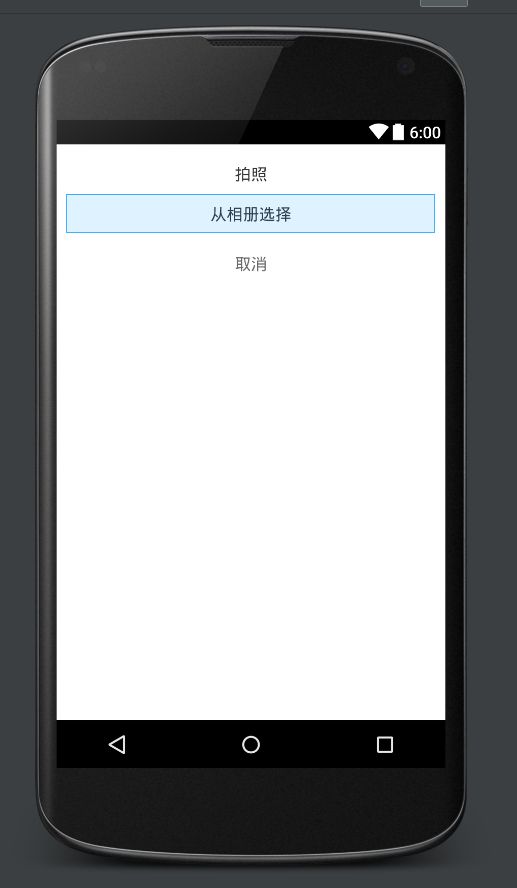
##需求:個人介面的頭像圖片切換 方式一:點擊彈窗切換頭像 — 相冊選擇 二、這裡有兩種方式:從相冊選擇與直接拍照。假設現在是從相冊選擇頭像 * 我在彈窗確
 手勢識別(二):單目視覺手勢識別算法全面總結
手勢主要具備三個特徵:手型、方向與運動軌跡。一個基於視覺的手勢識別系統,通常涵蓋圖像採集、預處理、特徵提取與選擇、分類器設計,以及最終的手勢識別。整體流程大致如下: 進
 Android 中 Canvas 繪圖基礎詳解(附源碼下載)
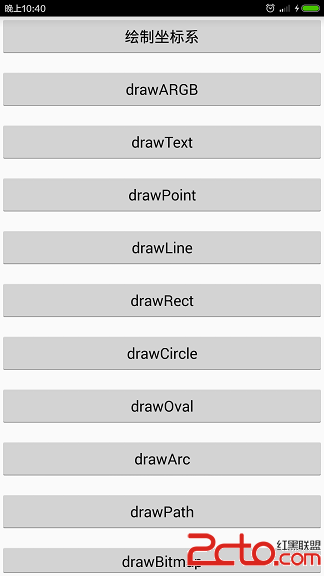
在 Android 中,若我們想繪製複雜的自定義 View 或遊戲,就需要熟悉繪圖 API。Android 透過 Canvas 類暴露了許多 drawXXX 方法,我們可
 iOS與Android網絡抓包實戰:tcpdump完全入門
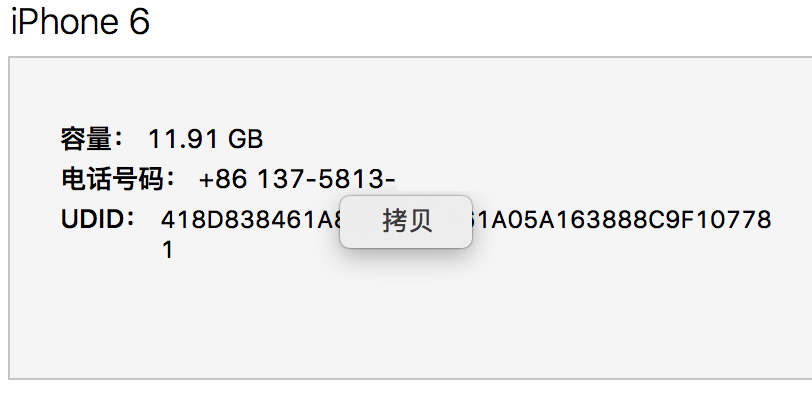
如今幾乎每一款移動應用都要通過網絡請求與服務器交換數據,因此學會抓包、並以此排查網絡相關的bug,已經成為程序員的必修技能。抓包的手段有很多:針對HTTP與HTTPS可以