

編輯:關於 Android 程式設計
開發 Android 應用時,「等一下」的場景其實不少:資料載入中、網路請求還沒回應、檔案正在寫入。這段等待時間如果畫面完全沒反應,使用者只會覺得程式當掉了,所以我們需要一個進度對話框,告訴他現在正在做什麼、請稍候。
Android 本身提供了 ProgressDialog,幾行就能叫出來:
ProgressDialog dialog = new ProgressDialog(this);
dialog.setMessage("登錄中……");
dialog.show();

功能上沒問題,但那個轉圈圈實在是單調得有點難看。與其忍受,不如自己包一個。
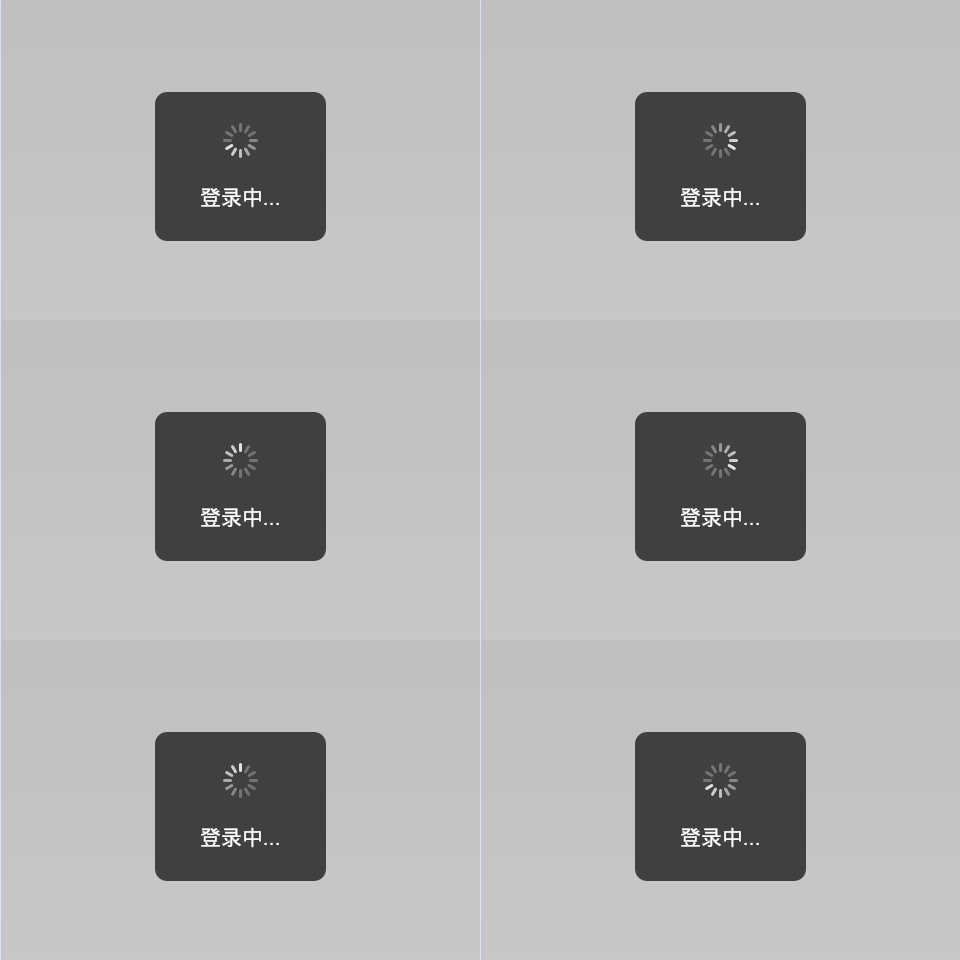
先把進度框的樣子畫出來:一個垂直排列的 LinearLayout,上面放轉圈的 ImageView,下面放提示文字,背景換成自訂的 shape。
<LinearLayout xmlns:android="https://schemas.android.com/apk/res/android"
    android:layout_width="wrap_content"
    android:layout_height="wrap_content"
    android:layout_gravity="center"
    android:gravity="center_horizontal"
    android:orientation="vertical"
    android:paddingTop="20dp"
    android:paddingBottom="20dp"
    android:paddingLeft="30dp"
    android:paddingRight="30dp"
    android:background="@drawable/progress_custom_bg">

    <ImageView
        android:id="@+id/spinnerImageView"
        android:layout_width="wrap_content"
        android:layout_height="wrap_content"
        android:background="@anim/spinner" />

    <TextView
        android:id="@+id/message"
        android:layout_width="wrap_content"
        android:layout_height="wrap_content"
        android:layout_marginTop="15dp"
        android:textColor="#FFFFFF"
        android:text="Message" />
</LinearLayout>
ImageView 的背景其實就是一個 frame-by-frame 動畫。先準備好連續的圖檔:

在 res/anim 下建立 spinner.xml,用 animation-list 把這些圖片依序排好,每張停留 60 毫秒:
<animation-list xmlns:android="https://schemas.android.com/apk/res/android">
    <item android:drawable="@drawable/spinner_0"  android:duration="60" />
    <item android:drawable="@drawable/spinner_1"  android:duration="60" />
    <item android:drawable="@drawable/spinner_2"  android:duration="60" />
    <item android:drawable="@drawable/spinner_3"  android:duration="60" />
    <item android:drawable="@drawable/spinner_4"  android:duration="60" />
    <item android:drawable="@drawable/spinner_5"  android:duration="60" />
    <item android:drawable="@drawable/spinner_6"  android:duration="60" />
    <item android:drawable="@drawable/spinner_7"  android:duration="60" />
    <item android:drawable="@drawable/spinner_8"  android:duration="60" />
    <item android:drawable="@drawable/spinner_9"  android:duration="60" />
    <item android:drawable="@drawable/spinner_10" android:duration="60" />
    <item android:drawable="@drawable/spinner_11" android:duration="60" />
</animation-list>
再替整個對話框準備一張圓角背景 progress_custom_bg.xml:
<shape xmlns:android="https://schemas.android.com/apk/res/android">
    <solid android:color="#ff404040" />
    <corners
        android:topLeftRadius="8dp"
        android:topRightRadius="8dp"
        android:bottomLeftRadius="8dp"
        android:bottomRightRadius="8dp" />
</shape>
最後在 res/values/styles.xml 定義一個樣式,把系統視窗的框線、浮動、背景動畫都拿掉,讓它只剩我們畫的內容:
<style name="Custom_Progress" parent="@android:style/Theme.Dialog">
    <item name="android:windowFrame">@null</item>
    <item name="android:windowIsFloating">true</item>
    <item name="android:windowContentOverlay">@null</item>
    <item name="android:windowAnimationStyle">@android:style/Animation.Dialog</item>
    <item name="android:windowSoftInputMode">stateUnspecified|adjustPan</item>
    <item name="android:windowBackground">@android:color/transparent</item>
    <item name="android:windowNoTitle">true</item>
</style>
重點來了。自訂類別繼承 Dialog,並提供一個靜態 show() 方法,讓呼叫端一行就能叫出來。其中 onWindowFocusChanged() 是啟動動畫的關鍵——視窗取得焦點時才去抓 AnimationDrawable 並 start(),這樣才不會在檢視還沒 attach 到視窗前就空轉。
public class CustomProgress extends Dialog {
    public CustomProgress(Context context) { super(context); }
    public CustomProgress(Context context, int theme) { super(context, theme); }

    /** 視窗焦點改變時啟動動畫 */
    @Override
    public void onWindowFocusChanged(boolean hasFocus) {
        ImageView imageView = (ImageView) findViewById(R.id.spinnerImageView);
        AnimationDrawable spinner = (AnimationDrawable) imageView.getBackground();
        spinner.start();
    }

    public void setMessage(CharSequence message) {
        if (message != null && message.length() > 0) {
            findViewById(R.id.message).setVisibility(View.VISIBLE);
            ((TextView) findViewById(R.id.message)).setText(message);
        }
    }

    public static CustomProgress show(Context context, CharSequence message,
                                      boolean cancelable, OnCancelListener cancelListener) {
        CustomProgress dialog = new CustomProgress(context, R.style.Custom_Progress);
        dialog.setContentView(R.layout.progress_custom);
        if (message == null || message.length() == 0) {
            dialog.findViewById(R.id.message).setVisibility(View.GONE);
        } else {
            ((TextView) dialog.findViewById(R.id.message)).setText(message);
        }
        dialog.setCancelable(cancelable);          // 按返回鍵是否可取消
        dialog.setOnCancelListener(cancelListener);
        dialog.getWindow().getAttributes().gravity = Gravity.CENTER;
        WindowManager.LayoutParams lp = dialog.getWindow().getAttributes();
        lp.dimAmount = 0.2f;                       // 背景層透明度
        dialog.getWindow().setAttributes(lp);
        dialog.show();
        return dialog;
    }
}
使用端一行搞定:
CustomProgress.show(this, "登錄中...", true, null);
整個流程到這裡就結束了。最後提醒兩點:一是這個對話框本身不代表工作正在執行,記得搭配非同步機制,並在任務結束後自行 dismiss,否則轉圈會一直轉下去;二是若要顯示進度百分比,可以在版面裡再加一個 TextView,於背景執行緒用 runOnUiThread 更新文字與 invalidate(),做法與本文的圓餅圖無異。
 Android 自定義控件案例:銀行卡號分隔與清空圖標
案例效果 本案例實作一個自定義 EditText,支援銀行卡號每四位自動以空格分隔,並在輸入框右側顯示清空圖標。 需求分析 銀行卡號需要即時格式化,方便使用者核對。清
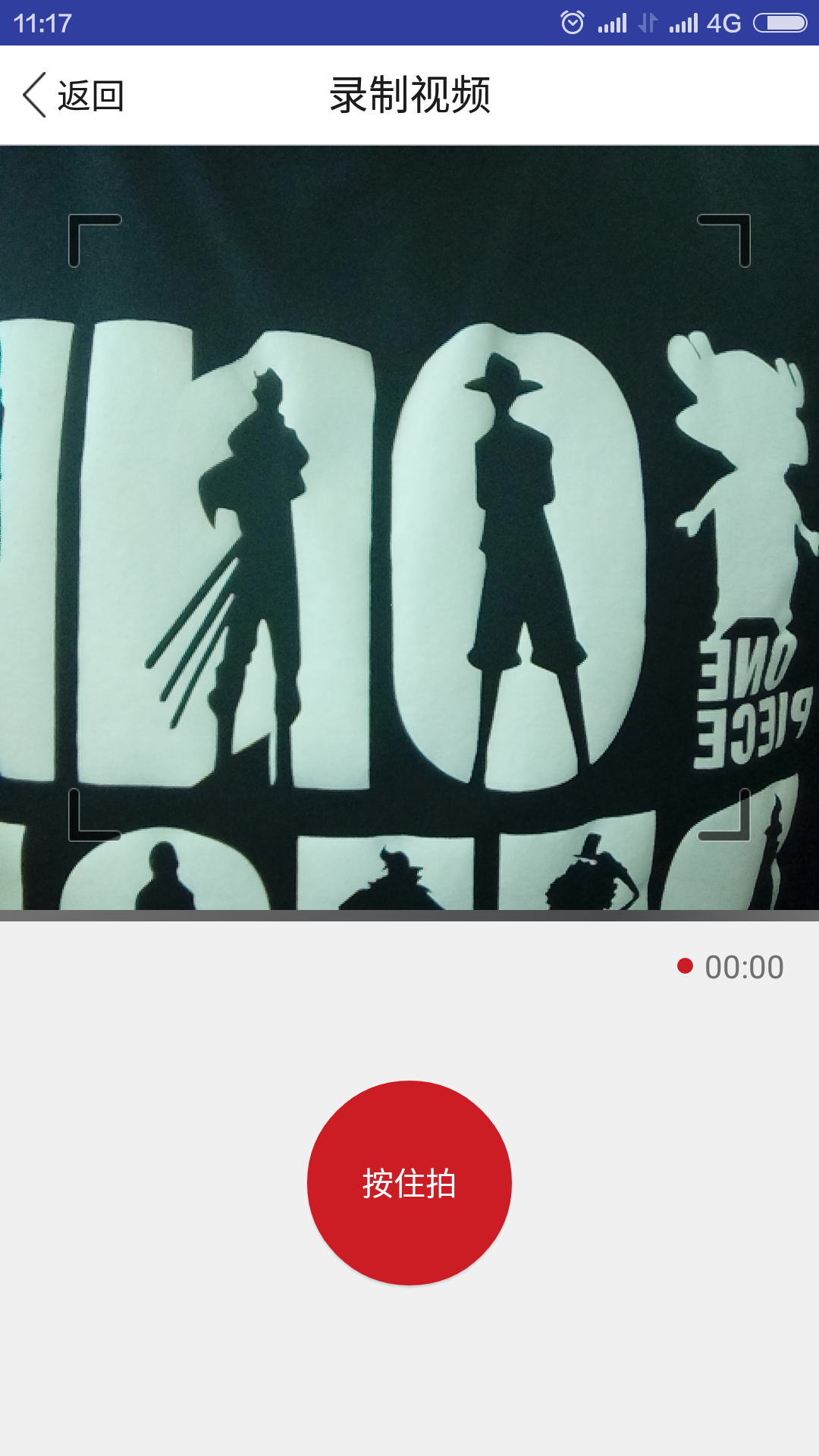 Android 短視頻錄制實作:仿微信小視頻(下)
簡述 上一篇我們已經完成了視頻錄制控件的相關封裝,這一篇則聚焦在控件的具体使用。其實只要讀一遍控件源碼就會發現用法相當直觀,各位可以依自身需求調整參數,以下代碼僅供參考。
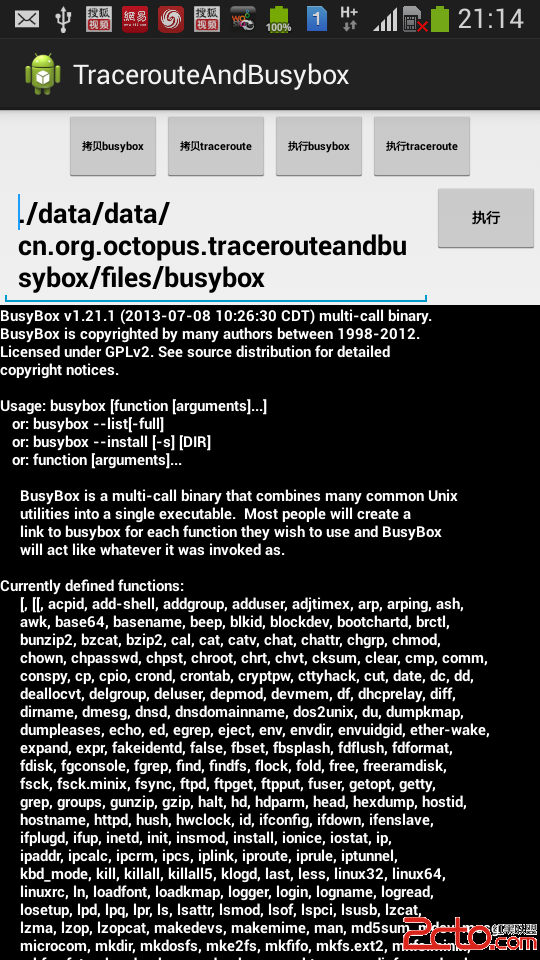 Android 免 Root 實作 Traceroute:非 Root 環境下移植可執行檔與腳本
1. 原理思路 想在手机上跑 busybox 或 traceroute,第一个撞到的墙就是文件权限:如果没有 root,你无法改变二进制文件的执行权限。 推送 busyb
 Android UI 組件之 TabHost:多標籤頁界面的實現方式
TabHost 曾經是多標籤頁界面的標準答案。雖然新項目更推薦用 Fragment 加 ViewPager,但理解 TabHost 對維護老項目仍有價值,何況它對「一個容