

編輯:關於 Android 程式設計
QQ 的訊息提示框效果一直做得不錯,於是照著做了一個類似版本。整體上是 Translate 動畫與 FrameLayout 的組合:FrameLayout 讓提示文字疊在標題列之上,Translate 動畫負責從畫面外滑入與滑出。
<LinearLayout xmlns:android="https://schemas.android.com/apk/res/android"
    xmlns:tools="https://schemas.android.com/tools"
    android:layout_width="match_parent"
    android:layout_height="match_parent"
    android:orientation="vertical">

    <FrameLayout
        android:layout_width="match_parent"
        android:layout_height="wrap_content">

        <!-- 提示框本體,預設隱藏 -->
        <TextView
            android:id="@+id/toast"
            android:layout_width="wrap_content"
            android:layout_height="wrap_content"
            android:layout_gravity="center"
            android:layout_marginTop="40dp"
            android:layout_marginBottom="20dp"
            android:background="@color/transparent_black"
            android:gravity="center"
            android:paddingTop="5dp"
            android:paddingBottom="5dp"
            android:paddingLeft="40dp"
            android:paddingRight="40dp"
            android:text="@string/toast"
            android:textColor="@color/white"
            android:textSize="16sp"
            android:visibility="invisible" />

        <!-- 標題列 -->
        <TextView
            android:id="@+id/title"
            android:layout_width="match_parent"
            android:layout_height="wrap_content"
            android:background="@color/blue"
            android:gravity="center"
            android:padding="5dp"
            android:text="@string/title"
            android:textColor="@color/white"
            android:textSize="20sp" />

        <TextView
            android:id="@+id/info"
            android:layout_width="match_parent"
            android:layout_height="wrap_content"
            android:layout_marginTop="10dp"
            android:gravity="center"
            android:text="@string/hello_world" />

        <Button
            android:id="@+id/btn"
            android:layout_width="match_parent"
            android:layout_height="wrap_content"
            android:layout_marginTop="30dp"
            android:gravity="center"
            android:text="@string/btn" />
    </FrameLayout>
</LinearLayout>
public class MainActivity extends Activity {

    TextView rootView;
    Button btn;
    Handler handler;
    TextView tv;
    Animation mTranslateInAnimation, mTranslateOutAnimation;
    boolean flag = true;   // 是否可接受點擊

    @Override
    protected void onCreate(Bundle savedInstanceState) {
        super.onCreate(savedInstanceState);
        setContentView(R.layout.activity_main);

        rootView = (TextView) findViewById(R.id.info);
        btn = (Button) findViewById(R.id.btn);
        tv = (TextView) findViewById(R.id.toast);

        handler = new Handler() {
            @Override
            public void handleMessage(Message msg) {
                tv.startAnimation(mTranslateOutAnimation);
            }
        };

        // 進場:從上方(自身 -1.5 倍高度處)滑回原位
        mTranslateInAnimation = new TranslateAnimation(
                Animation.RELATIVE_TO_SELF, 0, Animation.RELATIVE_TO_SELF, 0,
                Animation.RELATIVE_TO_SELF, -1.5f, Animation.RELATIVE_TO_SELF, 0);
        mTranslateInAnimation.setDuration(1000);

        // 退場:往上方滑出畫面
        mTranslateOutAnimation = new TranslateAnimation(
                Animation.RELATIVE_TO_SELF, 0, Animation.RELATIVE_TO_SELF, 0,
                Animation.RELATIVE_TO_SELF, 0f, Animation.RELATIVE_TO_SELF, -1.5f);
        mTranslateOutAnimation.setDuration(1000);

        // 動畫結束後把元件真正隱藏,並恢復可點擊
        mTranslateOutAnimation.setAnimationListener(new Animation.AnimationListener() {
            @Override public void onAnimationStart(Animation animation) {}

            @Override
            public void onAnimationEnd(Animation animation) {
                tv.setVisibility(View.INVISIBLE);
                flag = true;
            }

            @Override public void onAnimationRepeat(Animation animation) {}
        });

        btn.setOnClickListener(new Button.OnClickListener() {
            @Override
            public void onClick(View v) {
                if (flag) {
                    flag = false;    // 提示框未退場前不響應新的點擊
                } else {
                    return;
                }

                // 播放進場動畫
                tv.startAnimation(mTranslateInAnimation);
                tv.setVisibility(View.VISIBLE);

                // 停留三秒後觸發退場
                new Thread() {
                    @Override
                    public void run() {
                        try {
                            sleep(3000);
                            handler.sendEmptyMessage(0);
                        } catch (InterruptedException e) {
                            e.printStackTrace();
                        }
                    }
                }.start();
            }
        });
    }
}
為什麼用 FrameLayout?提示框需要浮在標題列上方,FrameLayout 的子元件會互相堆疊,正好符合這個需求。
為什麼位移量是 -1.5f?相對於自身尺寸的 1.5 倍,是為了確保元件完全移出可視區域,不會殘留一角在畫面上。實際數值可依提示框高度調整。
flag 旗標的作用。提示框顯示期間若允許重複點擊,動畫會互相打架。用一個旗標把互動鎖住,等退場動畫的 onAnimationEnd 再解鎖,行為就穩定多了。
可再優化的地方。這裡用 sleep(3000) 加 Handler 計時,也可以直接用 Handler.postDelayed 或 RxJava 的延遲策略;退場時除了位移,加上 alpha 淡出會更細膩。若要在多個頁面重複使用,建議把這段邏輯抽成獨立的自訂 Toast 類別,對外只暴露 show(CharSequence) 一個方法。
 Android 百度地圖實作筆記:手動組出路線標題的技巧
專案裡接入百度地圖之後,卡住我的不是畫圖層、也不是定位,而是一個看似不起眼的小細節:路線規劃的標題(例如「M235/362」這種公車路線名稱)在百度地圖 API 中根本沒
 Android FTP 多執行緒斷點續傳下載與上傳
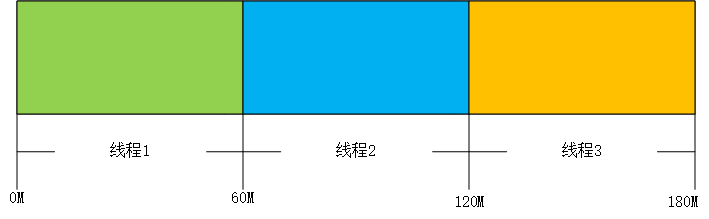
FTP 斷點續傳原理FTP 沒有 HTTP 的位元組範圍標頭,但可透過 REST 命令指定續傳位置,並以 SIZE 取得檔案大小。單線程續傳時,會記錄上次中斷位置,重新連
 Android 音樂播放器開發:網路音樂搜尋功能實作解析
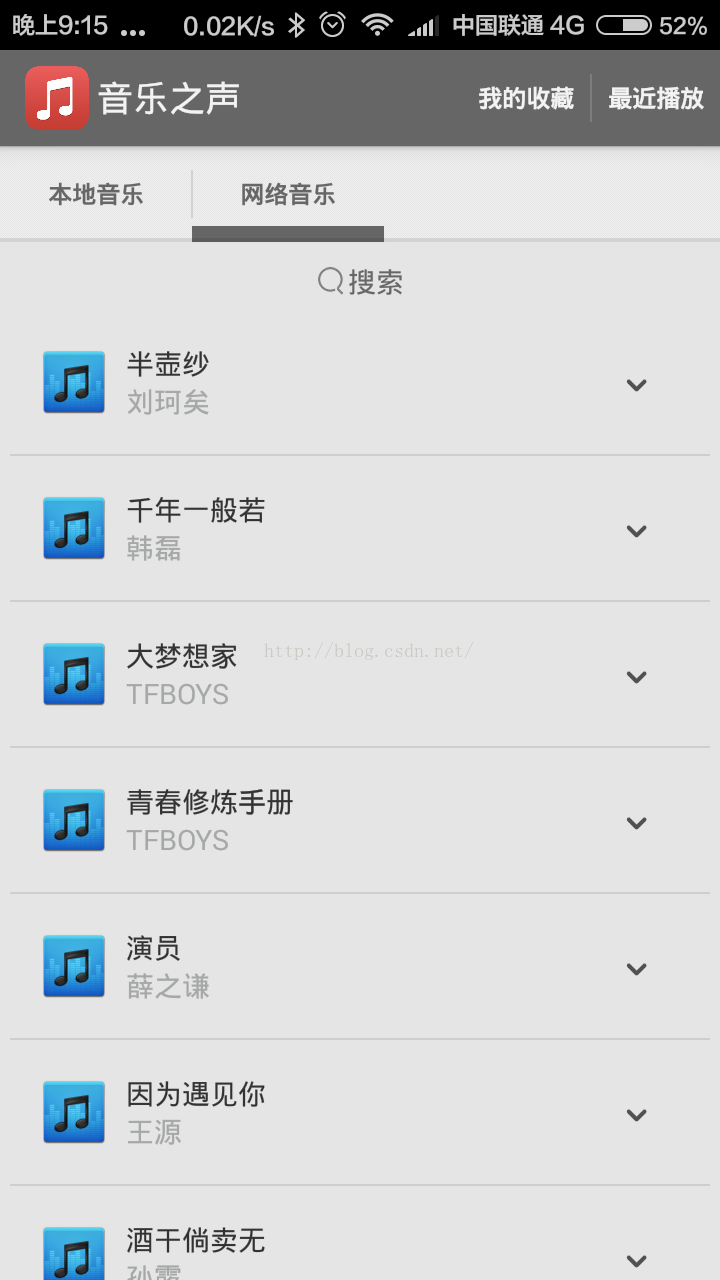
功能目標 本篇聚焦於 Android 音樂播放器中的網路音樂搜尋功能,重點包括:根據歌名、歌手或專輯名稱進行搜尋,透過觀察者模式處理非同步結果,並在搜尋完成後更新列表畫面
 Android SQLite 基本操作完整示範
以下示範 SQLite 的增刪改查四大操作,執行結果一律透過 Log 輸出。 首先是 SQLiteOpenHelper 的實作: package com.example