

編輯:關於 Android 程式設計
不管是做教學還是產品演示,能把 Android 手機或平板的螢幕錄成影片,都是件很實用的事。早期只能靠連續截圖再拼成影片,效果極差。從 Android 4.4(KitKat)開始,系統內建了螢幕錄製功能,只是沒有圖形介面,必須透過 adb 用命令列啟動。
先進入 shell(或直接執行 adb shell),然後下:
adb shell screenrecord --help
說明畫面大致如下:
Usage: screenrecord [options] <filename>

Android screenrecord v1.2. Records the device's display to a .mp4 file.

Options:

--size WIDTHxHEIGHT
    Set the video size, e.g. "1280x720". Default is the device's main
    display resolution (if supported), 1280x720 if not. For best results,
    use a size supported by the AVC encoder.

--bit-rate RATE
    Set the video bit rate, in bits per second. Value may be specified as
    bits or megabits, e.g. '4000000' is equivalent to '4M'. Default 4Mbps.

--bugreport
    Add additional information, such as a timestamp overlay, that is helpful
    in videos captured to illustrate bugs.

--time-limit TIME
    Set the maximum recording time, in seconds. Default / maximum is 180.

--verbose
    Display interesting information on stdout.

--help
    Show this message.

Recording continues until Ctrl-C is hit or the time limit is reached.
最簡單的形式:
adb shell screenrecord /sdcard/game.mp4
注意輸出路徑必須是可寫的目錄,/sdcard/ 是常見選擇。
下完命令按 Enter 之後,終端機看起來會像「卡住」一樣什麼都不輸出——其實正在錄。期間對手機做的所有操作都會被記錄下來。加上 --verbose 就會看到類似這樣的資訊:
Main display is 1080x1920 @60.00fps (orientation=0)
Configuring recorder for 1080x1920 video/avc at 4.00Mbps
Content area is 1080x1920 at offset x=0 y=0

^C
Encoder stopping; recorded 68 frames in 12 seconds
Stopping encoder and muxer
Executing: /system/bin/am broadcast -a
    android.intent.action.MEDIA_SCANNER_SCAN_FILE -d file:///sdcard/test.mp4
Broadcast completed: result=0
最後那個 MEDIA_SCANNER_SCAN_FILE 廣播是為了通知媒體掃描器,讓錄好的影片立刻出現在相簿裡。
實務上最常用的三個:
--size:解析度,預設是螢幕原生解析度。--bit-rate:位元率,預設 4Mbps。--time-limit:最長錄製秒數,預設與上限都是 180 秒。例如限制 100 秒:
adb shell screenrecord --time-limit 100 /sdcard/game.mp4
想提早結束就按 Ctrl+C,game.mp4 仍會正常生成,內容是從開始到按下的這段時間。若錄製過程被中斷(例如 adb 斷線),檔案有時會壞掉,這時候可以考慮用較小的 time-limit 分段錄製。
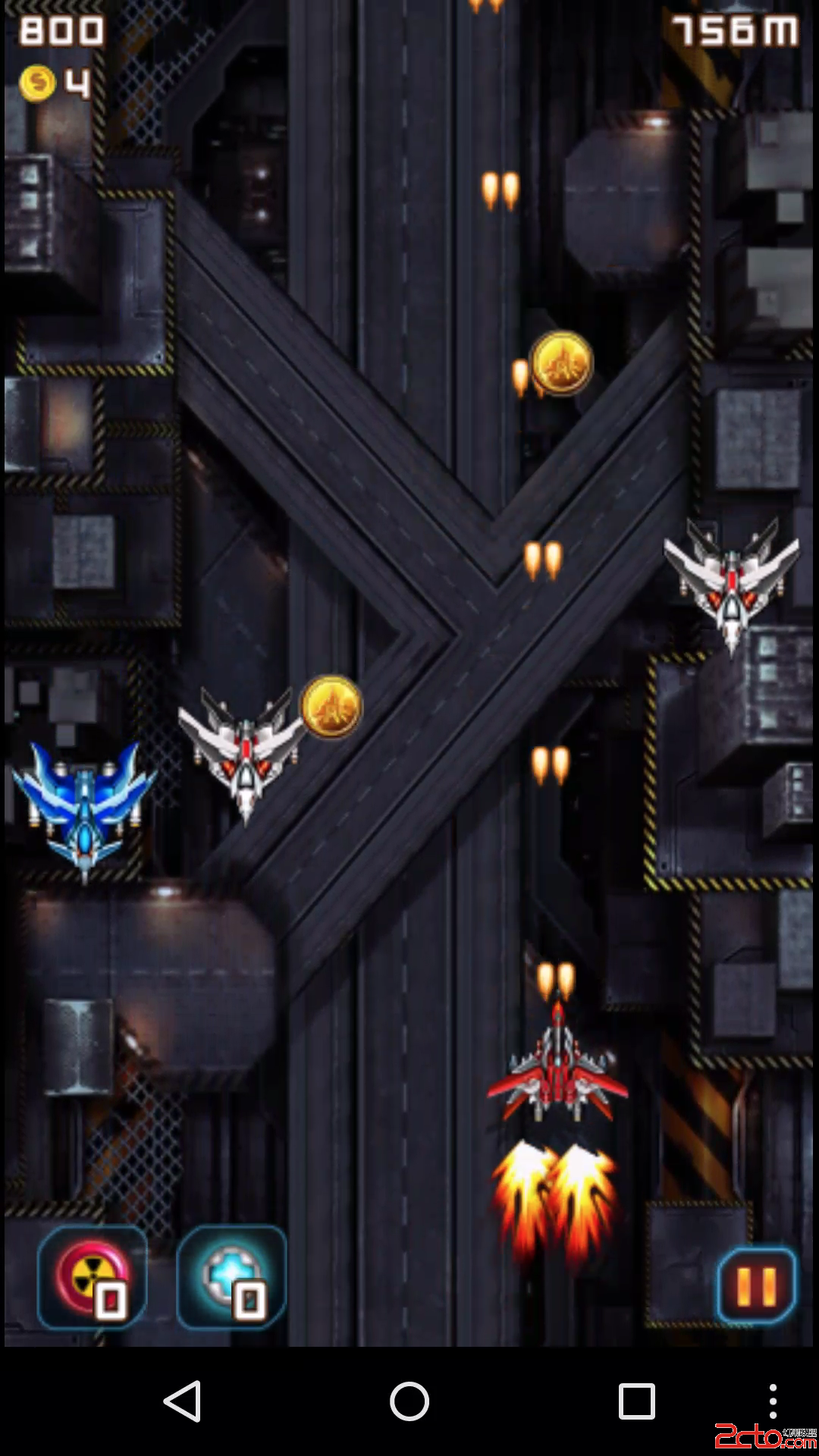
adb pull /sdcard/game.mp4 ./
錄製時關掉通知。下拉通知列、彈出的訊息視窗都會被錄進去。錄之前建議開「專注模式」或關掉通知,畫面會乾淨很多。
一格一格慢慢操作。screenrecord 對高幀率畫面友好,但快速滑動會出現明顯的動態模糊與掉幀。示範型影片放慢節奏,成片品質會好很多。
適合回報 Bug。加上 --bugreport 會在畫面上疊印時間戳與一些除錯資訊,提交 issue 時特別有用,能讓開發者對照 log 的時間點。
Android 5.0 之後的替代方案。如果你的 App 需要讓使用者自己錄屏(例如遊戲錄影、教學 App),可以改用 MediaProjection API 搭配 MediaRecorder 或 MediaCodec,在裝置內完成錄製,不必依賴電腦與 adb。adb 的 screenrecord 則仍然是最快手的開發期工具——不用寫一行程式碼。
 Android 自訂系統選單背景圖的進階技巧
Android 系統預設的選單樣式往往比較單調,想要讓選單更有個人風格,我們可以自訂它的背景圖片。本文就來示範如何替系統選單換上自訂背景。 不多說,上圖,見程式碼。 這
 自訂 CheckBox 的動畫與測量實作思路
若希望 CheckBox 不只是單純的勾選方塊,而是具備自訂動畫與外觀,直接繼承 View 往往比修改現成控制項更自由。不過,自訂 View 需要自行處理測量、繪製與狀態
 用 ExpandableListView 做兩層分組列表(仿通訊錄分組效果)
ExpandableListView 專門用來顯示「兩層」的垂直捲動列表,最典型的例子就是通訊錄的群組展開/收合。它的運作方式與 ListView 類似,但資料源需要同時
 Android 中子線程更新 UI 的三種 Handler 寫法:從匿名類到消息機制
寫 Android 遲早會撞到這條規則:子線程不能直接改寫介面。要繞過它,最基礎也最經典的工具就是 Handler。本文把三種常見寫法放在一起對照,順帶說清它們背後其實是