

編輯:關於 Android 程式設計
在開發 App 時,我們常常希望使用者能把應用程式直接「釘」到手機桌面上,省去每次從抽屜裡翻找的麻煩。Android 早在早期版本就提供了這套機制:應用只要送出一則廣播,桌面(Launcher)收到後就會代為建立或移除快捷圖標。整個過程不需要 Launcher 端做任何修改,也不必開啟 Activity,純粹靠 Intent 廣播溝通。
使用者可能重複點擊「建立快捷方式」按鈕,如果不做檢查,桌面上就會出現一堆一模一樣的圖標。解法是直接查詢 Launcher 的 favorites 資料表,用標題名稱當作條件比對。值得注意的是,不同系統版本對應的 ContentProvider 路徑並不相同:Android 2.1 以下走 com.android.launcher.settings,2.1 以後則是 com.android.launcher2.settings,因此需要用版本判斷分流。
/**
 * 判斷桌面是否已經存在該快捷方式
 */
private boolean isExit() {
    Uri uri = null;
    if (android.os.Build.VERSION.SDK_INT < 8) {
        uri = Uri.parse("content://com.android.launcher.settings/favorites");
    } else {
        uri = Uri.parse("content://com.android.launcher2.settings/favorites");
    }
    String selection = "title=?";
    String[] selectionArgs = new String[] { "快捷圖標名稱" };
    Cursor cursor = getContentResolver().query(uri, null, selection, selectionArgs, null);
    if (cursor.moveToNext()) {
        cursor.close();
        return true;
    } else {
        cursor.close();
        return false;
    }
}
這裡有兩個實務上的細節:查詢前最好先確認 cursor 不為 null,因為部分客製化 ROM 並未開放這個 provider,直接回傳 null 會導致空指針;另外查完務必 close,否則在大量重複呼叫時容易觸發 Cursor 洩漏的警告。
建立動作的重點是 com.android.launcher.action.INSTALL_SHORTCUT 這個 action,搭配三個 extra:名稱、圖示資源、以及點擊後要啟動的 Intent。
public void createShortcut(View view) {
    if (isExit()) {
        Toast.makeText(getApplicationContext(), "快捷方式已經存在", 0).show();
        return;
    }
    Parcelable icon = Intent.ShortcutIconResource.fromContext(getApplicationContext(), R.drawable.logo);
    Intent intent = new Intent();
    intent.setAction("com.android.launcher.action.INSTALL_SHORTCUT");
    intent.putExtra(Intent.EXTRA_SHORTCUT_NAME, "快捷圖標名稱");
    intent.putExtra(Intent.EXTRA_SHORTCUT_ICON_RESOURCE, icon);

    // 點擊圖標後要啟動的 Intent
    Intent intent2 = new Intent();
    intent2.setAction(Intent.ACTION_MAIN);
    intent2.addCategory(Intent.CATEGORY_LAUNCHER);
    intent2.setComponent(new ComponentName(this, MainActivity.class));

    intent.putExtra(Intent.EXTRA_SHORTCUT_INTENT, intent2);
    sendBroadcast(intent);
}
圖示的部分使用 ShortcutIconResource,這種做法只傳遞資源包裝器而非 Bitmap 本身,跨進程傳輸時不會有序列化超限的風險,是官方推薦的方式。若確實需要自訂圖形,也可以改用 EXTRA_SHORTCUT_ICON 傳入 Bitmap。
刪除的邏輯幾乎與建立相同,只是把 action 換成 UNINSTALL_SHORTCUT。要注意的是,名稱必須與建立時完全一致,Launcher 才能正確比對到目標。
public void delShortcut(View view) {
    Parcelable icon = Intent.ShortcutIconResource.fromContext(getApplicationContext(), R.drawable.logo);
    Intent intent = new Intent();
    intent.setAction("com.android.launcher.action.UNINSTALL_SHORTCUT");
    intent.putExtra(Intent.EXTRA_SHORTCUT_NAME, "快捷圖標名稱");
    intent.putExtra(Intent.EXTRA_SHORTCUT_ICON_RESOURCE, icon);

    Intent intent2 = new Intent();
    intent2.setAction(Intent.ACTION_MAIN);
    intent2.addCategory(Intent.CATEGORY_LAUNCHER);
    intent2.setComponent(new ComponentName(this, MainActivity.class));

    intent.putExtra(Intent.EXTRA_SHORTCUT_INTENT, intent2);
    sendBroadcast(intent);
}
這是最容易被忽略、也最常導致「送出廣播卻沒反應」的原因。建立與刪除都必須在 AndroidManifest.xml 中先申請權限:
<uses-permission android:name="com.android.launcher.permission.INSTALL_SHORTCUT" />
<uses-permission android:name="com.android.launcher.permission.UNINSTALL_SHORTCUT" />
<uses-permission android:name="com.android.launcher.permission.READ_SETTINGS" />
最後提醒一個現實問題:這套機制在原生 Launcher 上運作良好,但部分廠商深度客製的桌面(例如某些省電模式或安全桌面)會攔截甚至忽略這些廣播。若你的產品高度依賴這個功能,建議在實作時加入失敗提示,引導使用者手動建立,才是更穩妥的體驗設計。
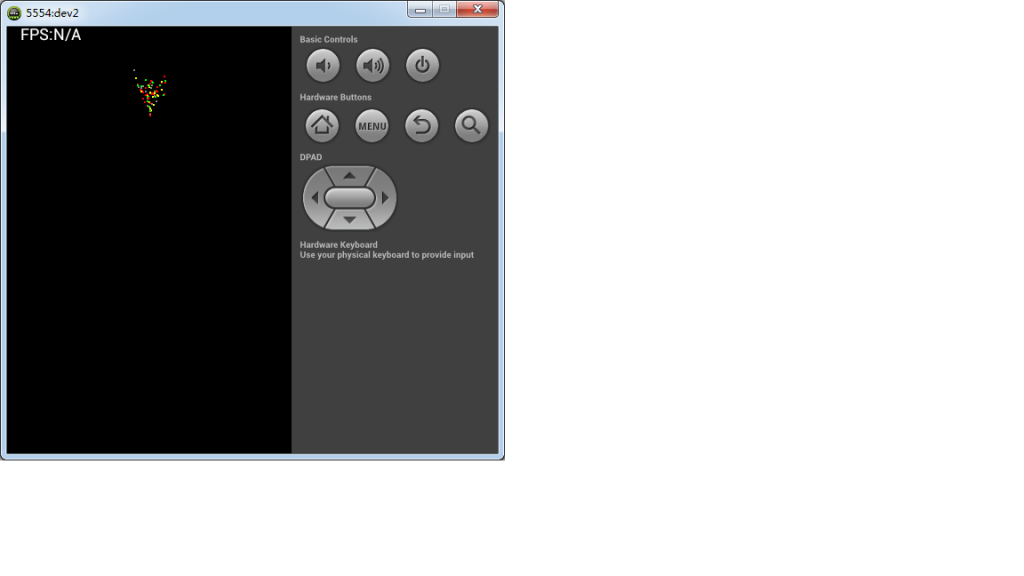 Android 粒子系統實作:焰火綻放與瀑布效果
焰火、瀑布、下雪、爆炸——這些特效背後都是同一套技術:粒子系統。它與單個物體的運動模擬有相似之處,都是靠數學公式推算軌跡;差別在於粒子系統關注的是「整體視覺氛圍」,而非單
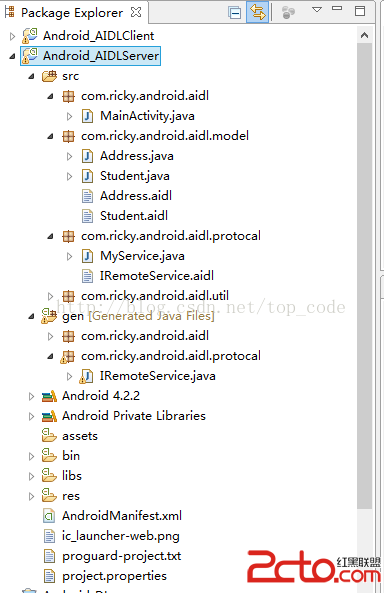 深入解析 Android AIDL:輕鬆實現跨進程通信(IPC)
前言 在 Android 系統裡,每一個應用都運行在各自獨立的進程之中,擁有彼此隔離的內存空間。然而,現實開發中我們常常會遇到這樣的需求:讓自己的應用與其他應用交換數據、
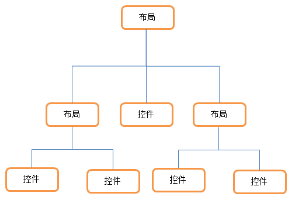 Android UI 開發入門:常用控制項、版面配置與自定義視圖
Android UI 開發是應用體驗的基礎。畫面是否清晰、操作是否直覺,往往取決於控制項選擇、版面配置安排與細節優化。以下從常見控制項、基本版面配置、自定義控制項、Lis
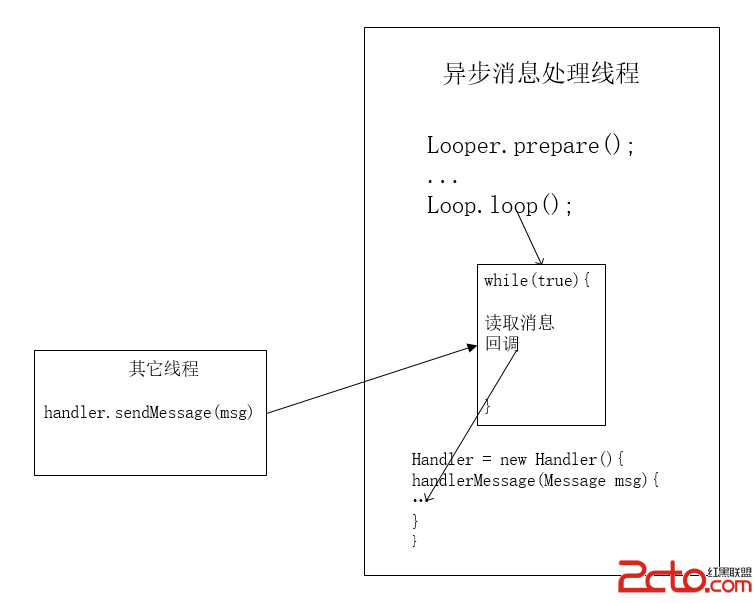 Android Handler 原理續篇:用 Java 模擬異步消息處理機制
異步消息處理機制常用於任務常駐或需要與主線程溝通的情境。Android 中的 Handler、Looper、MessageQueue 與 Message 就是圍繞這個概念