

編輯:關於 Android 程式設計
ListView 是一種可以顯示一系列項目並能進行滾動顯示的 View。在每一行裡,既可以是簡單的文本,也可以是複雜的結構。一般情況下,我們都需要保證 ListView 運行良好——渲染更快、滾動流暢。本文就 ListView 的使用,提供幾種解決不同性能問題的方案。
使用 ListView 就不得不使用 ListAdapter 來顯示內容。SDK 中已經有幾種簡單實現的 Adapter:
ArrayAdapter<T>(顯示數組對象,使用 toString() 來顯示)SimpleAdapter(顯示 Maps 列表)SimpleCursorAdapter(顯示通過 Cursor 從 DB 中獲取的數據)這些實現對於顯示簡單列表來說非常棒。一旦列表比較複雜,你就不得不自己編寫 ListAdapter。多數情況下,直接從 ArrayAdapter 擴展就能很好地處理一組對象,此時你需要做的只是告訴系統如何處理列表中的對象,通過重寫 getView(int, View, ViewGroup) 方法即可達到。
舉一個需要自定義 ListAdapter 的例子:顯示一組圖片,圖片旁邊挨著文字,且圖片需要實時從網絡下載。先創建一個類來代表列表中的項目:
public class ImageAndText {
    private String imageUrl;
    private String text;

    public ImageAndText(String imageUrl, String text) {
        this.imageUrl = imageUrl;
        this.text = text;
    }

    public String getImageUrl() {
        return imageUrl;
    }

    public String getText() {
        return text;
    }
}
接下來實現一個 ListAdapter 來顯示 ImageAndText 列表:
public class ImageAndTextListAdapter extends ArrayAdapter<ImageAndText> {

    public ImageAndTextListAdapter(Activity activity, List<ImageAndText> imageAndTexts) {
        super(activity, 0, imageAndTexts);
    }

    @Override
    public View getView(int position, View convertView, ViewGroup parent) {
        Activity activity = (Activity) getContext();
        LayoutInflater inflater = activity.getLayoutInflater();

        // Inflate the views from XML
        View rowView = inflater.inflate(R.layout.image_and_text_row, null);
        ImageAndText imageAndText = getItem(position);

        // Load the image and set it on the ImageView
        ImageView imageView = (ImageView) rowView.findViewById(R.id.image);
        imageView.setImageDrawable(loadImageFromUrl(imageAndText.getImageUrl()));

        // Set the text on the TextView
        TextView textView = (TextView) rowView.findViewById(R.id.text);
        textView.setText(imageAndText.getText());

        return rowView;
    }

    public static Drawable loadImageFromUrl(String url) {
        InputStream inputStream;
        try {
            inputStream = new URL(url).openStream();
        } catch (IOException e) {
            throw new RuntimeException(e);
        }
        return Drawable.createFromStream(inputStream, "src");
    }
}
這些 View 都是從 "image_and_text_row.xml" 中 inflate 的:
<?xml version="1.0" encoding="utf-8"?>
<LinearLayout xmlns:android="https://schemas.android.com/apk/res/android"
    android:orientation="horizontal"
    android:layout_width="fill_parent"
    android:layout_height="wrap_content">
    <ImageView
        android:id="@+id/image"
        android:layout_width="wrap_content"
        android:layout_height="wrap_content"
        android:src="@drawable/default_image"/>
    <TextView
        android:id="@+id/text"
        android:layout_width="wrap_content"
        android:layout_height="wrap_content"/>
</LinearLayout>
這個 ListAdapter 正如你所期望的那樣,能在 ListView 中加載 ImageAndText。但它唯一適用的場合是那些項目很少、無需滾動即可看到全部的列表。當 ImageAndText 列表內容很多時,你會發現滾動起來一點也不平滑。
上面例子最大的瓶頸是圖片需要從網絡下載。因為我們的代碼都在 UI 線程中執行,所以每當一張圖片從網絡下載時,UI 就會停滯。如果用 3G 網絡代替 WiFi,性能會更糟。
為了解決這個問題,我們想讓圖片下載在單獨的線程裡進行,避免佔用 UI 線程。為此可以使用為這種情況設計的 AsyncTask。不過要注意,AsyncTask 被限制在 10 個以內(這個數量在 Android SDK 中是硬編碼的,無法改變)。當常常有超過 10 個圖片同時下載時,這就成了一個限制。
一個變通的做法是手動為每個圖片創建一個線程,並用 Handler 將下載的圖片 invoke 回 UI 線程——因為我們只能在 UI 線程中修改 UI。下面這個 AsyncImageLoader 類利用線程和 Handler 負責圖片下載,同時緩存圖片,防止單個圖片被重複下載:
public class AsyncImageLoader {
    private HashMap<String, SoftReference<Drawable>> imageCache;

    public AsyncImageLoader() {
        imageCache = new HashMap<String, SoftReference<Drawable>>();
    }

    public Drawable loadDrawable(final String imageUrl, final ImageCallback imageCallback) {
        if (imageCache.containsKey(imageUrl)) {
            SoftReference<Drawable> softReference = imageCache.get(imageUrl);
            Drawable drawable = softReference.get();
            if (drawable != null) {
                return drawable;
            }
        }
        final Handler handler = new Handler() {
            @Override
            public void handleMessage(Message message) {
                imageCallback.imageLoaded((Drawable) message.obj, imageUrl);
            }
        };
        new Thread() {
            @Override
            public void run() {
                Drawable drawable = loadImageFromUrl(imageUrl);
                imageCache.put(imageUrl, new SoftReference<Drawable>(drawable));
                Message message = handler.obtainMessage(0, drawable);
                handler.sendMessage(message);
            }
        }.start();
        return null;
    }

    public static Drawable loadImageFromUrl(String url) {
        // ...
    }

    public interface ImageCallback {
        public void imageLoaded(Drawable imageDrawable, String imageUrl);
    }
}
這裡使用了 SoftReference 來緩存圖片,允許 GC 在需要時清理緩存中的圖片。它的工作方式如下:
loadDrawable(ImageUrl, imageCallback),傳入一個匿名實現的 ImageCallback 接口。注意:程序中只能存在一個 AsyncImageLoader 實例,否則緩存無法正常工作。在 ImageAndTextListAdapter 中可以這樣替換原來的加載邏輯:
final ImageView imageView = (ImageView) rowView.findViewById(R.id.image);
Drawable cachedImage = asyncImageLoader.loadDrawable(imageAndText.getImageUrl(),
        new ImageCallback() {
            public void imageLoaded(Drawable imageDrawable, String imageUrl) {
                imageView.setImageDrawable(imageDrawable);
            }
        });
imageView.setImageDrawable(cachedImage);
使用這個方法後,ListView 執行得很好了,滑動也更平滑了,因為 UI 線程再也不會被圖片加載阻塞。
如果你嘗試了上面的方案,會發現 ListView 還不是 100% 平滑,仍有東西阻礙著它的流暢性。這裡還有兩個可以改進的地方:
findViewById() 的昂貴調用。因此修改代碼如下,引入 convertView 重用和 ViewCache 緩存:
public class ImageAndTextListAdapter extends ArrayAdapter<ImageAndText> {

    private ListView listView;
    private AsyncImageLoader asyncImageLoader;

    public ImageAndTextListAdapter(Activity activity, List<ImageAndText> imageAndTexts, ListView listView) {
        super(activity, 0, imageAndTexts);
        this.listView = listView;
        asyncImageLoader = new AsyncImageLoader();
    }

    @Override
    public View getView(int position, View convertView, ViewGroup parent) {
        Activity activity = (Activity) getContext();

        // Inflate the views from XML
        View rowView = convertView;
        ViewCache viewCache;
        if (rowView == null) {
            LayoutInflater inflater = activity.getLayoutInflater();
            rowView = inflater.inflate(R.layout.image_and_text_row, null);
            viewCache = new ViewCache(rowView);
            rowView.setTag(viewCache);
        } else {
            viewCache = (ViewCache) rowView.getTag();
        }

        ImageAndText imageAndText = getItem(position);

        // Load the image and set it on the ImageView
        String imageUrl = imageAndText.getImageUrl();
        ImageView imageView = viewCache.getImageView();
        imageView.setTag(imageUrl);
        Drawable cachedImage = asyncImageLoader.loadDrawable(imageUrl,
                new ImageCallback() {
                    public void imageLoaded(Drawable imageDrawable, String imageUrl) {
                        ImageView imageViewByTag = (ImageView) listView.findViewWithTag(imageUrl);
                        if (imageViewByTag != null) {
                            imageViewByTag.setImageDrawable(imageDrawable);
                        }
                    }
                });
        imageView.setImageDrawable(cachedImage);

        // Set the text on the TextView
        TextView textView = viewCache.getTextView();
        textView.setText(imageAndText.getText());

        return rowView;
    }
}
這裡有兩點需要注意:第一,drawable 不再是加載完畢後直接設置到 ImageView 上,而是通過 tag 查找正確的 ImageView。這是因為我們現在重用了 View,圖片有可能出現在錯誤的行上,所以我們需要持有 ListView 的引用來通過 tag 查找 ImageView。
第二,我們使用了一個叫 ViewCache 的對象,它這樣定義:
public class ViewCache {
    private View baseView;
    private TextView textView;
    private ImageView imageView;

    public ViewCache(View baseView) {
        this.baseView = baseView;
    }

    public TextView getTextView() {
        if (textView == null) {
            textView = (TextView) baseView.findViewById(R.id.text);
        }
        return textView;
    }

    public ImageView getImageView() {
        if (imageView == null) {
            imageView = (ImageView) baseView.findViewById(R.id.image);
        }
        return imageView;
    }
}
有了 ViewCache 對象,我們就不再需要反覆調用 findViewById() 來查詢 View 對象了。
本文演示了三種改進 ListView 性能的方法:
這三招相互配合,能讓你的 ListView 即使在處理大量圖文混排數據時,也能保持絲滑的滾動體驗。
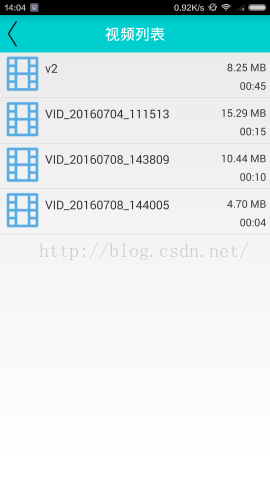 Android 自定義視頻播放器(支持網絡與本地)實作詳解
近期因公司專案需要撰寫一個播放器,系統自帶的既不太好用也不夠美觀,於是決定自己動手做一個。查閱了大量資料都未見完善方案,幸虧得到前輩的指点才得以完成,在此特別感謝 Yan
 一個簡單卻容易忽略的 BUG:檔名裡的冒號
做數獨遊戲時要加一個截圖功能,把當前遊戲畫面存成圖片。功能很簡單,程式碼也不長,結果卻卡了我好一陣子。 出問題的程式碼 try { Bitmap map =
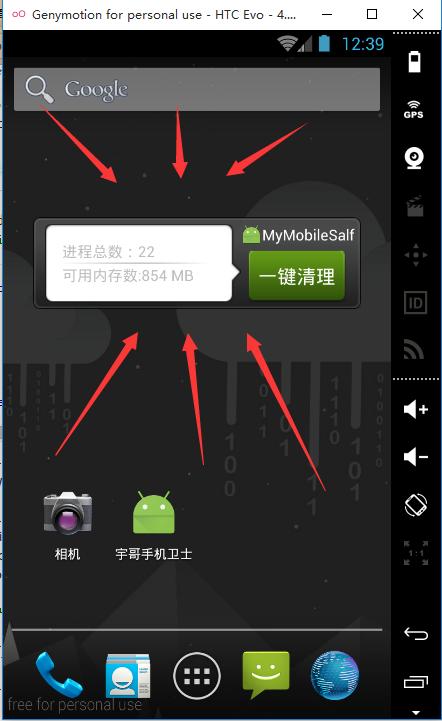 android——App Widget 桌面小工具的完整實作
一、效果展示 在 Android 手機的桌面上,我們常能看到這樣的小元件: 在這些元件上,可以顯示 App 的一些重要交互資訊。以我最近開發的手機衛士為例,widget
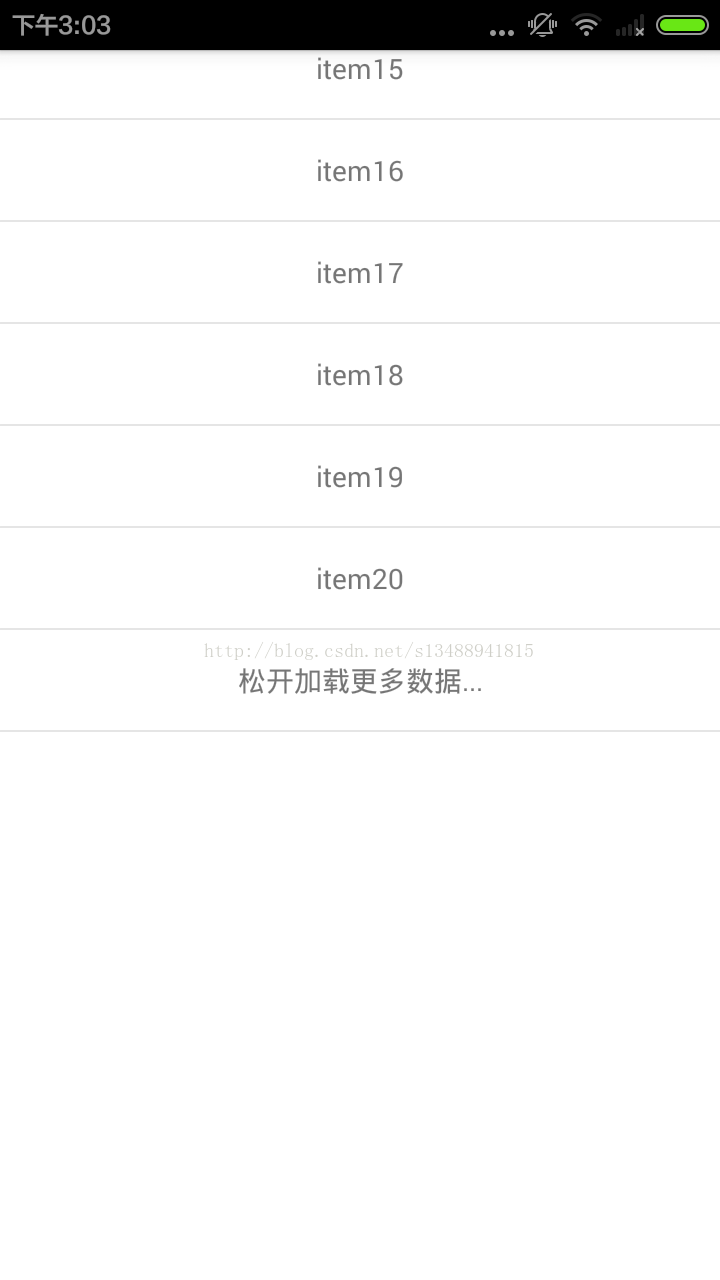 RecyclerView 上拉載入更多的回彈動畫:原理與完整實作
本文實作一個帶「阻尼回彈」效果的上拉載入更多:手指往下拉到底部時,載入提示會被逐漸拉出,並伴隨一個假的彈簧回彈動畫;放開後才真正觸發資料載入。整個效果靠一個「可變高度的空