

編輯:關於 Android 程式設計
這個範例示範兩件事:讀取手機的總記憶體與可用記憶體,以及掃描並終止處於背景的非可見行程,最後計算共清出了多少空間。
<uses-permission android:name="android.permission.KILL_BACKGROUND_PROCESSES" />
package cc.c;

import java.io.BufferedReader;
import java.io.FileReader;
import java.io.IOException;
import java.util.List;

import android.app.Activity;
import android.app.ActivityManager;
import android.app.ActivityManager.MemoryInfo;
import android.app.ActivityManager.RunningAppProcessInfo;
import android.content.Context;
import android.os.Bundle;
import android.view.View;
import android.widget.Button;
import android.widget.TextView;

/**
 * Demo 描述:清理手機記憶體
 * 注意權限:android.permission.KILL_BACKGROUND_PROCESSES
 */
public class MainActivity extends Activity {

    private TextView mTotalMemoryTextView;
    private TextView mAvailMemoryTextView;
    private Button mCleanButton;
    private TextView mCleanInfoTextView;

    private ActivityManager mActivityManager;
    private StringBuffer mCleanInfoStringBuffer;

    private long availMemory;
    private long totalMemory;
    private List<RunningAppProcessInfo> mRunningAppProcessInfoList;

    @Override
    protected void onCreate(Bundle savedInstanceState) {
        super.onCreate(savedInstanceState);
        setContentView(R.layout.main);
        init();
    }

    private void init() {
        mCleanInfoStringBuffer = new StringBuffer();
        mActivityManager = (ActivityManager) getSystemService(Context.ACTIVITY_SERVICE);

        mTotalMemoryTextView = (TextView) findViewById(R.id.totalMemoryTextView);
        mAvailMemoryTextView = (TextView) findViewById(R.id.availMemoryTextView);
        mCleanInfoTextView = (TextView) findViewById(R.id.cleanInfoTextView);
        mCleanButton = (Button) findViewById(R.id.cleanButton);

        totalMemory = getTotalMemory();
        availMemory = getAvailMemory();
        mTotalMemoryTextView.setText(totalMemory + "MB");
        mAvailMemoryTextView.setText(availMemory + "MB");

        mCleanButton.setOnClickListener(new View.OnClickListener() {
            @Override
            public void onClick(View v) {
                RunningAppProcessInfo runningAppProcessInfo = null;
                mRunningAppProcessInfoList = mActivityManager.getRunningAppProcesses();

                if (mRunningAppProcessInfoList != null) {
                    for (int i = 0; i < mRunningAppProcessInfoList.size(); ++i) {
                        runningAppProcessInfo = mRunningAppProcessInfoList.get(i);

                        // importance 大於 IMPORTANCE_SERVICE 的行程
                        // 通常即為長時間未使用行程或空行程;
                        // 大於 IMPORTANCE_VISIBLE 的行程都是非可見行程(背景執行)
                        if (runningAppProcessInfo.importance
                                > RunningAppProcessInfo.IMPORTANCE_VISIBLE) {
                            String[] pkgList = runningAppProcessInfo.pkgList;
                            for (int j = 0; j < pkgList.length; ++j) {
                                mActivityManager.killBackgroundProcesses(pkgList[j]);
                                mCleanInfoStringBuffer.append(pkgList[j] + " is killed...\n");
                                mCleanInfoTextView.setText(mCleanInfoStringBuffer.toString());
                            }
                        }
                    }
                }

                // 再次取得剩餘記憶體以計算清理量
                mCleanInfoStringBuffer.append("共清理:" + (getAvailMemory() - availMemory) + "MB");
                mCleanInfoTextView.setText(mCleanInfoStringBuffer.toString());
                mAvailMemoryTextView.setText(getAvailMemory() + "MB");
            }
        });
    }

    private long getTotalMemory() {
        // 系統記憶體資訊檔
        String filePath = "/proc/meminfo";
        String lineString;
        String[] stringArray;
        long totalMemory = 0;
        try {
            FileReader fileReader = new FileReader(filePath);
            BufferedReader bufferedReader = new BufferedReader(fileReader, 1024 * 8);
            // 讀取 meminfo 第一行,取得系統總記憶體
            lineString = bufferedReader.readLine();
            // 以空白拆分
            stringArray = lineString.split("\\s+");
            totalMemory = Integer.valueOf(stringArray[1]).intValue();
            bufferedReader.close();
            System.out.println("------> lineString=" + lineString
                    + ",stringArray[0]=" + stringArray[0]
                    + ",stringArray[1]=" + stringArray[1]
                    + ",stringArray[2]=" + stringArray[2]);
        } catch (IOException e) {
        }
        return totalMemory / 1024; // KB 轉 MB
    }

    private long getAvailMemory() {
        MemoryInfo memoryInfo = new MemoryInfo();
        mActivityManager.getMemoryInfo(memoryInfo);
        return memoryInfo.availMem / (1024 * 1024);
    }
}
<RelativeLayout xmlns:android="https://schemas.android.com/apk/res/android"
    xmlns:tools="https://schemas.android.com/tools"
    android:layout_width="match_parent"
    android:layout_height="match_parent"
    android:paddingBottom="@dimen/activity_vertical_margin"
    android:paddingLeft="@dimen/activity_horizontal_margin"
    android:paddingRight="@dimen/activity_horizontal_margin"
    android:paddingTop="@dimen/activity_vertical_margin" >

    <TextView
        android:id="@+id/totalTextView"
        android:layout_width="wrap_content"
        android:layout_height="wrap_content"
        android:text="系統內存:"
        android:textColor="#1cf109"
        android:textSize="25sp" />

    <TextView
        android:id="@+id/totalMemoryTextView"
        android:layout_width="wrap_content"
        android:layout_height="wrap_content"
        android:layout_toRightOf="@id/totalTextView"
        android:textColor="#1cf109"
        android:textSize="25sp" />

    <TextView
        android:id="@+id/availTextView"
        android:layout_width="wrap_content"
        android:layout_height="wrap_content"
        android:layout_below="@id/totalTextView"
        android:text="可用內存:"
        android:textColor="#5c0169"
        android:textSize="25sp" />

</RelativeLayout>
importance 的意義。RunningAppProcessInfo.IMPORTANCE_VISIBLE 代表該行程有可見介面;數值越大代表越不重要。以它作為門檻,就能只挑「背景中使用者看不到」的行程下手,避免誤殺正在使用中的應用。
讀 /proc/meminfo 的限制。這個做法在早期版本可行,但從 Android 8.0 起,應用讀取 /proc/meminfo 會拿到被系統偽裝過的固定數值,無法反映真實記憶體。因此取得總記憶體請改用 ActivityManager.getMemoryInfo() 搭配 getTotalMem()(API 16 起可用)。
清理功能的定位。從 Android 系統自身的角度來看,「第三方 App 一鍵清理背景行程」其實效益有限,因為系統早已有完善的記憶體回收機制,被殺掉的行程很快又會被重新拉起,反而增加耗電。現代的「清理」類應用多半已轉向快取檔案清理與檔案管理。若你只是想在自己的應用內釋放資源,更直接的做法是回應 onTrimMemory() 與 ComponentCallbacks2 回呼,主動清掉不需要的快取。
 自定義 View 實現水波紋引導動畫
新功能引導頁經常需要一點視覺吸引力,水波紋就是很好用的手法:一圈圈半透明的圓從目標控件向外擴散,既指引了位置又不喧賓奪主。本文用自定義 View 完整實現。 一、效果預
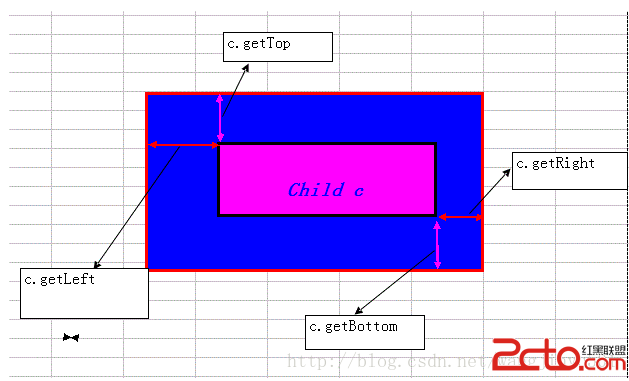 Android 座標系統入門:View 位置與觸控事件
Android 的座標系統以螢幕左上角為原點,向右為 X 軸正方向,向下為 Y 軸正方向。理解座標系統,是處理 View 位置、動畫與觸控事件的基礎。 View 的相對座
 android:drawableLeft 的用法與 RTL 佈局下的取捨
有時候想在 EditText 左側放一個小圖標,比如用戶名輸入框前面那個人形標識: 在佈局的 EditText 節點裡加一行即可: android:drawableLe
 Android 入門:Drawable 與其資源 XML 的綜合應用
引言 Android 中的 Drawable 是一個抽象概念——凡是能被畫出來的,都可以定義成 Drawable(A Drawable is a general abst