

編輯:關於 Android 程式設計
Android 內建的動畫體系主要有兩套:Tween 動畫(補間動畫)與 Frame 動畫(影格動畫)。本文聚焦在 Tween,Frame 留待下一篇。
它做法是對 View 的內容施加一連串的圖形變換——平移、縮放、旋轉、改變透明度——从而产生动感。定義方式有兩種:寫在 XML 裡,或直接用程式碼建立對應的 Animation 物件。兩種做法文末都有範例。
| 效果 | XML 標籤 | Java 類別 |
|---|---|---|
| 漸變透明度(透明動畫) | <alpha> | AlphaAnimation |
| 漸變尺寸(縮放動畫) | <scale> | ScaleAnimation |
| 位置移動(移位動畫) | <translate> | TranslateAnimation |
| 畫面旋轉(旋轉動畫) | <rotate> | RotateAnimation |
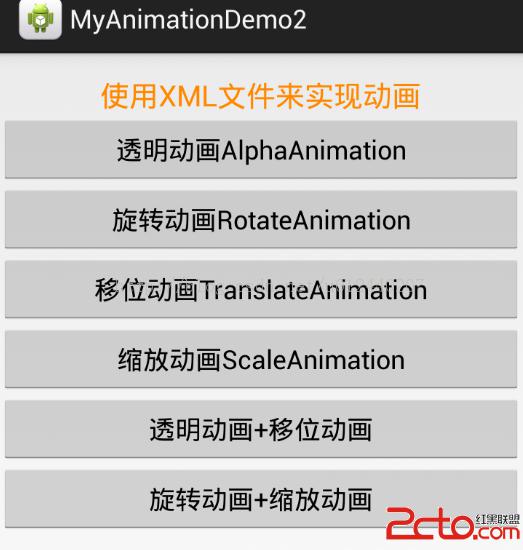
用六個按鈕分別觸發單一動畫與組合動畫:
<LinearLayout xmlns:android="https://schemas.android.com/apk/res/android"
    android:layout_width="match_parent"
    android:layout_height="match_parent"
    android:orientation="vertical" >

    <TextView
        android:id="@+id/textView"
        android:layout_width="wrap_content"
        android:layout_height="wrap_content"
        android:layout_gravity="center_horizontal"
        android:layout_marginTop="15dp"
        android:text="使用 XML 檔案來實現動畫"
        android:textColor="@android:color/holo_orange_dark"
        android:textSize="20dp" />

    <Button android:id="@+id/button_alphaAnim"
        android:layout_width="match_parent"
        android:layout_height="wrap_content"
        android:text="透明動畫 AlphaAnimation" />
    <Button android:id="@+id/button_rotateAnim"
        android:layout_width="match_parent"
        android:layout_height="wrap_content"
        android:text="旋轉動畫 RotateAnimation" />
    <Button android:id="@+id/button_translateAnim"
        android:layout_width="match_parent"
        android:layout_height="wrap_content"
        android:text="移位動畫 TranslateAnimation" />
    <Button android:id="@+id/button_scaleAnim"
        android:layout_width="match_parent"
        android:layout_height="wrap_content"
        android:text="縮放動畫 ScaleAnimation" />
    <Button android:id="@+id/button_setAnim1"
        android:layout_width="match_parent"
        android:layout_height="wrap_content"
        android:text="透明動畫 + 移位動畫" />
    <Button android:id="@+id/button_setAnim2"
        android:layout_width="match_parent"
        android:layout_height="wrap_content"
        android:text="旋轉動畫 + 縮放動畫" />
</LinearLayout>旋轉動畫 ra.xml
<rotate xmlns:android="https://schemas.android.com/apk/res/android"
    android:duration="2000"
    android:fromDegrees="0"
    android:pivotX="50%"
    android:pivotY="50%"
    android:toDegrees="360" />
pivotX/Y 是旋轉中心,用百分比表示相對於自身尺寸的相對位置;50% 就是繞著正中央轉。
縮放動畫 sa.xml
<scale xmlns:android="https://schemas.android.com/apk/res/android"
    android:duration="2000"
    android:fromXScale="0"
    android:fromYScale="0"
    android:pivotX="50%"
    android:pivotY="50%"
    android:toXScale="1"
    android:toYScale="1" />
從 0 倍放大到 1 倍(原始大小),效果就是「從中心點彈出來」。
透明動畫 aa.xml
<alpha xmlns:android="https://schemas.android.com/apk/res/android"
    android:duration="2000"
    android:fromAlpha="0.0"
    android:toAlpha="1.0" />
移位動畫 ta.xml
<translate xmlns:android="https://schemas.android.com/apk/res/android"
    android:duration="2000"
    android:fromXDelta="0"
    android:fromYDelta="0"
    android:toXDelta="100%p"
android:toYDelta="0" />這裡有個容易搞錯的地方:%p 是相對於父容器,% 則是相對於自身。寫錯單位,位移距離會差好幾倍。
組合動畫 set1.xml(透明 + 移位)
<set xmlns:android="https://schemas.android.com/apk/res/android"
    android:duration="2000"
    android:shareInterpolator="true">
    <alpha android:fromAlpha="0.0" android:toAlpha="1.0" />
    <translate android:fromXDelta="0" android:toXDelta="100%p" />
</set>
組合動畫 set2.xml(旋轉 + 縮放)
<set xmlns:android="https://schemas.android.com/apk/res/android"
    android:duration="2000"
    android:shareInterpolator="true">
    <rotate android:fromDegrees="0"
            android:pivotX="50%" android:pivotY="50%"
            android:toDegrees="360" />
    <scale android:fromXScale="0" android:fromYScale="0"
           android:pivotX="50%" android:pivotY="50%"
           android:toXScale="1" android:toYScale="1" />
</set>
shareInterpolator="true" 表示子動畫共用同一個插值器;設為 false 時各自獨立,時序控制會更靈活,也能搭配 android:startOffset 做出接力效果。
package com.myanimationdemo2;

import android.app.Activity;
import android.os.Bundle;
import android.view.View;
import android.view.View.OnClickListener;
import android.view.animation.AnimationUtils;
import android.widget.Button;

public class MainActivity extends Activity implements OnClickListener {

    private Button button_alphaAnim, button_rotateAnim, button_translateAnim,
                   button_scaleAnim, button_setAnim1, button_setAnim2;

    @Override
    protected void onCreate(Bundle savedInstanceState) {
        super.onCreate(savedInstanceState);
        setContentView(R.layout.activity_main);

        button_alphaAnim     = (Button) findViewById(R.id.button_alphaAnim);
        button_rotateAnim    = (Button) findViewById(R.id.button_rotateAnim);
        button_translateAnim = (Button) findViewById(R.id.button_translateAnim);
        button_scaleAnim     = (Button) findViewById(R.id.button_scaleAnim);
        button_setAnim1      = (Button) findViewById(R.id.button_setAnim1);
        button_setAnim2      = (Button) findViewById(R.id.button_setAnim2);

        button_alphaAnim.setOnClickListener(this);
        button_rotateAnim.setOnClickListener(this);
        button_translateAnim.setOnClickListener(this);
        button_scaleAnim.setOnClickListener(this);
        button_setAnim1.setOnClickListener(this);
        button_setAnim2.setOnClickListener(this);
    }

    @Override
    public void onClick(View v) {
        switch (v.getId()) {
            case R.id.button_alphaAnim:
                v.startAnimation(AnimationUtils.loadAnimation(
                        getApplicationContext(), anim.aa));
                break;
            case R.id.button_rotateAnim:
                v.startAnimation(AnimationUtils.loadAnimation(
                        getApplicationContext(), anim.ra));
                break;
            case R.id.button_translateAnim:
                v.startAnimation(AnimationUtils.loadAnimation(
                        getApplicationContext(), anim.ta));
                break;
            case R.id.button_scaleAnim:
                v.startAnimation(AnimationUtils.loadAnimation(
                        getApplicationContext(), anim.sa));
                break;
            case R.id.button_setAnim1:
                v.startAnimation(AnimationUtils.loadAnimation(
                        getApplicationContext(), anim.set1));
                break;
            case R.id.button_setAnim2:
                v.startAnimation(AnimationUtils.loadAnimation(
                        getApplicationContext(), anim.set2));
                break;
            default:
                break;
        }
    }
}
整個流程只有兩個關鍵 API:AnimationUtils.loadAnimation() 把 XML 讀成 Animation 物件,View.startAnimation() 把它套上去。就這麼簡單。
若不寫 XML,直接建立物件即可,以旋轉為例:
RotateAnimation rotate = new RotateAnimation(
        0f, 360f,
        RotateAnimation.RELATIVE_TO_SELF, 0.5f,
        RotateAnimation.RELATIVE_TO_SELF, 0.5f);
rotate.setDuration(2000);
button_rotateAnim.startAnimation(rotate);
程式碼方式的好處是參數可以在執行期動態計算,適合資料驅動的動畫;XML 方式則更適合固定、可預覽的動效,也方便交給設計師調整。
ObjectAnimator(屬性動畫)或事後更新 LayoutParams。AccelerateDecelerateInterpolator,但依情境換成 OvershootInterpolator(回彈)或 AnticipateOvershootInterpolator 往往更有活力。以上為 Tween 動畫以 XML 形式實作的完整範例。XML 版與純程式碼版的 Demo 源碼都放在文末供下載。
 Android 自定義 SubmitView:提交動畫、進度圈與成功狀態
SubmitView 的互動情境 在提交表單、下單或上傳檔案時,使用者常需要一個能表達等待與完成的元件。SubmitView 可用來呈現提交按鈕、載入進度、成功勾選與重置
 【React Native 開發】DrawerLayoutAndroid 抽屜導航切換組件講解(13)
(一)前言 今天我們一起來看一下抽屜 DrawerLayoutAndroid 導航切換控件的講解與基本使用。 該 DrawerLayoutAndroid 組件封裝了 An
 加入購物車動畫實作:用貝茲曲線讓商品沿拋物線飛入
效果預覽 參考方向:Android 補間動畫與屬性動畫都能做到類似效果,本文採用後者搭配貝茲曲線。 實作思路 先確定動畫的起點與終點; 在起點與終點之間,用二次貝茲曲
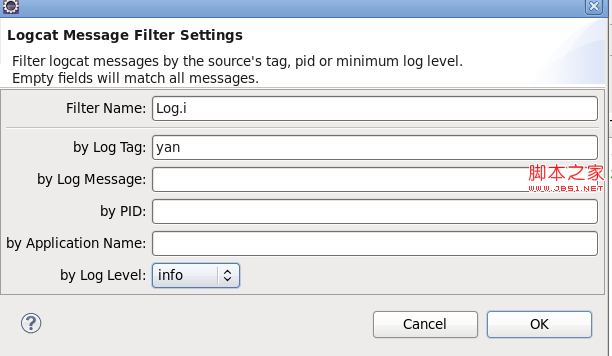 一分鐘上手:用 Logcat 除錯 Android 程式的完整步驟
Logcat 是 Android 開發中最實用的除錯工具之一,看似簡單,但每隔一段時間沒用,總會手忙腳亂地忘記怎麼設定。這裡就把 Logcat 的使用步驟完整記錄下來,以