

編輯:關於 Android 程式設計
先前寫了一些簡單的類,基本可實現 GIF 播放,主要使用 Movie 類來解決。今天無意中看到一個開源小專案 GifView 可用來解析播放 GIF,名字居然跟我寫的元件一樣。看了源碼後發現實現方式與我的有很大差異,而且它提供了更多介面:可傳入 GIF 圖片的資源 ID、對應的串流,或二進位 byte[] 陣列;還提供設定 GIF 在解碼過程中的顯示方式,主要有三種:邊解析邊顯示、解析完再顯示、解析過程中顯示第一幀。它還能設定顯示圖片的大小等功能,確實強大許多。
以下直接附上專案源碼。
package com.ant.liao;
import java.io.InputStream;
import android.content.Context;
import android.content.res.Resources;
import android.graphics.Bitmap;
import android.graphics.Canvas;
import android.graphics.Rect;
import android.os.Handler;
import android.os.Message;
import android.os.SystemClock;
import android.util.AttributeSet;
import android.util.Log;
import android.view.View;
/**
 * GifView
 * 本類可以顯示一個 gif 動畫,其使用方法和 android 的其他 view(如 imageview)一樣。
 * 如果要顯示的 gif 太大,會出現 OOM 的問題。
 */
public class GifView extends View implements GifAction {
    private GifDecoder gifDecoder = null;
    private Bitmap currentImage = null;
    private boolean isRun = true;
    private boolean pause = false;
    private int showWidth = -1;
    private int showHeight = -1;
    private Rect rect = null;
    private DrawThread drawThread = null;
    private GifImageType animationType = GifImageType.SYNC_DECODER;
    /**
     * 解碼過程中,Gif 動畫顯示的方式
     */
    public enum GifImageType {
        WAIT_FINISH(0),   // 解碼完成後再顯示
        SYNC_DECODER(1),  // 與解碼同步顯示
        COVER(2);         // 只顯示第一幀
        GifImageType(int i) { nativeInt = i; }
        final int nativeInt;
    }
    public GifView(Context context) { super(context); }
    public GifView(Context context, AttributeSet attrs) { this(context, attrs, 0); }
    public GifView(Context context, AttributeSet attrs, int defStyle) {
        super(context, attrs, defStyle);
    }
    /** 以位元組資料形式設置 gif 圖片 */
    public void setGifImage(byte[] gif) { setGifDecoderImage(gif); }
    /** 以位元組流形式設置 gif 圖片 */
    public void setGifImage(InputStream is) { setGifDecoderImage(is); }
    /** 以資源形式設置 gif 圖片 */
    public void setGifImage(int resId) {
        Resources r = this.getResources();
        InputStream is = r.openRawResource(resId);
        setGifDecoderImage(is);
    }
    private void setGifDecoderImage(byte[] gif) {
        if (gifDecoder != null) { gifDecoder.free(); gifDecoder = null; }
        gifDecoder = new GifDecoder(gif, this);
        gifDecoder.start();
    }
    private void setGifDecoderImage(InputStream is) {
        if (gifDecoder != null) { gifDecoder.free(); gifDecoder = null; }
        gifDecoder = new GifDecoder(is, this);
        gifDecoder.start();
    }
    protected void onDraw(Canvas canvas) {
        super.onDraw(canvas);
        if (gifDecoder == null) return;
        if (currentImage == null) { currentImage = gifDecoder.getImage(); }
        if (currentImage == null) return;
        int saveCount = canvas.getSaveCount();
        canvas.save();
        canvas.translate(getPaddingLeft(), getPaddingTop());
        if (showWidth == -1) {
            canvas.drawBitmap(currentImage, 0, 0, null);
        } else {
            canvas.drawBitmap(currentImage, null, rect, null);
        }
        canvas.restoreToCount(saveCount);
    }
    /** 只顯示第一幀圖片 */
    public void showCover() {
        if (gifDecoder == null) return;
        pause = true;
        currentImage = gifDecoder.getImage();
        invalidate();
    }
    /** 繼續顯示動畫(在調用 showCover 後才有效) */
    public void showAnimation() {
        if (pause) { pause = false; }
    }
    /** 設置 gif 在解碼過程中的顯示方式(只能在 setGifImage 之前設置) */
    public void setGifImageType(GifImageType type) {
        if (gifDecoder == null) animationType = type;
    }
    /** 設置要顯示的圖片大小 */
    public void setShowDimension(int width, int height) {
        if (width > 0 && height > 0) {
            showWidth = width;
            showHeight = height;
            rect = new Rect();
            rect.left = 0;
            rect.top = 0;
            rect.right = width;
            rect.bottom = height;
        }
    }
    private class DrawThread extends Thread {
        public void run() {
            if (gifDecoder == null) return;
            while (isRun) {
                if (pause == false) {
                    GifFrame frame = gifDecoder.next();
                    currentImage = frame.image;
                    long sp = frame.delay;
                    if (redrawHandler != null) {
                        Message msg = redrawHandler.obtainMessage();
                        redrawHandler.sendMessage(msg);
                        SystemClock.sleep(sp);
                    } else {
                        break;
                    }
                } else {
                    SystemClock.sleep(10);
                }
            }
        }
    }
    private Handler redrawHandler = new Handler() {
        public void handleMessage(Message msg) { invalidate(); }
    };
}
除了 GifView,專案還包含三個關鍵類別:
public class MainActivity extends Activity implements OnClickListener {
    private GifView gifView1;
    private GifView gifView2;
    private boolean isPlaying = true;// 是否正在播放
    @Override
    protected void onCreate(Bundle savedInstanceState) {
        super.onCreate(savedInstanceState);
        setContentView(R.layout.main);
        gifView1 = (GifView) findViewById(R.id.main_gif1);
        gifView1.setGifImage(R.drawable.animation); // 設置要播放的 GIF 圖片
        gifView1.setOnClickListener(this);
        gifView2 = (GifView) findViewById(R.id.main_gif2);
        gifView2.setGifImageType(GifImageType.COVER); // 解析過程中只顯示第一幀
        gifView2.setShowDimension(300, 300); // 設置圖片大小
        gifView2.setGifImage(R.drawable.loading);
    }
    @Override
    public void onClick(View v) {
        // 若正在播放,點擊則顯示第一幀;若當前顯示第一幀,點擊則繼續播放
        if (isPlaying) {
            gifView1.showCover();
            isPlaying = false;
        } else {
            gifView1.showAnimation();
            isPlaying = true;
        }
    }
}
此 GifView 元件的優勢在於介面豐富:可靈活指定圖片來源(資源、串流或位元組陣列)、自訂解碼過程中的顯示策略,以及縮放顯示大小。不過需注意,若 GIF 過大仍可能引發 OOM 問題。
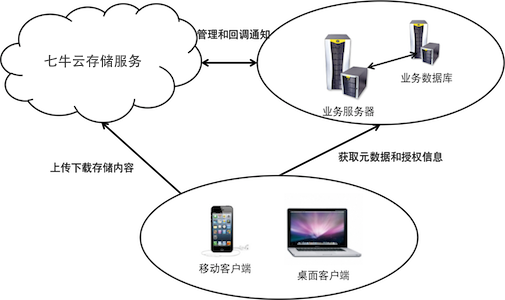 Android 接入七牛雲存儲:圖片上傳與下載完整實戰
在客戶端做圖片存儲是一件麻煩事:流量、帶寬、擴容、容災樣樣都要操心。把這部分交給第三方對象存儲(本文以七牛雲為例),能省下大量後端工作量。以下記錄一次完整的接入過程。
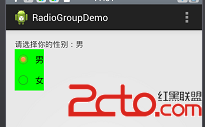 用 RadioGroup 與 RadioButton 實作單選與預設選中
本文將透過 RadioGroup 搭配 RadioButton 來實作「組內單選」。所謂 RadioGroup,就是把多個 RadioButton 進行分組,讓它們能被統
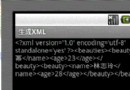 Android中使用XmlSerializer序列化XML數據
先說名詞。序列化(serialization)不只是把物件存到儲存媒體,更重要的是讓物件能在串流中傳輸,像基本型別一樣被四處傳遞。Android 內建的 XmlSeria
 用 Android 抓取 API 資料並在留言板列表顯示(完整流程)
本文示範如何把介面(API)取得的資料呈現在留言板列表中,範圍只涵「讀取與顯示」,不包含新增留言。整體流程可以拆成五步:配置版面、建立實體類別、抓取資料、封裝 Adapt