

編輯:關於 Android 程式設計
上一篇我們的做法是在代碼中透過構造函數把 GIF 的資源 ID 傳進 GifView,能用但有點死板。這篇要把它升級成「和 ImageView 一樣好用」的元件:直接在佈局檔裡寫 android:src,由 GifView 自己設法取出資源 ID,再解碼播放。這樣想在畫面上放哪張動圖,改 XML 就夠了,靈活度提升不少。
GifView 繼承自 ImageView,好處是萬一 movie 解碼失敗(也就是使用者設的是普通靜態圖),可以直接把繪製工作交回父類的 onDraw(),等於天生向下相容。取得 src 資源 ID 這一步,Android 標準 API 沒有開放,實務上常見的作法是透過反射讀取 TypedArray 內部的 mValue 欄位,再取出其中的 resourceId。
package com.home.gifview;

import java.io.InputStream;
import java.lang.reflect.Field;

import android.content.Context;
import android.content.res.TypedArray;
import android.graphics.Bitmap;
import android.graphics.BitmapFactory;
import android.graphics.Canvas;
import android.graphics.Movie;
import android.os.SystemClock;
import android.util.AttributeSet;
import android.util.TypedValue;
import android.widget.ImageView;

public class GifView extends ImageView {

    private Movie movie;
    private long movieStart;
    private int imageWidth;
    private int imageHeight;

    public GifView(Context context) {
        super(context);
    }

    public GifView(Context context, AttributeSet attrs) {
        this(context, attrs, 0);
    }

    public GifView(Context context, AttributeSet attrs, int defStyle) {
        super(context, attrs, defStyle);

        TypedArray a = context.obtainStyledAttributes(attrs, R.styleable.GifView);
        int resourceId = getResourceId(a, context, attrs);

        if (resourceId != 0) {
            InputStream is = getResources().openRawResource(resourceId);
            movie = Movie.decodeStream(is);
            if (movie != null) {
                Bitmap bitmap = BitmapFactory.decodeStream(is);
                imageWidth = bitmap.getWidth();
                imageHeight = bitmap.getHeight();
                bitmap.recycle();
            }
        }
    }

    @Override
    protected void onDraw(Canvas canvas) {
        if (movie == null) {
            // 不是 GIF,交回父類照一般圖片繪製
            super.onDraw(canvas);
        } else {
            playGif(canvas);
            invalidate();
        }
    }

    @Override
    protected void onMeasure(int widthMeasureSpec, int heightMeasureSpec) {
        super.onMeasure(widthMeasureSpec, heightMeasureSpec);
        if (movie != null) {
            // GIF 的情況直接以圖片本身的尺寸作為測量結果
            setMeasuredDimension(imageWidth, imageHeight);
        }
    }

    /**
     * 播放 GIF 動畫
     */
    private boolean playGif(Canvas canvas) {
        long now = SystemClock.uptimeMillis();
        if (movieStart == 0) {
            movieStart = now;
        }
        int duration = movie.duration();
        if (duration == 0) {
            duration = 1000;
        }
        int relTime = (int) ((now - movieStart) % duration);
        movie.setTime(relTime);
        movie.draw(canvas, 0, 0);
        if ((now - movieStart) >= duration) {
            movieStart = 0;
            return true;
        }
        return false;
    }

    /**
     * 以反射方式取得 src 指定圖片資源對應的 ID
     */
    private int getResourceId(TypedArray a, Context context, AttributeSet attrs) {
        try {
            Field field = TypedArray.class.getDeclaredField("mValue");
            field.setAccessible(true);
            TypedValue typedValueObject = (TypedValue) field.get(a);
            return typedValueObject.resourceId;
        } catch (Exception e) {
            e.printStackTrace();
        } finally {
            if (a != null) {
                a.recycle();
            }
        }
        return 0;
    }
}
因為我們沿用了 ImageView 既有的 src 屬性,declare-styleable 標籤本身可以是空的,主要是為了讓 obtainStyledAttributes() 有一個對應的宣告可查。
<?xml version="1.0" encoding="utf-8"?>
<resources>
    <declare-styleable name="GifView"></declare-styleable>
</resources>
<RelativeLayout xmlns:android="https://schemas.android.com/apk/res/android"
    android:layout_width="match_parent"
    android:layout_height="match_parent" >

    <com.home.gifview.GifView
        android:id="@+id/main_gifView"
        android:layout_width="wrap_content"
        android:layout_height="wrap_content"
        android:layout_centerInParent="true"
        android:src="@drawable/loading" />

</RelativeLayout>
在 Android 4.0 以後的機型上,開啟硬體加速會讓 Movie 的繪製失效,動圖往往只剩一張靜態畫面。在 Activity 或 application 節點加上下面這行即可避開這個坑:
android:hardwareAccelerated="false"
小提醒:反射讀取 mValue 属于非公開 API,不同 Android 版本或更換實作後有失效風險。若要用在正式專案,建議包一層例外處理,或改用自建 declare-styleable 定義一個專屬屬性(例如 gifview:src),會更穩妥。
 Android 開發學習筆記(四):深入認識 Activity
4.1 Activity 是什麼Activity 可以說是整個應用程式的入口,負責創建視窗(透過 setContentView(View))並與使用者互動。理解 Acti
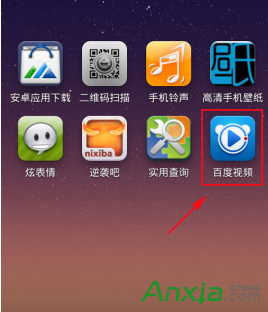 百度影片怎麼加入收藏?把想看的劇集存起來隨時續看
百度影片不只是一個播放器,它同時具備搜尋與推薦能力,還能離線觀看、提醒劇集更新。其中最實用的其實是最基本的那個:收藏。看到想看的劇,先存起來,之後不必再搜一次。收藏影片的
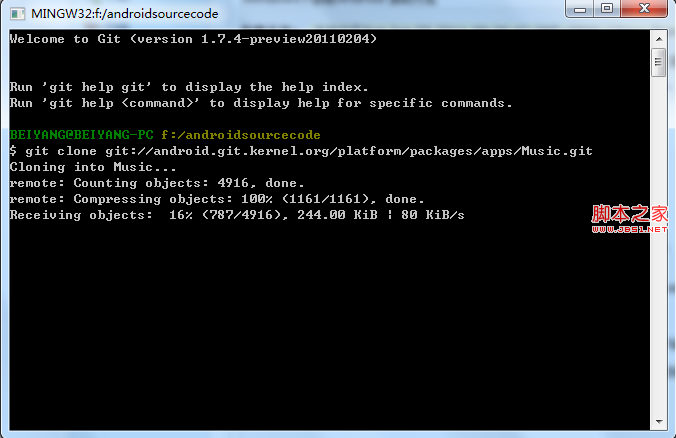 Windows 環境下取得 Android 原始碼的完整步驟說明
為什麼要抓原始碼?理由千千萬——想改 Framework、想看某個系統 App 怎麼實作、想換一顆 sensor 驅動。而在 Windows 上取得 Android 原始
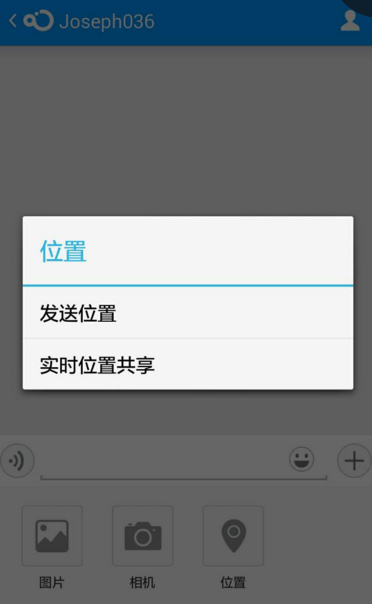 融雲 + 高德地圖:實現 IM 地理位置訊息的發送與預覽
效果預覽Send(發送):Click LocationMessage(點擊位置訊息):實作步驟1:先註冊高德地圖開發者帳號,建立應用並取得 appkey。2:jar 建議