

編輯:關於 Android 程式設計
要與其他裝置通訊,第一步当然是先搜尋周邊的藍牙裝置。整個流程可以拆成三個重點:
BluetoothAdapter.getBondedDevices() 取得已配對的裝置清單。BluetoothAdapter.startDiscovery() 方法。版面中放一顆按鈕觸發搜尋,再用一個 TextView 顯示結果,已配對與新搜尋到的裝置都會列出來:
<RelativeLayout xmlns:android="https://schemas.android.com/apk/res/android"
    xmlns:tools="https://schemas.android.com/tools"
    android:layout_width="match_parent"
    android:layout_height="match_parent"
    android:paddingBottom="@dimen/activity_vertical_margin"
    android:paddingLeft="@dimen/activity_horizontal_margin"
    android:paddingRight="@dimen/activity_horizontal_margin"
    android:paddingTop="@dimen/activity_vertical_margin"
    tools:context=".MainActivity" >

    <Button
        android:id="@+id/button_id"
        android:layout_width="fill_parent"
        android:layout_height="wrap_content"
        android:onClick="onClick_Search"
        android:text="搜尋藍牙裝置" />

    <TextView
        android:id="@+id/tvDevices"
        android:layout_width="fill_parent"
        android:layout_height="wrap_content"
        android:layout_below="@+id/button_id" />

</RelativeLayout>
建立時先取得 adapt 器並列出已配對裝置,接著註冊兩個廣播接收器:一個用來接收搜尋到的裝置,一個用來判斷搜尋是否結束。按下按鈕時便開始搜尋:
package com.example.search_bluetooth_devices;

import java.util.Set;

import android.os.Bundle;
import android.app.Activity;
import android.bluetooth.BluetoothAdapter;
import android.bluetooth.BluetoothDevice;
import android.content.BroadcastReceiver;
import android.content.Context;
import android.content.Intent;
import android.content.IntentFilter;
import android.view.Menu;
import android.view.View;
import android.view.Window;
import android.widget.TextView;

public class MainActivity extends Activity {

    private TextView mTextView;
    private BluetoothAdapter mBluetoothAdapter;

    private BroadcastReceiver mReceiver = new BroadcastReceiver() {
        @Override
        public void onReceive(Context context, Intent intent) {
            String action = intent.getAction();
            // 取得搜尋到的藍牙裝置
            if (action.equals(BluetoothDevice.ACTION_FOUND)) {
                BluetoothDevice device = intent
                        .getParcelableExtra(BluetoothDevice.EXTRA_DEVICE);
                // 只顯示尚未配對的裝置
                if (device.getBondState() != BluetoothDevice.BOND_BONDED) {
                    mTextView.append(device.getName() + ":"
                            + device.getAddress() + "\n");
                }
            // 搜尋結束
            } else if (action.equals(BluetoothAdapter.ACTION_DISCOVERY_FINISHED)) {
                setProgressBarIndeterminateVisibility(false);
                setTitle("搜尋藍牙裝置");
            }
        }
    };

    @Override
    protected void onCreate(Bundle savedInstanceState) {
        super.onCreate(savedInstanceState);
        requestWindowFeature(Window.FEATURE_INDETERMINATE_PROGRESS);
        setContentView(R.layout.activity_main);

        mTextView = (TextView) findViewById(R.id.tvDevices);
        mBluetoothAdapter = BluetoothAdapter.getDefaultAdapter();

        // 取得所有已配對的藍牙裝置
        Set<BluetoothDevice> devices = mBluetoothAdapter.getBondedDevices();
        if (devices.size() > 0) {
            for (BluetoothDevice bluetoothDevice : devices) {
                mTextView.append(bluetoothDevice.getName() + ":"
                        + bluetoothDevice.getAddress() + "\n\n");
            }
        }

        // 註冊接收「搜尋到裝置」的廣播
        IntentFilter mFilter = new IntentFilter(BluetoothDevice.ACTION_FOUND);
        registerReceiver(mReceiver, mFilter);
        // 註冊接收「搜尋結束」的廣播
        mFilter = new IntentFilter(BluetoothAdapter.ACTION_DISCOVERY_FINISHED);
        registerReceiver(mReceiver, mFilter);
    }

    @Override
    protected void onDestroy() {
        super.onDestroy();
        unregisterReceiver(mReceiver); // 解除註冊,避免記憶體洩漏
    }

    public void onClick_Search(View v) {
        setProgressBarIndeterminateVisibility(true);
        setTitle("正在掃描....");
        // 若正在搜尋,先取消
        if (mBluetoothAdapter.isDiscovering()) {
            mBluetoothAdapter.cancelDiscovery();
        }
        // 開始搜尋,結果透過廣播回傳
        mBluetoothAdapter.startDiscovery();
    }
}
別忘了在 AndroidManifest.xml 中加上藍牙相關權限:
<uses-permission android:name="android.permission.BLUETOOTH"/>
<uses-permission android:name="android.permission.BLUETOOTH_ADMIN"/>
如此一來,按下按鈕即可開始掃描周邊的藍牙裝置,並把已配對與新發現的裝置即時顯示在畫面上。記得在 Activity 銷毀時解除廣播註冊,是一個容易被忽略卻很重要的細節。
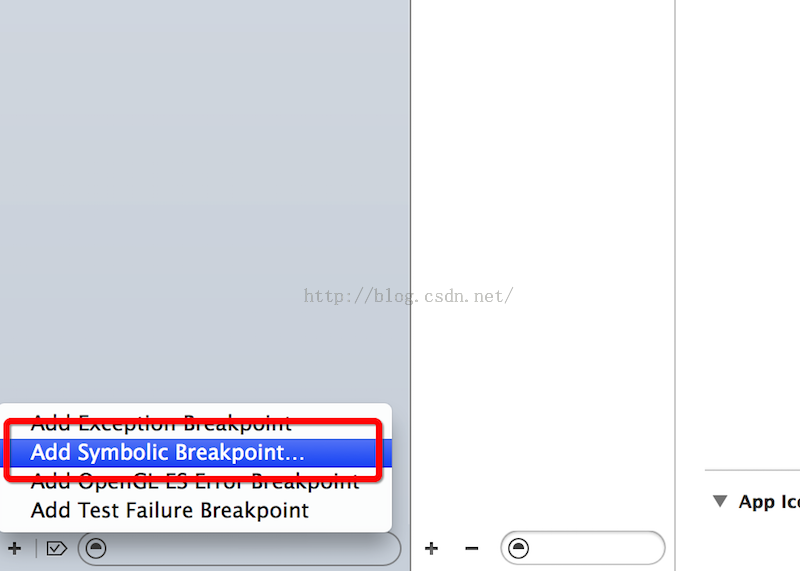 用全域中斷點快速接入 Reveal
Reveal 是 iOS 開發中常用的介面除錯工具,能幫助開發者檢視畫面層級、屬性與視圖結構。若每個專案都手動加入 Reveal 的 framework,會相當麻煩。透過
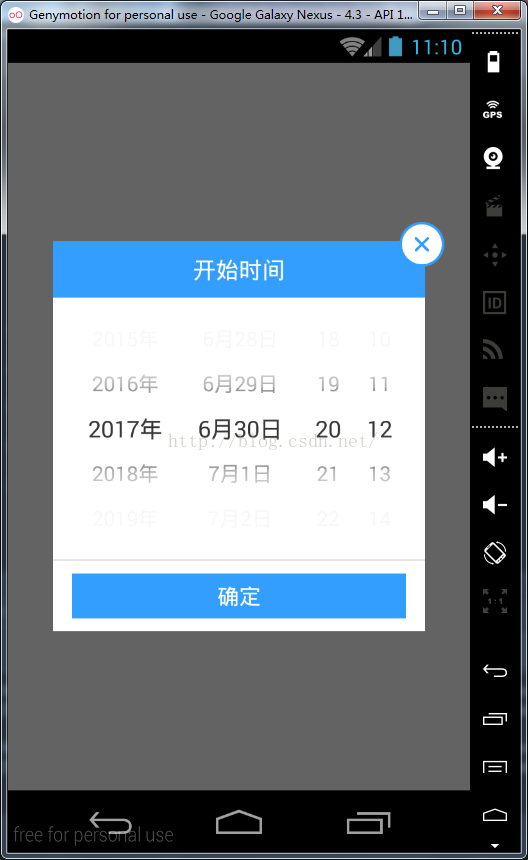 Android 滾輪時間選擇器:可擴充的日期與時間 Dialog
系統內建的日期選擇器未必符合所有產品需求,因此可嘗試以 WheelView 打造滾輪式時間選擇器。這類控制項可自訂標題、顯示欄位與是否開啟長期選項,適合日期、時間與證件有
 Android 無線開發常用技術全景綜述
本文原作者為阿里行動安全客戶端、YunOS 資深工程師 Hao,這是他在嵌入式企鵝圈發表的首篇原創文章,對 Android 無線開發的幾項關鍵技術做了整體性梳理。 完整
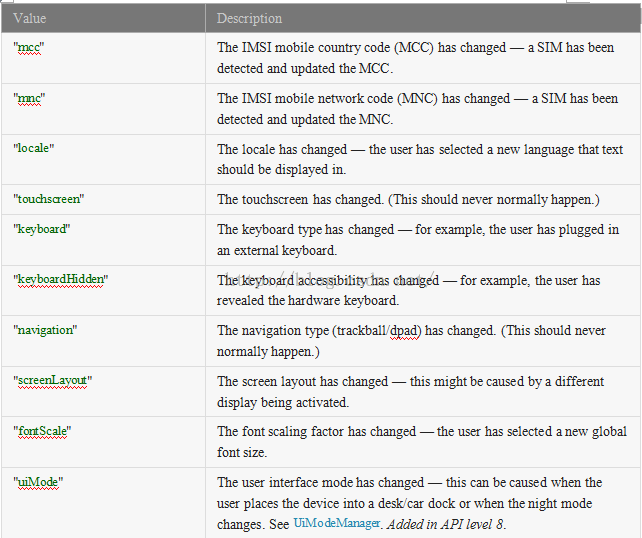 AndroidManifest 中的 activity 標籤:屬性含義與取值全解
清單文件裡的 activity 標籤,是 Android 四大組件配置中最常被修改、也最容易改錯的一處。一個 launchMode 寫錯,可能導致頁面重複創建;一個 ex