

編輯:關於 Android 程式設計
Android 原生的 ImageView 無法直接播放 GIF 動畫,但系統提供了 Movie 這個類別可以派上用場。做法是自訂一個 View,把 GIF 解碼成 Movie 物件,再依播放時間不斷重繪畫面,就能讓動圖動起來。
以下是一個可播放 GIF 的自訂 View:
package com.ttw.gif;

import java.io.IOException;
import java.io.InputStream;

import android.content.Context;
import android.graphics.BitmapFactory;
import android.graphics.Canvas;
import android.graphics.Movie;
import android.util.AttributeSet;
import android.view.View;
import android.view.ViewGroup.LayoutParams;

public class GifMove extends View {

    private Movie mMovie;
    private InputStream is = null;
    private long mMovieStart;

    public GifMove(Context context, AttributeSet attrs, int defStyle) {
        super(context, attrs, defStyle);
    }

    public GifMove(Context context, AttributeSet attrs) {
        super(context, attrs);
    }

    public GifMove(Context context) {
        super(context);
    }

    public void setGifSource(int source) {
        BitmapFactory.Options option = new BitmapFactory.Options();
        option.inJustDecodeBounds = true;
        BitmapFactory.decodeResource(getResources(), source, option);

        // 依 GIF 原始尺寸調整 View 大小
        LayoutParams lp = this.getLayoutParams();
        lp.width = option.outWidth;
        lp.height = option.outHeight;
        this.setLayoutParams(lp);

        if (null != is) {
            try {
                is.close();
            } catch (IOException e) {
                e.printStackTrace();
            } finally {
                is = null;
            }
        }
        is = getResources().openRawResource(source);
        mMovie = Movie.decodeStream(is);
    }

    @Override
    protected void onDraw(Canvas canvas) {
        long now = android.os.SystemClock.uptimeMillis();

        if (mMovieStart == 0) {
            mMovieStart = now;
        }

        if (mMovie != null) {
            int dur = mMovie.duration();
            if (dur == 0) {
                dur = 500;
            }
            // 依目前經過的時間換算該顯示的影格
            int relTime = (int) ((now - mMovieStart) % dur);
            mMovie.setTime(relTime);
            mMovie.draw(canvas, getWidth() - mMovie.width(), getHeight()
                    - mMovie.height());
            invalidate(); // 持續重繪,形成動畫
        }
        super.onDraw(canvas);
    }
}
關鍵在於 onDraw 中的邏輯:以系統的 uptime 當作時間基準,透過取餘運算把時間映射到對應的影格,呼叫 setTime() 設定目前要顯示的畫面,最後再呼叫 invalidate() 觸發下一輪重繪,動畫便會持續播放。使用時只要在版面中放入這個 View,並呼叫 setGifSource() 指定 GIF 資源即可。
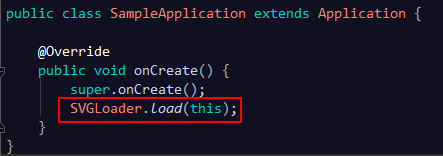 SVG-Android 相容性與效能優化:讓向量圖支援 Android 2.3 以上
SVG 向量圖在縮放、清晰度與可維護性上通常優於 PNG 位圖。Android 5.0 之後提供了 VectorDrawable,但在相容性、效能與使用便利性上仍有不足。
 Android 虛擬裝置(AVD)建立與使用完整教學
AVD 全名為 Android Virtual Device,也就是 Android 執行的虛擬裝置,是模擬器辨識的基礎。要讓 Android 跑起來,就必須先建立 AV
 Android 自定義 View 實作:用 PathMeasure 打造 Win10 風格進度條
Windows 10 那個「幾個點繞圈跑、最後收斂成一個點」的載入動畫,很多人應該都不陌生。它看起來簡單,但要做得順,其實需要一點數學。這篇就從零開始,一步步把它拆成五個
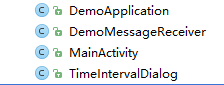 小米推送接入實戰:從 Demo 解析到移植上線的完整路線圖
前陣子忙著找工作,積累了不少收穫,卻一直沒空整理筆記。最近終於騰出手來,把小米推送的學習心得寫成這篇文章,希望能給需要接入 Android 消息推送的朋友一點參考。 為