

編輯:關於 Android 程式設計
AVD 全名為 Android Virtual Device,也就是 Android 執行的虛擬裝置,是模擬器辨識的基礎。要讓 Android 跑起來,就必須先建立 AVD,每個 AVD 都能配置不同的執行項目。建立方式有兩種:透過 Eclipse 開發環境,或用命令列。
1.1 版的模擬器在設定好環境變數後,直接在命令列輸入 emulator 就能啟動;但 1.5 版引入了 AVD 的概念。你可以用 AVD 建立不同版本的模擬器,再用 emulator -avd avdName 啟動指定模擬器。以下說明如何建立:
1. 查看目前支援的版本(記下 id 值,第 2 步會用到):
android list targets
2. 建立 AVD(最後的 2 代表建立 1.5 版):
android create avd –n avdName –t 2
3. 確認是否建立成功:
android list avd
4. 啟動模擬器:
emulator -avd avdName
5. 選擇啟動的皮膚(橫向模擬器):
emulator -avd avdName -skin HVGA-L
6. 按 Ctrl+F11 可直接切換模擬器的橫向與縱向擺放。
以命令列建立一個 AVD:
D:/android/android-sdk-windows-1.5_r3/tools>android create avd -n avd15 -t 2
Android 1.5 is a basic Android platform.
Do you wish to create a custom hardware profile [no]
Created AVD 'avd15' based on Android 1.5
用 android list avd 列出目前的 AVD:
D:/android/android-sdk-windows-1.5_r3/tools>android list avd
Available Android Virtual Devices:
Name: avd15
Path: D:/我的文檔/.android/avd/avd15.avd
Target: Android 1.5 (API level 3)
Skin: HVGA
請留意上面的 AVD 目錄。要把該目錄下的 .android 資料夾複製到 C:/Documents and Settings/Administrator(我這裡用 administrator 登入;實際應複製到對應的 C:/Documents and Settings/用戶名,且用戶名須為英文)。
此時若直接執行 emulator -avd avd15,會出現如下錯誤:
emulator: ERROR: no search paths found in this AVD's configuration.
Weird, the AVD's config.ini file is malformed. Try re-creating it.
原因是 C:/Documents and Settings/Administrator/.android/avd 中的 ini 檔含中文字元「我的文檔」。解法是編輯該 ini 檔(avd15.ini),把 path 改為 path=C:/Documents and Settings/Administrator/.android/avd/avd15.avd。
接著就能啟動模擬器了:
D:/android/android-sdk-windows-1.5_r3/tools>emulator -avd avd15
emulator: emulator window was out of view and was recentred
這時就能看到 Android 模擬器畫面了。
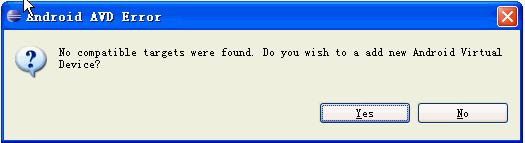
執行 Eclipse 中的專案並選擇 Android project,會跳出 Android AVD Error 對話框,選擇 Yes:
接著出現 Android Virtual Device Manager:
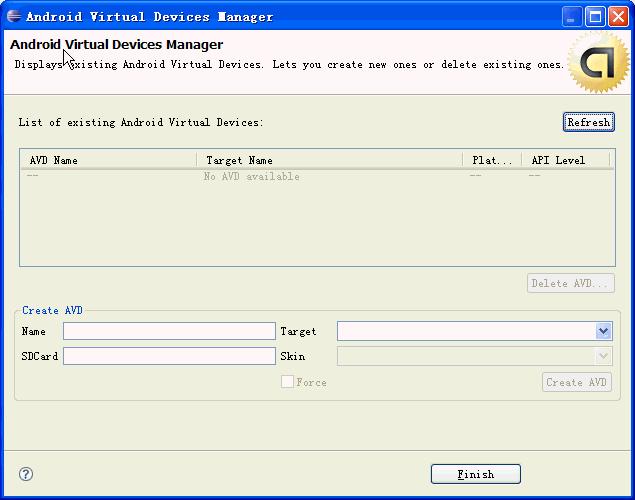
直接點擊 Finish,隨後出現 Android Device Chooser 對話框:
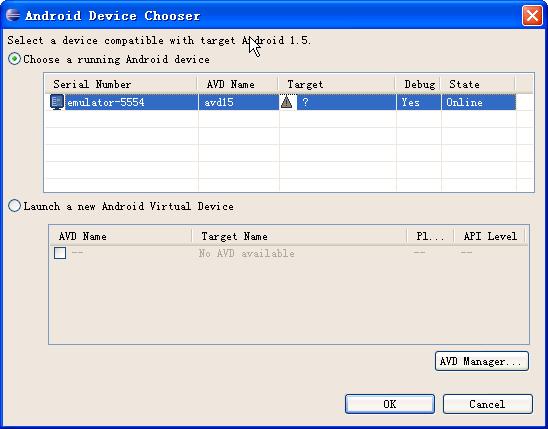
此時正在執行的模擬器會顯示出來,選中它並按 OK,模擬器中即可呈現專案的應用程式。
總結一句:先啟動模擬器,再執行 Eclipse 中的專案。
 Android Studio 使用 Gradle 打包與簽名全解析
1、Gradle 導入 jar 包的特點(與手動放 libs 文件夾的區別) Gradle 導入 jar 包更方便,一行代碼即可搞定,不像後者還要自己去官網下載。如果官方
 自定義 ViewPager:打造千變萬化的圖片切換動畫
第一次看到 ViewPager 這個控制項時就愛不釋手,做東西的主介面、圖片切換都改用 ViewPager。時間一久,預設的切換效果看膩了,於是便想動手改一改。今天來教大
 ListView 分頁加載實作:底部「加載更多」按鈕
為什麼需要分頁加載在實際專案中,列表資料往往不是少量且固定的。若一次載入過多內容,不僅會拖慢畫面顯示,也可能造成記憶體壓力。常見解法是讓 ListView 先顯示部分資料
 Android UI 系列:ScrollView 與 HorizontalScrollView 詳解
本篇筆記要談的是 Android 中兩個使用頻率極高的滾動容器——ScrollView 與 HorizontalScrollView。從命名上就能看出差異:前者是垂直方向