

編輯:關於 Android 程式設計
這裡只涉及 XML 部分,Java 代碼很簡單。核心是利用 selector 根據控件狀態加載不同的圖片。
在 drawable 目錄下放入幾張狀態圖,分別對應:獲得焦點、獲得焦點並按下、失去焦點並按下,以及自然狀態(既沒有焦點也沒有按下)。至少準備三張即可。
在 drawable 下新建 imagebutton.xml:
<selector xmlns:android="https://schemas.android.com/apk/res/android">
  <item
    android:state_focused="true"
    android:state_pressed="false"
    android:drawable="@drawable/snake"/>
  <item
    android:state_focused="true"
    android:state_pressed="true"
    android:drawable="@drawable/solitaire"/>
  <item
    android:state_focused="false"
    android:state_pressed="true"
    android:drawable="@drawable/solitaire"/>
  <item
    android:drawable="@drawable/tunes"/>  <!-- 默認狀態 -->
</selector>
<ImageButton
  android:id="@+id/imgButton"
  android:layout_width="wrap_content"
  android:layout_height="wrap_content"
  android:background="@drawable/image_button" />
這樣一來,系統就會依據按鈕當前所處的狀態自動挑選對應的圖片,實現按下與釋放時的視覺反饋。
 Material Design 陰影透透徹徹:elevation、輪廓與裁剪
在 Material Design 裡,View 之所以能投下陰影,靠的是 elevation 數值——它同時決定了陰影的大小與繪製的先後順序。布局中直接用 androi
 Android 應用線程解析:UI、Binder 與背景線程
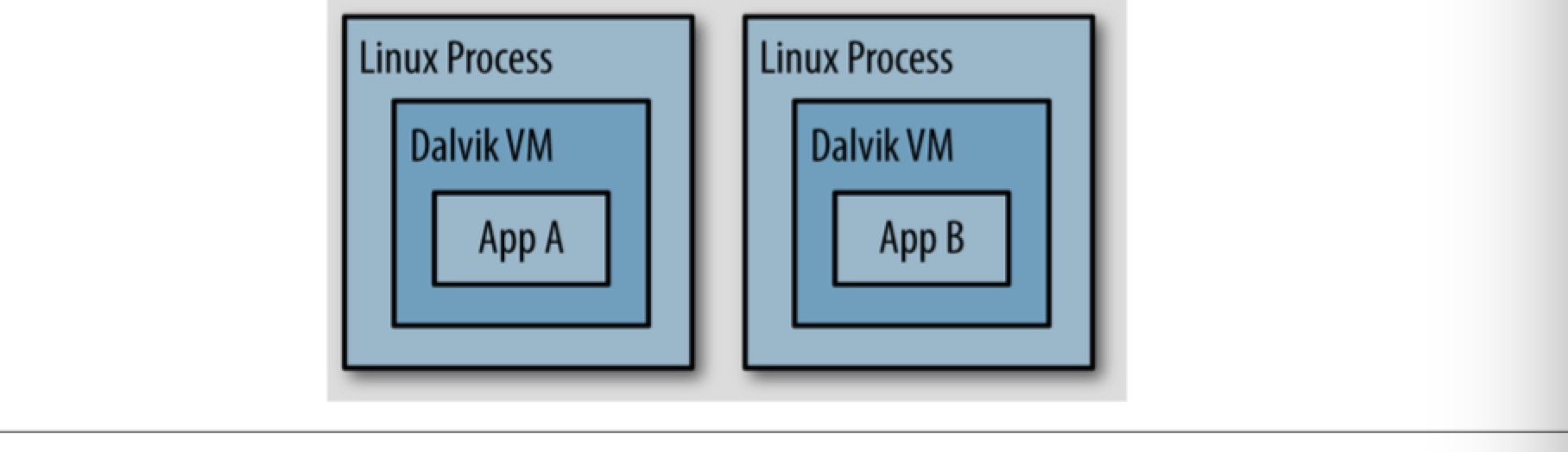
Android 應用的執行環境建立於 Linux 之上,應用啟動後會形成進程與多個線程。理解 UI Thread、Binder Thread 與 Background T
 Layout_weight 面試常見問題解析
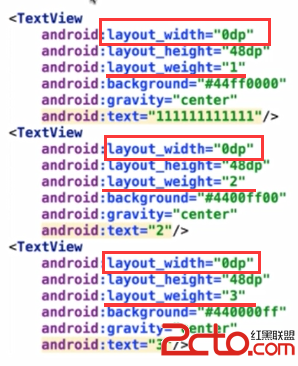
layout_weight 是 Android 版面設計中很常見的屬性,尤其在 LinearLayout 中用來分配剩餘空間。面試時常會考驗候選人是否理解它的計算方式,以
 關於 Android Button 響應頁面跳轉的常見問題解析
在 Android 應用中,Button 的點擊事件通常有兩種寫法,本文將說明這兩種方式,並釐清初學者最常遇到的頁面跳轉錯誤。 一、兩種常見的監聽寫法 第一種是使用具名的