

編輯:關於 Android 程式設計
android:gravity 是控制元件內容對齊方式的重要屬性。本文整理了官方文件中的相關常量,並搭配兩個可直接套用的 XML 佈局示例,幫助你直觀理解每個取值的實際效果。
以下是 Gravity 類別中幾個常見常量的含義(皆為 API Level 1 起提供,部分裁剪標記為 API 3 或 14):
此外還有 AXIS_CLIP、AXIS_PULL_BEFORE、AXIS_PULL_AFTER、RELATIVE_LAYOUT_DIRECTION 等底層控制位,供進階排版使用。
下面的佈局把 top、bottom、left、right、center_vertical、fill_vertical、center_horizontal、fill_horizontal、center、fill、clip_vertical、clip_horizontal 等常見取值逐一放進固定高度的 TextView 中,方便對照差異:
<?xml version="1.0" encoding="utf-8"?>
<LinearLayout xmlns:android="https://schemas.android.com/apk/res/android"
    android:layout_width="fill_parent"
    android:layout_height="fill_parent"
    android:orientation="vertical">

    <TextView android:id="@+id/TextView01"
        android:layout_width="fill_parent"
        android:layout_height="35dp"
        android:text="top"
        android:gravity="top"
        android:textColor="#ffffff"
        android:background="#ff0000"
        android:layout_margin="1px"/>

    <TextView android:id="@+id/TextView02"
        android:layout_width="fill_parent"
        android:layout_height="35dp"
        android:text="bottom"
        android:gravity="bottom"
        android:textColor="#ffffff"
        android:background="#ff0000"
        android:layout_margin="1px"/>

    <TextView android:id="@+id/TextView03"
        android:layout_width="fill_parent"
        android:layout_height="35dp"
        android:text="left"
        android:gravity="left"
        android:textColor="#ffffff"
        android:background="#ff0000"
        android:layout_margin="1px"/>

    <TextView android:id="@+id/TextView04"
        android:layout_width="fill_parent"
        android:layout_height="35dp"
        android:text="right"
        android:gravity="right"
        android:textColor="#ffffff"
        android:background="#ff0000"
        android:layout_margin="1px"/>

    <TextView android:id="@+id/TextView05"
        android:layout_width="fill_parent"
        android:layout_height="35dp"
        android:text="center_vertical"
        android:gravity="center_vertical"
        android:textColor="#ffffff"
        android:background="#ff0000"
        android:layout_margin="1px"/>

    <TextView android:id="@+id/TextView06"
        android:layout_width="fill_parent"
        android:layout_height="35dp"
        android:text="fill_vertical"
        android:gravity="fill_vertical"
        android:textColor="#ffffff"
        android:background="#ff0000"
        android:layout_margin="1px"/>

    <TextView android:id="@+id/TextView07"
        android:layout_width="fill_parent"
        android:layout_height="35dp"
        android:text="center_horizontal"
        android:gravity="center_horizontal"
        android:textColor="#ffffff"
        android:background="#ff0000"
        android:layout_margin="1px"/>

    <TextView android:id="@+id/TextView08"
        android:layout_width="fill_parent"
        android:layout_height="35dp"
        android:text="fill_horizontal"
        android:gravity="fill_horizontal"
        android:textColor="#ffffff"
        android:background="#ff0000"
        android:layout_margin="1px"/>

    <TextView android:id="@+id/TextView09"
        android:layout_width="fill_parent"
        android:layout_height="35dp"
        android:text="center"
        android:gravity="center"
        android:textColor="#ffffff"
        android:background="#ff0000"
        android:layout_margin="1px"/>

    <TextView android:id="@+id/TextView10"
        android:layout_width="fill_parent"
        android:layout_height="35dp"
        android:text="fill"
        android:gravity="fill"
        android:textColor="#ffffff"
        android:background="#ff0000"
        android:layout_margin="1px"/>

    <TextView android:id="@+id/TextView11"
        android:layout_width="fill_parent"
        android:layout_height="35dp"
        android:text="clip_vertical"
        android:gravity="clip_vertical"
        android:textColor="#ffffff"
        android:background="#ff0000"
        android:layout_margin="1px"/>

    <TextView android:id="@+id/TextView12"
        android:layout_width="fill_parent"
        android:layout_height="35dp"
        android:text="clip_horizontal"
        android:gravity="clip_horizontal"
        android:textColor="#ffffff"
        android:background="#ff0000"
        android:layout_margin="1px"/>
</LinearLayout>
把每個 TextView 的高度改為 50dp、邊距改為 2px、背景改為綠色,可以更明顯看出 top、bottom、center、fill 等取值在較高容器中的對齊差異。其結構與圖 1 完全相同,只是把 android:layout_height="50dp"、android:layout_margin="2px"、android:background="#00ff00" 套用至每個 TextView 即可。
本文作者:AMinfo。實際開發時,gravity 常用來控制文字在按鈕、 TextView 內部的對齊;搭配不同取值與容器尺寸,就能呈現多樣的排版效果。
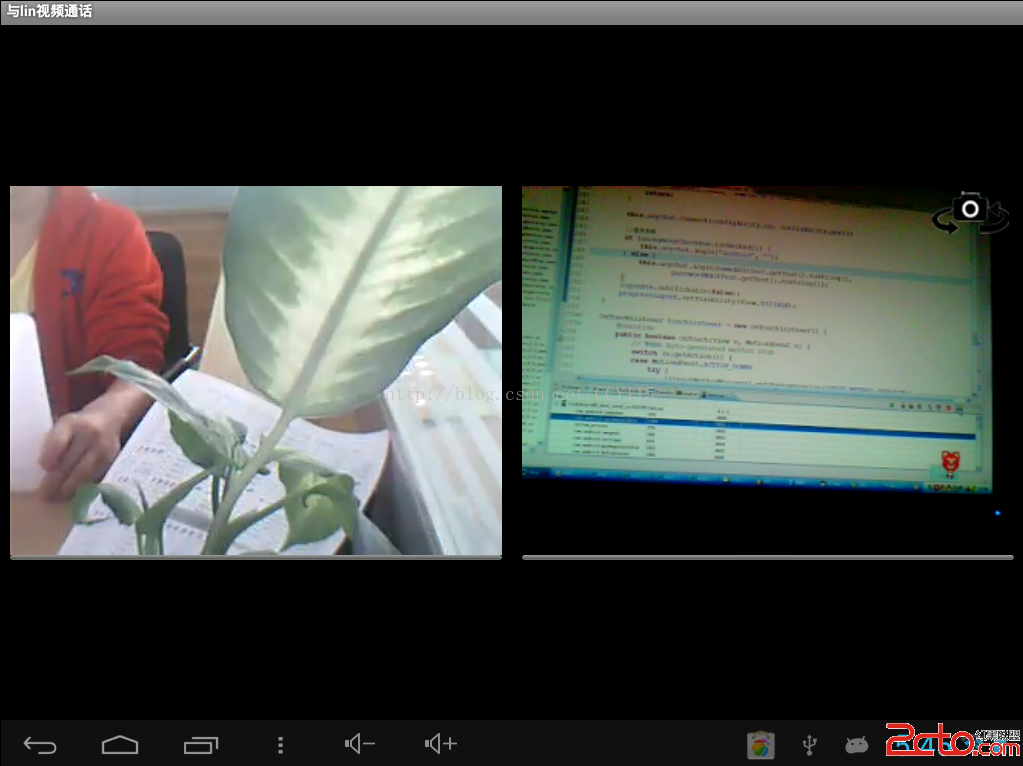 Android 平台透過 JNI 快速實現音視頻通信
音視頻通信是門檻極高的領域。它牽涉到底層採集、編解碼、FFmpeg 這類媒體處理方案、以及各種媒體流傳輸協議,任何一塊都能耗掉一個團隊數月時間。對獨立開發者,或者只是想縮
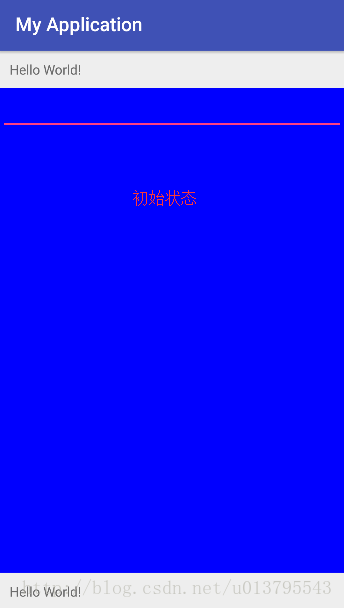 Android 監聽軟鍵盤彈出與隱藏的兩種實現方案
情境描述:版面檔中有一個 ScrollView,內含一個 EditView,版面底部還有一個控制項。程式一啟動時 EditView 就獲取焦點、彈出軟鍵盤,把底部的控制項
 用 Gallery 與 ImageSwitcher 打造可左右無限循環的圖片瀏覽器
Gallery 天生就是拿來做橫向圖片列表的,但它有個惱人的限制:滑到頭就停了,沒辦法無限循環。要突破這個限制,關鍵在於自訂 Adapter——只要讓 getCount
 Android 全景影片播放器——用 OpenGL ES 2.0 畫一個三角形
Github 專案地址,歡迎 star~! 初始化 OpenGL ES 環境 OpenGL ES 的使用一般包括如下幾個步驟: 1. EGL Context 初始化 2.