

編輯:關於 Android 程式設計
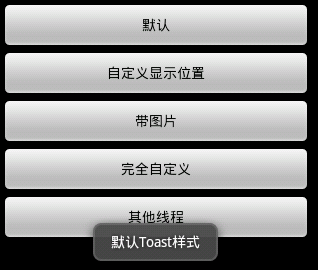
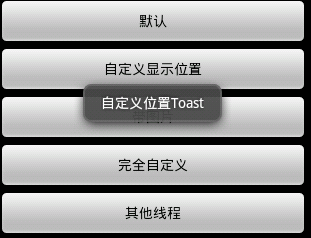
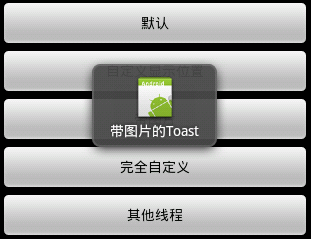
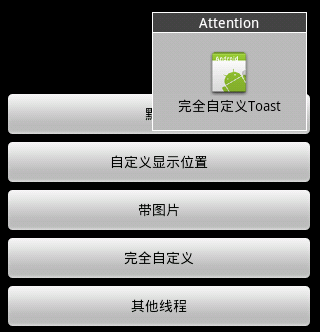
Toast 大家都不陌生,這裡不囉嗦,直接上圖上程式碼,把常見的五種用法一次收齊。
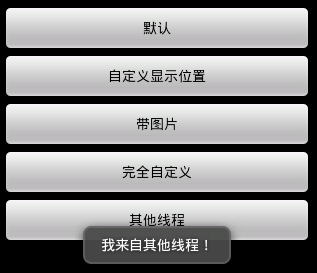
main.xml:
<LinearLayout xmlns:android="https://schemas.android.com/apk/res/android"
    android:layout_width="fill_parent"
    android:layout_height="fill_parent"
    android:gravity="center"
    android:orientation="vertical"
    android:padding="5dip">

    <Button android:id="@+id/btnSimpleToast"
        android:layout_width="fill_parent"
        android:layout_height="wrap_content"
        android:text="預設" />

    <Button android:id="@+id/btnSimpleToastWithCustomPosition"
        android:layout_width="fill_parent"
        android:layout_height="wrap_content"
        android:text="自訂顯示位置" />

    <Button android:id="@+id/btnSimpleToastWithImage"
        android:layout_width="fill_parent"
        android:layout_height="wrap_content"
        android:text="帶圖片" />

    <Button android:id="@+id/btnCustomToast"
        android:layout_width="fill_parent"
        android:layout_height="wrap_content"
        android:text="完全自訂" />

    <Button android:id="@+id/btnRunToastFromOtherThread"
        android:layout_width="fill_parent"
        android:layout_height="wrap_content"
        android:text="其他執行緒" />

</LinearLayout><LinearLayout xmlns:android="https://schemas.android.com/apk/res/android"
android:id="@+id/llToast"
android:layout_width="wrap_content"
android:layout_height="wrap_content"
android:background="#ffffffff"
android:orientation="vertical">
<TextView
android:id="@+id/tvTitleToast"
android:layout_width="fill_parent"
android:layout_height="wrap_content"
android:layout_margin="1dip"
android:background="#bb000000"
android:gravity="center"
android:text="Attention"
android:textColor="#ffffffff" />
<LinearLayout
android:id="@+id/llToastContent"
android:layout_width="wrap_content"
android:layout_height="wrap_content"
android:layout_marginBottom="1dip"
android:layout_marginLeft="1dip"
android:layout_marginRight="1dip"
android:background="#44000000"
android:orientation="vertical"
android:padding="15dip">
<ImageView
android:id="@+id/tvImageToast"
android:layout_width="wrap_content"
android:layout_height="wrap_content"
android:layout_gravity="center" />
<TextView
android:id="@+id/tvTextToast"
android:layout_width="wrap_content"
android:layout_height="wrap_content"
android:gravity="center"
android:paddingLeft="10dip"
android:paddingRight="10dip"
android:textColor="#ff000000" />
</LinearLayout>
</LinearLayout>public class MainActivity extends Activity implements OnClickListener {
Handler handler = new Handler();
@Override
public void onCreate(Bundle savedInstanceState) {
super.onCreate(savedInstanceState);
setContentView(R.layout.main);
findViewById(R.id.btnSimpleToast).setOnClickListener(this);
findViewById(R.id.btnSimpleToastWithCustomPosition).setOnClickListener(this);
findViewById(R.id.btnSimpleToastWithImage).setOnClickListener(this);
findViewById(R.id.btnCustomToast).setOnClickListener(this);
findViewById(R.id.btnRunToastFromOtherThread).setOnClickListener(this);
}
@Override
public void onClick(View v) {
Toast toast;
switch (v.getId()) {
// 1. 最簡單的用法
case R.id.btnSimpleToast:
Toast.makeText(getApplicationContext(), "預設 Toast 樣式", Toast.LENGTH_SHORT).show();
break;
// 2. 自訂顯示位置
case R.id.btnSimpleToastWithCustomPosition:
toast = Toast.makeText(getApplicationContext(), "自訂位置 Toast", Toast.LENGTH_LONG);
toast.setGravity(Gravity.CENTER, 0, 0);
toast.show();
break;
// 3. 在既有 Toast 上追加圖片
case R.id.btnSimpleToastWithImage:
toast = Toast.makeText(getApplicationContext(), "帶圖片的 Toast", Toast.LENGTH_LONG);
toast.setGravity(Gravity.CENTER, 0, 0);
LinearLayout toastView = (LinearLayout) toast.getView();
ImageView imageCodeProject = new ImageView(getApplicationContext());
imageCodeProject.setImageResource(R.drawable.ic_launcher);
toastView.addView(imageCodeProject, 0);
toast.show();
break;
// 4. 完全自訂版面
case R.id.btnCustomToast:
LayoutInflater inflater = getLayoutInflater();
View layout = inflater.inflate(R.layout.custom,
(ViewGroup) findViewById(R.id.llToast));
ImageView image = (ImageView) layout.findViewById(R.id.tvImageToast);
image.setImageResource(R.drawable.ic_launcher);
TextView title = (TextView) layout.findViewById(R.id.tvTitleToast);
title.setText("Attention");
TextView text = (TextView) layout.findViewById(R.id.tvTextToast);
text.setText("完全自訂 Toast");
toast = new Toast(getApplicationContext());
toast.setGravity(Gravity.RIGHT | Gravity.TOP, 12, 40);
toast.setDuration(Toast.LENGTH_LONG);
toast.setView(layout);
toast.show();
break;
// 5. 從其他執行緒彈出
case R.id.btnRunToastFromOtherThread:
new Thread(new Runnable() {
public void run() {
showToast();
}
}).start();
break;
}
}
private void showToast() {
handler.post(new Runnable() {
@Override
public void run() {
Toast.makeText(getApplicationContext(), "我來自其他執行緒!", Toast.LENGTH_SHORT).show();
}
});
}
}setGravity 只在系統預設版面與自訂版面上都有效,offset 的正負方向在不同 API 上略有差異,實機確認最保險。getView() 取得它的 LinearLayout 再 addView;但這種做法依賴系統內部實作,相容性不如直接自訂版面。執行專案即可看到五種效果。
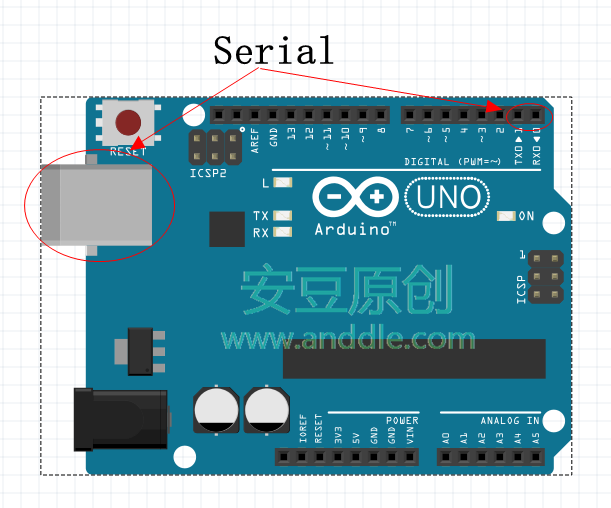 Arduino 藍牙小車(二):手機與 Arduino 的藍牙通信
在上一節中,我們開始接觸 Arduino 與 Android 的藍牙通信。本節將繼續深入,重點說明如何讓手機與 Arduino 之間完成穩定的數據收發,並分析官方 Blu
 Android 自定義 TiltView:實現傾斜圖片效果
在一些設計風格中,圖片並不是簡單的矩形,而是帶有傾斜切角的效果。這種效果可以通過自定義 View,在繪製圖片時擦除相應角落來實現。 實現思路 核心思路是: 加載原始圖
 Android 下拉刷新完整解析:自製 RefreshableView,三步接入專案
ListView 的下拉刷新幾乎是每個列表頁的標配。網路上現成的實作不少,但實際用起來常有各種狀況:有的功能不全、有的有 Bug、有的接入方式太複雜。與其逐一試錯,不如自
 從零開始動手做:Android 計算器完整實作(附源碼)
動手做一個計算器,是熟悉 Android 版面配置與事件處理的絕佳練習。本文從版面配置一路寫到點擊邏輯,帶你完成一個能加減乘除的計算器。 版面配置 用多層 Lin